3.12 Time Calculations
Measure elapsed time from two values
A delivery team preparing a shift handover sees an order accepted at 23:52 and completed at 00:10. Someone subtracts the two clock values and gets an unexpected result. Another person calls it an 18-minute job and shows their count. Both started from the same text. The difference is whether the data explains when midnight passed and how the duration should be displayed.
Use a fictional delivery desk inspired by Blinkit and Amazon Now. All times, outcomes and rates in this lesson are invented. You will build three time-only order rows, check a short duration that crosses midnight, then use full timestamps to measure a service window longer than one day. You will also compare elapsed hours with clock display and decimal hours.
- Read the data shape. Tell a time-of-day value apart from a full date and time and an elapsed duration.
- Compare values in the same unit. Subtract Excel times, then convert to minutes, seconds or decimal hours before applying a numeric threshold.
- Use a stated night rule. Treat time-only records as spanning at most one midnight only where you know the interval is shorter than 24 hours.
- Verify the result. Use a hand calculation and a suitable number format to check totals that display more than a day's hours.
Understand how a time is stored
A one-day interval corresponds to 1 in Excel's date-time arithmetic. Noon as a clock value is half a day, or 0.5. Six in the morning is one quarter of a day, or 0.25. Excel can display those values as 12:00 and 06:00 when their cells use a time format. A time-of-day value gives a position within a day. A duration measures the space between two instants. A numeric interval of 0.25 can therefore mean six elapsed hours in a field that is specifically labelled as a duration.
Distinguish clock, timestamp and duration
- Clock time.
=TIME(18,5,0)represents 18:05 within a day. It carries no calendar date to tell the reader which evening. - Full timestamp.
=DATE(2026,11,2)+TIME(18,5,0)combines a date with a time fraction. It identifies when the order began in the source's agreed timezone. - Elapsed duration. Subtract the start from the end. For 18:05 to 18:14 on the same day, the difference represents nine minutes. The result can be formatted as elapsed minutes or converted to a number of minutes.
A worksheet can show two timestamps as 18:05 while their dates are several days apart. A time-only format hides the date portion. Inspect both inputs with a date-and-time display before troubleshooting a result that seems too large. Hide the date only when the report asks for a clock value and the date remains available in a separate field or in the timestamp.
Build a valid clock value from known parts
TIME(hour,minute,second) takes three numeric parts and produces a day fraction. Use 24-hour numbers for afternoon values. =TIME(19,42,0) is 19:42, or 7:42 p.m. in a display using the 12-hour clock. The entry's meaning stays the same if the display changes. A time-like string imported from another system can still be text, so use a test row to check the input type before copying calculations.
TIME can normalise values that exceed the ordinary clock ranges. For example, =TIME(27,0,0) produces 03:00. For an interval of twenty-seven hours, use =27/24 and format it as an elapsed duration. A clock constructor and a duration calculation answer different questions.
Check noon and midnight when a source uses AM and PM
In a 12-hour clock, 12:00 AM is midnight and 12:00 PM is noon. The unambiguous 24-hour clock writes them as 00:00 and 12:00. If a pasted report contains only the number 12 and no AM or PM marker, you need its original convention. Try two known events either side of noon before converting a whole column. A consistent time format helps readers see the interpretation you chose.
For each captured value, decide whether midnight belongs to the date in the same row or the next date. The ordinary timestamp =DATE(2026,11,8)+TIME(0,0,0) is the beginning of 8 November. To represent the following midnight, put day 9 in the date part. If another system exports an end-of-day label such as 24:00, first confirm that the source intends the start of its next date. Carry that date change into the combined timestamp during import.
What does 0.5 mean in a workbook time calculation?
Half a day. In a time-of-day field it represents noon. In a duration field it means twelve elapsed hours. Read the role of the field alongside how the value is formatted.
Subtract times and convert the result to the reporting unit
For a same-day time-only pair, =C2-B2 gives the end value minus the start value. For full timestamps in the same agreed convention, the same formula includes the calendar-day difference. When you get 0.00625 days for 18:05 to 18:14, the value is a valid fraction. Multiplying by 1,440 minutes per day gives 9 minutes. Use a regular Number or General format for that numeric answer.
Use the multiplier that matches the question
| Question | Calculation | Result |
|---|---|---|
| What elapsed duration can I display? | =TIME(23,45,0)-TIME(17,30,0), formatted as elapsed hours | 6:15 |
| How many decimal hours? | Duration in days × 24 | 6.25 |
| How many total minutes? | Duration in days × 1440 | 375 |
| How many total seconds? | Duration in days × 86400 | 22500 |
Six hours and fifteen minutes is 6.25 decimal hours because fifteen minutes is a quarter of an hour. If a practice exercise multiplies by an invented rate of 90 rupees per hour, the result is 562.50 rupees. Multiplying the day fraction directly by 90 would apply the rate to a number measured in days. Convert first and label the amount's basis so a reviewer can reproduce it.
Read parts of a clock separately from total duration
=HOUR(TIME(19,42,0)) gives 19, the hour component. =MINUTE(TIME(19,42,0)) gives 42, the minute component. MINUTE applied to a six-hour-and-fifteen-minute value gives the minute part 15 within its current hour. That operation does not give the total 375 minutes. Use elapsed days times 1,440 to measure the whole interval in minutes.
For a dashboard that groups received orders by clock hour, HOUR is useful. Group 19:10 and 19:42 under hour 19. To check whether that was one specific evening or a pattern across many days, include a date or period filter. Clock-hour grouping deliberately combines timestamps that share an hour number even when their calendar dates differ.
A teammate reads 6:15 as 6.15 hours. How would you check it?
Convert six hours and fifteen minutes to decimal hours by dividing the fifteen minutes by 60. This gives 6.25 hours. If your cell stores an Excel duration, multiply that day fraction by 24 and use a regular numeric display.
Account for midnight when you only have clock times
For 23:52 to 00:10, the end-of-day clock number is smaller than the start number even if the delivery really finished later. If you know the duration is shorter than 24 hours, and the earlier-looking end time means the next day, =MOD(C2-B2,1) gives the positive within-day interval. MOD returns the remainder relative to one day. It folds a negative clock difference into the interval from zero up to one day.
Check the assumption before using MOD
Two clock values on their own cannot prove an overnight crossing. 18:00 to 17:55 could mean a 23-hour-55-minute interval, or it could be a reversed record for the same day. Equal times could mean zero or a complete day or longer. You need the source dates or a reliable operational rule. A MOD formula applied to every row can turn a data-entry mistake into a long plausible-looking number.
For the controlled lab below, each order is known to take less than one day, and the only crossing starts late in the evening and ends shortly after midnight. In a real report store dates with both clocks whenever possible. For multi-day service windows, subtract the full timestamp values. Taking the remainder discards whole days and can hide a material delay.
Use an explicit indicator when the source provides one
Some exports provide the dispatch date and mark whether a completion was on the next date. If the source guarantees exactly that convention, add one day to the end clock only for rows with the next-day flag. Compare the resulting duration with a known trace. When the flag says same day and the end is earlier, let the row fail a check. A separate status such as Check date order helps the team fix the source rather than silently accepting the longest plausible interpretation.
The start and finish both say 08:00. Can the worksheet prove an interval of zero?
Only with additional evidence such as matching dates and a documented interpretation. Clock values alone can describe the same instant, a 24-hour interval or several days. Keep full dates when exact duration matters.
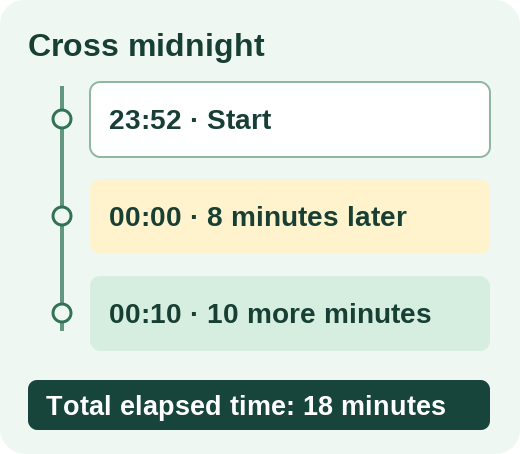
Trace the 18-minute order at midnight
Read the given clock inputs
The exercise records the start as 23:52 and the finish as 00:10. The source states that the finish is just after midnight and the interval is shorter than one day.
Measure both sides of midnight
Count eight minutes from 23:52 to midnight. Then count ten minutes from midnight to 00:10. The sum is 18 minutes, which provides an independent expected value.
Choose the formula for that data shape
The available inputs are clock times only.
=MOD(C3-B3,1)gives the elapsed fraction while respecting the known under-one-day rule. If the inputs include complete timestamps, use direct subtraction instead.Convert before comparing
Multiply the elapsed-day value by 1,440. The result is 18 minutes. A numeric threshold of 12 uses the same minute unit, so this synthetic order is late under that rule.
Display elapsed totals longer than 24 hours
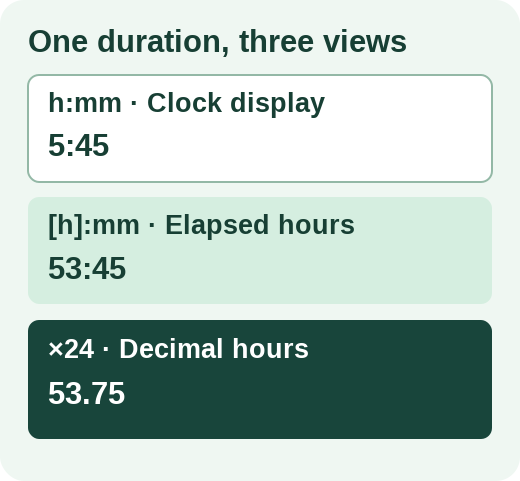
Adding two or more durations can exceed a day even when every individual interval is short. A regular time-of-day display can wrap after 24 hours. If the actual total is 53 hours and 45 minutes, a clock-style format can show 5:45. Apply an elapsed-hours format such as [h]:mm in a supported Excel edition to show 53:45. Brackets around h tell the display to retain accumulated hours.
Check the number underneath the format
Calculate the total in one cell with SUM, then in another cell multiply the total by 24 and display the result as a regular number. You can use both checks in Excel versions with limited custom number-format editing. A value of 53.75 decimal hours means 53 hours plus three quarters of an hour. That agrees with 53:45. A displayed 5:45 and a numeric 53.75 can therefore come from the same correct arithmetic.
If a result shows hash marks, inspect the column width and the value first. A column that is too narrow can show hashes. Some date or time formats also show hashes for negative values in common configurations. Expanding the column can address a layout issue. A genuine negative duration between ordered full timestamps requires checking the inputs. Making the number positive with ABS would hide which timestamp came first.
Why can a correctly summed worksheet display 5:45 when you expected 53:45?
A clock display can wrap every 24 hours. Verify the sum, then use an elapsed-hours format or convert the same interval to decimal hours. If the decimal result is 53.75, the stored total agrees with 53:45.
Lab 1 · Compare three short delivery intervals
Goal. Calculate three known short durations and test a rule stated in minutes. Add a sheet named Time Only in an editable practice workbook. In this lab, the three orders took less than a day and the lower-looking end clock for BLK-1007 is known to mean next morning. Use the input times in the table and enter them with TIME to avoid parsing differences.
- Set the fields. In A1:F1 put Order ID, Start Clock, End Clock, Elapsed, Minutes and Status. In A2:A4 enter BLK-1001, BLK-1007 and BLK-1010. Use the clock times in the table for columns B and C. For example, for the first row enter
=TIME(18,5,0)in B2 and=TIME(18,14,0)in C2. - Compute the elapsed value. Enter
=MOD(C2-B2,1)in D2 and fill through D4. Display D2:D4 as elapsed hours and minutes where supported. In D3 the duration should be 0:18. Explain why using MOD is justified for this particular data. - Convert to numeric minutes. In E2 enter
=ROUND(D2*1440,0)and copy down. Our inputs are recorded to a whole minute with zero seconds. This rounding removes small floating-point differences from the exact intended whole-minute amounts. Use a regular numeric format for these results. - Classify with the same units. In F2 enter
=IF(E2>12,"Late","On time")and fill down. The label follows our practice rule that 12 minutes is allowed and any larger whole-minute value is late. Check that two of the three orders are late under the exercise definition. - Change only the overnight finish. In the scratch sheet change C3 to
=TIME(0,4,0). BLK-1007 becomes 12 minutes and is on time. Restore C3 to 00:10 and verify the original label. Document the boundary check beside your result.
| Order ID | Start | Finish | Minutes | Status |
|---|---|---|---|---|
| BLK-1001 | 18:05 | 18:14 | 9 | On time |
| BLK-1007 | 23:52 | 00:10 next date | 18 | Late |
| BLK-1010 | 11:37 | 11:54 | 17 | Late |
Expected evidence. E2:E4 contains 9, 18 and 17. Their sum is 44 minutes across three separate intervals. If one number looks like a time-of-day, check the number format. If BLK-1007 is unusually large, verify the first and last clock values and the assumed new date. Store the known overnight fact in your note so another learner can understand why you used MOD there.
Lab 2 · Use full timestamps and verify a total over one day
Goal. Compute three full service windows with actual dates, including one longer than 24 hours. Add a sheet named Full Times. This example uses service windows rather than claiming continuous work by any single person. All timestamps are in one assumed timezone with no clock change during the example.
- Enter date and time together. Put Window, Started, Ended, Duration and Decimal Hours in A1:E1. Use the input dates in the table below. For row 2 enter
=DATE(2026,11,6)+TIME(18,30,0)in B2 and=DATE(2026,11,7)+TIME(8,15,0)in C2. Build rows 3 and 4 from the same pattern, verifying every date after entry. - Subtract full timestamps. In D2 enter
=C2-B2and copy to D3 and D4. Format D2:D4 as elapsed hours and minutes, such as[h]:mm. The whole-day portions are preserved in the difference. D4 should display 27:30. - Convert to decimal hours. In E2 type
=D2*24and fill down. Use a numeric format. Expect 13.75, 12.5 and 27.5. Verify the 45 minutes in 13:45 represents 0.75 hours rather than 0.45 hours. - Check the total in two forms. Enter
=SUM(D2:D4)in D5 and apply the elapsed format. It should show 53:45. In E5 put=D5*24and expect 53.75. Independently add the three values in E2:E4 to check the same result. - Make one display-only change. Change D5 from the elapsed format to a clock-style
h:mm. A clock display can show 5:45 after wrapping. E5 still shows 53.75. Restore the elapsed format and note which part changed.
| Window | Start | End | Elapsed | Decimal hours |
|---|---|---|---|---|
| A | 06 Nov 18:30 | 07 Nov 08:15 | 13:45 | 13.75 |
| B | 08 Nov 06:10 | 08 Nov 18:40 | 12:30 | 12.5 |
| C | 09 Nov 21:00 | 11 Nov 00:30 | 27:30 | 27.5 |
Verify and recover. If D4 shows 3:30 but E4 is 27.5, fix the elapsed-hours display. If both show only three and a half hours, inspect whether the whole day was removed by MOD or a missing source date. Check one input component at a time. Save a restored copy if you want another person to review the lab, or close the scratch workbook when done.
Use the source precision when judging a threshold
The first lab deliberately records every time with zero seconds, so the elapsed minutes represent whole minutes. Real app events often have second or sub-second precision. A record at 12 minutes 29 seconds might display as 12 when rounded to the nearest minute. Under a policy that requires at most 12 minutes exactly, that record is late. Decide whether the comparison uses raw seconds, displayed rounded minutes or a rule defined by the source.
Convert to whole seconds if the measurements use whole seconds
Say a practice request starts at 18:05:00 and ends at 18:17:01. With complete timestamps on the same date, the duration is 12 minutes and one second. If those values were recorded to the second, =ROUND(D2*86400,0) gives 721 seconds. Compare that with 720 for the threshold. A check of 721>720 is TRUE. Using a whole-minute display for a chart is fine if the status formula still tests the required precision.
| Elapsed display | Numeric seconds | Expected result |
|---|---|---|
| 11:59 | 719 | On time |
| 12:00 | 720 | On time |
| 12:01 | 721 | Late |
Excel stores fractions in a finite numeric representation. Converting a date difference to seconds can give a value very slightly off the expected integer. Rounding to the known resolution is useful for readings entered at that resolution. If the source genuinely has finer measurements, avoid discarding that information. Choose a tested conversion and comparison aligned with the actual resolution and the service rule.
Distinguish number formatting from explicit rounding
Changing a number format can make 12.0167 display as 12.02 without changing the value used by another formula. Using ROUND in the formula changes the calculation result to the chosen precision. Example measures can show two decimals for human reading and still compare unrounded seconds under the documented threshold. Check both the displayed cell and the status formula before treating a display as proof.
Two durations display 12 minutes. Can one be late?
Yes, if one is just over the actual limit but the display rounds both to the same number. Inspect the source precision and the comparison rule. In a second-resolution policy 721 seconds exceeds a 720-second limit.
Clean timestamp inputs before using them in a report
Check your data before applying subtraction to an entire column. A number presented as 18:05 can be a valid time serial or text copied from a message. If your worksheet expects numbers, test the type on known rows and compare an actual date-and-time display with the raw source. Retain a clean original copy while fixing data types and locale. A time field should carry a clearly documented convention for how it is interpreted.
Keep incomplete rows visible in the right category
When a shipment has no completion value, do not subtract the start from an empty end cell and use the result as a measured duration. Decide whether the item is still open, missing data or outside the analysis window. Leave its duration blank or use a status field under a declared rule. This preserves an accurate average across completed observations. An incomplete event and a measured zero are operationally different.
Likewise flag a completion timestamp earlier than the start timestamp. Check both recorded dates, the input timezone, and whether the expected order of events was captured. Reversing the two fields or taking the absolute value can turn invalid records into numbers that appear ready to report. Keep examples of missing, valid zero, positive completed and invalid negative intervals in your scratch test cases.
Compare values on the same time basis
Excel's ordinary date-time number does not, by itself, identify a timezone or the original offset from UTC. When start and end values come from different systems, confirm the source definitions and normalise them to a common basis before subtraction. Around a local clock change two displayed times can suggest a different interval from the elapsed physical time. Keep the raw fields so the transformed values can be audited.
For a common-convention exercise like this one, the same date-time basis makes the subtraction straightforward. In a production report ask for an explicit timestamp or offset from the source rather than adding a guessed difference. A report grouped by business days can also need a separate local reporting date field after the elapsed duration is computed on a consistent basis.
Choose a useful summary for the team
In Lab 1 the three completed orders take 9, 18 and 17 minutes. Their total is 44 minutes of measured intervals and their arithmetic mean is about 14.67 minutes. The sum adds durations across different orders. If two orders overlap, it does not tell how long the office was open or how many active minutes a particular worker spent in total. Name which measure you want before sharing it.
Separate summed intervals from elapsed wall-clock span
Imagine one alert is active from 10:00 to 10:20 and another from 10:10 to 10:30. The sum of their durations reads 40 minutes across alerts. The continuous time during which at least one alert is active is 30 minutes, because ten minutes overlap. These are different valid metrics. A report of total alert handling could use the sum, while a report of service impact may need the non-overlapping interval union. Begin with the intended question and keep separate fields for different measures.
Report which durations qualify for a summary
A faster indicator can hide a missing slow order. Include the number of completed records and the source window whenever you publish a mean, median or share under target. The training data shows two orders over 12 minutes out of three completed orders. If the 18-minute order has no confirmed finish, the usable set changes. Calculate both the new set's denominator and its outcomes before comparing it with the earlier report.
When grouping by time-of-day, choose a boundary and test the adjacent minutes. A report might label 06:00 to 11:59 as Morning, 12:00 to 16:59 as Afternoon and 17:00 to 21:59 as Evening. HOUR with these ranges can tag the sample rows, and the next chapter concept helps write the branching IF. Treat 00:10 and 23:52 as night according to the rule, and keep the actual date when you need to trace a particular night.
Reconcile a shift's gross and net time
A fictional delivery office tracks how long warehouse shifts were scheduled and how much time should enter a training pay calculation after recorded breaks. This example assumes a fixed practice rate of ₹90 per hour. The source provides the full start and end timestamps and a break measured in whole minutes. The task is to check the arithmetic and flag an invalid break. Real working arrangements need their own confirmed definitions and rules.
Convert both parts to minutes before subtracting breaks
Use A1:H1 for Shift, Start, End, Break Minutes, Gross Minutes, Net Minutes, Net Hours and Practice Amount. For a shift from 17:30 to 23:45 on the same assigned date, subtracting the timestamps gives 375 minutes before a break. A 30-minute break leaves 345 minutes. Divide by 60 to get 5.75 hours, then multiply by the hypothetical rate to get ₹517.50.
For the first valid data row, use =ROUND((C2-B2)*1440,0) in E2 for gross minutes, =E2-D2 in F2 for net minutes, =F2/60 in G2 for net decimal hours and =G2*$J$2 in H2 for the practice amount, where J2 contains 90. Keep one unit per column so a reviewer can check every intermediate number. A formula that subtracts a break recorded as 30 from a duration stored as a day fraction would mix two incompatible units.
| Shift | Gross minutes | Break minutes | Expected result |
|---|---|---|---|
| 17:30 to 23:45, same date | 375 | 30 | 345 net minutes, 5.75 hours, ₹517.50 |
| 22:00 to next date 05:00 | 420 | 45 | 375 net minutes, 6.25 hours, ₹562.50 |
| 08:00 to 08:15, same date | 15 | 25 | Review the inputs before calculating an amount |
Check exceptional rows before applying a routine formula
For a row whose break minutes are larger than gross minutes, check the recorded break and the actual interval. A negative net would be a useful exception when you are testing, but it should not be reported as valid work time in this exercise. Set aside rows with missing start, missing end, an invalid order of events or a break outside the interval. Test each cause by making one deliberate change in a scratch copy.
Try two control changes. Increase the valid first row's break from 30 to 45 minutes. Gross remains at 375, net becomes 330 and the practice amount becomes ₹495. Then restore the break and change only the common rate to 100. Both valid amounts update while both time calculations stay the same. Restore the original rate after checking so the table remains reproducible.
Keep a small test set for a workbook that will receive new data
Today your report has one file with consistent numeric timestamps. Tomorrow it could receive a file with text times, a blank completion, a timestamp after midnight, or an end time with an incorrect date. Keep a separate test area that includes those cases. Compare the expected calculations and flags when you adjust the layout or copy formulas to new rows.
Check the formula with varied evidence
- Normal row. Use two full timestamps sixteen minutes apart on the same date. Verify a positive duration of sixteen minutes before applying any special overnight rule.
- Known zero. Use two complete and equal timestamps. Confirm zero in a numeric output while the row remains a completed observation.
- Missing measurement. Keep a completion value blank and confirm the reporting rule excludes its duration or labels the observation incomplete.
- Whole day present. Use two full timestamps at the same clock time on adjacent dates. Expect 24 elapsed hours. Check that a modulo operation or clock display did not make this look like zero.
- Bad order. Give a complete end timestamp before the start. Verify it generates the intended review status rather than a fabricated positive interval.
When the inputs arrive from a new source, record the date convention, timezone and finest recorded resolution. Explain whether each correction was a type conversion, a timezone normalisation or a confirmed change to a source value. A report that can be recreated from those decisions is easier to trust than a worksheet that just displays a clean looking number.
Apply the checks to three new readings
- Predict the finished result. A practice job starts at 22:50 and finishes at 00:15 the next date. Use a hand calculation before input. Check. There are 70 minutes to midnight and 15 after it, for 85 minutes.
- Catch lost whole days. Inspect window C in Lab 2. Compare its full timestamp difference with the remainder after one day. Check. Full duration is 27:30. MOD by one day gives 3:30, which underreports the interval by 24 hours.
- Compare overlap and sum. Add the two twenty-minute alerts described above. Check. Sum is 40 minutes and overlap is 10 minutes. The interval with at least one alert active spans 30 minutes.
Check your understanding
1. An Excel duration is a fraction of a day. How do you convert it to minutes?
- A. Multiply by 24
- B. Multiply by 1,440
- C. Apply a currency format
Answer B. One day contains 24 hours of 60 minutes each, so its numeric conversion factor is 1,440. Use a regular number format for the count of minutes.
2. A task starts at 23:52 and ends at 00:10 the next date. How long did it take?
- A. 18 minutes
- B. 22 minutes
- C. Exactly 24 hours
Answer A. Eight minutes pass before midnight and ten more after. With time-only inputs and this known short interval, MOD can model the crossing.
3. Which operation preserves every elapsed day when you have full timestamps?
- A. MINUTE of the end time
- B. MOD of the difference by one day
- C. Subtract the start timestamp from the end timestamp
Answer C. Both inputs contain the date and time portion, so direct subtraction gives the full duration. MOD with divisor one removes the whole-day part.
4. Why can a total over 24 hours appear truncated in a clock format?
- A. SUM dropped all completed rows
- B. Clock display can wrap through the day boundary
- C. The workbook necessarily stored text
Answer B. A numeric duration over one day can still be correct. Use an elapsed-hours format such as [h]:mm where supported or multiply by 24 for a decimal-hours check.
5. How many decimal hours are in six hours and fifteen minutes?
- A. 6.25
- B. 6.15
- C. 6.75
Answer A. Fifteen divided by sixty is one quarter of an hour. With an Excel duration, multiplying the day fraction by 24 gives that same hour measure.
6. A policy lets a shipment take up to exactly 720 seconds. Does a 721-second record qualify?
- A. Yes, its displayed minutes round to 12
- B. Yes, because both are in the same minute
- C. No, it took one second longer than the allowed duration
Answer C. Use the documented precision. A display rounded to minutes can conceal the exact difference. The seconds comparison gives the intended status.
Interview questions with worked answers
- How do you handle a time-only record that crosses midnight?
I confirm that the end is the next day and the interval is shorter than 24 hours. For the controlled case I use MOD of the clock difference with a divisor of one day, then convert to the desired unit. I prefer full timestamps when the actual dates are available, because they preserve longer intervals and make the midnight crossing explicit.
- Why might two total cells display 5:45 and 53:45 for the same duration?
One can use a clock display that wraps through 24-hour cycles and the other can show accumulated hours. I verify the underlying duration by multiplying by 24 and checking that it equals 53.75 decimal hours. Then I use the elapsed-hours display where readers need the full duration.
- What is the difference between MINUTE and total minutes?
MINUTE reads one component of a time, such as 15 from 06:15. The whole interval has 375 minutes. I multiply the duration in days by 1,440 to get that total. I use MINUTE only when the coordinate within the hour answers the question.
- How do you protect a delivery promise from rounding errors?
I define its threshold and choose a calculation at the source precision. For timestamps recorded to the second, I convert to known integer seconds and test 719, 720 and 721 against the rule. I can show rounded minutes to readers while keeping the status calculation tied to seconds.
- How do you reconcile a report that claims 40 minutes of service impact from two alerts?
I check whether it added the two durations or measured the time with at least one alert active. If two twenty-minute alerts overlap for ten minutes, their total durations add to 40 but the continuous covered time is 30. Both numbers can be meaningful with the correct label and evidence.
Quick recall cards
- Time is a day fraction
0.5 represents half a day. Use the context to read it as noon or a twelve-hour duration.
- Full timestamps
Use date plus time to preserve multi-day intervals. Subtract the earlier instant from the later one.
- Clock-only midnight
MOD can handle one known crossing under 24 hours. Verify the source rule and flag impossible inputs.
- Units
Multiply by 24 for hours, 1,440 for minutes or 86,400 for seconds. Label the unit.
- Elapsed display
[h]:mm can show more than one day's hours. Confirm with a numeric conversion where needed.
- Threshold
Compare using the measured precision and documented policy. A rounded display serves a different purpose.
Next you will use IF to turn conditions into labels and decisions. Keep the 12-minute example in mind. The condition is only reliable after you have checked the units, source values and exact comparison at the boundary.
Official Microsoft references
Continue practising: explore the existing Excel Task Hub for additional exercises.