12.19 Writing a Small Office Script: Colour the Late Orders
Isha wants three late deliveries to stand out in an order report. The recording tool can capture a color change, but it cannot choose a new set of late records every morning. Write a script that rechecks the named Table, updates its timing labels and returns the late count. Use those labels for the visual highlight.
Separate the rule from the color
Decide whether a time belongs to a completed delivery
Orbit Logistics is a fictional team working with a Blinkit-style training dataset. The numbers and report steps are practice only. The original ten rows include Delivered, Cancelled and Returned. An order counts as late in this exercise when it is Delivered, has a valid elapsed time, and took strictly more than fifteen minutes. This means the status and numeric check happen before the threshold. A cancelled order might still have a recorded duration, which belongs to a different stage of the work.
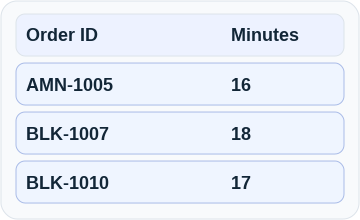
- Rule: Delivered and strictly over 15 numeric minutes gives Late. An eligible 15 gives On time. Missing or invalid numeric duration calls for Review minutes.
- Status: Cancelled, Returned and Pending receive Timing not applicable. An absent or unknown status has a different review label. These rows do not contribute to the count of verified late deliveries.
- Output: Store the row label in a reserved Timing column. Store the Late orders message in K1 outside the Table, and return the numeric count. A separate visual rule can apply color according to the current label.
- Rerun: Rewrite every timing label in the known body rather than just coloring rows that currently match. Then an old late row becomes visibly on time again after its duration is corrected. The highlighting can update without erasing unrelated manual fills from the source.
Use a Table name for membership
The named tblOrders object supplies a body range between its header and total areas. Reading its body gives rows in the same order shown by the Table. Looking up column names gives indices matching the current field positions within that body. If someone moves Mins to a different position inside the same Table, a script using the name can still find it. The optional worksheet formatting rule uses actual sheet coordinates instead, so verify it separately whenever the layout changes. A status tag and a visual rule have different dependencies.
Remember: Calculate the state from values and status. Let the visual rule follow the state, then prove that both the old and new late counts are current after a rerun.
Prepare the exact exercise table
Keep the raw order data and the output column distinct
Create LateScriptPractice.xlsx in your approved storage and a worksheet named Orders. Use the original nine fields from the course order list. Add a tenth heading called Timing at J1 with blank cells below it. Create an Excel Table covering A1:J11 and name it tblOrders. Keep K1 reserved for the count message. Put a control note in L1. The Timing column belongs to this script, so do not put another formula or note in its body.
| Order ID | Mins | Status | Expected Timing |
|---|---|---|---|
| BLK-1001 | 9 | Delivered | On time |
| BLK-1002 | 12 | Delivered | On time |
| AMN-1003 | 14 | Delivered | On time |
| BLK-1004 | 11 | Cancelled | Timing not applicable |
| AMN-1005 | 16 | Delivered | Late |
| BLK-1006 | 8 | Delivered | On time |
| BLK-1007 | 18 | Delivered | Late |
| AMN-1008 | 10 | Returned | Timing not applicable |
| BLK-1009 | 13 | Cancelled | Timing not applicable |
| BLK-1010 | 17 | Delivered | Late |
Read the expected totals before running: three Late, four On time and three Timing not applicable. They add to ten records without treating all ten as delivered. If you wrote the word Late into an amount cell directly, this would damage the source. Give the script one output column and a separate summary cell so the raw time, status and recorded amount remain available for checking.
Lab one. Label eligible records and report a small count
Use the worksheet that owns the approved Table
Open LateScriptPractice under the same eligible conditions used in the previous lessons. Create a script named Mark Training Late Orders. The new code looks for the Table by name, checks that its worksheet is Orders and validates the fields it will use. It can detect if the named Table moved into its own count cell's space. Keep the practice target outside the table and leave any shared workbook or unrelated report closed to editing.
function main(workbook: ExcelScript.Workbook): number {
  const table = workbook.getTable("tblOrders");
  if (!table) {
    throw new Error("Expected the practice table tblOrders.");
  }

  const sheet = table.getWorksheet();
  if (sheet.getName() !== "Orders") {
    throw new Error("tblOrders must belong to Orders.");
  }

  const keyCol = table.getColumnByName("Order ID");
  const timeCol = table.getColumnByName("Mins");
  const statusCol = table.getColumnByName("Status");
  const flagCol = table.getColumnByName("Timing");
  if (!keyCol || !timeCol || !statusCol || !flagCol) {
    throw new Error("Check the required practice table columns.");
  }

  const summary = sheet.getRange("K1");
  if (table.getRange().getIntersection(summary)) {
    throw new Error("Keep the practice summary cell outside tblOrders.");
  }
  const present = summary.getValue();
  if (present !== "" &&
      (typeof present !== "string" || !present.startsWith("Late orders: "))) {
    throw new Error("Reserve K1 for the late order count in this practice file.");
  }

  const rowCount = table.getRowCount();
  if (rowCount === 0) {
    summary.setValue("Late orders: 0");
    console.log("Late orders: 0; no order rows.");
    return 0;
  }

  const values = table.getRangeBetweenHeaderAndTotal().getValues();
  const keyIndex = keyCol.getIndex();
  const timeIndex = timeCol.getIndex();
  const statusIndex = statusCol.getIndex();
  const usedIds = new Set<string>();
  const labels: string[][] = [];
  let late = 0;
  let review = 0;

  for (let index = 0; index < values.length; index++) {
    const row = values[index];
    const rawKey = row[keyIndex];
    if (typeof rawKey !== "string") {
      throw new Error("Review the order ID at table row " + (index + 1));
    }
    const key = rawKey.trim().toUpperCase();
    if (!key || usedIds.has(key)) {
      throw new Error("Review the order ID at table row " + (index + 1));
    }
    usedIds.add(key);

    const rawStatus = row[statusIndex];
    const status = typeof rawStatus === "string" ? rawStatus.trim().toLowerCase() : "";
    const mins = row[timeIndex];
    let label: string;

    if (["cancelled", "returned", "pending"].includes(status)) {
      label = "Timing not applicable";
    } else if (status !== "delivered") {
      label = "Review status";
      review++;
    } else if (typeof mins !== "number" || !Number.isFinite(mins) || mins < 0) {
      label = "Review minutes";
      review++;
    } else if (mins > 15) {
      label = "Late";
      late++;
    } else {
      label = "On time";
    }
    labels.push([label]);
  }

  flagCol.getRangeBetweenHeaderAndTotal().setValues(labels);
  const message = "Late orders: " + late;
  summary.setValue(message);
  console.log(message + "; review rows: " + review);
  return late;
}
Read one workbook range, then work through its rows
- Resolve the column names first. getColumnByName can return undefined when an expected field is missing. This guard catches a renamed Mins or Timing heading before the values are used. The script can distinguish an absent field from a bad entry in a single row.
- Read a body with the header and total excluded. A body read keeps one application call for the source rectangle. Within the array, the first row and first column start at index zero. The table column index tells you which item to look up in each row.
- Test the actual input values. A type assertion written as
as numberdoes not convert text to a number or check it at runtime. The script instead checks typeof, finite value and nonnegative minutes before comparing. A blank or string displaying 18 therefore receives a review label in a Delivered row. - Keep each result in the same row order. Wrap the label in one array element so the result is a list of one-cell rows. The Timing body has that geometry. By assigning the full array, the script replaces earlier tags for records that are no longer late.
- Read the numeric return separately. K1 holds a string, the log includes a review count, and main returns a number. The values can serve different readers. A flow later using the number should know that invalid status or timing rows can have review labels. It should not assume that zero late means there were no review rows.
If the named Table has no body rows, the script updates the count to zero and avoids a body range call. If Excel retains an empty body row, it is an actual table position and will be checked as a candidate. With no ID, that position is rejected rather than counted. Define whether the source is a truly empty table or a template containing blank record slots. They may display similarly.
Lab two. Give the latest labels a visible color
Use one formatting rule linked to the Timing field
In the original practice layout Timing is in J. Select only A2:I11 in the Orders worksheet, then create a conditional formatting rule that accepts a formula. Use the expression below and choose a light yellow highlight with readable existing text. Confirm the rule's applies-to range and preview each of the three expected late rows. The rule belongs to the prepared exercise copy. You need to create it only once for that scope.
=$J2="Late"The dollar sign keeps the test in the J column across the selected cells of a row. The row number changes for the next record. When J6 contains Late, the rule applies to the selected cells of row six. If J6 later changes to On time, that rule no longer applies. The underlying manual fill can still exist, and other rules may affect its visible appearance. Use a fresh practice copy with a known small set of formats so you can identify this rule's effect.
- Run the script with the ten original rows. Read K1 as Late orders: 3, check the console's review count of zero and compare labels by ID. Expect AMN-1005, BLK-1007 and BLK-1010 to highlight. Confirm the other seven are not flagged as Late by this rule.
- Change the Mins value for BLK-1001 from nine to twenty in the practice workbook. Before rerunning, note that the old label belongs to a prior run. After rerunning it is Late and K1 becomes Late orders: 4. There should now be four rows highlighted by the rule.
- Restore that amount of time to nine explicitly and rerun the script. Its Timing label is On time again, the corresponding row loses the late highlight and K1 returns to three. Check that the other three late output IDs stay the same and L1 remains.
- Put exactly fifteen in a delivered row and rerun. It does not highlight. Then enter 15.01 and expect a Late label. Try a textual 18 in a delivered row in a separate pass. It belongs to Review minutes, which keeps the input issue visible while it does not raise the count of verified late rows.
- In a scratch copy give a cancelled record twenty minutes. It remains Timing not applicable. Remove any temporary test changes afterwards. The count describes the verified delivered subset and can differ from a check that merely counts numeric times greater than fifteen in all records.
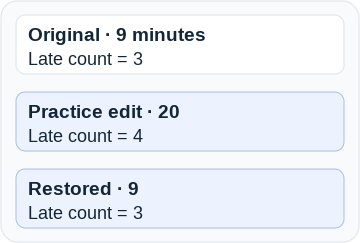
Trace a state change and an output confirmation
Keep the effective rule visible on rerun
Follow BLK-1001 through two source edits
Read the original
BLK-1001 is Delivered with 9 minutes. Its row says On time and three other rows are Late.
Change only the minutes
At 20 minutes the old saved label initially remains. The source value has changed but the script has not processed it yet.
Run with the new value
The code selects Late for the first record. K1 shows four and the conditional format uses the current tag.
Restore and reprocess
Return minutes to nine and run again. The latest tag is On time and the late count goes back to three.
The condition accepts a change in the source data, not an edit to a colored cell. You can choose a different output style and still use the same correct tags. Keep the text label accessible to someone who does not distinguish the chosen yellow fill. It also makes sorting and checking the input easier than relying on a displayed color by itself.
Compare the count against a separate worksheet formula
In the clean original fixture, use the independent comparison below somewhere outside the reserved table and summary, such as L4. It combines the known numeric minute and status columns. The expected result is three. This checks the numeric threshold on clean source data without counting the script's output. Another COUNTIF on the output Timing column confirms that the stored tags and the K1 summary agree. Do both checks. If the dataset contains a textual minute, test the script's stricter rules separately. The clean source formula is a verification for the stated fixture.
=COUNTIFS(I2:I11,"Delivered",H2:H11,">15")
=COUNTIF(J2:J11,"Late")
Suppose Isha changes the original 16-minute Delivered row to an unknown status. The new run writes Review status and the valid late count drops from three to two. The earlier result would have three qualifying rows. That is evidence of a change in eligibility, not a delay improving on the floor. The output log's review count of one matters. A reader who only sees “Late orders: 2” can miss the unresolved source problem. Confirm the exact affected ID and decide how to report that review state before using the count.
Try the original extension for orders above 500
Use a different workbook copy and a separate output purpose
For this exercise make a separate training copy before creating the late conditional rule. Use the same tblOrders data and rename the reserved output header from Timing to Amount Flag. It still occupies column J. Keep K1 intact and reserve K2 for the large-order message. This is a different classification: look at the recorded Amount values, not the minutes or completion status. The observed forecast covers the known practice order list regardless of status.
Create a separate Office Script named Mark Large Training Orders. The script below demonstrates the change. It uses the same one-read, one-column shape. Its strict size and format reservation mean it should only be run on the known copy. An invalid numeric amount is visibly marked for review. The output counts valid amounts strictly above 500.
function main(workbook: ExcelScript.Workbook): number {
  const table = workbook.getTable("tblOrders");
  if (!table || table.getWorksheet().getName() !== "Orders") {
    throw new Error("Expected tblOrders on the Orders sheet.");
  }

  const amountColumn = table.getColumnByName("Amount");
  const outputColumn = table.getColumnByName("Amount Flag");
  if (!amountColumn || !outputColumn) {
    throw new Error("Check the Amount and Amount Flag columns.");
  }
  const summary = table.getWorksheet().getRange("K2");
  if (table.getRange().getIntersection(summary)) {
    throw new Error("K2 must be outside tblOrders.");
  }
  const oldValue = summary.getValue();
  if (oldValue !== "" &&
      (typeof oldValue !== "string" || !oldValue.startsWith("Big orders: "))) {
    throw new Error("Reserve K2 for the large-order summary.");
  }

  const size = table.getRowCount();
  if (size !== 10) {
    throw new Error("Use the original ten practice rows.");
  }

  const values = table.getRangeBetweenHeaderAndTotal().getValues();
  const amountIndex = amountColumn.getIndex();
  const flags: string[][] = [];
  let large = 0;
  for (const record of values) {
    const value = record[amountIndex];
    if (typeof value !== "number" || !Number.isFinite(value) || value < 0) {
      flags.push(["Review amount"]);
    } else if (value > 500) {
      flags.push(["Big"]);
      large++;
    } else {
      flags.push(["Other"]);
    }
  }
  outputColumn.getRangeBetweenHeaderAndTotal().setValues(flags);
  summary.setValue("Big orders: " + large);
  console.log("Big orders: " + large);
  return large;
}
This separate ten-row script assumes the original identified rows on a known copy. It checks the number and existence of rows, but does not independently enforce unique IDs like the late example. Its function is to compare each amount within the fixture. Before adapting it to a growing or shared dataset add the ID and case checks that the actual report requires. Do not treat the fixed practice scope as an import validator.
Compare three exact size thresholds
- Run on the original copy. The only large order is BLK-1007 with amount 1299. K2 should show Big orders: 1 and the returned count is one. Verify the value and original key, and confirm K1 has not been changed by this script.
- For an optional display in this copied workbook, create the appropriate one-rule formatting formula for the Amount Flag column. With the flag in J, use the formula below. Confirm only the 1299 record gets this particular highlight.
- On the source copy change the 1299 amount to exactly 500 and rerun. The value does not pass the strict threshold, so the result stays zero for this state. Try 500.01 and see one again. Restore 1299 and rerun before finishing.
- Replace 1299 with text in a final isolated test. It becomes Review amount and does not contribute to a valid large order count. The comparison is on actual data type and value. You should see the amount review label even if a plain numeric export might display the same digits.
=$J2="Big"The large-order script applies a similar program structure to a different requirement. It writes a different count cell and looks up a different input column. Each output has its own meaningful label. The plan retains current flag text and a conditional rule, so it does not need to clear old manual fills across every order record. A color by itself would not tell the reader whether it marks late or large orders.
Check the two output ranges before trusting a count
Understand which addresses can change safely
The code finds its input columns by name and its output column by name within the Table. A column order change inside the object can preserve that relationship. Moving the entire Table can introduce a new worksheet or cover the fixed K1 address. The count cell remains a fixed report contract. The script verifies that the table owner is Orders and that the summary lies outside the Table at the intended position. A report template change needs a review of both those decisions, as well as any conditional-format formula that uses J.
Consider moving the output column Timing from position J to position C within the same table without changing the overall A1:J11 geometry. In the script, getColumnByName still retrieves it by name. The rule on the worksheet should now test the current physical Timing column. Excel may adjust an existing formula during a move, depending on the operation used, so inspect the rule instead of assuming it followed the field. Write down the actual range and column on the test copy to separate program logic from display setup.
Now imagine that the whole row layout has shifted one column right. K1 can be part of the Table because the end of the new rectangle has moved. Writing a summary string into it would then replace a header or field. The getIntersection check prevents that practice conflict. Moving the count cell in the script is acceptable only after choosing a newly reserved destination and revising the verification steps. Knowing that an API can address a range does not establish that the report owns that cell.
Use the body rather than the visible selection
The source ranges describe the full Table data body. A row filtered out of a view still belongs to that body. This reporting task audits the complete list. If a later task is restricted to currently visible rows, choose a supported visible-range method and define how the results map back to the original rows. A filtered subset can have gaps in worksheet order, so writing its labels as if they belonged to all contiguous records could misalign IDs. Check a known filtered fixture with distinct matching and nonmatching rows. The current sample deliberately ignores selection and filter state for membership.
A Table can grow automatically when records are added to it. This lesson's late script can process the new body if the added fields, output and count location remain compatible. You still need to verify the sheet format that shows the highlights. The original rule applies to the exact fixture range A2:I11, so a newly added record beyond row eleven should be checked for rule coverage separately. The fixed large-amount practice uses exactly ten rows and stops on another size. Describe those different assumptions before changing the order list.
Read a failure without applying a destructive recovery
- Named Table missing: Verify the correct workbook and the actual Table name. Similar header formatting does not make an ordinary range into a Table. Prepare the known exercise object in the intended test copy or use a paper trace.
- One column not found: Inspect the exact heading and distinguish a missing output column from a renamed input. Use Timing, Mins, Status and Order ID in the intended case. Do not substitute a column position from another worksheet until you know it represents the same field.
- Marker in the count cell: The guard only accepts blank or an earlier output with the selected prefix. A different cell value is preserved. The training target should be a genuinely reserved plain cell. A formula displaying blank would not prove the target is free to replace. Keep formulas and notes outside K1 and K2.
- Unexpected source error: An error-like value in a minute or amount field does not count as a validated number in this example. A review tag identifies the affected row. A repeated order ID is a distinct failure that stops the write. The two cases deserve separate test outcomes.
- Count lower than expected: Compare statuses and valid numeric types before checking the threshold. Exactly fifteen is not late. A Cancelled value of twenty is not eligible. A delivered value that is textual is flagged for review. Confirm whether the report intends all three behaviors.
Keep workbook calls tied to whole operations
Trace reads, in-memory calculations and writes
The body read brings the Table values into the script in one rectangular request. The loop then examines one array entry per row. It makes no repeated workbook calls for the input value or status inside that loop. The program writes all Timing values together with a shape that matches its one-column body. Then it writes one summary and prints one log line. Microsoft's performance guidance recommends avoiding excessive workbook reads and writes in loops where a bulk read or write can serve the same purpose. The exact runtime depends on the workbook, number of rows, host and other conditions.
One benefit of this arrangement is reasoning about data errors before the first planned label write. If the fourth row repeats an earlier ID, the code may have calculated three labels but none has been written. A later write failure is different. There are two actual writes in the procedure. If the Timing body write completes but a subsequent summary write fails, the tags may be current while K1 is stale. There is no transaction guarantee for the pair. Inspect both outputs and the actual summary error. Do not clear source colors to hide a mismatch.
Prepare a verification checklist for a real report owner
Write the workbook and exact table name, body scope, column headings, intended count cell and condition used to mark a record. Observe both a positive and a negative example. One useful case is AMN-1005 at sixteen minutes with Delivered, which is highlighted. One negative is BLK-1004 at eleven with Cancelled, which is not timed. Another negative is a corrected first order that used to be highlighted. These three cases show relevance, classification and freshness. Note whether you verified the underlying value, computed label, visible formatting or all three.
Finally test one row that remains late while a different row changes. If the count becomes four after adding BLK-1001, the original three keys should still be selected by the rule. This catches a sheet-color display that might clear an unrelated group or replace previous labels. Restore the source afterwards and record the result of the repeat. The supplied mock or paper trace can verify the loop and outputs without a live subscription; applying a true conditional format in Excel is its own visual check.
Read a row label and its associated source ID
Verify values using the order that the Table returns in its body. In the original worksheet the first body array element corresponds to row two. Its Timing output belongs to the first row of the Timing body. If the Table were sorted by elapsed minutes, the body would return a different order, but every label is written in the matching order of that same Table during the run. Avoid independent sorting of the label array that would break that correspondence. An independent late ID list gives stronger evidence than the number alone.
Compare three checks: Read the source ID and elapsed minutes, read the script's latest tag and count, and inspect the highlighted cells. Each one can succeed or fail under a different workbook change.
Check what a larger report reader needs
Provide a review flag beside the accepted count
In the original fixture all ten order keys are distinct and every eligible duration is usable. The review count is zero. If a time is missing from BLK-1001, that row receives Review minutes even though the late count can still be three. A supervisor who only uses the total would never learn about the missing timing. For a real status report provide a separate review count or an explicit readiness field. This script prints a review count alongside the diagnostic and writes the state of each row. A future flow consuming just the numeric return should get additional information if it is expected to decide whether the batch is complete.
One worksheet check for this purpose counts labels beginning with Review in the original Timing output cell range. Under the full fixture it returns zero. After intentionally changing one delivered duration to a blank, it returns one after rerun. The count in K1 and the source values should still be read separately. In the exercise you can write the formula below in a spare cell outside the table, such as L5. Restore the source and rerun, then compare the review count with the console again. These counts prove which rows have labels, not whether a source refresh has already taken place.
=COUNTIF(J2:J11,"Review*")Test one field whose meaning matters more than its type
An elapsed number only makes sense if the source unit is minutes. Excel can represent a time duration as a fraction of a day. A ten-minute duration in that form is a small positive number less than one. The type check alone would accept it and the threshold comparison would use the wrong scale. Define the expected units before importing. If the approved source is day fractions, convert them explicitly to minutes into a new verified field and update the named column used by the script. Try a known eighteen-minute record first and compare its new numeric value and classification.
Similarly, a decimal 15.01 can display as 15 when the cell shows no fractional digits. If the underlying number is over the threshold it earns Late. The report owner should know whether the rule uses the underlying or displayed minutes. If rounding prior to classification is needed, specify how and add edge tests at the exact boundary. Reading the type and unit catches a different issue from changing the comparison operator.
Prove stable results after an intended change of view
In a disposable copy sort tblOrders by Mins after the outputs have been calculated. Its rows may move. Rerun the script and verify the same three late IDs even though their positions changed. It reads the current body rows then writes labels to the same body order. If you only verify the old row numbers, the comparison can falsely fail after sorting. Use the record keys and the current labels. Check the physical conditional-format rule's current applies-to scope separately, because it controls appearance rather than input identity.
Now use a paper check for an added legitimate order: append a distinct Delivered ID at twenty minutes into the existing named Table and assume its count target is still clear. The verified late count would rise from three to four and a new flag would belong to that row. If the original conditional rule does not automatically extend to the new row, the text tag can still be correct while the new row has no color. Extend the visual rule under the practice permissions and verify both observations. A script output result is stronger when the visual indication is independently tied back to it.
Keep the original source workbook, script names and test outcomes distinct when sharing a classroom example. The previous approved ten-row report may still show three, while the expanded copy shows four. Record which source state was actually processed before asking someone to compare a screenshot. If they see a highlight without a matching Late label, ask them to inspect any existing manual fill or alternate rule on that row. With the known label and its underlying accepted order fields, they can distinguish an issue in the display from a changed classification.
Quick checks
Identify the accepted state before applying the highlight
Why does a delivery at exactly fifteen minutes remain On time?
The written rule says strictly greater than fifteen. Exactly fifteen does not satisfy the comparison. A value of 15.01 would qualify for Delivered. Check the raw value and the correct units instead of inferring it from a rounded display.
How many original records receive Late?
Three. AMN-1005, BLK-1007 and BLK-1010 are Delivered and have sixteen, eighteen and seventeen minutes. Their IDs and numeric values give independent evidence. The Summary cell or fill alone does not identify the actual three.
Why is as number insufficient for a minutes check?
A TypeScript assertion only describes how the editor should treat a value. It does not convert Excel text or validate a cell's actual contents. Check typeof and the permitted numeric range at runtime. The string 18 should produce a review label in this exercise.
What removes the late highlight when a duration is corrected?
Run the script again so the Timing label becomes On time. The conditional rule then stops matching Late on that row. This preserves manual formatting and unrelated rules. Check the actual visible rule and tag after restoring the source.
Can a cancelled row with twenty minutes count as Late here?
It receives Timing not applicable. This exercise classifies completed deliveries. The time threshold applies only after the supported status and numeric checks. Another workflow measuring all attempted deliveries would need a different agreed eligibility rule.
What does the large-order variation report for the original data?
It reports Big orders: 1 in K2, corresponding to the 1299 amount on BLK-1007. An exact 500 does not meet that strict amount threshold. The flag and count belong to the separate amount worksheet exercise.
Interview and discussion
Explain how a repeatable script deals with input and output
How do you preserve source styling while showing current late rows?
Write a text tag in the reserved output column and use a worksheet rule to highlight only when that tag is Late. Refresh every tag during a successful run. The rule follows the current labels after a rerun. The script does not need to clear the entire source body's fill to reset its own highlights.
Why check the Table owner and count cell separately?
Finding a Table by name does not establish that it is on the expected worksheet. The fixed count address can also overlap a moved or expanded Table. Checking both boundaries before writes prevents a count string from damaging the original column or another workbook's report.
How would you test restored values after a rerun?
Use the original fixture and verify the initial count of three. Modify just BLK-1001 to twenty minutes and check four and its own Late flag. Restore nine and rerun to get three and On time for that ID. Verify the other late IDs and unchanged note separately.
How do you handle missing durations in a completed delivery?
Give that row a Review minutes label and include the review count in diagnostic output. The valid late count excludes the rejected value. A reader needs both facts so a decrease in the number of late rows is not mistaken for an improvement when a source field became unusable.
What is one reason to read the body as a single array?
It supplies aligned values for each row without repeatedly asking Excel for separate cells in the loop. A list of same-sized output rows can then be applied in a matching block. Test the full shape and row identity. Batch operations can still fail, so keep a clear recovery plan for separate writes.
Six recall cards
- Eligible timing
Use Delivered status, real nonnegative minutes and strictly above fifteen to mark Late.
- Look up by column name
Find the required fields inside tblOrders. Check missing names and the owner worksheet before writes.
- Review bad values
Actual types matter. A textual duration or missing status calls for a visible review outcome.
- Use a live visual rule
The worksheet conditional format follows the current tag. Rewriting all tags avoids stale highlights.
- Validate the rerun
Original 3, BLK-1001 at 20 gives 4, restoring 9 gives 3. Check the same source key each time.
- Return and report separately
K1 stores a count message. The return is numeric. The log reports needed reviews alongside the count.
Microsoft references
Continue practising: explore the existing Excel Task Hub for additional exercises.