14. Protection, Sharing and Printing
14.10 Comments vs Notes
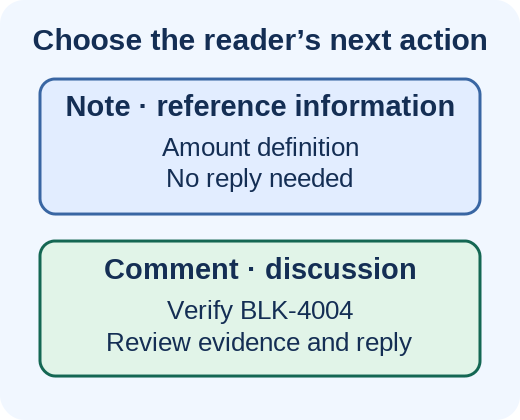
Choose the annotation by what needs to happen next. Use a note for a definition or reminder attached to a cell. Use a threaded comment when an authorized person needs to answer a question, review evidence or confirm a decision.
A definition and a question belong in different places
Rohan's fictional delivery review includes an Amount column and one entry he wants checked. He needs two pieces of context. A note at the heading can explain that this report's Amount excludes the delivery fee and GST. A question beside order BLK-4004 can ask the reviewer to verify its ₹12,990 recorded amount. One explains an established meaning. The other starts a discussion that may change the workbook after confirmation.
The figures and people in this exercise are fictional. The platform labels resemble delivery work readers may recognize from Blinkit or Amazon Now. A large practice amount is a reason to ask for evidence. It isn't automatically a mistake. Use the provided synthetic confirmation in the lab to decide what the owner should change.
Think about who needs to reply
- “Amount excludes delivery fee” is a short reference for the user entering or reading that column. It can go in a note, and a unit or essential definition can also appear in visible report text.
- “Please verify the amount for the 14 March practice order BLK-4004” asks someone to do work and respond. Put it in a threaded comment on the relevant amount or record.
- “The approved source shows 1,299, and I changed the recorded amount after checking it” is a decision and result. Record it in the discussion and verify the actual cell and dependent figures.
Understand comments and notes in your version
| Feature | Threaded comment | Note |
|---|---|---|
| Purpose | Discuss the selected cell or data | Attach a short reference or explanation |
| Reply | Keep replies together in a thread | No reply box |
| Mention | Can notify a selected person via supported collaboration | Plain annotation, without a threaded mention |
| End a discussion | Resolve and reopen where supported and authorized | Edit or remove the note when appropriate |
| Common code-free path | New Comment from Review or the cell's menu | New Note from Review or the cell's menu |
Understand older workbook terminology
Older Excel versions called their simple cell annotations comments. Modern Excel uses Notes for that older style, and Comments for threaded discussions. If a colleague says “the old comment in the header,” inspect which interaction opens. A reply box and threaded history point to a modern comment. A simple annotation appears as a note. Color and corner indicators can vary with the app and settings, so do not make color the only test.
Microsoft's Excel help provides a command to insert or edit either annotation type in supported versions. You can also review comments from the Comments pane where available. A note can be shown or hidden using the appropriate note controls. Use the Excel menu names from your version rather than assuming everyone has the same shortcuts.
Choose visible text for critical instructions
A note can provide helpful extra detail without expanding the worksheet. A required definition belongs where readers can find it in the format they're using. If you will export the worksheet or someone intentionally reads with a different view, do not make them discover an essential rule by hovering. Put a clear unit in the heading, such as Amount ₹, and an explicit scope note in the visible report. Use a cell note for additional explanation.
Keep a conversation tied to an inspectable change
Ask for one factual check
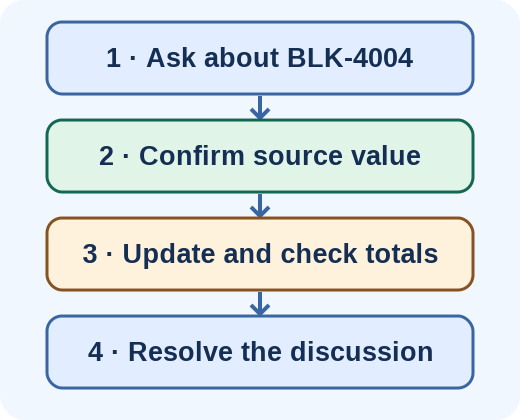
Select the cell that contains the amount you want checked. Choose New Comment and write what needs verification. Include the stable order ID, the current figure and which source should confirm it. “BLK-4004 shows ₹12,990 in the synthetic 14 March extract. Can you verify the amount against the approved practice record?” gives more context than “Wrong number?” A cell address can move later, so include the record identity in the message as well.
The reviewer can reply in the same thread where supported. Ask them to cite or identify the approved source in the context of the exercise. An authorized owner can then update the value if the source confirms a correction. A comment posting or reply does not change the cell by itself. Check the actual cell and expected calculation before closing the discussion.
Use a mention only when the recipient should be notified
On supported shared files, an @mention in a threaded comment can notify the named person and link them to the context. Microsoft's documented workflows use a signed-in supported Office account and an appropriate OneDrive or SharePoint location. Before posting, verify the intended person from the suggestions and whether they already have authorized access. Notification and file permission are separate effects.
If an app offers to share the document with someone who lacks access, use that flow only when the owner and exercise explicitly permit it. The default practice below does not require sending a notification or changing any real sharing. You can post and review a local training comment in a supported app or compare drafted messages without including a real name or contact.
Resolve, reopen or remove when appropriate
A resolved thread can remain readable in supported Excel. Microsoft describes people with write access being able to resolve or reopen threads. A resolved thread does not accept additional replies until reopened. If a new source correction changes the decision, use the available reopen workflow and document what needs rechecking. Deleting a thread serves a different purpose and can remove useful context.
Don't infer the cell was corrected because a thread is marked resolved. Read the saved cell result and its dependent totals. Conversely an open thread can still hold a value the owner already fixed while waiting for review. Keep the decision, the approved data and the thread action aligned.
Take a data question from open to resolved
Choose the right cell
Attach the question to E5 containing the recorded amount for BLK-4004. Include the ID and figure in the comment.
Read and reply with evidence
The approved synthetic reference shows 1,299 for that same order. Record the evidence in the exercise thread or local draft.
Apply and check the agreed change
After the authorized edit, recalculate and verify the practice total becomes ₹3,409. The note explaining Amount still describes the measure.
Resolve and keep the definition
Close the completed discussion where that option is supported. The visible worksheet continues to show the approved data, and the note remains available for a reader.
Lab 1 · Open and resolve a verified order question
Prerequisites. Use a synthetic workbook with a worksheet named Orders, and a version of Excel that supports threaded comments for this workflow. Put the source table below in A1:E6. Put Total in A7 and a SUM of E2:E6 in E7. Use the same print and collaboration permissions as your class. A solo rehearsal can draft the question and verify the worksheet without notifying anyone.
| OrderID | Date | City | Status | Amount ₹ |
|---|---|---|---|---|
| BLK-4001 | 12 Mar 2026 | Pune | Delivered | 540 |
| BLK-4002 | 13 Mar 2026 | Nashik | Delivered | 620 |
| AMN-4003 | 14 Mar 2026 | Pune | Cancelled | 310 |
| BLK-4004 | 14 Mar 2026 | Pune | Delivered | 12,990 |
| AMN-4005 | 15 Mar 2026 | Nagpur | Delivered | 640 |
- Verify the amount sum for all five records is ₹15,100. Add a short note on heading E1: “Recorded amount for this fixture, excluding delivery fee and GST.” The note and type do not change amounts.
- Select E5, the amount for BLK-4004. Insert a threaded comment with the specific factual question above. If using an authorized peer, ask them through the agreed review route to reply. Otherwise type the proposed response in a local review note or write it down separately.
- Use this synthetic confirmation for the exercise: “Approved source row BLK-4004, dated 14 March 2026, recorded amount ₹1,299; all other fields unchanged.” Check the stable ID and date before changing the existing value. If the published source is unavailable in a real case, ask for it before revising the amount.
- In the scratch copy update E5 to 1299. Confirm E7 changes to ₹3,409. The difference is ₹11,691 and the record count remains five. Check one other row, such as Nagpur's ₹640, remains as before.
- Record the decision or reply, then resolve the thread where your app and permissions support it. Verify the content and status where visible. If you did not use a supported shared workflow, record that you rehearsed the discussion locally.
- Restore the baseline if the instructor needs it for another run, or retain a named corrected file. Check the heading note and continued definition. No actual notification is necessary for the workbook arithmetic test.
Troubleshoot and finish. If E7 doesn't change, check the edited cell and SUM range. If a reply option is missing, check the app, active thread and access. Avoid posting a comment or mention on a real report when this is only a practice exercise. Verify the final worksheet and discussion independently.
Lab 2 · Add a stable definition to a targets workbook
Prerequisites. Make a separate training sheet called Targets. Put City, Actual, Daily target, Monthly target and Achievement in A3:E3. Enter Pune, 92000 and 3000 in A4:C4. Enter Nagpur, 46000 and 1500 in A5:C5. The report models a 31-day period. The intended discussion is about interpreting the calculation, while the metric definition applies to both cities.
- In D4 type
=C4*31and fill through D5. In E4 type=B4/D4and fill down. Format E4:E5 as percentages. Both rows show approximately 98.92% in this fictional baseline. The city amounts differ but have the same ratio. - Use Review → Notes → New Note or the equivalent supported command on E3. Write “Achievement is Actual divided by Monthly target. The target uses 31 days.” Point out the note and identify which field it explains. Put a short period label in actual visible worksheet text too.
- In a separate practice state create a comment on E4: “Please verify Pune uses 92,000 actual and 93,000 monthly target for this period.” Compare the source and explain the percentage's arithmetic. The note remains useful regardless of whether anyone replies to the question.
- Check the annotation controls where available. Show the note and review the threaded comment separately. Verify D4 is ₹93,000 and E4 approximately 98.92% before and after these annotation steps. Plain annotations don't replace the underlying formula.
- In a scratch copy, inspect the Page Setup option for printing comments and notes where supported. Compare a normal reader output without annotations and an intended review output that includes them. Verify the actual preview rather than assuming every note or thread is printed or exported.
- Close or clear temporary annotations in the test copy as appropriate. Retain the version that best serves the class exercise. Check whether the main labels and formulas remain readable in the saved report.
Troubleshoot and finish. If an annotation appears without a Reply option, check whether you created a note. If the displayed number changed, inspect formulas and cell values because adding a note is a separate action. Keep the worksheet definition and the question clearly distinguished.
Write comments a reviewer can act on
Include the record, question and evidence needed
A useful comment can have one sentence identifying the record and one sentence stating the action. For the fictional order, mention BLK-4004, the March date and the recorded ₹12,990. Explain which approved practice source should confirm the amount. An exact ID matters when there are two Pune records dated 14 March. AMN-4003 also has that date, but it is a different order with amount ₹310 and a different status.
Put the note about Amount on the column label so it explains all rows. Put the question about one amount beside that amount. If a new review focuses on a formula or value and not the raw order itself, link the question to the actual result and describe its fields. In Lab 2, E4 is Pune's Achievement and E3 labels that measure. The row definition and the one-time question should be easy to find individually.
| Evidence provided | Appropriate decision | Expected record behavior |
|---|---|---|
| Approved source confirms 12,990 | Keep the original and record the confirmation | Five records and ₹15,100 |
| Approved source confirms 1,299 | Owner corrects the one amount and verifies | Five records and ₹3,409 |
| Source unavailable or conflicting | Keep the question open and verify the right record | No additional approved amount change yet |
Reconcile the amount and scope after a correction
The first lab's original recorded total of ₹15,100 includes a Cancelled order of ₹310. If you audit Delivered only, the original amount is ₹14,790. The single approved change from ₹12,990 to ₹1,299 lowers both the all-status and Delivered sums by ₹11,691, because the corrected row is Delivered. The revised Delivered subtotal is ₹3,099, while the all-status sum is ₹3,409. Counts stay at four Delivered and five overall.
Use one unchanged value as another check. The Cancelled row on the same date stays ₹310, and the Nagpur row stays ₹640. The review question can carry the stable ID so an owner doesn't replace the wrong record when the table is sorted or filtered. Write the action, intended person and final observed control in the reply once complete.
Do not change the cell just because a comment sounds authoritative. Read the approved source, compare IDs and verify the business rule. In a live report an anomalous amount can be a valid larger order. In this lab the correction is explicitly supplied. Returning 3,409 proves the performed exercise matches that case, while retaining 15,100 is correct in the alternative verified scenario.
Use the task option only when it fits the team workflow
Some supported Office collaboration environments let an authorized author assign a task while mentioning a person in a comment. Microsoft describes an Assign to option where available, with a notification and an association between the task and discussion. This is optional for our exercise. A question can be drafted or posted in a scratch file without assigning it. If you are running an approved shared practice session, use the actual organization settings and check the intended person and permission before posting.
Say what the reviewer is expected to do: verify source, update the authorized data if agreed, and confirm the output. A task status is useful for tracking that work. The recorded cell and report totals remain separate evidence. A resolved task or comment thread does not establish correct data on its own.
Give every annotation the scope it needs
Use a stable explanation for a field definition
In the Targets lab, the whole Achievement column uses Actual divided by Monthly target. It deserves a clear heading note rather than one repeated comment on each row. Document both the definition and the period if the target depends on a day count. Keep the date scope visible in the main report. If the approved rules later change, update the definition in the column's note and visible description together.
In a separate scratch copy, change the Pune daily target from 3,000 to 3,200 and leave its actual at 92,000. The target becomes ₹99,200 and Achievement becomes approximately 92.74%. The same definition note still applies. A note explaining the formula doesn't need to say “this value is always 98.92%,” because the result depends on the authorized inputs. This is a good test of whether the annotation describes a stable rule or an obsolete result.
Place a one-time review note or discussion next to the value that needs inspection, especially if someone has asked about 14 March specifically. Use the current slice's date and what amount or formula they should verify. A dated decision belongs in the review context. A generic “check all data” comment without an identifier is hard for someone else to act on.
Check where the text stays visible for the reader
The workbook can be opened in desktop Excel, in a browser, in an accessibility workflow, or exported. Not everyone interacts with hover behavior in the same way. For essential instructions, use explicit visible text in the sheet or approved output. Use a short note for an optional reminder, such as what units to type when filling a field. Verify the result in the exact app or format the reader uses rather than treating one view as evidence of another.
Microsoft documents that some rich formatting and images in desktop notes have limited display in Excel for the web. It also says editing notes in web Excel can remove existing rich text. If workbook notes contain meaningful formatting or graphics, check the audience's view before editing existing notes. For mixed apps, a plain text definition and a readable title in cells are easier to maintain across the supported environments.
Maintain or migrate older notes deliberately
Owners of an older workbook can inspect whether a stored annotation is a legacy note or a modern thread. The reader's need decides whether it should remain an explanation or become a discussion. If your version offers a conversion option, verify its scope on a scratch copy before using it. Do not assume a converted conversation preserves presentation or has the same role as a previous cell note. Retain the approved original and compare the visible output.
In an instructor exercise, clone a simple note and write a separate comment about a specific new decision. Contrast a definition “net amount excludes delivery fee in this dataset” with a question “Does BLK-4004 match the approved record?” Both can be useful in the same workbook under their appropriate contexts. A future reader can find the rule without reopening a closed discussion and can find the review evidence when necessary.
Decide which annotations belong in an exported review
Compare a reader copy and an internal reviewer copy
In the Targets exercise, a classroom reader might receive the metric, quantities and period while internal reviewers need the detailed question thread. On supported Excel versions, Page Setup provides print settings for annotations. The available choices and outcomes differ by version and type. In the documented Microsoft 365 desktop workflow, At end of sheet can include threaded comments and notes together. Displayed notes can use the applicable legacy on-sheet print choice. Threaded comments are not printed as a conversation bubble placed on the sheet in that workflow.
Review the print area and place your practice note where you can verify it. In an ordinary clean export, choose the intended no-annotation state and inspect whether the note and thread are absent. In a reviewed classroom copy, test the supported inclusion settings and inspect the output placement and accessibility. If a note is needed by everyone, add its essential content to the approved report text rather than relying on a particular print option.
Verify every exported page, including any page appended at the end for annotations. A final page can contain draft remarks that were not visible in the normal grid. Use a synthetic label like “Internal practice question” for controlled tests. Do not include sensitive discussion in the classroom report. Check the actual saved PDF if your exercise produces one, since each route can render or scope content differently.
Check which content copied into a new file
Microsoft documents that ordinary copying can carry spreadsheet components such as comments and validation along with data. If the handoff only needs approved amounts or text, use the appropriate copy option or build a clean summary, and verify what travelled. Treat a new workbook as an independent file. It does not automatically inherit the collaboration roles or live comments of the original through all copying routes.
On a scratch sheet, copy the corrected numeric amount from the order example using a values-only command where appropriate. Inspect the pasted amount ₹1,299 and whether the new cell has a note or thread. A raw paste and a values-only paste can carry different content. Verify your output from the actual file rather than assuming a pasted range contains only what you could see in the grid.
Keep a review record separate from permissions
A thread records useful conversation in the workbook. People with approved file access may be able to view, edit or resolve discussion depending on their rights and app. Do not use a note as an access control or treat a thread as a confidential side conversation. If the team has a requirement for durable approvals, use its approved recordkeeping process and give the workbook the appropriate visible status. Verify before distributing a separate copy.
Find the exact point where the review broke down
A reader cannot reply
First determine the annotation type. Notes do not offer a reply field, even if written as a question. In a threaded comment, check whether the discussion is resolved, whether the app supports replies, and whether the person has the needed access. An editor can reopen a resolved thread where supported. When someone only needs to read a definition, keep the note concise and avoid changing it into an open request.
A notification did not reach the intended reviewer
Check the signed-in account and workbook location, the selected recipient and the organization's available feature. A typed name by itself may not be an actual supported mention. A view or edit role can also affect what the recipient can do after opening a notification link. Use the approved classroom review method instead of sending repeated messages to uncertain recipients. Mentions and assignments should be deliberately addressed and applicable to the file being discussed.
Someone opened the wrong annotation or formula
Use the Comments pane where available and check the target cell or record from the thread. For notes, use the supported Review Notes controls. When there are several sheets and similar IDs, quote the intended worksheet and field in addition to the value. If a record moves, search for the stable ID and verify the current cell. Keep the threaded question with enough context that somebody else can still tell which data was reviewed.
The discussion ended but a result still looks wrong
Inspect the actual value and dependent formula. If ₹12,990 is still in the amount cell after the approved correction to ₹1,299, the workflow did not yet apply the edit to this saved copy. If the amount was changed but the total stays ₹15,100, check the SUM range and calculation state. Use the correct source total for the intended scope. Reopen the discussion where appropriate if there is still a material unresolved question.
Compare the answer the workbook received with the result you expected. “I checked it” is less useful than “I verified BLK-4004 in the approved 14 March practice source, changed E5 to 1,299, and reconciled sum E7 to 3,409.” In the classroom, a well-written closeout can be brief. Readers can reproduce the check without rereading every message.
Write a closeout that distinguishes the calculation and the decision
Use Lab 2 for a short second role-play. One person says Pune's Achievement dropped after the target changed, and another asks whether the actual amount was edited. Confirm both versions of the data. The first copy has actual 92,000 and daily target 3,000, producing 93,000 monthly and 98.92%. The changed copy keeps actual 92,000 but uses a daily target of 3,200, producing 99,200 monthly and 92.74%. The ratio legitimately falls when the denominator increases.
- On an annotated scratch copy, write a question on E4 that names the field, city, two observed ratios and relevant March period. Ask which input changed before proposing a formula fix.
- Check old and new C4, D4 and B4. The value in B4 remains 92,000. Fill the approved calculations only in the practice workbook. The note on E3 continues describing Actual divided by Monthly target.
- Write a response such as “The daily target changed by 200 over the same 31 days, increasing the denominator by 6,200. The actual amount did not change.” Confirm the saved worksheet has the appropriate expected ratio.
- If the agreed interval is still uncertain, leave the question open and record what evidence is missing. If the input and period are approved and verified, record that state and use Resolve where supported.
A review thread can preserve a clear explanation for the reader when the number changes legitimately. Its text can explain that the workbook contains a changed target. The visible title and data label should still mention the version or target scope. This avoids treating a resolved comment as the only place the business definition can be found.
Understand why a thread alone is an incomplete audit record
Microsoft notes that other editors with file edit access can edit comments in some contexts, and locally saved workbook comments can depend on the profile that created them. Use the annotation as collaboration context. If a project has an approval or compliance record, keep it in the organization's approved workflow and link or summarize it where appropriate. Avoid treating a discussion bubble as an immutable record of every workbook change.
For the classroom, record the data change and the expected evidence separately. The approved corrected screenshot or copied cells can show E5 1,299 and E7 3,409. A separate note can state whether the discussion was resolved and whether a shared peer session or local rehearsal was used. Someone grading the exercise can then verify results without needing the original notification or profile.
Check status and permission without requiring another message
In a solo exercise, write the intended mention, then stop before using any real name or publishing anything. Compare the message to the action you would want from a reviewer. You can use a local draft or plainly typed worksheet note to compare the question and full reply. In a real approved shared file, the recipient's available permission and notification behavior depend on the service and organization. Keep those observations separate from the arithmetic you can verify alone.
Review the workbook in a second supported app or view if the classroom audience uses one. A note's colored styling may not carry over while the plain text remains. Use a source heading and a stable label in the report as a fallback for critical context. Do not turn a fixed definition into a discussion just because the app renders one annotation differently. Match the tool to the work and show the report's core information where the reader can find it.
If a colleague has already posted a question for the same value, reply to the existing thread where appropriate instead of starting several competing discussions. Verify the active worksheet and scope first. If the older thread was resolved for a different month, begin a new review with the relevant period or reopen only if the record and request truly match.
When handing the workbook to a new reviewer, attach a clean scope note to the relevant label and show them where open questions are recorded. If a repeated comment supplies the same fixed rule on several rows, consolidate that rule in the approved definition area of a practice copy. Retest a new entry with the documented rule. Keep the original review history available where the team needs it.
Check whether the resolved thread is still readable
Microsoft documents resolved threads as viewable. Adding more replies requires reopening where supported and authorized.
Check a note with a missing rich format in the browser
Review platform differences. Desktop note styles may not display in web Excel, and editing can remove rich text. Verify plain text or the approved desktop layout.
Check a changed amount after a revised export
Verify which saved version you opened, then inspect the source cell and exported total independently. Comments describe discussion and don't update a prior PDF.
Check an annotation that should not appear in an external file
Use the authorized clean copy and intended print mode, then inspect all pages and ancillary content before handing it out.
Quick quiz with explanations
1. Which feature suits a stable column definition?
A. A note. B. A thread assigned to each reader. C. A different sort tab.
A. A note attaches an explanation without requiring a reply. Essential terms can also be visible in the report.
2. Which feature fits a request to verify BLK-4004?
A. Page scaling. B. A threaded comment on the record. C. Changing the number format.
B. The reviewer can reply with evidence. The agreed edit and expected result are checked separately.
3. What proves the verified correction was actually applied?
A. A resolved badge. B. A reply saying “done.” C. The saved E5 amount and reconciled total.
C. A thread is discussion metadata. Confirm E5 is 1,299 and E7 totals 3,409 in the relevant workbook.
4. What should happen before posting a mention to a person who may lack access?
A. Verify the intended person and permissions under the approved workflow. B. Automatically share with everyone. C. Ignore any prompt.
A. On a supported shared file, mentions can notify people and may prompt an access decision.
5. Why might a comment be available to read but unable to accept replies?
A. It might be resolved. B. The sheet uses A4. C. The amount was formatted as currency.
A. Reopen a resolved thread where allowed if further discussion is needed.
6. Which output check makes sure notes and discussions were handled correctly?
A. Inspect the actual print or PDF scope and page contents. B. Look at an indicator's color only. C. Check the number of source rows and stop.
A. Printing and export choices can affect whether annotations appear, and where they are placed.
Interview questions and example answers
- What separates an Excel comment from a note?
- Modern threaded comments support replies and a discussion workflow. A note is a traditional annotation attached to a cell, good for definitions and reminders. I choose according to whether someone should respond.
- How would you write a useful amount question?
- I include the stable order identifier, current value, relevant period and evidence to check. This helps a reviewer locate the exact item and report a verifiable result.
- What do you verify before resolving a discussion?
- I check the approved source and whether the action was applied. The example changes the amount from 12,990 to 1,299 and reconciles the full sum from 15,100 to 3,409. I confirm those results before resolving.
- Can multiple people see a comment or note on a shared file?
- People using the authorized workbook may be able to see annotations. Their rights and product features govern what they can do. I do not use annotations as private conversations or file access controls.
- How would you handle a printout that should exclude discussions?
- I choose the intended annotation print settings and the appropriate clean report scope, then review every page of the actual output. Essential measure definitions go in the visible report where readers can find them.
- When is a mention appropriate?
- I use it when a specific authorized person needs an action or reply in a supported shared workbook. I verify the identity and any permission prompt and include a clearly scoped question.
Revision cards
- Note Define a value or provide optional context. It has no threaded reply.
- Comment Start a review discussion with a stable ID and one clear request.
- Mention Use for authorized notifications and check the intended user and access.
- Evidence first Read the approved source and reconcile changed and unchanged results before resolving.
- Resolve Close a completed conversation. Reopen it when a supported workflow needs more replies.
- Reader output Test the visibility of annotations and visible definitions in the actual shared report.
Microsoft references
Continue practising: explore the existing Excel Task Hub for additional exercises.