Chapter 11: Ansible Introduction
11.1 Why Ansible — one playbook for many servers
Why: the problem
Suppose we work at Swiggy and the team adds 20 new web servers for a festival sale. Each server needs the same users, packages, config files and services. If you log in to each one and type 20 commands, you will make a mistake on server 14. You will also forget what you did. Ansible solves this. You write the steps once in a file. Ansible connects to every server over SSH and makes them all the same.
What we will build
You will install Ansible on your laptop (the control node), point it at two lab servers, and make both servers the same in three ways: an ad-hoc command, a tiny playbook, and the same playbook on a cloud server.
What: every term in plain English
- Ansible — A free tool that configures many servers from one machine, using SSH.
- Control node — The machine where Ansible is installed, usually your laptop or a CI runner.
- Managed node — A server that Ansible configures. It needs only SSH and Python.
- Agentless — Nothing extra is installed on the servers. Ansible just uses SSH.
- Playbook — A YAML file that lists what each server should look like.
- Module — A small built-in tool, like apt or copy, that does one job safely.
How: step by step
-
Install Ansible on the control node
python3 -m pip install --user ansible-coreWhat it does: pip installs the ansible commands for your user only.
Output
Successfully installed ansible-core-2.17.5 jinja2-3.1.4 resolvelib-1.0.1 -
Check the version
ansible --versionWhat it does: Shows the version and which Python it uses.
Output
ansible [core 2.17.5] config file = None python version = 3.12.3 -
Check SSH to a server first
ssh ubuntu@10.0.1.11 hostnameWhat it does: Ansible uses the same SSH. If this fails, Ansible will fail too.
Output
web1 -
Write a tiny inventory
printf "[web]\n10.0.1.11\n10.0.1.12\n" > hosts.iniWhat it does: The inventory tells Ansible which servers to touch.
Output
(no output) -
Ping all servers
ansible -i hosts.ini web -m ping -u ubuntuWhat it does: The ping module logs in and checks Python. It is not network ping.
Output
10.0.1.11 | SUCCESS => {"ping": "pong"} 10.0.1.12 | SUCCESS => {"ping": "pong"} -
Run one command everywhere
ansible -i hosts.ini web -a "uptime" -u ubuntuWhat it does: The command runs on both servers at the same time.
Output
10.0.1.11 | CHANGED | rc=0 >> 10:02:11 up 3 days, load average: 0.01 10.0.1.12 | CHANGED | rc=0 >> 10:02:11 up 3 days, load average: 0.00 -
Install a package everywhere
ansible -i hosts.ini web -m apt -a "name=tree state=present update_cache=true" -u ubuntu --becomeWhat it does: apt module installs tree only if it is missing. --become uses sudo.
Output
10.0.1.11 | CHANGED => {"changed": true}
10.0.1.12 | CHANGED => {"changed": true}
Example 1: Ad-hoc: make two lab servers the same with three commands, no file needed
Stack. Ubuntu 22.04 lab VMs, ansible-core
Goal. Ad-hoc: make two lab servers the same with three commands, no file needed.
terminal
# 1. who is there?
ansible -i hosts.ini web -m ping -u ubuntu
# 2. install git and curl on both
ansible -i hosts.ini web -m apt -a "name=git,curl state=present update_cache=true" -u ubuntu --become
# 3. create the same user on both
ansible -i hosts.ini web -m user -a "name=deploy shell=/bin/bash" -u ubuntu --become
What each line does
-i hosts.ini— Use this inventory file.web— Run on the group named web.-m apt— Use the apt module.-a "..."— Arguments for the module.--become— Run as root using sudo.
Green output
10.0.1.11 | SUCCESS => {"ping": "pong"}
10.0.1.12 | SUCCESS => {"ping": "pong"}
10.0.1.11 | CHANGED => {"changed": true, "cache_updated": true}
10.0.1.12 | CHANGED => {"changed": true, "cache_updated": true}
10.0.1.11 | CHANGED => {"name": "deploy", "shell": "/bin/bash", "state": "present"}
10.0.1.12 | CHANGED => {"name": "deploy", "shell": "/bin/bash", "state": "present"}
Expected result. Both servers have git, curl and a deploy user. Running again shows SUCCESS instead of CHANGED.
Example 2: First playbook: the same three jobs written in a file, so they live in Git
Stack. YAML playbook, Ubuntu
Goal. First playbook: the same three jobs written in a file, so they live in Git.
first.yml
- name: Make web servers the same
  hosts: web
  become: true
  tasks:
    - name: Install git and curl
      ansible.builtin.apt:
        name: [git, curl]
        state: present
        update_cache: true
    - name: Create deploy user
      ansible.builtin.user:
        name: deploy
        shell: /bin/bash
terminal
ansible-playbook -i hosts.ini first.yml -u ubuntu
What each line does
hosts: web— Which inventory group to configure.become: true— Use sudo for every task.ansible.builtin.apt— The full name of the apt module.name: [git, curl]— A list of packages in one task.
Green output
PLAY [Make web servers the same] ***********************
TASK [Gathering Facts] *********************************
ok: [10.0.1.11]
ok: [10.0.1.12]
TASK [Install git and curl] ****************************
ok: [10.0.1.11]
ok: [10.0.1.12]
TASK [Create deploy user] ******************************
ok: [10.0.1.11]
ok: [10.0.1.12]
PLAY RECAP *********************************************
10.0.1.11 : ok=3 changed=0 unreachable=0 failed=0
10.0.1.12 : ok=3 changed=0 unreachable=0 failed=0
Expected result. changed=0 because example 1 already did the work. The playbook only checks and moves on.
Example 3: Cloud server: the same playbook on an EC2 instance on Amazon Linux, only the inventory changes
Stack. AWS EC2, Amazon Linux 2023
Goal. Cloud server: the same playbook on an EC2 instance on Amazon Linux, only the inventory changes.
hosts-aws.ini
[web]
shop-web ansible_host=203.0.113.25 ansible_user=ec2-user

[web:vars]
ansible_ssh_private_key_file=~/.ssh/lab-key.pem
first-any.yml
- name: Make web servers the same (any Linux)
  hosts: web
  become: true
  tasks:
    - name: Install git and curl
      ansible.builtin.package:
        name: [git, curl]
        state: present
What each line does
ansible_user=ec2-user— Amazon Linux uses ec2-user, not ubuntu.ansible_ssh_private_key_file— Which key file SSH uses. Keep the key out of Git.ansible.builtin.package— Picks apt, dnf or yum by itself.
Green output
$ ansible-playbook -i hosts-aws.ini first-any.yml
TASK [Install git and curl] ****************************
changed: [shop-web]
PLAY RECAP *********************************************
shop-web : ok=2 changed=1 unreachable=0 failed=0
Expected result. The cloud server now matches the lab servers.
Verify: did it work?
-
Check the tool
ansible --version | head -1What it does: Ansible is installed.
Output
ansible [core 2.17.5] -
Check every host answers
ansible -i hosts.ini all -m ping -oWhat it does: One line per host.
Output
10.0.1.11 | SUCCESS => {"ping": "pong"} -
Check the package is really there
ansible -i hosts.ini web -a "git --version"What it does: Proves the result on the server.
Output
10.0.1.11 | CHANGED | rc=0 >>
git version 2.34.1
When it is red 1
10.0.1.11 | UNREACHABLE! => {"msg": "Failed to connect to the host via ssh: Permission denied (publickey)."}
Cause. SSH key or user is wrong. Ansible only repeats what SSH says.
Fix, step by step
- Run ssh ubuntu@10.0.1.11 by hand.
- Use the right user with -u or ansible_user.
- Point to the key with --private-key or ansible_ssh_private_key_file.
When it is red 2
10.0.1.12 | FAILED! => {"msg": "Missing sudo password"}
Cause. The task needs root and the user needs a sudo password.
Fix, step by step
- Add --ask-become-pass (-K) to type it once.
- Or allow sudo without a password for the lab user only.
When it is red 3
/bin/sh: 1: /usr/bin/python: not found
Cause. The server has no Python at that path.
Fix, step by step
- Set ansible_python_interpreter=/usr/bin/python3.
- Or install python3 with: ansible web -m raw -a "apt-get install -y python3" --become.
Cleanup
-
Remove the test user
ansible -i hosts.ini web -m user -a "name=deploy state=absent remove=true" --becomeWhat it does: Leaves the lab clean.
Output
10.0.1.11 | CHANGED => {"state": "absent"}
Ravindra Bagale's Tip
First make SSH work by hand. Only when SSH works will Ansible work. Keep that in mind!
आधी हाताने SSH चालवून बघा. SSH चालला तरच Ansible चालेल. लक्षात ठेवा!
पहले हाथ से SSH चलाकर देखो. SSH चले तभी Ansible चलेगा. याद रखो!
Practice tasks
Easy Ping three servers
Why: Proves the control node and SSH work.
What to do: Add a third server to hosts.ini and ping all.
- Add the IP under [web].
- ansible -i hosts.ini web -m ping
Check: Three SUCCESS lines.
Medium Install nginx on all web servers ad-hoc
Why: Practice the apt module.
What to do: Install nginx and check it runs.
- ansible web -m apt -a "name=nginx state=present" --become
- ansible web -a "systemctl is-active nginx"
Check: Both servers print active.
Easy Say Ansible in two lines
Why: If you can say it simply, you understand it. Interviewers and juniors both need the short version first.
What to do: Write two short lines about Ansible for a fresher who knows only Linux basics.
- Write the problem it solves.
- Write the one command or file you use for it.
- Read it aloud to a friend.
Check: A fresher understands it without asking a question.
Easy Start a two-server Ansible lab
Why: Practice needs safe throwaway servers. If you break them, you delete them and start again in one minute.
What to do: Start two Ubuntu containers that accept SSH, and one control machine with Ansible.
- python3 -m pip install --user ansible-core
- docker run -d --name web1 -p 2221:22 lscr.io/linuxserver/openssh-server
- docker run -d --name web2 -p 2222:22 lscr.io/linuxserver/openssh-server
- ansible --version
Check: ansible --version prints a core version, and ssh to both ports works.
Medium Do it on the second setup
Why: The idea must work on a VM, a container and a cloud server. Only the inventory should change, never the playbook.
What to do: Repeat this lesson on a different target than the one you used first.
- If you used containers, use one EC2 or local VM now.
- Change only the inventory file.
- Run the same playbook.
Check: Same result, and you changed only the inventory.
Medium Break it on purpose
Why: You must know the red output by face. On a real outage there is no time to read slowly.
What to do: Cause one error from the "When it is red" part of this lesson and fix it.
- Follow the error section.
- Copy the exact message into your notes.
- Write the fix in one line.
Check: You fixed it using the steps, without searching the web.
Medium Run it twice and read the recap
Why: Idempotence is the heart of Ansible.
What to do: Run your playbook or command two times and compare the PLAY RECAP lines.
- Run once and note changed=.
- Run again with no edits.
- Explain any task that still says changed.
Check: The second run shows changed=0, or you can explain every change.
Medium Write a runbook page
Why: At 2 a.m. nobody remembers flags. A short written page saves the on-call person.
What to do: Write a one-page runbook for this lesson.
- Title, when to use, exact commands, how to check, how to undo.
Check: A teammate can follow it alone.
Hard Explain it like an interview
Why: Interviewers want real stories, not definitions.
What to do: Record a 60 second answer about this lesson.
- Say the problem, the playbook or command, and one error you hit.
Check: Your answer has a real command and a real error message.
Hard Draw the flow top to bottom
Why: A drawing shows the order of work.
What to do: Draw this lesson as boxes from top to bottom.
- Start at your laptop, go through SSH, end at the check on the server.
Check: Each box matches a real step you ran.
Homework: try at home
Try at home
At home, start two Ubuntu VMs or containers, install Ansible, ping both, and install the same three packages with one command. Then run it again and see SUCCESS instead of CHANGED.
Recap
- Ansible is agentless: SSH plus Python on the server.
- The control node is your laptop or a CI runner.
- Inventory says which servers. Modules do the work.
- Ad-hoc is for quick jobs; playbooks are for repeatable work in Git.
- A second run shows ok, not changed.
FAQ
Can Ansible manage Windows?
Yes, using WinRM or SSH and win_ modules. This course uses Linux.
Do I need root on my laptop?
No. pip install --user is enough.
Is Ansible free?
Yes. ansible-core is open source. Red Hat sells a paid platform on top.
Ansible or Terraform?
Terraform creates servers. Ansible configures what runs inside them. Teams use both.
How many servers can it handle?
Thousands. The forks setting controls how many run at once.
Interview questions
-
What is Ansible and why is it agentless?
A configuration tool that pushes changes over SSH. Agentless means no daemon runs on the servers, so there is less to install and patch.
-
What is the difference between control node and managed node?
The control node runs Ansible. Managed nodes are the servers it configures.
-
What is an ad-hoc command?
One module run from the command line, like ansible web -m ping.
-
Push or pull?
Ansible pushes by default. ansible-pull exists for pull mode.
-
What do you need before Ansible works?
Working SSH, a user with sudo for root tasks, and Python 3 on the server.
Quick quiz
Q1. What does Ansible need on the managed server?
Only SSH and Python. No agent.
Q2. Is the ping module a network ping?
No. It logs in over SSH and checks Python.
Q3. What does --become do?
Runs the task as root using sudo.
Q4. Where is Ansible installed?
Only on the control node.
Q5. Why use a playbook instead of ad-hoc?
It is saved in Git, reviewed and repeatable.
Did you understand? Let us try it once more.
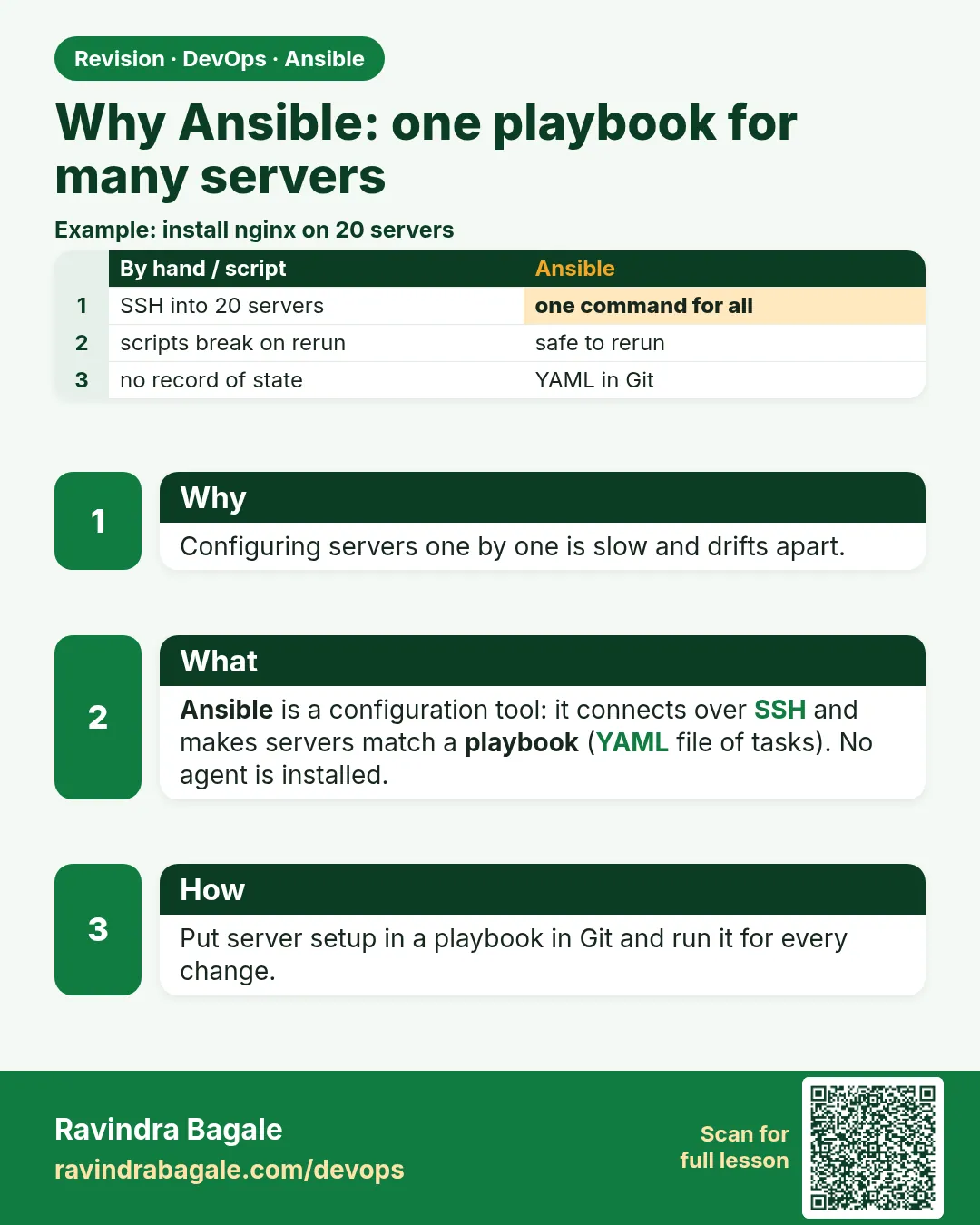 Revision card
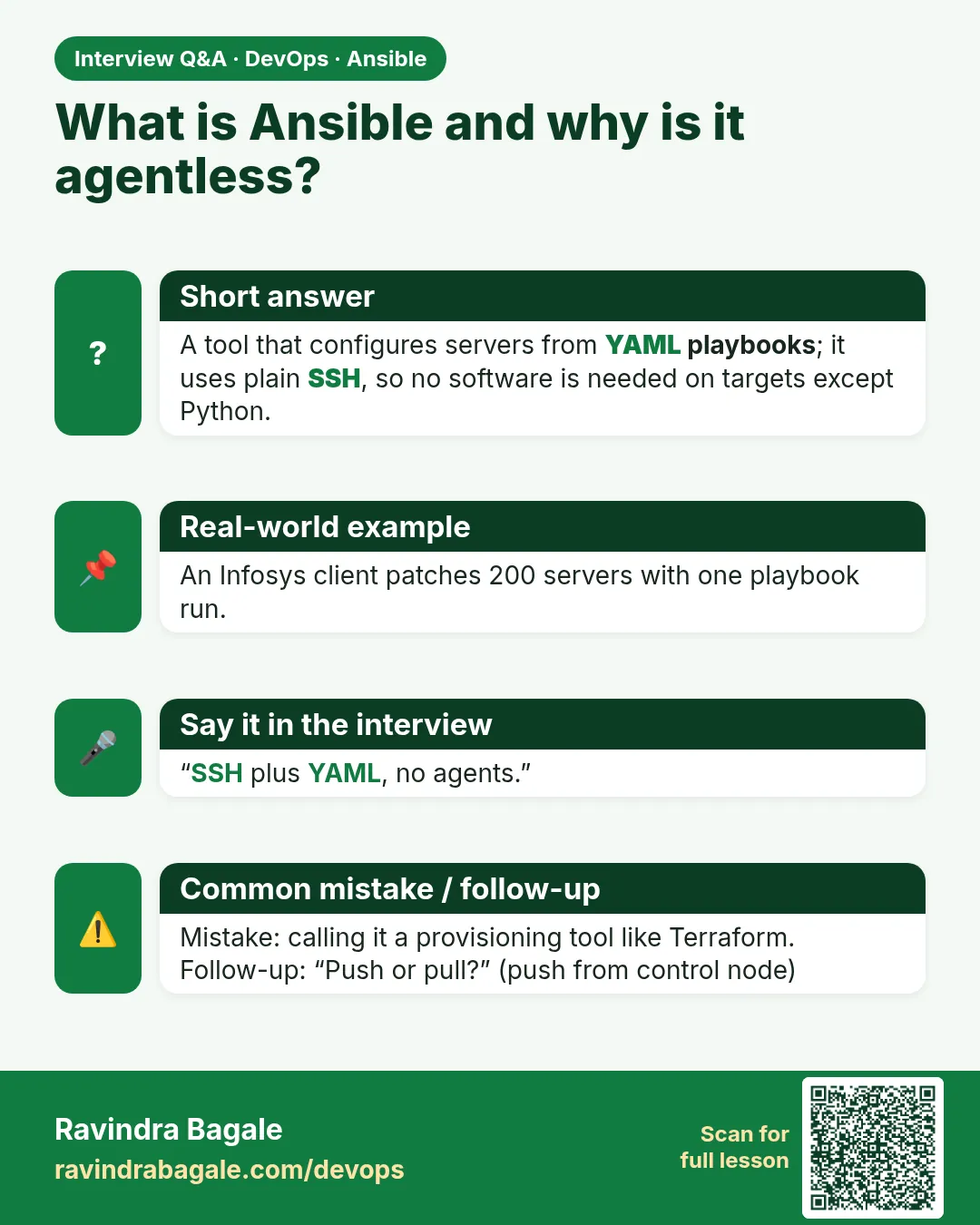 Interview card