Practice and Answer Key: FILTER, SORT and UNIQUE
Build a slow-order queue and a separate category list
Salman needs a view of fictional grocery orders that ran above twelve minutes and a list of product categories for a selection field. The first report keeps complete orders and puts the slowest at the top. The second keeps only one label per category. The two reports start from the same source but count different things. This review uses the same practice data as the earlier basic formulas and arrays lessons.
The data models common order-management tasks in shops such as Blinkit and Amazon Now. FreshGo and MarketRush are invented practice merchant names here. All identifiers, timings, statuses and amounts are fictional. Build the two views step by step, predict a few normal and edge outcomes, then compare with the answer key.
Create the source Table with all nine fields
Use Orders A1:I11. Type dates that Excel recognizes. Keep Qty, Amount and Mins numeric. Select this rectangle and make an Excel Table with headers, then name it tblMini. If the name already exists in this practice workbook, verify it describes exactly these records before using it. Place array outputs outside the Table body. The source selection stays independent of the worksheet ranges where the results will spill.
| Order ID | Date | City | Platform | Category | Qty | Amount | Mins | Status |
|---|---|---|---|---|---|---|---|---|
| BLK-1001 | 2 Nov 2026 | Pune | FreshGo | Dairy | 2 | 64 | 9 | Delivered |
| BLK-1002 | 2 Nov 2026 | Nashik | FreshGo | Fruits | 3 | 270 | 12 | Delivered |
| AMN-1003 | 3 Nov 2026 | Pune | MarketRush | Snacks | 1 | 110 | 14 | Delivered |
| BLK-1004 | 3 Nov 2026 | Nagpur | FreshGo | Fruits | 2 | 240 | 11 | Cancelled |
| AMN-1005 | 4 Nov 2026 | Kolhapur | MarketRush | Dairy | 4 | 232 | 16 | Delivered |
| BLK-1006 | 4 Nov 2026 | Pune | FreshGo | Bakery | 5 | 150 | 8 | Delivered |
| BLK-1007 | 5 Nov 2026 | Solapur | FreshGo | Home | 1 | 1299 | 18 | Delivered |
| AMN-1008 | 6 Nov 2026 | Sambhaji Nagar | MarketRush | Staples | 3 | 195 | 10 | Returned |
| BLK-1009 | 7 Nov 2026 | Pune | FreshGo | Snacks | 2 | 220 | 13 | Cancelled |
| BLK-1010 | 8 Nov 2026 | Nashik | FreshGo | Fruits | 1 | 90 | 17 | Delivered |
Lab 1. Build the slow-order queue in layers
Use Orders and put a heading Minutes above in J1 with numeric 12 in J2. The queue means strictly greater than the stated number, for every order regardless of Status. One order takes exactly 12 minutes and stays out. Preserve the source ID even if the final review displays only a few fields.
Try each stage before assembling the formula
- In a spare test column, write
=tblMini[Mins]>Orders!$J$2. There is one true/false result for each record. Read the first three values as FALSE, FALSE, TRUE. The third order takes 14 minutes. - Use
=SUM(--(tblMini[Mins]>Orders!$J$2))in a spare cell to count five eligible orders. The two minus operations convert TRUE to one and FALSE to zero. Check that 12 is excluded. - Use
=FILTER(tblMini,tblMini[Mins]>Orders!$J$2,"No slow orders")in its own clear test area. It returns the five full records in the source order. The first matching record is AMN-1003. Notice that selection by itself has not reordered any record. - Before adding a sort, identify Mins as field eight of the nine-field result. If you later project fewer fields, update the sort key to the new shape or use an aligned named amount or time vector.
On Orders place the nine original field headings in K1:S1. Use the full composed formula in K2 below, leaving enough room for growth through the largest report state. It counts matches before requesting a sorted rectangle. If there are no matching records, the whole formula returns the message. The SORT branch only handles the nine-field data results.
=LET(cutoff,$J$2,keepRows,tblMini[Mins]>cutoff,
IF(SUM(--keepRows)=0,"No slow orders",SORT(FILTER(tblMini,keepRows),8,-1)))| Order ID | City | Mins | Status |
|---|---|---|---|
| BLK-1007 | Solapur | 18 | Delivered |
| BLK-1010 | Nashik | 17 | Delivered |
| AMN-1005 | Kolhapur | 16 | Delivered |
| AMN-1003 | Pune | 14 | Delivered |
| BLK-1009 | Pune | 13 | Cancelled |
Confirm the result is five rows and nine columns under the original conditions. The five durations add to 78 minutes and their source amounts add to ₹1,951. Those are control calculations for a report intended to select records. The duration is not a time window and the amount does not prove a payment for any given order. Check the IDs and Status field too.
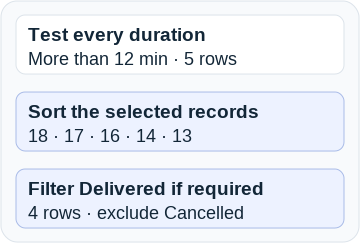
Build one working layer at a time
Apply the threshold
Use greater than 12. A duration equal to 12 does not qualify.
Filter complete records
Keep five orders with their IDs, amounts and statuses.
Sort those records
Use field eight descending in the current nine-field layout.
Check a boundary and an exception
The 18-minute record comes first. The 13-minute cancelled record is included under the stated all-status rule.
Run the report under zero, one and several matches
In J2 enter 17. Only the 18-minute BLK-1007 record qualifies. The result still needs nine fields. Set J2 to 18. No record exceeds 18, so the report returns No slow orders. Restore 12 for the five-record view. This situation distinguishes a legitimate no-match message from a source error and checks that the final sorting step has not tried to interpret a lone message as a record with eight or more fields.
Lab 2. Make and verify a distinct category list
Put Category in U1, and in U2 enter =SORT(UNIQUE(tblMini[Category])). UNIQUE produces one copy of each Category string. SORT orders that resulting label list alphabetically. It does not reorder the original Table's records. Keep the U2 output area clear.
- Inspect the six original outputs: Bakery, Dairy, Fruits, Home, Snacks and Staples. The full populated source contains ten category entries, so this result deliberately removes repeated labels.
- In W1 put Distinct categories and in W2 use
=ROWS(U2#). It gives six for the original nonempty result. COUNTA of the whole list is also six for this known case. COUNTA of U2 alone counts just the single anchor cell. - In V1 put Counts by category. In V2 enter
=COUNTIF(tblMini[Category],U2#). Expect the counts 1, 2, 3, 1, 2 and 1 beside the respective labels. Sum to ten. This is an independent membership check for the source. - In a different area try
=SORT(UNIQUE(tblMini[Category],FALSE,TRUE)). Expect Bakery, Home and Staples only. The third setting asks for entries that occur exactly once, so the repeated category labels are absent. A dropdown of allowed observed categories normally needs the ordinary distinct list instead.
W2 reads the whole spill because the number sign after U2 refers to the range produced by the current formula. If a category is added, that reference grows automatically if the spill has room. A fixed range can be useful for an intentionally static list, but it has a different maintenance rule. Changing a list does not automatically update a dropdown that still points at an old fixed set of cells. Configure and verify that separately in a workbook using Data Validation.
Append one valid record and check both reports
On a practice copy add BLK-1011, 9 Nov 2026, Pune, FreshGo, Bakery, 1, 350, 20, Delivered to the next row. Confirm the Table includes it. A value typed immediately below a list matters to structured formulas only if it is part of the Table. Keep the original threshold at 12 for this test.
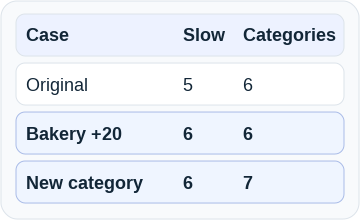
- The sorted queue should now start with BLK-1011 at 20 minutes. It has six records. The selected order amount sum increases by ₹350 to ₹2,301. The full source amount is now ₹3,220.
- The distinct category count remains six, because Bakery is already a category. Its frequency rises to two. Verify the ordinary ordered list still begins Bakery.
- In another version of the test, change the appended row's category from Bakery to Pet Supplies. The slow queue is still six records. The distinct category count now becomes seven and the new category appears between Home and Snacks. The printed order of the categories follows the current alphabetical sort.
- Restore the original ten records and verify both the report and category controls. The completed review is the original expected results plus a known growth case, so a fixed-range error cannot pass unnoticed.
Adjust the business rule with AND and OR
On an independent copy of the original source, the caller wants only slow Delivered orders. Test both criteria for each row of the same Table. Use one mask for Mins and one for Status. A mask is an array of decisions, one per source record. Multiplication of these logical arrays gives one only when both conditions are true.
=LET(keepRows,(tblMini[Mins]>$J$2)*(tblMini[Status]="Delivered"),
     IF(SUM(keepRows)=0,"No slow delivered orders",SORT(FILTER(tblMini,keepRows),8,-1)))
The 13-minute BLK-1009 leaves the result because it was Cancelled. The four remaining IDs lead with BLK-1007, followed by BLK-1010, AMN-1005 and AMN-1003. Their amounts sum to ₹1,731. An independent conditional count such as =COUNTIFS(tblMini[Mins],">12",tblMini[Status],"Delivered") returns four. The earlier all-status control returned five because its question was different.
Another report includes any order that is slow or Cancelled. Add the individual conditions and check whether the sum is greater than zero before using it. BLK-1009 meets both conditions and supplies 2 to the intermediate score. It appears just once because the final decision for that row is simply TRUE. BLK-1004 is Cancelled and took 11 minutes, so it joins the five original slow records. The union from the fixture has six rows.
=FILTER(tblMini,((tblMini[Mins]>$J$2)+(tblMini[Status]="Cancelled"))>0,"No orders in either group")Confirm the condition arrays each have ten positions when the original Table has ten records. If one branch uses a shifted range, the final formula can let an unrelated record in. Check membership with a deliberate overlap case and a case that satisfies neither condition. Use the appropriate logical test before counting or sorting the result.
Resolve tied durations without relying on current sheet order
Add a different fictional practice row in a clean copy with ID AMN-1011, date 9 Nov 2026, Kolhapur, MarketRush, Dairy, quantity 1, amount 100, duration 18 and Delivered status. The largest elapsed time now appears twice. A sorting instruction that uses only duration has no stated business rule for the relative position of those tied records. If the reader expects a consistent output, specify another key.
The expression below first filters the records. Inside the matching branch, the required duration and ID keys come from those same filtered rows. INDEX with row position 0 and a specific column returns that column of the selected array. Sorting by duration descending and then ID ascending puts AMN-1011 ahead of BLK-1007 at the tie.
=LET(keepRows,tblMini[Mins]>$J$2,
     IF(SUM(--keepRows)=0,"No slow orders",
       LET(selected,FILTER(tblMini,keepRows),
           SORTBY(selected,INDEX(selected,0,8),-1,INDEX(selected,0,1),1))))
Check the first two records together. Each should show 18 minutes. The new order's amount is ₹100, while the original Solapur order's amount is ₹1,299. A sort must move every field with its own ID. If you accidentally supply the full ten- or eleven-position duration column as a key for only the filtered records, SORTBY does not have one corresponding key per row. Derive keys after filtering or apply the same mask to each source key field.
If using a more recent edition with CHOOSECOLS, you can show only ID, City, Mins and Status after sorting. Choose columns 1, 3, 8 and 9 from the full sorted data in the matching branch. Do not pass the no-data text to that four-field projection. Ranking changes order and projection changes fields, so verify both after reassembling the formula.
Show an ordinal number next to the queue without turning it into an ID
On the clean base report in K2, use the same eligibility rule to decide whether to create a sequence of result positions. In a free column such as Y2, try =IF(COUNTIF(tblMini[Mins],">"&$J$2)=0,"",SEQUENCE(ROWS(K2#))). The current five-row queue has labels 1 through 5. The positions describe where you read the records. If a 20-minute order joins the front, each prior record's position changes without changing its actual Order ID.
For a no-match state, avoid counting a one-cell message as a queue entry. The conditional count returns zero at a threshold of 18. The position column should show no numbers. This also reinforces why a label count or ROWS of a spill must be interpreted with the formula's possible return types.
Keep a data-quality check and a reproducible answer
Normalize an observed category only under a declared rule
In a practice copy, append an ordinary space after the Dairy category on BLK-1001. It can look identical to another Dairy cell, but the raw label may survive as a separate distinct value. Use =LEN on the two corresponding source cells to check their characters. Here Dairy has length 5 and the version with one extra space has length 6. Keep the raw label for review. Use a separate cleaned view where the workshop's data plan authorizes that change.
=LET(rawCategory,tblMini[Category],
     cleaned,IF(rawCategory="","",TRIM(SUBSTITUTE(rawCategory,CHAR(160)," "))),
     hasCategory,cleaned<>"",
     IF(SUM(--hasCategory)=0,"No categories",SORT(UNIQUE(FILTER(cleaned,hasCategory)))))
This version accepts the source's category convention and excludes missing labels. It uses TRIM to handle ordinary spaces, and maps the specified nonbreaking-space character to an ordinary space before trimming. Other unusual characters may need a distinct check. The original training category names contain intentional internal single spaces where needed. Verify that the chosen whitespace policy leaves meaningful labels intact. Do not overwrite the original cells simply to make a test pass.
With the trailing whitespace mistake, expect six cleaned categories again. If one source category is genuinely missing, record the row's missing label separately. For an “all categories missing” exercise, the one-cell No categories output is a state message and must not count as a category. Only run ROWS over the spill for category counts after checking that it really contains labels. A data validation picker should use approved labels, and available categories are not always the same as approved categories.
Reject invalid times explicitly instead of calling them fast
The base slow-order lab uses all numeric times. Imagine you clear the 18-minute cell on a copy, or replace it with an import error. The original record still exists. A report that marks missing times as quickly delivered is misleading. One explicit practice policy keeps only measured times and reports missing or invalid times in a separate quality check.
=LET(inputMinutes,tblMini[Mins],
     numericMask,ISNUMBER(inputMinutes),
     measuredValues,IF(numericMask,inputMinutes,0),
     keepRows,numericMask*(measuredValues>$J$2),
     IF(SUM(keepRows)=0,"No measured slow orders",SORT(FILTER(tblMini,keepRows),8,-1)))
In this expression measuredValues uses zero as an intermediate placeholder, and the numeric mask prevents that placeholder from entering the results. The original source retains its evidence. Use =SUM(--NOT(ISNUMBER(tblMini[Mins]))) to report how many times are not numeric. In the copy with the 18-minute value removed or replaced by an error, the expected exception count is one, and the remaining slow orders are 17, 16, 14 and 13. A different policy can stop the report until the missing value is fixed. State which one you chose.
If the threshold comes from a person instead of a known test input, independently check that J2 is numeric and within the reporting agreement. Fold that check into the outer formula or label it next to the control. A typed duration value of zero is still numeric. The workshop data-quality rule distinguishes it from missing or imported text. A separate “positive time required” rule should be agreed explicitly if that is the actual requirement.
Confirm the original practice answers before adding extensions
Return to the original source and enter 12 in J2. Use the following controls after you have completed the two labs. They isolate count, sequence and category calculations so one passing control cannot cover up a failure elsewhere.
How many recorded orders are above twelve minutes?
Five. Use =COUNTIF(tblMini[Mins],">12"). The times are 14, 16, 18, 13 and 17 in source order. The 12-minute record is a boundary control that must remain excluded.
What are the fastest and slowest entries in the new view?
The first ranked order is BLK-1007 at 18 minutes. The smallest time in the selected set is 13 minutes for BLK-1009. It is last in descending order. These are the extremities of the selected records, not the fastest and slowest among all ten orders.
What counts verify the category list?
Six distinct categories and ten assigned category values in the original source. Use W2 for the count of labels and sum the six frequency values in V2#. A common mistake is to use the source row count for the number of categories.
What should happen with no time matches?
Set J2 to 18. No order took strictly longer than 18, so the composed report shows No slow orders. The sort branch is not asked to read an eighth field from a one-cell message. Restore the 12 control before the next exercise.
How do an existing-category append and a new-category append differ?
In both states, the 20-minute row appears first and the queue contains six records. If the new item is Bakery, the category list remains six. If it is Pet Supplies, category count becomes seven. The two views are controlled by different fields.
What simple check proves the projected report still has matched values?
Check a known record by ID across its fields. BLK-1007 should carry Solapur, 18 minutes and Delivered after sorting. A count alone would not detect Cities and Mins incorrectly sorted as separate arrays.
Apply a reporting window without losing the duration rule
Use the restored ten-order source. The caller now wants slow orders during two particular days, 3 and 4 Nov 2026. Enter Start date in A15 and End before in A16 on a spare Controls sheet. In B15 use =DATE(2026,11,3), and in B16 use =DATE(2026,11,5). The first date belongs to the window. The final control means the first excluded date, so day 4 is included. This design remains useful when an imported date field contains a time of day too.
=LET(inWindow,(tblMini[Date]>=Controls!$B$15)*(tblMini[Date]<Controls!$B$16),
     keepRows,inWindow*(tblMini[Mins]>12),
IF(SUM(keepRows)=0,"No slow orders in period",SORT(FILTER(tblMini,keepRows),8,-1)))- Before reading the output, identify records within the dates. They are AMN-1003, BLK-1004, AMN-1005 and BLK-1006. Two pass the strict duration test as well.
- Expect AMN-1005 at sixteen minutes first, then AMN-1003 at fourteen. Their amounts are 232 and 110 and add to ₹342. Other slow records are outside this window.
- Move the window to Nov 8 alone by setting its start to Nov 8 and exclusive end to Nov 9. BLK-1010 now qualifies at 17 minutes.
- Try an empty window such as Nov 1 through just before Nov 2. Expect the message because none of the source records have that date. Restore the original dates after testing.
These date controls assume real Excel dates. A date-looking imported string may be a different type. Verify the source has numeric date/time values before relying on comparisons. Include the inclusive start and exclusive end in the report title or description. The duration is measured in minutes; the date window measures calendar time. A reader should be able to tell which fact adds an order to the report.
Diagnose the shape and count on a single controlled copy
Test a spill blocker without replacing any source value
Make a fresh practice copy. Before placing the composed formula, put the text reserved in R6, which is inside the expected K2:S6 base result. The report should have a spill error because that cell is not free. The threshold count can still be five. The two observations distinguish a range blockage from zero matching records. Remove only the deliberately placed cell value and verify all five records appear. If the blocker in a real workbook belongs to another formula or note, move the report or address the location intentionally.
Use a simple sort as a check for an incorrect field number
In the original report, Mins is the eighth field. Amount is the seventh. If someone accidentally sorts by the seventh field, the first entry happens to stay the same because BLK-1007 is both large and slow. Check a second or third row. By duration the second ID is BLK-1010 at seventeen minutes. Its amount is only 90, so by descending amount it would not be second. This illustrates why a single first-row check can miss an incorrect sorting rule.
If the category count says one, check whether the formula references U2 or U2#. The former is one cell. The latter is the complete current output. Make sure the report is in its label-producing branch before counting. If a new category was typed but did not appear, inspect whether the input row joined the Table or whether your list intentionally excluded it under a cleaning rule.
When handing the workbook to someone on a different version, have them recalculate a small known case. The key FILTER, SORT, SORTBY, UNIQUE and SEQUENCE practice formulas belong to the foundational dynamic-array group documented for modern Excel including Excel 2021. The more recent CHOOSECOLS extension needs its own compatibility check. The optional workspace can still show the full nine-field result when the projection is not available.
Connect a chosen category to the queue without changing its meaning
The distinct categories list can become a selection control for another report. Use a blank Controls sheet. In A2 type Category choice and in B2 type Fruits directly. Verify the reports first using a typed label. If a data validation menu is needed, point it at an approved list in the workbook and check the exact list range each time you change the layout. This exercise uses observed distinct labels as choices. Real product categories may come from a separate approved catalogue.
Put the following formula in an empty Orders report area. It distinguishes an unknown category from a known category with no orders above the duration threshold. Choosing a category does not affect any record in the source. The lookup condition just reads a label and the known duration rule.
=LET(categoryChoice,Controls!$B$2,categoryRows,tblMini[Category]=categoryChoice,
     keepRows,categoryRows*(tblMini[Mins]>12),
     IF(SUM(--categoryRows)=0,"No orders in that category",
IF(SUM(keepRows)=0,"Category has no slow orders",SORT(FILTER(tblMini,keepRows),8,-1))))- Choose Fruits. It has three records in the original source. BLK-1002 took exactly 12, BLK-1004 took 11 and BLK-1010 took 17. Only BLK-1010 appears, with amount 90. The category amount of 600 describes all three orders, independently of the threshold.
- Choose Dairy. Two source records belong to it. AMN-1005 takes 16 minutes and qualifies, with amount 232. BLK-1001 takes nine and remains excluded. The category amount before applying the time threshold is 296.
- Choose Snacks. Both source orders, AMN-1003 and BLK-1009, exceed the duration threshold. The first gave fourteen minutes and the second gave thirteen. Their total is 330. If restricting to Delivered, just AMN-1003 remains with 110.
- Choose Bakery. Its only current record remains below twelve. The report returns Category has no slow orders. Choose Pet Supplies in the restored source and expect No orders in that category. It is not currently an observed label.
Use a matching category-specific COUNTIF control before counting the slow records. With Fruits, report three category orders and one over the threshold, rather than only one number without its meaning. After changing the source, verify the controls against the exact same category label. If the lookup uses normalized categories but the counted source field still contains raw padded strings, the reports can disagree. Use the same approved category definition throughout the workbook.
Plan how a historical report reacts to changed categories
A dynamic category list represents the currently included data. Removing the last item in a category can remove that label from the choices. An approved classification list can keep it as a valid option even when the week has no transactions. Decide what should happen when a preexisting control contains a label that is no longer observed. The explicit no-category branch above explains that state instead of leaving the sheet with an ambiguous empty result.
Run a small handoff test with independent checks
Share a known test copy with the source and both outputs visible. Ask a classmate to use this sequence. It checks a blocked layout, an exact boundary, current category membership and recalc after changes. Each step has a specific expected value and can be undone.
- Before edits, check K2 shows the original slowest ID BLK-1007 and W2 shows six categories. Open the source and find the duration, status and category of that first record.
- Change the threshold to 16. Only 17 and 18 qualify. The 16-minute AMN-1005 is removed. Compare the resulting two IDs with the source and restore 12.
- Append the stated 20-minute Bakery row within the Table. Recheck the sorting and six-category count. Remove the practice row by returning to the original copy.
- Choose Fruits in the category view and read the expected one order. Compare the original five slow orders across all categories. The filtered category view is a different question.
- Repeat the blank-output case and verify its text label and separate zero eligibility count. Avoid reporting a row count of one as proof a record exists.
Keep a note of which default threshold, source Table and category cleaning rule the uploaded workbook uses. If the recipient cannot recalculate some newer formulas, preserve the clean source and use the less specialized equivalent where possible. Check whether a values-only snapshot meets their purpose. A snapshot describes one known state, while a live formula report should update on the next valid source edit.
Keep independent checks in the workbook after reviewing the answer
Use a small result card in the practice worksheet to list expected source count, expected matched count and actual spill width. The clean case expects ten source rows, five matches and nine output fields. If the report later adds an extra field, its width can change while the membership stays the same. If the duration threshold rises, the membership changes without any edit to the source width. These distinguish two possible reasons a downstream formula stopped fitting.
One useful blank-state test is to keep the source Table populated while setting a threshold the source cannot meet. That is the 18-minute threshold in the original dataset. Another is to inspect the workflow with only category labels missing. The category view and time queue are independently defined, so one can still produce data when the other has an empty state. Label the two results and compare their separate counts rather than declaring the whole worksheet empty.
The next practice page combines ranking, grouping and explicit output shapes. Keep this same small dataset so you can compare conclusions rather than guessing which values changed.
Quiz with explained answers
Why does BLK-1002 at exactly twelve minutes stay out of the queue?
The queue asks for values strictly greater than twelve. Twelve is at the cutoff and not greater. If the business asks for twelve or more, change the comparison deliberately and verify the additional record. The simple base result would gain that boundary row.
What changes when the queue also requires Delivered status?
The duration rule still keeps values above twelve. The cancelled BLK-1009 then fails the status test and leaves. Four records remain. This is an intersection of the two source conditions, so multiplying their aligned masks supplies the include decision.
Why does a category picker use the ordinary UNIQUE result here?
Its goal is one copy of each observed label. Switching the exactly-once mode on would omit labels such as Fruits and Dairy because they appear on multiple records. That different result would represent rare categories, rather than the intended selection list.
Does a row count of one prove exactly one order meets the threshold?
Check the possible return shape. A genuine singleton result still has all nine fields, while a No slow orders message occupies one cell. Use the eligibility rule to count matches independently. The message is not a data row.
How do you prove whether the formula sorted using Amount or Mins?
Verify more than the first record. BLK-1007 leads both sorts in the base filtered set. The second record by Mins is BLK-1010, but its amount is only 90. Check the active key in the immediate input and compare the second and third positions with known expected values.
Will a 20-minute record for an existing category change both counts?
It increases the slow-order count by one. Adding a record in the Bakery category increases its frequency, but the count of distinct categories stays six. A new category such as Pet Supplies grows the distinct label count to seven too.
Interview questions you can answer from practice
How would you create a reliable dynamic report before adding the final sort?
I would define eligibility, create a Boolean mask aligned to all source rows and verify a few inclusions and exclusions. Then I would count matches and filter complete records. I would sort the filtered result by the correct key and check both the first and last row. No matches gets its own result.
How do you handle cases where a record meets two OR conditions?
Add the two logical include arrays and check whether each sum is greater than zero. A record meeting both gives two before the comparison, then one TRUE decision. It appears only once. Test an overlap and an example that fails both.
What does a category count prove about the underlying data?
It measures how many labels are distinct under the chosen cleaning rule. It says nothing about how many records each label has. Count matching source records per category and reconcile to the expected record count. Investigate blank or visually different duplicate labels separately.
How would you test that a new order actually joined a live report?
Append a row with a recognizable ID and a valid twenty-minute duration within the Table. Expect it to become first and move the matching count from five to six. Check whether the category should also change. That tests both the expanding source and the distinct-list rule.
Where can a sort key go wrong when filtering changes the shape?
The old key may still cover all source records, even though the output includes only five or six. Derive the key from the filtered array or apply the same mask to it. If using a numeric position, confirm it refers to the field in that particular result before sorting.
Revision cards
- FILTER sets membership. Check which rows qualify at the threshold.
- SORT changes order. Check the field index against the input it receives.
- UNIQUE has two useful meanings. Ordinary distinct labels differ from labels occurring exactly once.
- Read the whole spill. The number sign after the anchor lets another formula use its complete output.
- Verify growth. Check the new record is inside the Table and appears in the expected reports.
- Handle no matches. A message is a state, not a data row.
Microsoft references
Continue practising: explore the existing Excel Task Hub for additional exercises.