9.17 IMAGE: Pictures Inside Cells
Show a picture that stays with its worksheet record
Shahrukh is making a fictional storefront catalogue inspired by browsing Blinkit or Amazon Now. Each record has an ID, display name, availability and a picture reference. He needs a preview in the same row, so sorting the records keeps each preview associated with the right product. In this workshop the pictured items are genuine public course resources instead of private product photos. The stock and price values are only practice data.
The IMAGE function reads a direct HTTPS image address and returns a picture as a cell value. A source address, often called a URL, tells Excel where to retrieve the file. Alternative text is a written description of the picture used by assistive technology. The record should keep a readable label and any important information in worksheet text as well. People should be able to use the catalogue even if their application cannot load the pictures.
Choose the size and source according to the job
The formula begins with the image URL, and the next argument is its alt text. The remaining arguments choose the image's size. Aspect ratio tells how width compares with height. For a tall revision card, preserving that ratio keeps the image tall and narrow even when it fits inside a short, wide cell.
| Mode | What it asks Excel to do | Useful case |
|---|---|---|
| 0 or omitted | Fit in the cell and keep its proportions | Readable catalogue thumbnails |
| 1 | Fill the cell without preserving its proportions | A cell-filling picture whose shape can stretch |
| 2 | Use the file's original dimensions | A small image whose original size is known |
| 3 | Set height, width or both | A controlled thumbnail height with known proportions |
Give height and width only with sizing mode 3. With one valid custom dimension, Excel keeps the aspect ratio. With both dimensions supplied, the image can stretch. An original-size picture can exceed the cell boundaries, so start with fit for a small catalogue. Use the receiving app to check the actual display and label a comparison with the requested size rather than a guess about what you see on screen.
Microsoft documents IMAGE for current Microsoft 365, Excel 2024, Excel for the web and supported mobile apps. A supported app can still fail to fetch a file because external content is controlled separately. The documented formats include BMP, JPG or JPEG, GIF, TIFF, PNG, ICO and WebP. WebP has a web and Android exception. SVG is not on that supported list. The lesson's vector diagrams explain the workflow in a browser; use the tested public PNG sources for the worksheet exercise.
Lab 1. Build a catalogue from three real public PNG files
Open a new practice workbook and create a tab named Catalogue. Enter this table in A1:F4. The URL cells contain the address as text, not a clickable word such as “view image.” If the app creates a hyperlink, check that the cell value itself is the complete address. All three supplied files are available on this website and were independently verified to respond directly over HTTPS with PNG data. Rendering in Excel still depends on its current connection and policy.
| Resource ID | Resource | Practice price | Thumbnail URL | Image description | Stock |
|---|---|---|---|---|---|
| EX-100 | Course icon | 0 | https://ravindrabagale.com/apple-touch-icon.png | Square Ravindra Bagale course icon | 20 |
| EX-101 | Revision card 1 | 32 | https://ravindrabagale.com/excel/ch09-dynamic-arrays/cards/revision-card-1.png | First Dynamic Arrays revision card | 12 |
| EX-102 | Revision card 2 | 45 | https://ravindrabagale.com/excel/ch09-dynamic-arrays/cards/revision-card-2.png | Second Dynamic Arrays revision card | 0 |
- Put Preview in G1. In G2 enter
=IMAGE(D2,E2,0)and fill it down to G4. The current row supplies both its URL and its description. - Under an Excel configuration that permits these direct public links, EX-100 should show a square course icon and EX-101 and EX-102 should show their corresponding portrait revision cards. If a file is blocked by policy, the Resource, description and other text fields remain useful.
- Increase one practice row's height and widen G. The fit-mode result is constrained by the available cell dimensions and preserves the source proportions. Once another dimension becomes the limiting one, greater height alone may not make the preview larger.
- In a new copy convert A1:G4 to a Table named tblResourceCatalogue, confirming that the range includes the Preview values. In its Preview column, the structured expression below refers to each current row's fields.
- Sort by Practice price largest first using the Table heading. Check order EX-102, EX-101, EX-100. Read the complete same-row Resource ID, URL and image description after sorting. Confirm the preview and labels still describe the matching record. An image that looks like a card does not by itself prove it belongs to EX-101 rather than EX-102.
=IMAGE([@[Thumbnail URL]],[@[Image description]],0)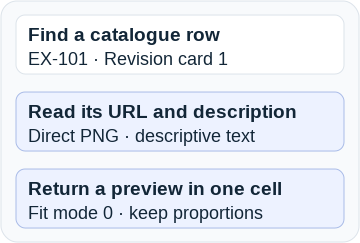
Follow one preview through a catalogue sort
Read the key
EX-101 identifies Revision card 1 independently of its worksheet row number.
Use the matching source fields
The current row provides the direct PNG address and its own description.
Show a fit-mode picture
The formula returns one picture result, with text available beside it.
Verify after sorting
Check the key, URL and description still describe the same first card.
Use a predictable test when the pictures cannot be loaded
In a restricted classroom, proceed with the URL, resource name, key and stock fields. Verify the lookup and rows before judging thumbnails. Expected first after the price sort is Revision card 2 with its own distinct file address. If you need an in-cell picture without a linked image formula, the optional local-file comparison later in this lesson explains the difference. Do not change an organization's external-content policy merely to complete the exercise.
Lab 2. Pick a preview by key and compare size choices
Return to the original Catalogue sequence, or use the named Table from Lab 1. This lab uses A2:A4 for the key list, D2:D4 for the URLs and E2:E4 for descriptions. These source fields must describe the same records in the same order. Add Resource key in J1 and EX-101 in J2. The selector should fetch the first revision card without depending on the row order in your catalogue.
=LET(wanted,$J$2,
     imageURL,XLOOKUP(wanted,$A$2:$A$4,$D$2:$D$4&"",""),
     description,XLOOKUP(wanted,$A$2:$A$4,$E$2:$E$4&"",""),
IF(wanted="","Choose a resource",IF(imageURL="","No image for that key",IMAGE(imageURL,description,0))))- Put the formula in J4. It uses an exact key lookup and applies IMAGE only to a known result with an address. When choosing EX-101, verify it resolves to the first card's direct PNG and description.
- Change J2 to EX-100. The lookup should return the square course icon and its description. The amount and availability fields are separate catalogue data.
- Set J2 to EX-102. It retrieves the second card. That practice record exists even though Stock is zero. A simple asset preview and a stock-based sales preview may have different rules.
- Set J2 to EX-999. Expect No image for that key, and no attempt to retrieve an invented file. Clear J2 to check the separate Choose a resource prompt.
- In a scratch column test the two independent XLOOKUP calls alone if you cannot see pictures in a restricted environment. They should produce the corresponding exact URL and description for each existing key. Those outcomes prove the local lookup part only.
Prefix the data with a stable key. Different rows can have similar display names. If the key itself is reused, XLOOKUP returns a match according to its search order and does not deduplicate the source for you. Check that every key is unique before providing images to a dashboard. If rows can be added below A4, use structured Table fields and make sure the new row is within the source Table.
Compare fit, fill, original and custom modes
Use the original EX-101 record in row 3 and put each size experiment in a free position. The remote image file is 1,080 pixels wide and 1,350 pixels high. Its width-to-height ratio is 0.8. Fit mode preserves its shape in a cell. Fill mode adapts to the available cell shape, which can stretch a tall card in a wide row. Original mode requests the file size and can look much larger than the cell.
=IMAGE(D3,E3,0)
=IMAGE(D3,E3,1)
=IMAGE(D3,E3,2)
=IMAGE(D3,E3,3,50)
=IMAGE(D3,E3,3,40,80)
With only height set at 50, the matching width under the original proportions is approximately 40 pixels. With height 40 and width 80 explicitly supplied, the ratio becomes two to one, different from the original portrait proportions. Check the resulting display in your app. These are requested sizes, and available cell space and display scaling affect what you can see. If only width 40 is set using =IMAGE(D3,E3,3,,40), the equivalent aspect-ratio height is 50 pixels.
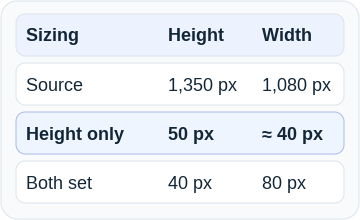
Add a simple stock display rule without changing the catalogue
Use the original three rows. In an empty column add Available preview and fill the formula below down three rows. A positive numeric Stock means the picture is eligible in this fictional display. A zero stock value gives a text status. The normal Preview in G still serves as an asset reference for every recorded resource.
=IF(F2>0,IMAGE(D2,E2,0),"Out of stock")For EX-102 expect Out of stock because it has 0. For EX-100 and EX-101 the picture requests use their valid URLs. If entering a new quantity, test a change from zero to one and back. A real policy may also need to distinguish missing, negative or text stock values. For this fixture all three counts are known and nonnegative.
Choose between a linked function, a placed in-cell picture and a floating picture
Excel offers multiple picture placements. IMAGE places an externally retrieved image inside a cell through a formula. Excel also documents Place in Cell, a ribbon option that can insert a suitable local file as an in-cell picture without an IMAGE URL formula. A floating picture placed over cells is a separate object. It can have placement properties that affect how it moves or resizes with cells. Check the selected mode and behaviour in your version when you rely on row sorting.
- Use IMAGE for a formula-controlled preview. A key selector can choose a different URL and alt text as the current catalogue record changes.
- Use a placed in-cell picture for a local resource. If you have an approved image file and the feature is available, place it in a selected blank cell and add its descriptive text. This avoids a remote image formula for that specific picture.
- Use an over-cell picture for a free-positioned worksheet illustration. A cover graphic or diagram may need to occupy an arbitrary area. If the workbook needs row association, verify its movement properties and sorting behaviour.
For an optional local comparison, use a PNG you have permission to use. In a new worksheet select an empty cell. Choose Insert → Pictures → Place in Cell → This Device where the command is available. Select just that file. Alt-text controls for a placed picture may differ from the formula's second argument. Test how the result moves with a whole-row sort inside your practice Table. None of these placement modes need the chart or source values in the worksheet to be removed.
Perform the local insertion in an intentionally blank target area. Microsoft documents that inserting several pictures at once can place them into cells from the active cell down the column and overwrite existing values. A new practice sheet is a reversible way to see the workflow. Keep the approved original files separate from the workbook and note which source was used for each preview.
Inspect the source and error state before changing the workbook
A webpage address is not necessarily a direct image file
In a browser, a link can lead to a webpage containing an image. IMAGE expects the address of the actual image. A page URL might return HTML instead of a PNG. Some services present a friendly URL that redirects to the real file, or asks the viewer to sign in. Microsoft documents that authenticated URLs do not render in IMAGE and redirected URLs are blocked. Use an approved direct image URL. Do not put a private link, a signed secret or an access token into a workbook that someone else will receive.
For the supplied course assets, the three exact instructor URLs responded directly with a 200 status and PNG bytes when checked using a client that does not follow redirects. The course icon is 180 by 180. Each revision card is 1,080 wide by 1,350 high. Those are verified source facts. They do not test how Excel fetches a file under your configuration. If the examples change, test both the URL and a different asset before judging the formula.
Let the correct error remain visible while debugging
| Observation | Likely condition | What to inspect |
|---|---|---|
| #VALUE! | Invalid argument type, sizing or unsupported format | Use a known direct PNG and fit mode, then add one size setting |
| #CONNECT! | Connectivity or server issue | Try the approved direct address and check access from your app |
| #BLOCKED! | External retrieval or linked-content policy | Check the organization's policy and use a permitted local option when appropriate |
| Wrong picture but no error | Wrong URL or wrong source key | Compare the exact key, URL and description after a whole-record sort |
| Picture unreadably small | Cell limits, aspect ratio or unsuitable source | Widen the column or use a short text label beside a fit-mode preview |
If a source check fails, start with =IMAGE(D2,E2,0) on a known row. Use the same strict source protocol and try the direct course icon. A different workbook may have different permissions. Preserve the application's security policy. If external data is not permitted in the workbook, use data labels and a permitted in-cell local reference instead of trying to bypass the block.
Microsoft suggests keeping a long URL in its own text cell and passing a reference to it when the literal formula argument is too long. This keeps the formula shorter and makes the stored source visible. It does not turn an unsupported format or a protected source into a compatible file. The same URL access rules still apply.
Provide distinct missing and invalid address messages
In a practice copy of Catalogue, put URL status in H1 and test the following. It checks the address field before previewing. It does not verify that the remote server responds or that the URL really refers to a PNG.
=IF(D2="","No address supplied",IF(LEFT(D2,8)="https://","Check direct file","Expected HTTPS address"))Fill the check down three rows. All three real catalogue addresses give Check direct file, meaning basic scheme validation passes. Temporarily clear D3 and require No address supplied on that record. Put a text value such as image to review in the same cell and require Expected HTTPS address. Restore the original URL afterward. These deliberately invalid tests do not send any requests. A link that starts HTTPS may still fail the service's other requirements. Keep that distinction in the worksheet heading or status note.
Make a catalogue readable with and without previews
For the worksheet keep a Resource name and unique Resource ID visible as normal text. A tiny picture of a revision card cannot communicate every concept it contains. Users should still be able to identify and open the right study resource without seeing the thumbnail. A meaningful alt field can say “First Dynamic Arrays revision card” and “Second Dynamic Arrays revision card.” The picture is supplementary.
Write alt text for what the image contributes
- Identify which resource is depicted. “Picture” alone repeats the type of content and leaves the important distinction unsaid.
- When similar images are used, note the distinguishing feature or record when it is relevant. Two card previews with the same general topic need separate descriptions.
- Keep amounts, terms, status or instructions as text in the appropriate worksheet cells. Do not rely on stylized words inside a small picture for essential information.
- Verify the description still matches after replacing a source URL. A changed image and a stale alt description produce a mismatched preview even when the URL loads successfully.
Picture sizing and worksheet accessibility are related but separate. To compare the 50-pixel and 40-by-80 requests, observe whether the card shape is preserved and the object is used only as a sample. A responsible report still contains the readable name in a cell nearby. Label any “no image for that key” result with its meaning, not just an empty slot. Give the person a key or name they can use to resolve the missing item.
For a printable handout, review one example in its real destination. A link may render in one app and remain unavailable in another. Keep essential descriptions and identifiers visible in the print area. If your lesson or catalogue depends on approved static pictures, compare a permitted placed-in-cell copy and verify its captions after sorting.
Practice and answer key with the live sample assets
Restore the original Catalogue order so EX-101 is row 3 and the source fields are A through F. Each mode experiment should go in its own unused cell. Use the already verified course file addresses rather than fictional URLs.
Show the first resource image with descriptive text
Use =IMAGE(D2,E2). It requests the square course icon with its own description. The source resolves to the 180-pixel square PNG. In a restricted workbook verify D2 and E2 separately and keep the label usable.
Fit the first portrait card without changing its aspect ratio
Use =IMAGE(D3,E3,0). Mode 0 fits within the receiving cell and preserves proportions. A wider cell alone may not increase the result if the row height already limits the portrait.
Fill the preview cell without requiring the old proportions
Use =IMAGE(D3,E3,1). Compare in a cell much wider than it is high. The shape may stretch because the source card is taller than it is wide. Use a separate normal fit preview so you can see the difference.
Request the source's original size
Use =IMAGE(D2,E2,2) for the small square icon. The source is 180 by 180 pixels, which may exceed the cell size. Try a clear practice location with room to inspect its on-screen display. This formula has no added height or width arguments.
Set height 40 and width 80 explicitly
Use =IMAGE(D3,E3,3,40,80). Mode 3 takes height first and width second. Requesting both changes the portrait proportions. For an aspect-preserving 50-pixel height, use =IMAGE(D3,E3,3,50) and verify the approximately 40-pixel width.
Show the preview for a user-entered key
Use the selector in Lab 2. Test the expected response to EX-100, EX-101, EX-102 and an unknown key. The key maps to the image URL and its description. Unknown EX-999 returns a text status without using a made-up source URL.
Keep the preview hidden when a practice item is out of stock
Use the positive-stock formula from Lab 2. EX-102 returns Out of stock. Then change only its stock from 0 to 1 in the copy. The URL and description stay associated with EX-102 and now qualify for a picture request. Restore 0 for the original fixture.
Teach a catalogue to explain why a preview is unavailable
Availability has its own meaning separate from image access. The simple formula in Lab 2 was written for the three supplied numbers. In a practice copy, test four more scenarios on the EX-102 row: numeric zero, empty Stock, a text value and a negative count. A picture request should happen only when the workbook's agreed inventory rule is satisfied. Choose whether those other states should look like an out-of-stock item or require an input check.
=IF(ISBLANK(F2),"Stock not supplied",
     IF(NOT(ISNUMBER(F2)),"Check stock",
        IF(F2<0,"Check stock",
           IF(F2=0,"Out of stock",IMAGE(D2,E2,0)))))
Put the expression in a free column starting at row 2 and fill down. Verify EX-100 and EX-101 use their approved URLs with stock 20 and 12. EX-102 at zero says Out of stock. If its count is missing completely, that gives Stock not supplied. If you enter text or negative quantity, expect Check stock. Positive 1 allows the picture request for the second card. Restore the original source afterward. This is a decision about inventory. It does not claim a good stock value proves the remote picture is accessible.
A workbook that has formula-produced empty text in Stock needs a separate decision. This rule treats it as an unexpected value type, because its cell is not genuinely empty. Use the control result to discuss whether the importer should translate that condition to a missing-value flag. The product still has a name, ID and approved image address when any of these text reports appears. A preview must not be the only place its identity is recorded.
Check for missing or mismatched values after a catalogue edit
In the selector exercise, temporarily clear the Thumbnail URL for EX-101. The lookup's return array appends empty text using &"" so a cleared address is treated as empty text rather than becoming a numeric zero at the point where the URL is used. Choose EX-101 again. The status No image for that key is expected now, even though the resource itself exists. In a production design you may want distinct messages for an unknown key and a record with a missing file. The exercise already preserves the explicit lookup key and separate URL status so you can refine that rule.
Restore D3 and check its image description. A correct application label should be traceable to the asset you expect. Changing just one stored URL to the second revision card while retaining first-card alt text makes a broken record. Neither a URL existence test nor a numeric stock test will reveal that swap. Include one visual check for a known pair when the receiving app can load approved files.
Hand off a usable workbook with source references and tests
Keep a copy of the source assumptions with the class workbook. For the training catalogue, note that the three addresses are public course asset PNGs, and that the attached amounts and quantities are made up. Each descriptive field identifies a specific item rather than relying on the kind of file. Try the lookup after sorting the whole Table and check its exact output URL. That separates local data logic from remote rendering. If a real asset must be replaced, test the new direct address and update its description together.
In an organisation you may need a maintained, approved asset source and someone responsible for updating links. A cached or previously loaded picture can make a report seem ready until it is opened on a different device. Verify at least one sample in the intended Excel platform and under its normal settings. It is reasonable to deliver the text catalogue while a preview is unavailable. Record the state and whether a permitted local file can meet the same requirement.
Make the catalogue support a no-image review
A colleague sees only names and numbers because the workbook does not permit image fetching. That person should still be able to verify each record and hand it back with clear feedback. Add a read-only check area on a separate sheet named Review. On Catalogue keep the original names, IDs and source descriptions intact when sorting or hiding the Preview column.
- In Review A1 put Resource ID and in B1 put Matched name. Enter EX-101 in A2 first. Use
=XLOOKUP(A2,Catalogue!$A$2:$A$4,Catalogue!$B$2:$B$4,"Unknown key")in B2. Verify Revision card 1. - In C1 put Matched description. Use another exact lookup against Catalogue E2:E4. Expect First Dynamic Arrays revision card for the initial key. The description is ordinary worksheet text and can be reviewed without a successful external fetch.
- In D1 put Expected file. Use an exact lookup from the corresponding URL column. Confirm the address ends in revision-card-1.png. Then change the key to EX-102 and verify revision-card-2.png instead.
- Check that the Resource ID control still selects the same record after sorting the original Catalogue as a complete range. If its price or stock changes, the identity remains the same. Verify a currently out-of-stock item can still be identified by the Review sheet.
This check panel illustrates why a real preview should not carry the definition of the record by itself. It makes three independent source fields visible. If one calculated address now belongs to another record, you can compare the expected ID and filename before opening any picture. If the source later stores images with generic filenames, add a separate maintained asset ID or a human-readable label in the data contract.
When handing this exercise to a teammate, include one known picture-enabled and one no-image review outcome. They should know what they can confirm under each condition. The first can confirm that the actual picture displayed matches the row. The second can confirm key and source logic. Both can read the descriptions and see the stock decision. Neither method should expose private links or rely on permission changes.
Count catalogue rows by Resource ID, not by how many pictures were drawn. The exercise contains three records. Two meet the simple positive-stock condition, and three have address values. A connection failure can stop even these available images from loading without changing the record count. Keep those three checks separate in any handoff note so an unavailable asset does not look like an unrecorded item. If filtering by Stock first, count the eligible IDs from that same filtered population and reconcile them to the labels in the displayed result.
Check scale in the actual use context
A square course icon and portrait revision card behave differently inside the same cell. As part of a handoff, use a pair of rows with identical height and column width. Fit should keep each image's proportions. Look for small previews with visible labels instead of increasing every row height unnecessarily. A fixed thumbnail may be good for browsing, but it does not need to carry the small text of a full revision card. If text or print interpretation matters, provide the words in the sheet or point the learner to the full approved resource.
Quiz with explained answers
What does the first IMAGE argument need to contain?
It needs a text value giving the direct HTTPS image URL. Text such as View photo gives a reader a label but does not contain a usable source address. Verify that the actual resource supplies a supported image file without an authentication step or redirect.
Which mode preserves the image's shape while fitting the cell?
Mode 0. Excel scales the image within the available cell area and keeps its proportions. The row or column can constrain the result. The default IMAGE behaviour uses this fitting choice when sizing is omitted.
What width corresponds to a 50-pixel height for the 1080 by 1350 portrait card?
About 40 pixels. Its width-to-height ratio is 1080 divided by 1350, which is 0.8. Multiplying 50 by 0.8 gives 40. With height alone the formula uses that ratio, and the actual display still depends on its worksheet location.
Why does the stock-based preview return text for EX-102?
Stock is zero in the original exercise. The lookup can still identify a known second card, but the stock check deliberately displays Out of stock for the row. Availability for a catalogue display and existence of an asset are separate facts.
What does a browser response containing PNG bytes establish?
It establishes the direct URL was accessible to the checking client as a PNG at the time. Excel still has its own connection and security settings. To verify rendering, open a permitted workbook in the intended app and try the approved direct source without changing policy.
What should you do when a preview gets #BLOCKED! on a managed workbook?
Check what the application or organisation permits. Retain the text labels and consider a permitted local-file option if needed. The reader should still be able to identify and sort records using their text values. Do not take a managed restriction as a reason to broaden global access.
Interview questions you can answer from practice
How would you make a preview follow its record through sorting?
Keep the picture URL and alt text in the same Table row as the unique resource key. Use a current-row formula for the preview. Sort the entire Table, then verify one moved row by ID and matching filename. Do not rely on the physical row number to identify an item.
How do you choose between IMAGE and inserting a local picture?
IMAGE suits a formula-driven preview that needs a supported direct HTTPS source. A local file can be placed in a cell when available and approved, with no IMAGE URL formula. Use a floating picture for a diagram that lives across the sheet. Check the movement behaviour of the chosen mode.
How would you troubleshoot a file that opens in a browser and fails in Excel?
Check whether the address opened a webpage, a redirect or an authenticated file. Test a known direct PNG in fit mode. Then inspect the workbook's error and approved settings. A browser may have a login or connection that Excel's retrieval does not use.
What should good alt text contribute to this catalogue?
It describes what the shown preview represents. A distinct card label gives the reader more than repeating the word picture. Keep the ID, name and important facts in worksheet cells too. When an asset changes, verify its description is still accurate.
How would you test a dashboard that selects one item by ID?
Test multiple known keys, one unknown key and a cleared address. Verify the XLOOKUP returns the correct URL and matching description before expecting a picture. Use the app's actual configuration for a rendering check. Test a sort to prove the selector depends on record identity.
Revision cards
- Direct HTTPS source. A webpage, redirect or login step is a different kind of address.
- Describe the picture. Alt text and visible worksheet labels help readers understand what is shown.
- Fit by default. Mode 0 preserves the shape within the cell.
- Customize carefully. Set one dimension in mode 3 for the same proportions.
- Keep picture and record aligned. Read URL and description from the same row or exact key.
- Check the app separately. A verified source file can still be blocked or unavailable on a device.