9.12 REGEXTEST, REGEXEXTRACT and REGEXREPLACE: Pattern Matching for Messy Text
Find specific information in notes whose phrasing changes
Zoya has a fictional Swiggy and Blinkit-inspired support worksheet. One note starts with an order ID. Another starts with a payment sentence and mentions the ID later. A third has both a number of minutes and a postal code. Taking the first four characters or the first group of digits cannot reliably answer her question. She needs a way to describe the text pattern and then test where it matches.
A regular expression, or regex, describes text you want to find. A pattern can say “BLK or AMN, then a hyphen, then four digits,” with checks around the edges. The pattern is useful when the words around that information vary. A match proves that characters followed the requested pattern. A separate lookup or review can establish whether the ID belongs to an actual order.
All notes, IDs and amounts in the labs are fictional. Dummy numbers illustrate the patterns. Work on a practice copy and keep the original note column available for any correction. The new columns explain what was detected, extracted or reformatted.
Read the pattern one small piece at a time
In Excel enter the pattern in ordinary double quotes. A backslash in a quoted Excel cell formula does not need an extra backslash just because another programming language would escape it. For example, the formula =REGEXTEST(A2,"\bBLK-[0-9]{4}\b") checks for one specific ID prefix and exactly four plain digits inside a word boundary. Read it in chunks rather than as random punctuation.
| Piece | Meaning | Example |
|---|---|---|
| [0-9] | One digit among the listed range | 4 |
| [0-9]{4} | Exactly four consecutive digits | 1007 |
| [A-Z]{3} | Three consecutive uppercase letters in this range | ORD |
| BLK|AMN | Choose between literal alternatives when grouped | BLK or AMN |
| (?:BLK|AMN) | Group the choice without extracting it separately | BLK or AMN |
| \b | Check for a boundary between word and nonword positions | A space before BLK |
| \. | Match a literal period | The period in Rs. |
| [ \t]+ | One or more spaces or tabs | A gap before an amount |
| \A and \z | Require the start and end of the full text | Use around an entire ID field |
Inside parentheses, a vertical bar means “or” among the alternatives. Parentheses without the ?: form also capture the matching characters for reuse. A quantifier controls how often the immediately preceding item appears. Braces give an exact count or range, plus means one or more, and question mark can make a preceding group optional. A period without its escape has a special matching meaning. In the amount patterns use a literal period for the currency marker and decimal separator.
Choose a search pattern or a whole-field check
The pattern \b(?:BLK|AMN)-[0-9]{4}\b finds a token inside a note. The word boundaries prevent an accidental match inside BLK-12345 or XBLK-1001 in the controlled data. They can still permit punctuation next to the ID. A rule checking an entire field uses text anchors. Try \A(?:BLK|AMN)-[0-9]{4}\z on the standalone ID and the whole note. In this PCRE2 form, the anchors apply to the definite start and end of the cell text.
The sample patterns deliberately use [0-9] and literal English prefixes. They describe the written rules for this export. If your source includes digits from another writing system, punctuation such as a long dash, or prefixes from another language, check those examples before standardizing them. A code may have the right visual shape while using a different character. Confirm the permitted characters with the data producer. That decision belongs in the same data definition as the ID length and case policy.
Microsoft identifies these three functions as Microsoft 365 features and their current articles also list Excel for the web. Confirm the edition and update channel in the installation that should recalculate your workbook. Microsoft uses PCRE2 for all three functions. Other regex tools can have different features or defaults, so test Excel-specific arguments in Excel and keep the fixture expectations visible.
Lab 1. Find IDs, keep raw spelling and test postal-code candidates
On Notes, enter a heading Note in A1 and the six messages below in A2:A7. Columns B through D will store different outcomes from the same input. Use B1 for Strict ID present, C1 for Found ID and D1 for Six-digit candidate. These names describe exactly what the formulas can prove.
| Row | Note | Strict ID? | Extracted ID | Six digits |
|---|---|---|---|---|
| 2 | Order BLK-1001 delivered to Pune 411038 | TRUE | BLK-1001 | 411038 |
| 3 | amn-1003 late by 4 mins, PIN 411001 | FALSE | amn-1003 | 411001 |
| 4 | Paid Rs. 1,299 for BLK-1007, Solapur 413001 | TRUE | BLK-1007 | 413001 |
| 5 | Call 00000 11111 about AMN-1008 | TRUE | AMN-1008 | None |
| 6 | BLK-10O4 cancelled | FALSE | Not found | None |
| 7 | Refund Rs. 195 for AMN-1008 | TRUE | AMN-1008 | None |
On the same tab place these patterns in J2 and J3. Enter them as plain text. An Excel formula can then refer to the shared pattern instead of copying its characters to every cell. Keep the references absolute so each filled-down formula uses J2 or J3.
J2: \b(?:BLK|AMN)-[0-9]{4}\b
J3: \b[0-9]{6}\b- In B2 enter
=REGEXTEST(A2,$J$2)and fill through row 7. The default case setting is sensitive. The lowercase note and the one with a letter O in the digit run are false. - In C2 enter
=IF(REGEXTEST(A2,$J$2,1),REGEXEXTRACT(A2,$J$2,0,1),"Not found")and fill down. Case setting 1 lets the pattern match uppercase or lowercase notes. The extraction keeps the characters it found, so C3 is amn-1003, still lowercase. - In D2 enter
=IF(REGEXTEST(A2,$J$3),REGEXEXTRACT(A2,$J$3),"None")and fill down. The first three notes have six-digit tokens 411038, 411001 and 413001. A single digit in “4 mins” is too short. - Check the negative cases. No note containing BLK-10O4 should validate as a four-digit ID because one middle character is the letter O. The dummy contact has two groups of five characters, so it should not match the six-digit postal candidate pattern.
- Inspect the raw input beside the extracted result. If the workbook needs uppercase IDs, put
UPPERaround the extraction branch rather than overwriting the source cell. Confirm only the requested output is normalized.
Follow the lowercase order ID through the checks
Read the original note
It contains lowercase amn-1003 and the postal candidate 411001.
Run the strict case-sensitive test
Uppercase AMN is required by this setting. It returns FALSE.
Allow lowercase for extraction
Case setting 1 finds amn-1003 while preserving its spelling.
Store a separate standardized key
Use UPPER on that extracted ID if the join requires AMN-1003. Keep the source note.
Use the strongest context your source can provide
The six-digit extraction is a candidate, because its shape alone does not establish that it is a postal code. In a note such as “Ticket 654321, PIN 411001,” the generic pattern finds the ticket first. When the export consistently labels the postal field, search for that label too. The following formula extracts one capturing group from the first matched label and its value. Here the group stores the digits and leaves out the word PIN.
=REGEXEXTRACT("Ticket 654321, PIN 411001","\bPIN[ \t:]+([0-9]{6})\b",2)Expect the text 411001. The specific formula does not find an unlabelled postal code such as our first row's 411038. Use separate rules for a predictable labelled source and needs-review for unlabelled candidates. Require an additional lookup wherever the report needs to establish that a code actually belongs to the address. Do not convert a code string to a number just because it consists of digits. An ID field such as ORD-0007 requires its complete spelling.
Lab 2. Extract a labelled amount and convert it without losing the decimal
Make an AmountNotes tab. A proper amount field would be easier to analyze, but these fictional notes use a consistent currency marker with occasional invalid values. Train on one agreed format. After Rs. and a space or tab, the example allows plain digits or grouped thousands separated by commas, with an optional period and two decimal places. A space, tab, separator semicolon or the end of the cell completes the token in this fixture.
| Row | Note | Expected output |
|---|---|---|
| 2 | Ref 550011 before paid Rs. 1,299.50 BLK-1007 | 1299.50 |
| 3 | Refund Rs. 195 for AMN-1008 | 195 |
| 4 | No payment amount for BLK-1001 | Review amount |
| 5 | Paid Rs. 12,34 for AMN-1005 | Review amount |
| 6 | Paid Rs. 232 for AMN-1005 | 232 |
| 7 | Practice subtotal Rs. 0.00 | 0 |
Enter this plain-text pattern in J2 exactly as written. Do not include quote marks in the cell when you put the pattern in its own worksheet cell.
\bRs\.[ \t]+((?:[0-9]{1,3}(?:,[0-9]{3})+|[0-9]+)(?:\.[0-9]{2})?)(?=\z|[ \t;])Identify which characters belong to the amount
- Require the currency label. The opening pattern matches the word boundary, the letters Rs, a literal period and at least one horizontal gap. Other numbers earlier in the note are excluded.
- Read two ways to write the integer part. The first alternative starts with one to three digits and then requires one or more comma groups of exactly three digits. The second accepts an uninterrupted digit sequence.
- Allow a decimal under the input agreement. The optional period and two digits are included in the saved amount text. Do not remove every non-digit. That would transform 1,299.50 into 129950, which changes the actual value.
- Require an agreed boundary. The final check looks ahead for the end of the cell or a separator without capturing it. That prevents this pattern from treating the leading 12 of the malformed 12,34 as a whole amount.
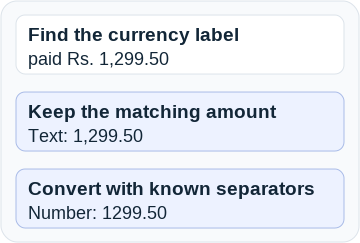
Use B1 for Checked amount. In B2 enter the formula below and fill down. The test and the extraction use the same pattern. Return mode 2 asks for the capturing group inside the first match, so the currency text is excluded. The interior noncapturing parentheses help read the rules without adding extra returned cells.
=IF(REGEXTEST(A2,$J$2),NUMBERVALUE(REGEXEXTRACT(A2,$J$2,2),".",","),"Review amount")The first numeric output is 1299.5. A two-decimal format can show 1299.50. NUMBERVALUE reads text with an explicit decimal and grouping separator. B7 contains a real zero. Neither the absence of a labelled amount nor the invalid comma placement should become zero. In C2 or another free cell, =COUNT(B2:B7) gives four numeric rows. =COUNTIF(B2:B7,"Review amount") gives two exceptions. The parsed magnitudes add to ₹1,726.50, including a refund magnitude. That sum is a parsing check and does not describe net money received.
Test an invalid notation before broadening the pattern
The amounts in this lab use one notation. Another export could use an Indian digit grouping such as 1,23,456 or a different decimal separator. The example can legitimately mark those values for review because they do not follow its agreement. If you change the rule, write down which formats and punctuation you will accept. Add pairs such as one valid comma group and one near miss. Keep notes with missing currency labels distinct from notes with malformed numbers so the sender knows how to repair the input.
If a note has two valid amounts, the first-match rule returns just one. “Paid Rs. 500 and refunded Rs. 75” has different payment and refund values. For a business report, request distinct fields or identify those labels explicitly. One extracted amount does not establish which event happened. Document the measure and the rate or decimal format before aggregating. Keep the source row and reason for every exception.
Choose first match, every match or pieces from a match
The match functions accept different options. REGEXTEST's third argument is the case flag. REGEXEXTRACT uses its third argument for which values to return, and the fourth for case. REGEXREPLACE uses a fourth argument for occurrence and a fifth argument for case. A copy of the digit 1 can mean three different things according to that position.
- First match, mode 0.
=REGEXEXTRACT("Swap BLK-1002 with AMN-1003","\b(?:BLK|AMN)-[0-9]{4}\b",0)returns BLK-1002. - All matches, mode 1. Use the same sentence and pattern with 1 as the third argument to return BLK-1002 and AMN-1003 as an array. Leave room for multiple cells, and inspect the full spill instead of reading only its anchor.
- Capture groups, mode 2.
=REGEXEXTRACT("BLK-0007","\A(BLK|AMN)-([0-9]{4})\z",2)returns BLK and 0007 as separate values. The second is text and keeps its leading zeros.
Capture groups are numbered from left to right by their opening capture parentheses. For a number-only extract, wrap only the desired part in a capture group and use noncapturing parentheses elsewhere for alternatives or repetition. Mode 2 extracts pieces from the first match. It does not return every occurrence of a captured piece across the note.
Replace only the pattern intended for a cleaned export
In Notes A5 the dummy contact has two groups of five digits with one space. In a separate output cell, use this controlled replacement. Group 1 holds the second set of digits. The replacement writes five stars, a space, then the saved group.
=REGEXREPLACE(A5,"\b[0-9]{5} ([0-9]{5})\b","***** $1")Expect Call ***** 11111 about AMN-1008. This is a pattern illustration for a synthetic number with the exact format shown. A differently formatted number might not match. Partial masking leaves the final digits and the original source note remains present. For a public workbook that should contain no contact values, build a separate verified export containing only approved fields. Changing a display column alone cannot remove the source note or other copies of the data.
REGEXREPLACE normally replaces all matching occurrences. Enter =REGEXREPLACE("A1 B2 C3","[0-9]","X",2) to change only the second match and get A1 BX C3. For the default all-match option, the result is AX BX CX. Microsoft documents negative occurrence values for choosing from the end. In this same control, occurrence −1 produces A1 B2 CX.
Test whole-cell rules before adding data validation
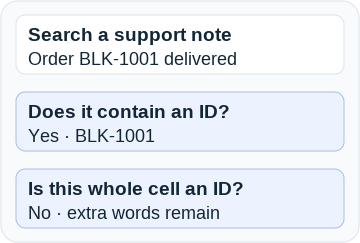
Imagine that the workbook now gives Order ID its own input column. A support note can contain an ID token and additional words. This separate entry field should contain only a complete ID. Create a blank test sheet called KeyTests. In A1 put Candidate and enter each candidate into A2:A8. In B1 put Contains token and in C1 put Whole field. Run both formulas using a common set of test rows.
=REGEXTEST(A2,"\b(?:BLK|AMN)-[0-9]{4}\b")
=REGEXTEST(A2,"\A(?:BLK|AMN)-[0-9]{4}\z")| Input | Contains token? | Whole field? |
|---|---|---|
| BLK-1001 | TRUE | TRUE |
| Order BLK-1001 delivered | TRUE | FALSE |
| XBLK-1001 | FALSE | FALSE |
| AMN-10031 | FALSE | FALSE |
| BLK-10O4 | FALSE | FALSE |
| amn-1003 | FALSE | FALSE |
| BLK-0007 | TRUE | TRUE |
Notice that the two columns differ only on the complete support note in this sample. The exact check can also reject added leading or trailing characters. Try BLK-1001 followed by a space and compare the results. If your policy treats outside whitespace as import noise, clean and document that field before validating. A valid spreadsheet pattern means “matches this format.” It does not certify that BLK-0007 exists in an order table. Use an exact lookup or another record check for existence.
Verify the entry rule on a fresh range
- Put Enter order ID in E1 on KeyTests. Select E2:E9 with E2 active. For desktop Excel, open Data → Data Validation and choose Custom.
- Use
=REGEXTEST(E2,"\A(?:BLK|AMN)-[0-9]{4}\z")so the relative reference checks the cell being entered. For testing set an Error Alert with Stop and a short message explaining the format. - Type BLK-0007 in E2. It should be accepted. Type BLK-10O4 into E3 with a letter O. The direct entry should trigger the Stop alert. Correct it to BLK-1004 and try again.
- Retain a separate audit column over imported values. Direct-entry validation doesn't reliably prevent copy and fill operations from adding invalid data. Check blank values separately wherever an order ID is required before a report can use that row.
A useful error message shows one allowed format and one expected type. It should not tell the user to replace an O with zero automatically. The intended number could be something else and the bad entry may require checking against the source. Use validation for format, then use the raw note and authoritative order list to resolve uncertainty.
Practice with four more short notes
Use a new tab called Practice. Enter each note in column A beginning at A2. These records use a single valid prefix, ORD. Treat its ID as a whole text token and its amount as a measured number only when the described amount format applies.
| Cell | Note |
|---|---|
| A2 | Order ORD-4521 delivered to 411038 |
| A3 | Customer paid Rs. 1,299 for ORD-7788 |
| A4 | Call 0000000000 about ORD-1002 |
| A5 | No order id here, PIN 440010 |
Check whether the first note contains a three-letter order ID
Use =REGEXTEST(A2,"\b[A-Z]{3}-[0-9]{4}\b"). It returns TRUE. This generic shape accepts any three uppercase letters. To enforce the only approved prefix for this fixture, use \bORD-[0-9]{4}\b. A shape test and a known-prefix policy answer slightly different questions.
Extract the order ID from the payment note
Use =REGEXEXTRACT(A3,"\bORD-[0-9]{4}\b") to get ORD-7788 as text. The payment amount appears earlier in the sentence but lacks the ORD prefix and hyphen, so it cannot match this ID pattern.
Get the labelled PIN from the last note
Use =REGEXEXTRACT(A5,"\bPIN[ \t:]+([0-9]{6})\b",2). It returns the text 440010. The labelled pattern extracts the digits without including the word PIN. Check its result against the input note.
Replace the ten-digit contact placeholder
Use =REGEXREPLACE(A4,"\b[0-9]{10}\b","XXXXXXXXXX"). It returns Call XXXXXXXXXX about ORD-1002. The ID remains unchanged because its numeric part contains four digits. This rule only matches the exact dummy format shown.
Count notes containing an ORD identifier
Enter =REGEXTEST(A2,"\bORD-[0-9]{4}\b") in B2 and fill down. Then =COUNTIF(B2:B5,TRUE) gives three. The fourth note has a six-digit value but no order ID. A count of matches inside each note is a different measure from counting notes with any valid match.
Read the numeric amount from the payment note
Copy the plain-text amount pattern from Lab 2 into J2 on Practice. Use =NUMBERVALUE(REGEXEXTRACT(A3,$J$2,2),".",",") on this known successful note. It gives numeric 1299. To use the same formula with unknown notes, include the Lab 2 test branch and retain any exceptions separately.
Validate both required shapes in one supplied note
Use “Rider Raja, AMN-1005, Kolhapur 416003, paid Rs. 232” in a new cell. Separate checks for the bounded AMN or BLK pattern and the bounded six-digit candidate should both return TRUE. Combine those tests with AND if both are required. As a separate check, the explicit currency label should produce numeric 232. The postal number occurs earlier, which makes this a good control for selecting the correct amount.
Collect cases that reveal a weak pattern
A match succeeds based on characters and positions. It cannot determine whether a ticket is real, an address agrees with a postal area, or an amount was settled. Use each text pattern to propose a structured field. Validate that field against whatever source defines its meaning. Keep multiple matches for review if the business rule needs a unique value.
Check formula syntax and pattern syntax separately
In a scratch cell try =REGEXTEST("BLK-1001","BLK"). This proves the app recognizes the function and a plain pattern. Then add the hyphen and digit rule. Add boundaries last. Verify that the pattern string uses straight Excel quotes. If passing the pattern from another cell, ensure that cell contains the pattern itself and no wrapping quotes. A formula failure can come from Excel syntax before the regular expression is ever evaluated.
Consider whether the original note is empty, the pattern has no match, or the expression produced an error. These are different states. In the exercise a REGEXTEST check handles expected no-match input before extraction. If the pattern itself is invalid, that error stays visible to the formula author. A broad error fallback could turn an invalid pattern into an entire column that says “not found.” Test several known valid notes before accepting that any review list is complete.
Choose simple text tools when the field has a stable separator
Regular expressions suit inconsistent note layouts where the desired field has a recognizable shape. A clean ID exported in its own standardized column may have a single hyphen separating a prefix and a serial. Ordinary workbook text functions can be easier for a teammate to maintain. For example, when a verified source field contains BLK-0007, =LEFT(A2,3) can return BLK on an edition with classic formulas. The formula assumes the prefix always starts at position one and always has exactly three characters.
If the environment has TEXTBEFORE and TEXTAFTER, those can split the verified ID at the hyphen. For a note with several unrelated hyphens, a pattern can enforce the ID prefix and digit count first. Ask the producer for real fields in the next export if a free-text format keeps changing. A formula that keeps guessing what a badly defined field means will be difficult to validate.
Normalize only what the reporting rule requires
On the Notes tab test =REGEXREPLACE(A3,"\bamn-(?=[0-9]{4}\b)","AMN-") in a separate cell. Expect “AMN-1003 late by 4 mins, PIN 411001.” The lookahead checks for four digits after the lowercase prefix, but the actual replacement stops before those digits. The text after the ID is unchanged. If you only need a standardized key, apply UPPER to the extracted ID rather than modifying the entire note.
Try =REGEXREPLACE("Pune 411038","[ \t]+"," ") on a controlled display field. It collapses consecutive spaces and tabs to one space. This rule also changes intentional indentation and the space inside the middle of a note. It does not trim the first or last location unless you add an explicit trim rule. Use a cleaned output field alongside the raw note. Check whether any newline or separator carries information before normalizing it away.
Record a change to the pattern as a small testable choice
Suppose the next export introduces a new ID prefix, SWG. A pattern limited to BLK and AMN should mark the new records for review. If the workbook owner approves SWG, add that exact prefix and rerun the earlier table of good and bad cases. Add a known valid SWG-0431 and an invalid SWG-04X1. Do not switch to an arbitrary three-letter match just to make the near-term total look complete. That could allow a different label to enter the report by mistake.
After any edit keep a count of matched notes, unmatched notes and more than one match where the business requires a single ID. Check one note with exactly one match, one with a matching-looking prefix and bad digits, and one with two different IDs. Write a readable purpose next to each saved pattern. A downstream reviewer can then trace which rule changed and understand why a previously excluded notation is now allowed.
Make errors actionable with a separate review status
Return to AmountNotes. Two values say Review amount. Zoya needs to tell the sender whether a currency label is missing or the value after the label failed the agreed format. Keep the numeric output unchanged. Add a separate status in column C that checks the text first, then tells which part needs work.
=IF(NOT(REGEXTEST(A2,"\bRs\.")),"Missing currency label",
IF(REGEXTEST(A2,$J$2),"Parsed","Check amount format"))- Put Review reason in C1, enter the formula in C2 and fill down through C7. Move any earlier diagnostic formula out of this range before filling.
- Filter or count the three results. Four rows are Parsed. The no-payment note gets Missing currency label. The note with 12,34 gets Check amount format.
- Compare the counts with the numeric amount column. Four parsed and two review rows reconcile to the six original notes. The parsed zero still counts as one successfully measured amount.
- In a scratch cell copy the invalid Rs. 12,34 note and ask the source owner for its intended amount. After entering a known good correction, run the pattern again and check the new numeric value. Removing the comma without confirming intent could choose the wrong amount.
The reason code is a diagnostic label. A missing marker might mean the note was never meant to report an amount, or that the sender used a different notation. Check the original note and expected workflow. A separate reason field lets someone fix the right records while keeping the amount field useful for math. If the supervisor wants a fully numeric export, store only valid numeric amounts in its Amount column and keep the review queue attached separately.
Check whether an amount represents a payment, refund or other event
In the six-note fixture, the first and fifth notes describe payments. The second describes a refund and the final note describes a practice subtotal. The regex amount check does not decide which event it belongs to. For this controlled fixture, read the first note's 1299.50 and the fifth note's 232 as payment magnitudes. Together those figures give 1531.50. The refund magnitude is 195. Under a fictional accounting exercise that subtracts the separately verified refund, the net would be 1336.50. That value differs from the parsing control 1726.50, which added all available magnitudes.
Use a source event-type field, if available, to make that classification. A loose condition such as “contains paid” might be fooled by “not paid” or “paid and then refunded.” This is a useful test for a beginner: write one negative example for each supposedly obvious text label. Compare the model's result with the business definition, and leave unclear records for review. For repeated reporting, ask for an explicit event type and one typed amount rather than rediscovering both from the note.
Document which notes are included before sharing a calculation based on this column. A row-by-row interpretation beside a small fixture helps another learner reproduce the report in a new workbook. They should be able to point to a specific note for each total and see why each excluded row needs attention.
Quiz with explained answers
Why does the strict test return false for amn-1003?
The text is lowercase and the specific pattern requires uppercase AMN by default. Case setting 1 accepts either case for matching. It does not rewrite the source or the extracted match. Use a separate normalization operation such as UPPER when needed.
What is the purpose of the two word boundaries in a note search?
They help require the ID as a bounded token, so BLK-1001 is recognised in the middle of a sentence but a prefix of a longer digit run is not. They are narrower than searching for the letters alone, and still allow words or punctuation elsewhere in the cell.
What result does mode 2 give for the BLK-0007 capture example?
It returns BLK and 0007 as two capture values. The prefix and serial were defined as separate groups. The four serial characters are text. Converting the serial to a number would change its representation to 7.
Why does counting the first six-digit token fail in a labelled-ticket note?
The first numeric token may be a ticket number. In “Ticket 654321, PIN 411001,” reading the six-digit pattern alone gives 654321. The label-based pattern captures 411001 after PIN. It still needs real address validation if that is part of the reporting requirement.
Why would removing every non-digit turn 1,299.50 into the wrong amount?
The decimal point is meaningful. Removing it gives 129950 rather than 1299.50. Extract the label-associated amount with its separators preserved, then use a numeric parser with the agreed decimal and grouping characters.
Which argument replaces only the second match in REGEXREPLACE?
For an example like A1 B2 C3, set occurrence to 2 in the fourth argument position. It replaces the 2 with X while leaving 1 and 3 unchanged. The fifth argument is case sensitivity, so putting 2 there would not express that occurrence selection.
Interview questions you can answer from practice
How would you check a rule that accepts a whole order ID but finds IDs in support notes?
I would separate the whole-field validation and token search. One pattern uses full-string anchors, while the other uses word boundaries so it can find a match inside a sentence. I would test the same ID alone and inside a note, including wrong prefixes, five digits and letter O in place of zero.
How do you decide whether to convert extracted digits to numbers?
Ask what the field represents. Mathematical amounts need numeric conversion with their declared separators. A serial or postal string can have significant leading zeros and is used as an identifier, so keep it as text. Before converting, test a known value with fractional units or leading zeros.
What steps would you take when a newly exported note fails to match?
I would confirm the function and pattern worked on a known good note, then examine which portion of the new input differs. Check case, label, spacing, punctuation and the number of digits. I would ask which variation the data producer supports before changing the pattern and would add positive and negative controls for it.
How would you handle a note with two payments or two different IDs?
First define whether multiple matches are allowed and what they represent. Use all-match extraction to inspect them, or require separate labels for separate amounts. Do not quietly take the first and call it the whole record. Flag ambiguous cases when you cannot tell which one belongs to the intended field.
How do you know a redacted display column removed sensitive data from an export?
A replacement changes results in that column only. Verify an export containing approved fields, and inspect whether source notes or copies of their original values are still included. Test the allowed input formats and known exceptions. A partial-mask demonstration with dummy digits proves the specific replacement rule works on that fixture.
Revision cards
- Test or extract. REGEXTEST reports whether a match exists. REGEXEXTRACT returns the matching characters.
- Whole field or token. Anchors test the extent of an entire entry. Boundaries help search for a token within a note.
- Check mode and case positions. The meaning of each optional argument depends on the function.
- Choose the right type. Preserve identifier text, and convert only measured numbers with their real separators.
- Check both cases. A fixture needs expected matches and close nonmatches to expose a loose pattern.
- Check meaning separately. A valid shape does not establish that an order, address or payment actually exists.