Chapter 15: Kubernetes Introduction
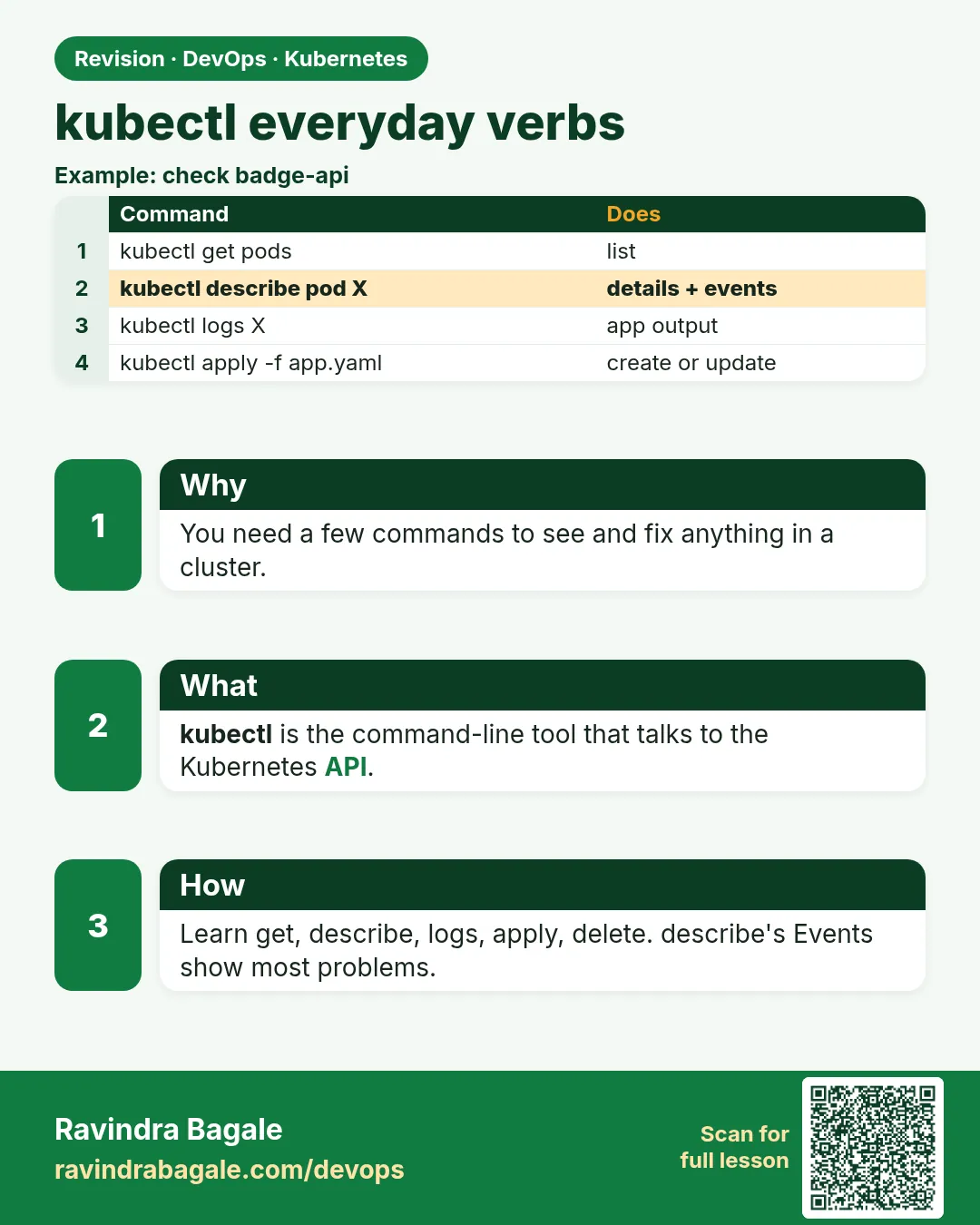
15.4 kubectl everyday verbs
Why: the problem
Suppose we are on call for the Instagram reels team. A user says the badge page is slow. You cannot fix what you cannot see. kubectl has a few everyday verbs that answer 90 percent of questions: get, describe, logs, exec, apply and delete. Learn them well and you can debug most problems.
What we will build
You will use each verb on the running badge API for Node, Python and Java, and read its output line by line.
What: every term in plain English
- get — Lists objects in short form.
- describe — Shows full details and recent Events for one object.
- logs — Shows what the container printed to stdout and stderr.
- exec — Runs a command inside a running container.
- apply — Creates or updates objects from a YAML file.
- delete — Removes objects.
- -n — Picks the namespace.
- -o wide / -o yaml — Shows more columns, or the full object as YAML.
How: step by step
-
Set a default namespace
kubectl config set-context --current --namespace=badge-apiWhat it does: Saves typing -n every time.
Output
Context "kind-badge-api" modified. -
get with wide output
kubectl get pods -o wideWhat it does: Shows Pod IP and node.
Output
NAME READY STATUS IP NODE badge-node-6d9f7c8b5-4kq2x 1/1 Running 10.244.1.4 badge-api-worker -
describe a Pod
kubectl describe pod -l app=badge-node | tail -8What it does: The Events at the bottom tell the story.
Output
Events: Normal Scheduled 2m default-scheduler Successfully assigned badge-api/badge-node-6d9f7c8b5-4kq2x Normal Pulled 2m kubelet Container image "badge-node:1.0" already present Normal Started 2m kubelet Started container api -
logs from the Deployment
kubectl logs deploy/badge-node --tail=5What it does: Shows the last 5 lines from one Pod.
Output
badge-node listening on 3000 -
follow logs
kubectl logs -f -l app=badge-node --prefixWhat it does: Streams logs from all matching Pods with their names.
Output
[pod/badge-node-6d9f7c8b5-4kq2x/api] badge-node listening on 3000 -
exec into the container
kubectl exec deploy/badge-node -- wget -qO- localhost:3000/healthWhat it does: Runs a command inside the Pod.
Output
{"status":"ok"} -
get as YAML
kubectl get deploy badge-node -o yaml | head -12What it does: Shows the live object, including fields Kubernetes added.
Output
apiVersion: apps/v1
kind: Deployment
metadata:
  generation: 1
  name: badge-node
Example 1: Node
Stack. Node.js 20, Express, kind
Goal. Node.js: use every verb on badge-node. Apply, get, describe, logs, exec, delete.
server.js
// server.js - badge API (Node.js + Express)
const express = require("express");
const os = require("os");
const app = express();
app.get("/health", (req, res) => res.json({ status: "ok" }));
app.get("/badge/:user", (req, res) => {
  const user = req.params.user;
  if (!/^[a-z0-9_]{3,30}$/.test(user)) return res.status(400).json({ error: "invalid username" });
  res.json({ user, badge: "verified-learner", pod: os.hostname(), version: process.env.APP_VERSION || "1.0" });
});
app.listen(process.env.PORT || 3000, () => console.log("badge-node listening on 3000"));
Dockerfile
# Dockerfile - Node badge API
FROM node:20-alpine
WORKDIR /app
COPY package*.json ./
RUN npm ci --omit=dev
COPY server.js .
USER node
EXPOSE 3000
CMD ["node", "server.js"]
k8s/badge-node.yaml
apiVersion: apps/v1
kind: Deployment
metadata:
  name: badge-node
  namespace: badge-api
  labels: { app: badge-node }
spec:
  replicas: 2
  selector:
    matchLabels: { app: badge-node }
  template:
    metadata:
      labels: { app: badge-node }
    spec:
      containers:
        - name: api
          image: badge-node:1.0
          ports:
            - containerPort: 3000
---
apiVersion: v1
kind: Service
metadata:
  name: badge-node
  namespace: badge-api
spec:
  type: ClusterIP
  selector: { app: badge-node }
  ports:
    - port: 80
      targetPort: 3000
What each line does
kind: Deployment— Tells Kubernetes: keep this many copies of the Pod running all the time.replicas: 2— Two Pods. If one dies, Kubernetes makes a new one.selector.matchLabels— The Deployment owns Pods that carry this label.image: ...:1.0— A fixed tag. Never use latest, because you cannot tell what is running.kind: Service / type: ClusterIP— One stable name and IP inside the cluster in front of all matching Pods.port: 80 / targetPort— Callers use port 80. The Service sends traffic to the app port inside the Pod.kubectl logs deploy/NAME— Picks one Pod of the Deployment and shows its logs.
Green output
$ kubectl -n badge-api get pods -l app=badge-node
NAME                          READY   STATUS    RESTARTS   AGE
badge-node-6d9f7c8b5-4kq2x     1/1     Running   0          40s
badge-node-6d9f7c8b5-r7m9t     1/1     Running   0          40s
$ curl -s localhost:8080/badge/ravi
{"user":"ravi","badge":"verified-learner","pod":"badge-node-6d9f7c8b5-4kq2x","version":"1.0"}
Expected result. You saw every verb work on Node.js and can explain each output.
Example 2: Python: use every verb on badge-py
Stack. Python 3.12, Flask, gunicorn, kind
Goal. Python: use every verb on badge-py. Apply, get, describe, logs, exec, delete.
app.py
# app.py - badge API (Python + Flask)
import os, re, socket
from flask import Flask, jsonify
app = Flask(__name__)

@app.get("/health")
def health():
    return jsonify(status="ok")

@app.get("/badge/<user>")
def badge(user):
    if not re.fullmatch(r"[a-z0-9_]{3,30}", user):
        return jsonify(error="invalid username"), 400
    return jsonify(user=user, badge="verified-learner", pod=socket.gethostname(),
                   version=os.environ.get("APP_VERSION", "1.0"))
Dockerfile
# Dockerfile - Python badge API
FROM python:3.12-slim
WORKDIR /app
COPY requirements.txt .
RUN pip install --no-cache-dir -r requirements.txt   # flask, gunicorn
COPY app.py .
RUN useradd -u 10001 app
USER 10001
EXPOSE 5000
CMD ["gunicorn", "-b", "0.0.0.0:5000", "app:app"]
k8s/badge-py.yaml
apiVersion: apps/v1
kind: Deployment
metadata:
  name: badge-py
  namespace: badge-api
  labels: { app: badge-py }
spec:
  replicas: 2
  selector:
    matchLabels: { app: badge-py }
  template:
    metadata:
      labels: { app: badge-py }
    spec:
      containers:
        - name: api
          image: badge-py:1.0
          ports:
            - containerPort: 5000
---
apiVersion: v1
kind: Service
metadata:
  name: badge-py
  namespace: badge-api
spec:
  type: ClusterIP
  selector: { app: badge-py }
  ports:
    - port: 80
      targetPort: 5000
What each line does
kind: Deployment— Tells Kubernetes: keep this many copies of the Pod running all the time.replicas: 2— Two Pods. If one dies, Kubernetes makes a new one.selector.matchLabels— The Deployment owns Pods that carry this label.image: ...:1.0— A fixed tag. Never use latest, because you cannot tell what is running.kind: Service / type: ClusterIP— One stable name and IP inside the cluster in front of all matching Pods.port: 80 / targetPort— Callers use port 80. The Service sends traffic to the app port inside the Pod.kubectl logs deploy/NAME— Picks one Pod of the Deployment and shows its logs.
Green output
$ kubectl -n badge-api get pods -l app=badge-py
NAME                          READY   STATUS    RESTARTS   AGE
badge-py-6d9f7c8b5-4kq2x     1/1     Running   0          40s
badge-py-6d9f7c8b5-r7m9t     1/1     Running   0          40s
$ curl -s localhost:8080/badge/ravi
{"user":"ravi","badge":"verified-learner","pod":"badge-py-6d9f7c8b5-4kq2x","version":"1.0"}
Expected result. You saw every verb work on Python and can explain each output.
Example 3: Java: use every verb on badge-java
Stack. Java 21, Spring Boot, kind
Goal. Java: use every verb on badge-java. Apply, get, describe, logs, exec, delete.
BadgeController.java
// src/main/java/com/shipit/BadgeController.java - badge API (Java + Spring Boot)
package com.shipit;
import org.springframework.web.bind.annotation.*;
import java.net.InetAddress;
import java.util.Map;

@RestController
public class BadgeController {
  @GetMapping("/health")
  public Map<String, String> health() { return Map.of("status", "ok"); }

  @GetMapping("/badge/{user}")
  public Map<String, String> badge(@PathVariable String user) throws Exception {
    if (!user.matches("[a-z0-9_]{3,30}")) throw new IllegalArgumentException("invalid username");
    String v = System.getenv().getOrDefault("APP_VERSION", "1.0");
    return Map.of("user", user, "badge", "verified-learner",
                  "pod", InetAddress.getLocalHost().getHostName(), "version", v);
  }
}
Dockerfile
# Dockerfile - Java badge API (two stages: build, then run)
FROM maven:3.9-eclipse-temurin-21 AS build
WORKDIR /src
COPY pom.xml .
COPY src ./src
RUN mvn -B -q package -DskipTests

FROM eclipse-temurin:21-jre
WORKDIR /app
COPY --from=build /src/target/badge-api.jar app.jar
RUN useradd -u 10001 app
USER 10001
EXPOSE 8080
CMD ["java", "-jar", "app.jar"]
k8s/badge-java.yaml
apiVersion: apps/v1
kind: Deployment
metadata:
  name: badge-java
  namespace: badge-api
  labels: { app: badge-java }
spec:
  replicas: 2
  selector:
    matchLabels: { app: badge-java }
  template:
    metadata:
      labels: { app: badge-java }
    spec:
      containers:
        - name: api
          image: badge-java:1.0
          ports:
            - containerPort: 8080
---
apiVersion: v1
kind: Service
metadata:
  name: badge-java
  namespace: badge-api
spec:
  type: ClusterIP
  selector: { app: badge-java }
  ports:
    - port: 80
      targetPort: 8080
What each line does
kind: Deployment— Tells Kubernetes: keep this many copies of the Pod running all the time.replicas: 2— Two Pods. If one dies, Kubernetes makes a new one.selector.matchLabels— The Deployment owns Pods that carry this label.image: ...:1.0— A fixed tag. Never use latest, because you cannot tell what is running.kind: Service / type: ClusterIP— One stable name and IP inside the cluster in front of all matching Pods.port: 80 / targetPort— Callers use port 80. The Service sends traffic to the app port inside the Pod.kubectl logs deploy/NAME— Picks one Pod of the Deployment and shows its logs.
Green output
$ kubectl -n badge-api get pods -l app=badge-java
NAME                          READY   STATUS    RESTARTS   AGE
badge-java-6d9f7c8b5-4kq2x     1/1     Running   0          40s
badge-java-6d9f7c8b5-r7m9t     1/1     Running   0          40s
$ curl -s localhost:8080/badge/ravi
{"user":"ravi","badge":"verified-learner","pod":"badge-java-6d9f7c8b5-4kq2x","version":"1.0"}
Expected result. You saw every verb work on Java and can explain each output.
Verify: did it work?
-
List everything in the namespace
kubectl -n badge-api get allWhat it does: Shows Deployments, ReplicaSets, Pods and Services together.
Output
NAME READY STATUS RESTARTS AGE pod/badge-node-6d9f7c8b5-4kq2x 1/1 Running 0 2m NAME TYPE CLUSTER-IP PORT(S) service/badge-node ClusterIP 10.96.41.12 80/TCP -
Check that the Service found the Pods
kubectl -n badge-api get endpoints badge-nodeWhat it does: Endpoints are the Pod IPs behind the Service. Empty means the labels do not match.
Output
NAME ENDPOINTS AGE badge-node 10.244.0.5:3000,10.244.0.6:3000 2m -
Call the app through the Service
kubectl -n badge-api port-forward svc/badge-node 8080:80 &
curl -s localhost:8080/health
What it does: Opens a tunnel from your laptop to the Service, then calls it.
Output
Forwarding from 127.0.0.1:8080 -> 3000
{"status":"ok"}
When it is red 1
error: you must specify a pod or a resource
Cause. You typed kubectl logs without a name or selector.
Fix, step by step
- Use kubectl get pods to find the name.
- Run kubectl logs POD or kubectl logs -l app=badge-node.
When it is red 2
Error from server (NotFound): pods "badge-node" not found
Cause. A Deployment name was used where a Pod name is needed.
Fix, step by step
- Use deploy/badge-node, or the full Pod name from kubectl get pods.
When it is red 3
NAME                          READY   STATUS             RESTARTS      AGE
badge-py-5f6c7d9b8-q8w2e      0/1     CrashLoopBackOff   4 (30s ago)   3m
Cause. The container starts and then exits again and again. Usually a code error, a missing package or a wrong command.
Fix, step by step
- Run kubectl logs
--previous to see the last crash. - Fix the code or the CMD in the Dockerfile.
- Build a new tag such as 1.1, load it, update the YAML and apply.
Cleanup
-
Stop the port-forward
kill %1What it does: Ends the background tunnel.
Output
[1]+ Terminated kubectl port-forward svc/badge-node 8080:80 -
Delete the lesson objects
kubectl delete -f k8s/What it does: Removes what you applied. The cluster stays for the next lesson.
Output
deployment.apps "badge-node" deleted service "badge-node" deleted -
Delete the cluster at the end of the day
kind delete cluster --name badge-apiWhat it does: Removes the kind node container and frees memory.
Output
Deleting cluster "badge-api" ...
Deleted nodes: ["badge-api-control-plane"]
Practice tasks
Easy Use -o wide
Why: More columns, more clues.
What to do: List Pods with -o wide.
- kubectl get pods -o wide
Check: You can name the node of each Pod.
Medium Find the crash reason
Why: --previous is the key.
What to do: Make the Python app crash and read the previous logs.
- Change CMD to a wrong module.
- kubectl logs POD --previous
Check: You see the Python traceback.
Medium Use jsonpath
Why: Scripts need one value.
What to do: Print only Pod IPs.
- kubectl get pods -o jsonpath='{.items[*].status.podIP}'
Check: You see a list of IPs.
Easy Say kubectl verbs in two lines
Why: If you can say it simply, you understand it.
What to do: Write two short lines about kubectl verbs for a fresher.
- Write the problem it solves.
- Write the one command or field you use.
Check: A friend who never used Kubernetes understands your lines.
Easy Rebuild the kind cluster from zero
Why: Labs break. Starting fresh must feel easy.
What to do: Delete and create the badge-api kind cluster again.
- kind delete cluster --name badge-api
- kind create cluster --name badge-api
- kubectl get nodes
Check: The node shows Ready in under two minutes.
Medium Do it for the second stack
Why: The same Kubernetes idea works for every language.
What to do: Repeat this lesson with the Python app if you used Node, or Java if you used Python.
- Build the image with a 1.0 tag.
- kind load docker-image the image.
- Apply the YAML and curl it.
Check: curl returns JSON from the second stack.
Medium Break it and read describe
Why: Real work is mostly reading errors.
What to do: Put a wrong image tag in the YAML and apply it.
- Change the tag to 9.9.
- kubectl apply -f the file.
- kubectl describe pod on the new Pod and read Events.
Check: You can point to the exact Events line that names the problem.
Medium Write the cleanup in one go
Why: Old labs fill the laptop disk.
What to do: Write the commands that remove everything this lesson made.
- kubectl delete -f k8s/
- kubectl get all -n badge-api
- docker image prune
Check: kubectl get all -n badge-api shows no resources.
Hard Explain it like an interview
Why: Interviewers ask what you did, not what you read.
What to do: Record a 60 second answer about this lesson.
- Say the problem.
- Say the YAML field or command.
- Say one error you hit and how you fixed it.
Check: Your answer has a real command and a real error in it.
Hard Draw the flow top to bottom
Why: A drawing shows if you know the order of things.
What to do: Draw this lesson as boxes from top to bottom on paper.
- Start from the user curl.
- Go through Service, Pod, container.
- Mark where your error happened.
Check: Every arrow on your drawing matches a real object in kubectl get all.
Homework: try at home
Try at home
At home, make a one-page cheat sheet of the six verbs with your own real outputs from the Python app.
Recap
- get lists, describe explains, logs shows output.
- exec runs commands inside the container.
- apply creates and updates from YAML.
- Events in describe show the reason for most problems.
- Set a default namespace to save typing.
FAQ
Why is describe better than get for errors?
Because it shows Events, which say what went wrong.
Can I see logs of a dead container?
Yes, with --previous, if the Pod still exists.
Is exec safe in production?
Use it to read, not to change things. Changes made by hand are lost on restart.
What is the difference between create and apply?
create fails if the object exists. apply creates or updates.
How do I watch changes live?
Add -w to get.
Interview questions
-
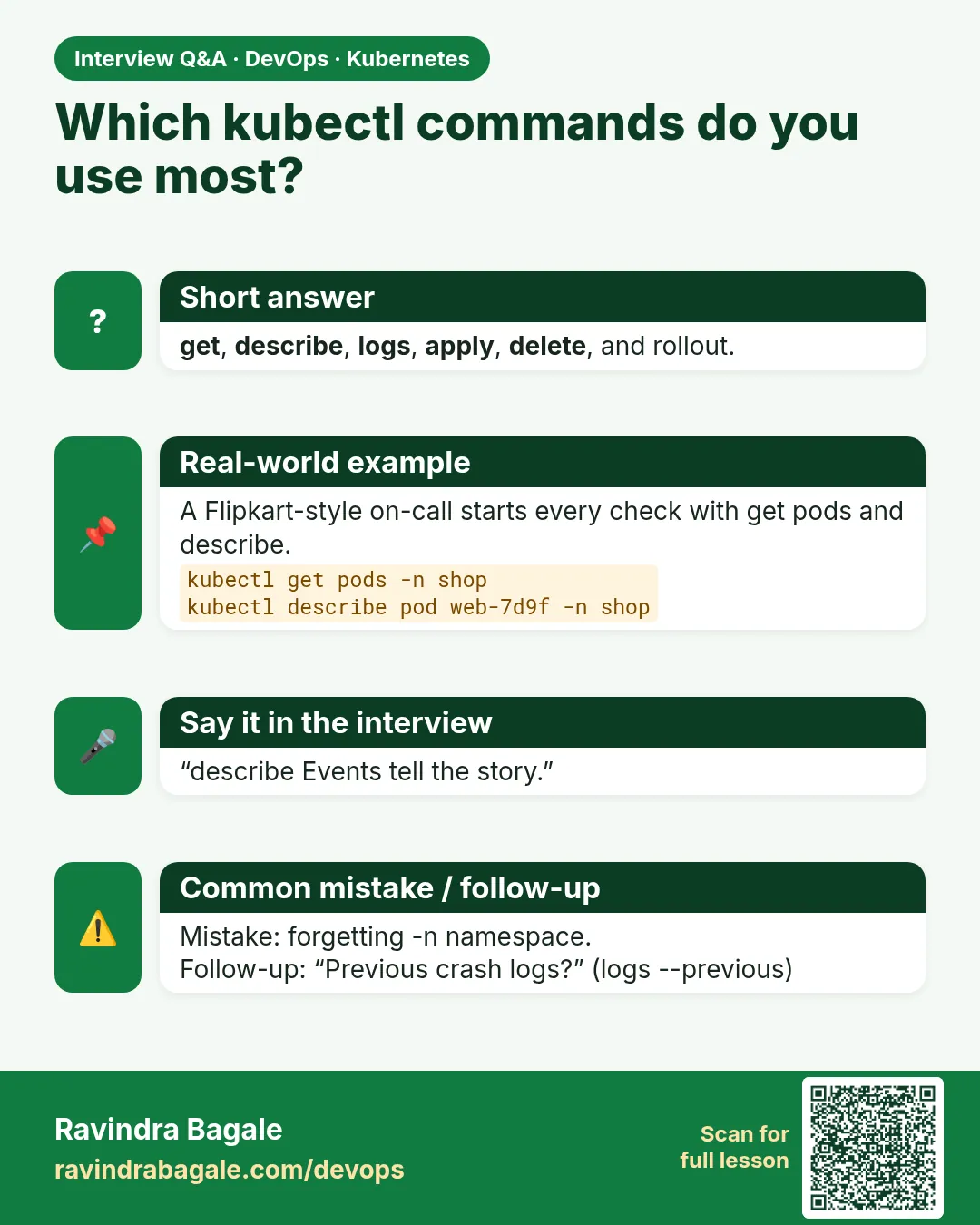
How do you debug a Pod that will not start?
kubectl get pods, then describe for Events, then logs and logs --previous.
-
What is kubectl apply?
Declarative create or update from a file; it merges changes.
-
How do you get logs from all replicas?
kubectl logs -l app=NAME --prefix.
-
How do you enter a container?
kubectl exec -it POD -- sh.
-
How do you see the live YAML?
kubectl get KIND NAME -o yaml.
Quick quiz
Q1. Which verb shows Events?
describe.
Q2. How do you see the last crash logs?
kubectl logs POD --previous.
Q3. How do you run a command in a Pod?
kubectl exec.
Q4. What does -o wide add?
Pod IP and node columns.
Q5. How do you stream logs?
kubectl logs -f.
Did you understand? Let us try it once more.
 Revision card
 Interview card