Chapter 10: Jenkins Introduction
10.4 Declarative Jenkinsfile basics
Why: the problem
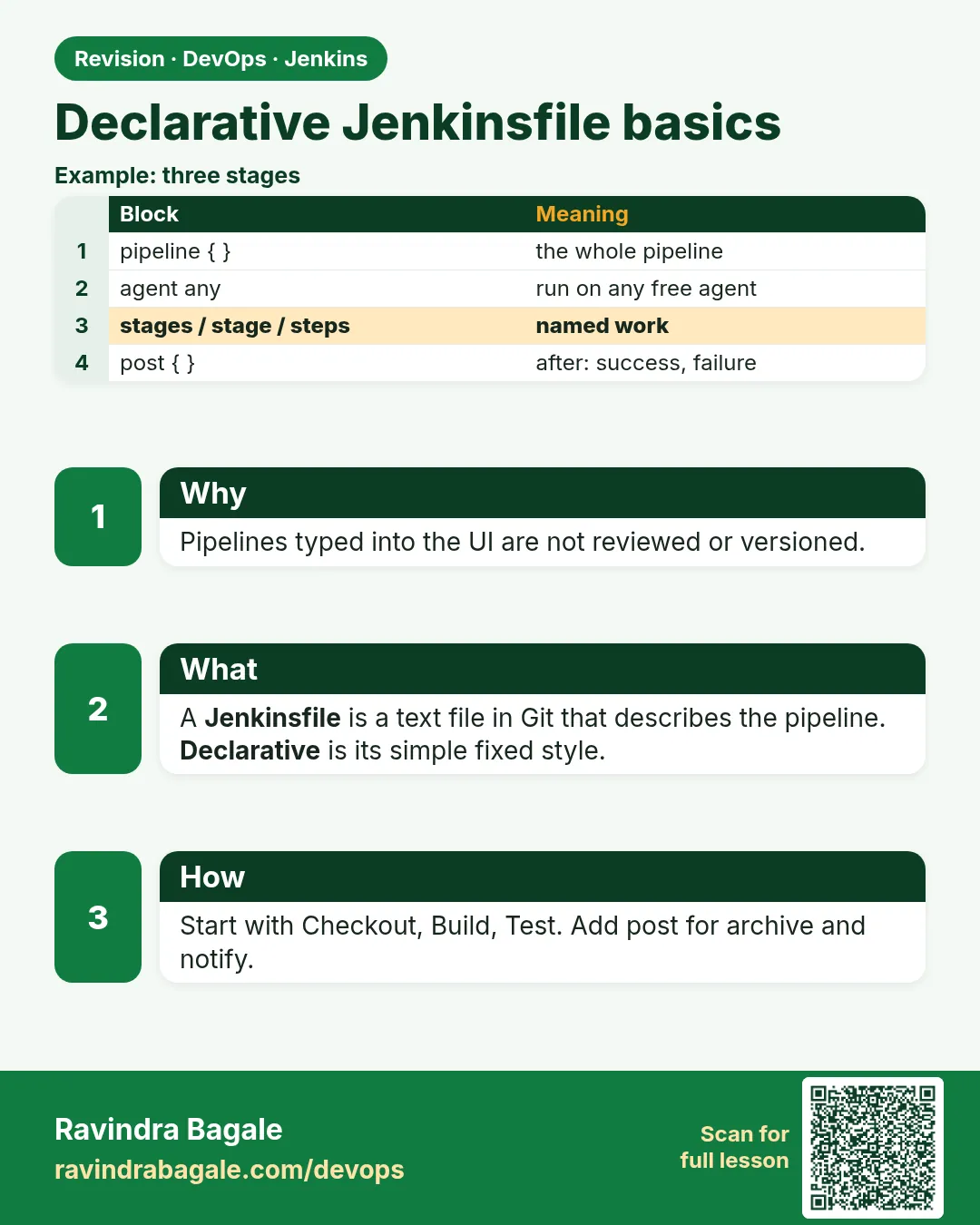
Suppose we are at Zomato. The restaurant search API has a Jenkins job made by clicking forms. One day somebody changes a form field and the build breaks. Nobody knows what changed, because clicks have no history. The fix is to write the pipeline as code, in a file called Jenkinsfile, inside the app repo. Now every change is a Git commit. It can be reviewed, blamed and rolled back. Declarative syntax is the simple, fixed shape that Jenkins gives for this file. Once you know its five main blocks, you can read almost any company Jenkinsfile.
What we will build
You will write a Declarative Jenkinsfile step by step: first one stage, then build, test and package stages, then environment variables, parameters, when conditions and post actions. You will run it for a Node.js app and a Maven Java app.
What: every term in plain English
- Jenkinsfile — A text file in the repo root that holds the pipeline as code.
- Declarative — The simple, structured Jenkinsfile style that starts with pipeline { }.
- Scripted — The older, free Groovy style that starts with node { }. More power, more risk.
- agent — Where the pipeline runs.
- stage — One named phase, like Build or Test.
- steps — The commands inside a stage.
- environment — Variables for the whole pipeline or one stage.
- post — Actions after the run: always, success, failure.
- when — A condition that decides if a stage runs.
- parameters — Inputs the user picks when clicking Build with Parameters.
How: step by step
-
Create the file
cd badge-api && vim JenkinsfileWhat it does: The file name must be exactly Jenkinsfile, capital J.
Output
(file saved) -
Check the syntax before pushing
curl -s -u ravi:API_TOKEN -X POST -F "jenkinsfile=@Jenkinsfile" http://localhost:8080/pipeline-model-converter/validateWhat it does: Jenkins has a built-in linter for Declarative files.
Output
Jenkinsfile successfully validated. -
Commit and push
git add Jenkinsfile && git commit -m "add Jenkinsfile" && git pushWhat it does: The pipeline is now code with history.
Output
main -> main -
Build in Jenkins
Open the job > Build NowWhat it does: Jenkins reads the Jenkinsfile from the repo.
Output
Finished: SUCCESS -
See the stages
Open the job page > Stage ViewWhat it does: Each stage is a box with its time.
Output
Checkout 1s | Install 9s | Test 4s | Package 2s
Example 1: Node
Stack. Node.js 20, npm
Goal. Node.js: install, test, package.
Jenkinsfile
pipeline {
    agent any
    environment {
        APP = 'badge-api'
        NODE_ENV = 'test'
    }
    stages {
        stage('Install') {
            steps { sh 'npm ci' }
        }
        stage('Test') {
            steps { sh 'npm test' }
        }
        stage('Package') {
            steps {
                sh 'tar czf ${APP}-${BUILD_NUMBER}.tgz src package.json'
                archiveArtifacts artifacts: '*.tgz', fingerprint: true
            }
        }
    }
    post {
        success { echo "Build ${BUILD_NUMBER} of ${APP} is green" }
        failure { echo "Build ${BUILD_NUMBER} failed. Read the Test stage log." }
        always  { cleanWs() }
    }
}
What each line does
environment { APP = ... }— Variables every stage can use.sh 'npm ci'— Clean install from package-lock.json. Faster and exact.sh 'npm test'— Runs the tests. Non-zero exit fails the stage.archiveArtifacts— Saves the tgz file on the build page for download.post { success/failure/always }— Runs after the stages, based on the result.cleanWs()— Deletes the workspace so disk does not fill. Needs the Workspace Cleanup plugin.
Green output
[Pipeline] { (Install)
+ npm ci
added 112 packages in 6s
[Pipeline] { (Test)
+ npm test
# tests 4
# pass 4
[Pipeline] { (Package)
+ tar czf badge-api-7.tgz src package.json
Archiving artifacts
[Pipeline] { (Declarative: Post Actions)
Build 7 of badge-api is green
Finished: SUCCESS
Expected result. The build page shows badge-api-7.tgz under Build Artifacts.
Example 2: Maven Java: tools, test reports and a when condition
Stack. Java 17, Maven 3.9
Goal. Maven Java: tools, test reports and a when condition.
Jenkinsfile
pipeline {
    agent any
    tools { maven 'maven-3.9'; jdk 'jdk-17' }
    stages {
        stage('Build') {
            steps { sh 'mvn -B -q clean package -DskipTests' }
        }
        stage('Test') {
            steps { sh 'mvn -B test' }
            post { always { junit 'target/surefire-reports/*.xml' } }
        }
        stage('Deploy to staging') {
            when { branch 'main' }
            steps { echo 'Deploying target/orders.jar to staging' }
        }
    }
}
What each line does
tools { maven 'maven-3.9' }— Uses a Maven install defined in Manage Jenkins > Tools.mvn -B— Batch run, so no colours or questions in the log.-DskipTests— Build first, test in the next stage.junit '...xml'— Reads test reports and shows a test trend graph.when { branch 'main' }— Deploy only from main, not from feature branches.
Green output
[Pipeline] { (Test)
+ mvn -B test
[INFO] Tests run: 12, Failures: 0, Errors: 0, Skipped: 0
[INFO] BUILD SUCCESS
Recording test results
[Pipeline] { (Deploy to staging)
Stage "Deploy to staging" skipped due to when conditional
Finished: SUCCESS
Expected result. On a feature branch the deploy stage is skipped. On main it runs.
Example 3: Parameters and a manual approval
Stack. Declarative parameters, input
Goal. Parameters and a manual approval.
Jenkinsfile
pipeline {
    agent any
    parameters {
        choice(name: 'ENV', choices: ['dev', 'staging', 'prod'], description: 'Where to deploy')
        booleanParam(name: 'RUN_TESTS', defaultValue: true, description: 'Run tests first')
    }
    stages {
        stage('Test') {
            when { expression { params.RUN_TESTS } }
            steps { sh 'echo running tests' }
        }
        stage('Approve prod') {
            when { expression { params.ENV == 'prod' } }
            steps { input message: 'Deploy to prod?', ok: 'Yes, deploy' }
        }
        stage('Deploy') {
            steps { sh "echo deploying to ${params.ENV}" }
        }
    }
}
What each line does
parameters { choice ... }— Adds a drop-down on the Build with Parameters page.booleanParam— Adds a tick box.params.RUN_TESTS— Reads the value the user picked.input message:— Pauses the build until a person clicks the button."echo deploying to ${params.ENV}"— Double quotes let Groovy fill in the value.
Green output
+ echo running tests
running tests
[Pipeline] { (Approve prod)
Deploy to prod?
Yes, deploy or Abort
Approved by ravi
+ echo deploying to prod
deploying to prod
Finished: SUCCESS
Expected result. The first run after adding parameters shows no menu. From the second run, Build with Parameters appears.
Verify: did it work?
-
Check the stage view
Open the job pageWhat it does: All stages green, with times.
Output
Install 6s Test 4s Package 2s -
Replay with a small change
Open build #7 > Replay > edit > RunWhat it does: Test a change without a commit. Then commit it properly.
Output
#8 Finished: SUCCESS
When it is red 1
WorkflowScript: 5: Expected a step @ line 5, column 13.
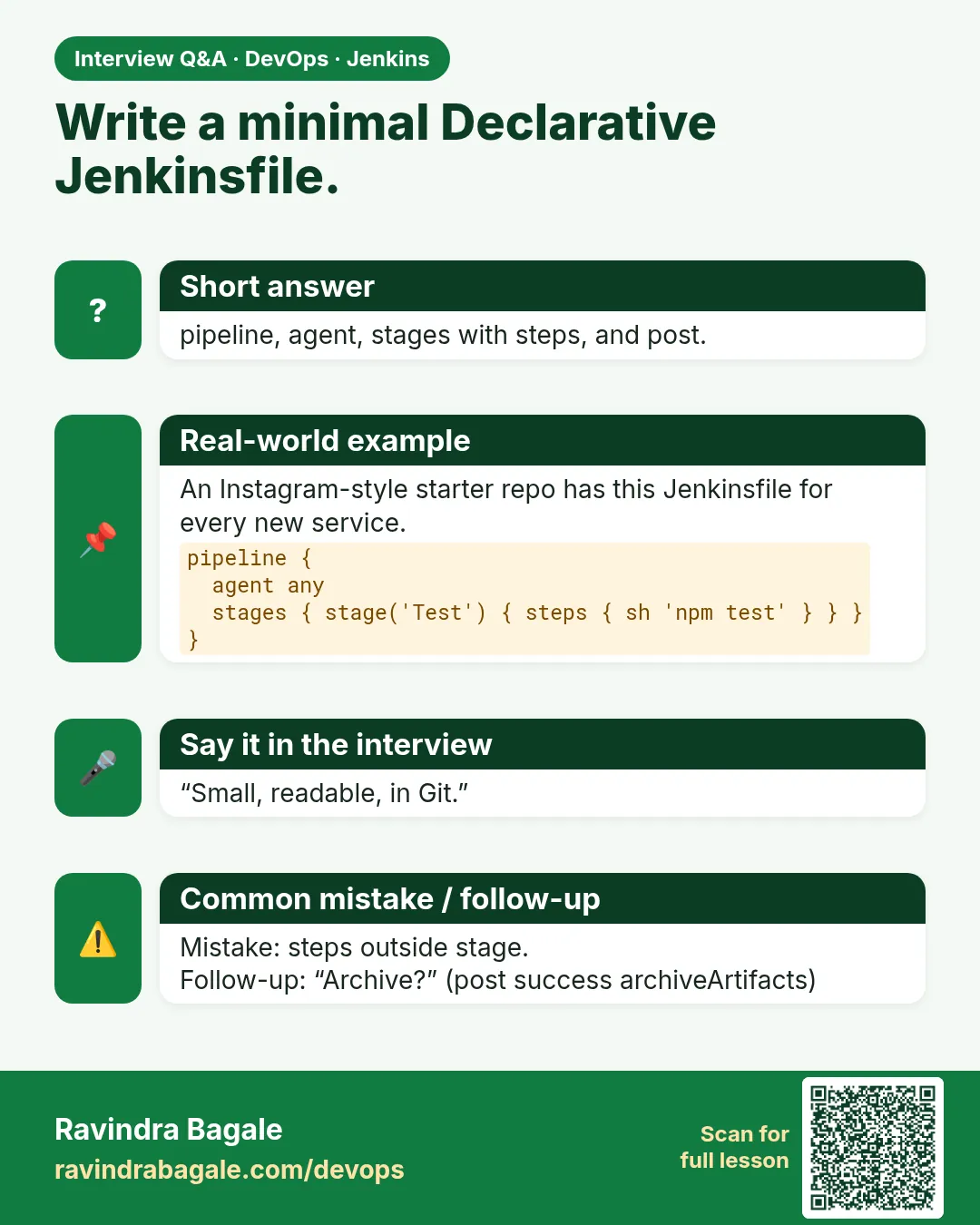
Cause. A command was written outside steps { }, or sh is missing.
Fix, step by step
- Put every command inside steps { }.
- Write sh 'npm test', not just npm test.
- Run the validate command again.
When it is red 2
groovy.lang.MissingPropertyException: No such property: APP for class: WorkflowScript
Cause. A variable was used in single quotes in Groovy, or not defined.
Fix, step by step
- Define it under environment { }.
- Use double quotes for Groovy values: "${APP}".
- Or let the shell read it inside single quotes: sh 'echo $APP'.
When it is red 3
Tool type "maven" does not have an install of "maven-3.9" configured
Cause. The tool name in the Jenkinsfile is not set up in Jenkins.
Fix, step by step
- Open Manage Jenkins > Tools > Maven installations.
- Add one with the name maven-3.9.
- Build again.
Cleanup
-
Remove old artifacts automatically
Add to pipeline: options { buildDiscarder(logRotator(numToKeepStr: '20')) }What it does: Keeps only the last 20 builds and saves disk.
Output
(old builds deleted on next run)
Ravindra Bagale's Tip
A Jenkinsfile is the pipeline recipe. Keep the recipe in Git so any change has history.
Jenkinsfile म्हणजे pipeline ची recipe. Recipe Git मध्ये ठेवा, म्हणजे कोणीही बदल केला तर history मिळते.
Jenkinsfile यानी pipeline की recipe. Recipe Git में रखो, ताकि कोई भी बदलाव history में रहे.
Practice tasks
Easy Add a Lint stage
Why: Lint catches mistakes early.
What to do: Add stage Lint running npm run lint.
- Put it before Test.
Check: Stage View shows Lint.
Medium Add a timeout
Why: Stuck builds waste agents.
What to do: Add options { timeout(time: 10, unit: 'MINUTES') }.
- Add a sleep 700 to test it.
Check: The build aborts at 10 minutes.
Hard Run tests in parallel
Why: Faster feedback.
What to do: Run unit and lint stages inside parallel { }.
- stage('Checks') { parallel { stage('Unit'){...} stage('Lint'){...} } }
Check: Both run at the same time.
Easy Say a Declarative Jenkinsfile in two lines
Why: If you can say it simply, you understand it. Juniors and interviewers both want the short version first.
What to do: Write two short lines about a Declarative Jenkinsfile for a fresher who knows only Linux, Git and Docker basics.
- Write the problem it solves.
- Write the one Jenkins screen, Jenkinsfile line or command you use for it.
- Read it aloud to a friend.
Check: A fresher understands it without asking a question.
Easy Keep a throwaway lab Jenkins
Why: Practice needs a Jenkins you can break. If the lab gets messy, you delete the container and volume and start again.
What to do: Run a lab Jenkins in Docker on your laptop with a named volume jenkins_home.
- docker volume create jenkins_home
- docker run -d --name jenkins -p 8080:8080 -v jenkins_home:/var/jenkins_home jenkins/jenkins:lts-jdk17
- Open http://localhost:8080 and finish the setup wizard.
Check: The Jenkins dashboard opens and shows "Welcome to Jenkins!".
Medium Do it on a second stack
Why: A pipeline idea must work for Node.js, Python and Java. Only the build and test lines should change.
What to do: Repeat this lesson with a different language than the one you used first.
- If you used Python, use Node.js or Maven now.
- Change only the sh lines for build and test.
- Keep the same stage names.
Check: Same green result, and the stage names did not change.
Medium Break it on purpose
Why: You must know the red console log by face. In a real outage there is no time to read slowly.
What to do: Cause one error from the "When it is red" part of this lesson and fix it.
- Follow the error section.
- Copy the exact message from Console Output into your notes.
- Write the fix in one line.
Check: You fixed it using only the steps, without searching the web.
Medium Write a one-page runbook
Why: At 2 a.m. nobody remembers Jenkins menus. A short page saves the on-call person.
What to do: Write a one-page runbook for this lesson.
- Title, when to use, exact clicks or Jenkinsfile lines, how to check, how to undo.
Check: A teammate can follow it alone.
Hard Explain it like an interview
Why: Interviewers want real stories, not definitions.
What to do: Record a 60 second answer about this lesson.
- Say the problem, the Jenkinsfile lines you wrote, and one error you hit.
Check: Your answer has a real Jenkinsfile line and a real error message.
Hard Draw the flow top to bottom
Why: A drawing shows the order of work and which stage waits for which.
What to do: Draw this lesson as boxes from top to bottom.
- Start at git push or Build Now, go through each stage, end at the green build or the deployed app.
Check: Each box matches a real line in your Console Output.
Homework: try at home
Try at home
At home, write the Node.js Jenkinsfile with post actions, then add the ENV parameter and an input step for prod.
Recap
- A Jenkinsfile keeps the pipeline in Git.
- Declarative has a fixed shape: pipeline, agent, stages, steps, post.
- environment, parameters, when and tools add control.
- post runs after stages based on the result.
- Validate the file before pushing.
FAQ
Declarative or Scripted?
Use Declarative. Scripted is for rare, complex cases.
Can a Jenkinsfile have another name?
Yes, set Script Path in the job, like ci/Jenkinsfile.
Single or double quotes?
Single quotes pass text as is. Double quotes let Groovy fill in ${...}.
Can I run stages in parallel?
Yes, with a parallel { } block inside a stage.
Where do I see test graphs?
Use the junit step; the job page shows a test result trend.
Interview questions
-
What is a Jenkinsfile?
A text file in the repo that defines the pipeline as code.
-
Declarative vs Scripted?
Declarative is a structured, validated syntax; Scripted is free Groovy with more power and more risk.
-
What is the post section?
Steps that run after stages on always, success, failure, unstable or changed.
-
How do you deploy only from main?
Use when { branch 'main' } on the deploy stage.
-
How do you add a manual approval?
Use the input step, ideally outside an agent so no executor waits.
Quick quiz
Q1. Which block holds commands?
steps { }.
Q2. Which block runs after the stages?
post { }.
Q3. How do you run a stage only on main?
when { branch 'main' }.
Q4. What does input do?
Pauses for a human approval.
Q5. What does archiveArtifacts do?
Saves files on the build page.
Did you understand? Let us try it once more.
 Revision card
 Interview card