Chapter 10: Jenkins Introduction
10.11 Cleanup and cost/safety habits
Why: the problem
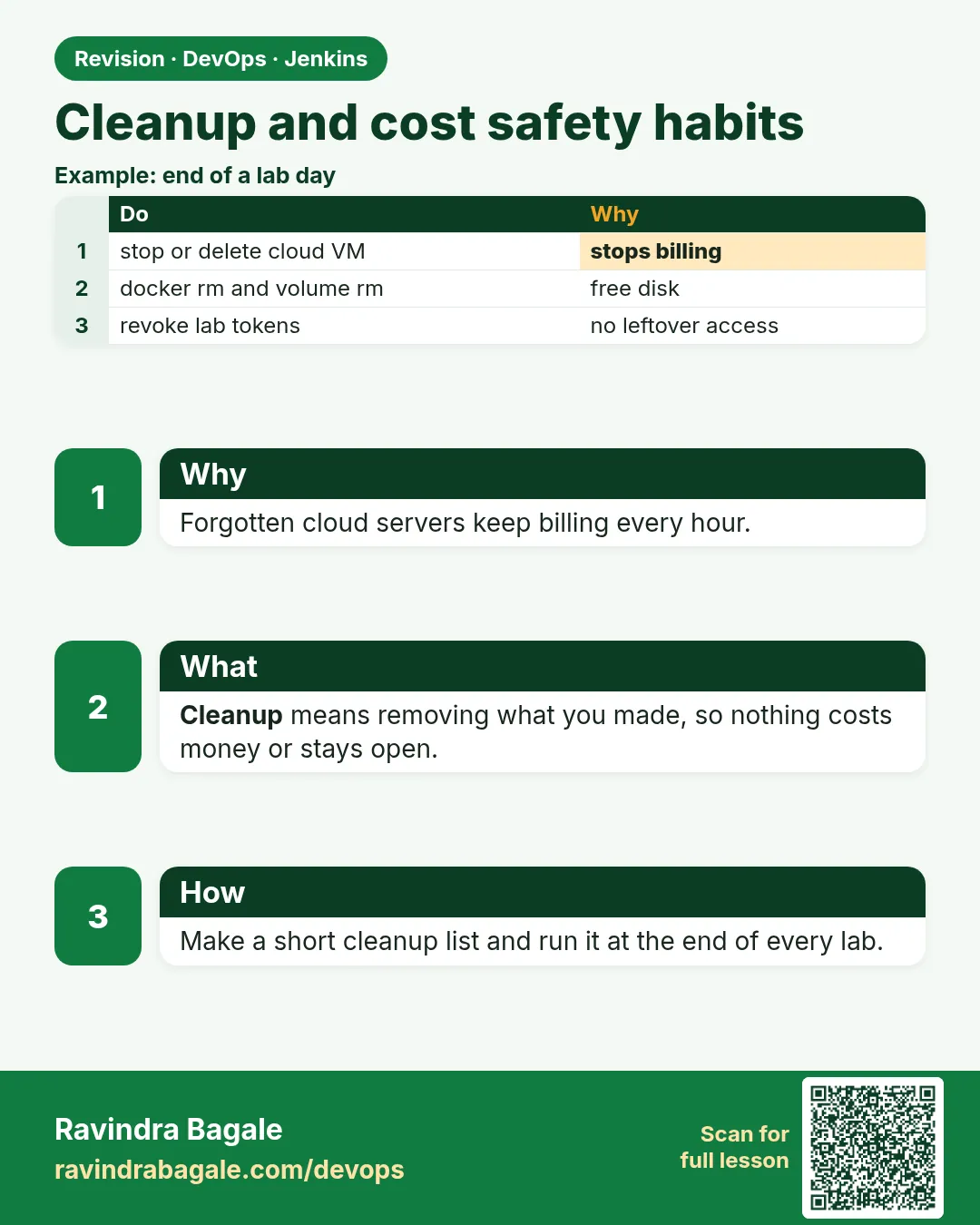
Suppose a Zepto intern runs Jenkins on a cloud VM for a week of practice. He also starts two agent VMs. Then he forgets them. At month end the bill is thousands of rupees, and the open port is still there. On his laptop, the Docker disk is full of old Jenkins images and build caches. Good engineers end every lab with a cleanup habit. They stop what is not used, delete what is not needed and keep a backup of what matters. This lesson gives you a fixed cleanup routine for laptop and cloud.
What we will build
You will write a daily stop script, a weekly disk clean script, a cloud check that lists running VMs and open ports, and a final teardown that backs up jenkins_home before deleting.
What: every term in plain English
- Stop — Pause a container or VM. Data stays; cost of a stopped VM is only its disk.
- Remove — Delete a container. A named volume stays unless you remove it too.
- Prune — Delete unused Docker images, containers and cache.
- Teardown — Delete everything from a lab after a backup.
- logRotator — Jenkins setting to keep only N builds.
- cleanWs — Pipeline step that empties the workspace.
- Idle cost — Money paid for resources nobody uses.
- Tag — A label on cloud resources, like Project=jenkins-lab, to find them later.
How: step by step
-
Stop Jenkins for the day
docker stop jenkinsWhat it does: Frees RAM. Start tomorrow with docker start jenkins.
Output
jenkins -
See Docker disk use
docker system dfWhat it does: Shows images, containers, volumes and cache sizes.
Output
Images 31 9.8GB Build Cache 2.1GB -
Prune safely
docker image prune -a --filter "until=168h" -f && docker builder prune -fWhat it does: Removes images and cache older than a week. Volumes are not touched.
Output
Total reclaimed space: 4.3GB -
List lab VMs
aws ec2 describe-instances --filters Name=tag:Project,Values=jenkins-lab Name=instance-state-name,Values=running --query "Reservations[].Instances[].InstanceId" --output textWhat it does: Finds running lab VMs by tag.
Output
i-0abc123example i-0def456example -
Stop lab VMs
aws ec2 stop-instances --instance-ids i-0abc123example i-0def456exampleWhat it does: Stops paying for compute.
Output
stopping
Example 1: Daily stop script
Stack. bash, Docker, AWS CLI
Goal. Daily stop script.
stop-lab.sh
#!/usr/bin/env bash
set -euo pipefail
docker stop jenkins agent1 2>/dev/null || true
docker ps --format '{{.Names}}' | grep -E 'jenkins|agent' && echo "still running!" || echo "lab stopped"
IDS=$(aws ec2 describe-instances \
  --filters Name=tag:Project,Values=jenkins-lab Name=instance-state-name,Values=running \
  --query "Reservations[].Instances[].InstanceId" --output text)
if [ -n "$IDS" ]; then aws ec2 stop-instances --instance-ids $IDS --output text; else echo "no lab VMs running"; fi
What each line does
docker stop jenkins agent1— Stops the lab containers.|| true— Do not fail if a container is already stopped.grep -E jenkins|agent— Double checks nothing is still up.tag:Project=jenkins-lab— Only touches VMs you tagged as lab.
Green output
$ bash stop-lab.sh
jenkins
agent1
lab stopped
STOPPINGINSTANCES  i-0abc123example
Expected result. Run it every evening. Nothing keeps running or billing overnight.
Example 2: Keep Jenkins itself small
Stack. Workspace Cleanup plugin
Goal. Keep Jenkins itself small.
Jenkinsfile
pipeline {
    agent any
    options {
        buildDiscarder(logRotator(numToKeepStr: '20', artifactNumToKeepStr: '5'))
        timeout(time: 20, unit: 'MINUTES')
    }
    stages {
        stage('Build') { steps { sh 'npm ci && npm run build' } }
        stage('Archive') { steps { archiveArtifacts artifacts: 'dist/**', fingerprint: true } }
    }
    post { always { cleanWs(deleteDirs: true) } }
}
What each line does
numToKeepStr: '20'— Keep the last 20 build logs.artifactNumToKeepStr: '5'— Keep artifacts only for 5 builds.timeout 20 minutes— Stuck builds do not hold agents for hours.cleanWs(deleteDirs: true)— Remove the whole workspace after the run.
Green output
Build #45: Finished: SUCCESS
Discarding old build #25
[WS-CLEANUP] Deleting project workspace...
[WS-CLEANUP] done
Expected result. JENKINS_HOME stops growing without limit.
Example 3: Final teardown with a backup
Stack. bash, Docker, alpine
Goal. Final teardown with a backup.
teardown.sh
#!/usr/bin/env bash
set -euo pipefail
STAMP=$(date +%F)
docker stop jenkins || true
docker run --rm -v jenkins_home:/data -v "$PWD":/backup alpine tar czf /backup/jenkins_home-final-$STAMP.tgz -C /data .
ls -lh jenkins_home-final-$STAMP.tgz
read -r -p "Delete container and volume? type yes: " ANS
[ "$ANS" = "yes" ] || { echo "kept"; exit 0; }
docker rm -f jenkins
docker volume rm jenkins_home
docker image rm jenkins/jenkins:lts-jdk17 || true
echo "lab removed, backup kept"
What each line does
tar czf ... final— Backup before any delete.read -r -p— Asks you to type yes, so nothing is deleted by mistake.docker volume rm jenkins_home— Deletes all job data. Only after the backup.docker image rm— Frees the image disk too.
Green output
-rw-r--r-- 1 ravi ravi 205M Oct 25 18:40 jenkins_home-final-2026-10-25.tgz
Delete container and volume? type yes: yes
jenkins
jenkins_home
lab removed, backup kept
Expected result. The laptop is clean and you can restore the lab any day from the tgz.
Verify: did it work?
-
Check nothing runs
docker ps && aws ec2 describe-instances --filters Name=tag:Project,Values=jenkins-lab Name=instance-state-name,Values=running --query "length(Reservations)"What it does: No containers and 0 running VMs.
Output
CONTAINER ID IMAGE ... 0 -
Check no world-open port
aws ec2 describe-security-groups --filters Name=ip-permission.cidr,Values=0.0.0.0/0 --query "SecurityGroups[].GroupId"What it does: Lists groups open to the world.
Output
[]
When it is red 1
Error response from daemon: remove jenkins_home: volume is in use
Cause. A container still uses the volume.
Fix, step by step
- docker ps -a --filter volume=jenkins_home
- Remove that container first.
- Then remove the volume.
When it is red 2
Cloud bill shows EBS charges after stopping VMs
Cause. Stopped VMs still keep their disks, and snapshots cost too.
Fix, step by step
- Terminate VMs you no longer need.
- Delete unused volumes and old snapshots.
- Use tags to find them.
When it is red 3
docker system prune removed my lab data
Cause. You ran prune with --volumes.
Fix, step by step
- Restore from the jenkins_home backup tgz.
- Never add --volumes unless you mean it.
When it is red 4
An error occurred (UnauthorizedOperation) when calling the StopInstances operation
Cause. Your AWS user cannot stop instances.
Fix, step by step
- Ask for ec2:StopInstances on lab-tagged instances only.
- Or stop the VM from the console.
- Do not use a root account key for this.
Cleanup
-
Run the teardown when the course is done
bash teardown.shWhat it does: Backup, then delete.
Output
lab removed, backup kept
Ravindra Bagale's Tip
When the lab ends, run stop-lab.sh. You save bill and attack both. Make this a daily routine!
Lab संपला की stop-lab.sh चालवा. Bill आणि attack दोन्ही वाचतात. हा routine रोज करा!
Lab खत्म हो तो stop-lab.sh चलाओ. Bill और attack दोनों बचते हैं. ये routine रोज़ करो!
Practice tasks
Easy Measure disk
Why: Know your usage.
What to do: Run docker system df.
- Note image size.
Check: You know your number.
Medium Schedule cleanup
Why: Habits need automation.
What to do: Add a cron line on your laptop to prune weekly.
- crontab -e: 0 21 * * 0 docker image prune -af --filter until=168h
Check: Cron line saved.
Hard Budget alert
Why: Catch forgotten VMs.
What to do: Create an AWS budget alert at 500 rupees.
- AWS Billing > Budgets.
Check: Alert email arrives in tests.
Easy Say Jenkins cleanup habits in two lines
Why: If you can say it simply, you understand it. Juniors and interviewers both want the short version first.
What to do: Write two short lines about Jenkins cleanup habits for a fresher who knows only Linux, Git and Docker basics.
- Write the problem it solves.
- Write the one Jenkins screen, Jenkinsfile line or command you use for it.
- Read it aloud to a friend.
Check: A fresher understands it without asking a question.
Easy Keep a throwaway lab Jenkins
Why: Practice needs a Jenkins you can break. If the lab gets messy, you delete the container and volume and start again.
What to do: Run a lab Jenkins in Docker on your laptop with a named volume jenkins_home.
- docker volume create jenkins_home
- docker run -d --name jenkins -p 8080:8080 -v jenkins_home:/var/jenkins_home jenkins/jenkins:lts-jdk17
- Open http://localhost:8080 and finish the setup wizard.
Check: The Jenkins dashboard opens and shows "Welcome to Jenkins!".
Medium Do it on a second stack
Why: A pipeline idea must work for Node.js, Python and Java. Only the build and test lines should change.
What to do: Repeat this lesson with a different language than the one you used first.
- If you used Python, use Node.js or Maven now.
- Change only the sh lines for build and test.
- Keep the same stage names.
Check: Same green result, and the stage names did not change.
Medium Break it on purpose
Why: You must know the red console log by face. In a real outage there is no time to read slowly.
What to do: Cause one error from the "When it is red" part of this lesson and fix it.
- Follow the error section.
- Copy the exact message from Console Output into your notes.
- Write the fix in one line.
Check: You fixed it using only the steps, without searching the web.
Medium Write a one-page runbook
Why: At 2 a.m. nobody remembers Jenkins menus. A short page saves the on-call person.
What to do: Write a one-page runbook for this lesson.
- Title, when to use, exact clicks or Jenkinsfile lines, how to check, how to undo.
Check: A teammate can follow it alone.
Hard Explain it like an interview
Why: Interviewers want real stories, not definitions.
What to do: Record a 60 second answer about this lesson.
- Say the problem, the Jenkinsfile lines you wrote, and one error you hit.
Check: Your answer has a real Jenkinsfile line and a real error message.
Hard Draw the flow top to bottom
Why: A drawing shows the order of work and which stage waits for which.
What to do: Draw this lesson as boxes from top to bottom.
- Start at git push or Build Now, go through each stage, end at the green build or the deployed app.
Check: Each box matches a real line in your Console Output.
Homework: try at home
Try at home
At home, run stop-lab.sh tonight, add logRotator and cleanWs to one pipeline, and check docker system df before and after a prune.
Recap
- Stop containers and VMs every day.
- Prune images and cache, not volumes.
- logRotator, timeout and cleanWs keep Jenkins small.
- Tag cloud resources to find them.
- Back up before teardown.
FAQ
Is a stopped VM free?
No. Disks and IPs can still cost.
Can I prune while Jenkins runs?
Yes for images not in use, but avoid --volumes.
How big can jenkins_home get?
Many GB with artifacts. Rotate builds.
Should I keep the backup?
Keep the last one or two.
What about agents in Kubernetes?
Delete the namespace or cluster when done.
How do I find forgotten resources?
Use the AWS Tag Editor or Resource Explorer with Project=jenkins-lab, and check every region you used.
Interview questions
-
How do you control Jenkins disk usage?
Build discarders, artifact limits, cleanWs, external artifact storage and pruning agents.
-
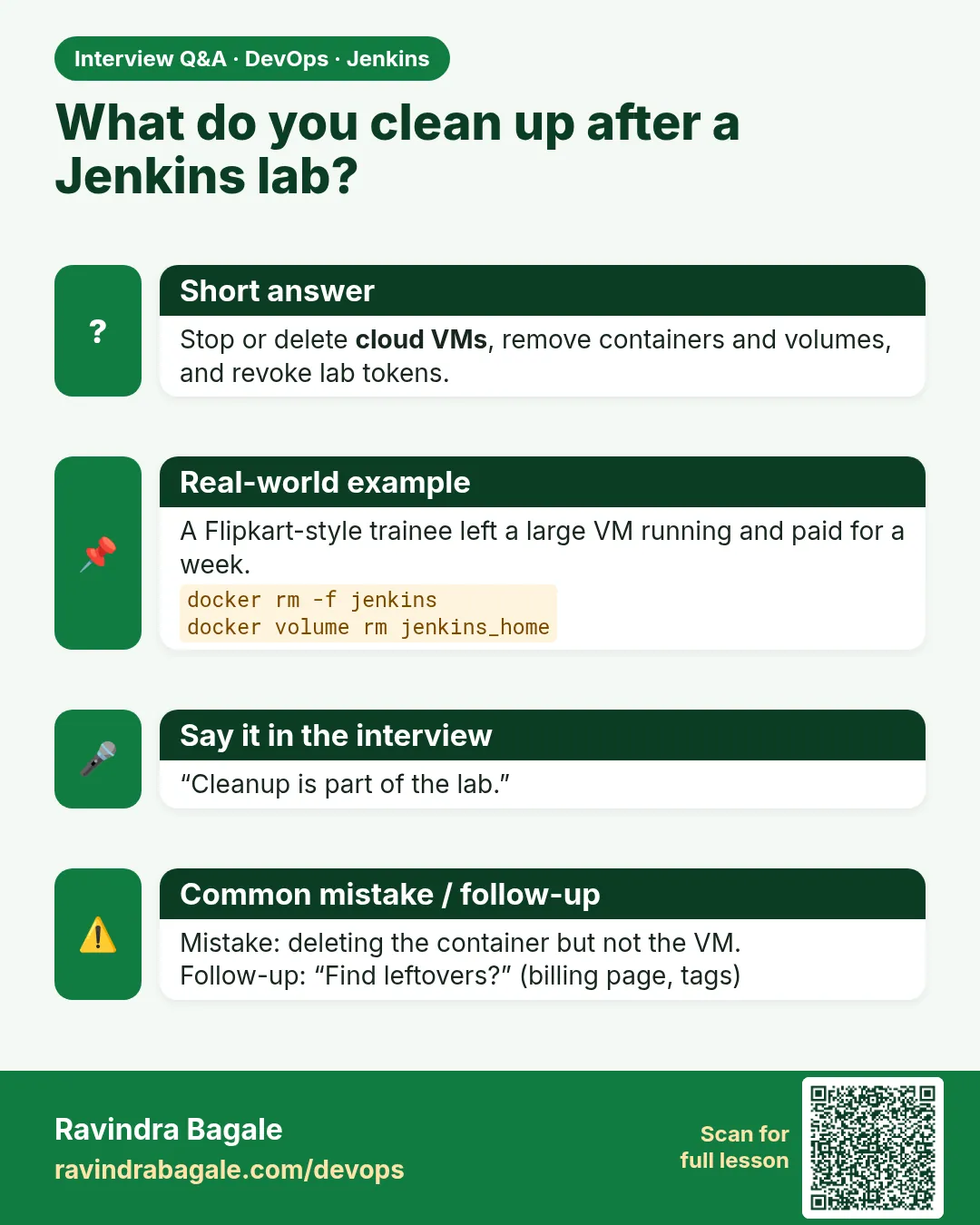
How do you avoid cloud lab costs?
Tags, stop scripts, budget alerts and teardown after use.
-
What is the difference between stop and remove?
Stop pauses with data intact; remove deletes the container.
-
Where should large artifacts go?
An artifact repository or S3, not JENKINS_HOME.
-
What do you back up before deleting Jenkins?
JENKINS_HOME, including jobs, config and credentials.
Quick quiz
Q1. Does stop delete data?
No.
Q2. Does a named volume survive docker rm?
Yes.
Q3. What does logRotator do?
Keeps only N builds.
Q4. Why tag cloud resources?
To find and stop them later.
Q5. What to do before teardown?
Back up jenkins_home.
Did you understand? Let us try it once more.
 Revision card
 Interview card