Chapter 10: Jenkins Introduction
10.3 Run Jenkins in Docker (lab shape)
Why: the problem
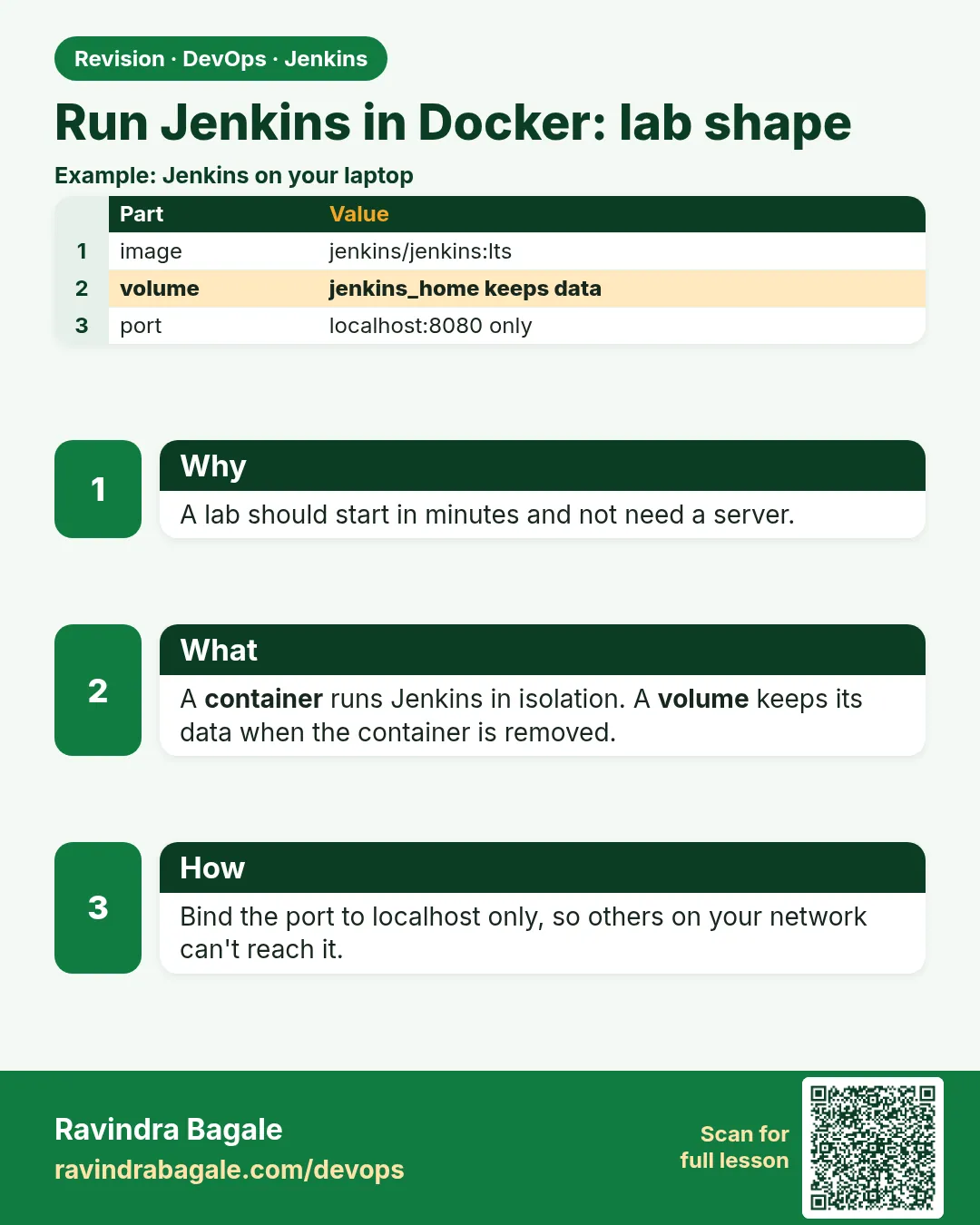
Suppose a Swiggy team wants a Jenkins to practice on. Installing Java, Jenkins and plugins by hand on a laptop takes an hour. It also leaves files all over the system. When it breaks, nobody knows how to clean it. Docker fixes this. The official Jenkins image already has Java and Jenkins inside. One command starts it. One named volume keeps all the data. If the lab breaks, you remove the container and start a new one in seconds. This is the lab shape we will use for every Jenkins lesson.
What we will build
You will run Jenkins in Docker three ways: a single docker run, a Docker Compose file you can keep in Git, and a custom image with plugins already installed. You will also back up the jenkins_home volume.
What: every term in plain English
- Image — A ready package with Java and Jenkins inside. We use jenkins/jenkins:lts-jdk17.
- LTS — Long Term Support. The stable line, updated every 4 weeks or so.
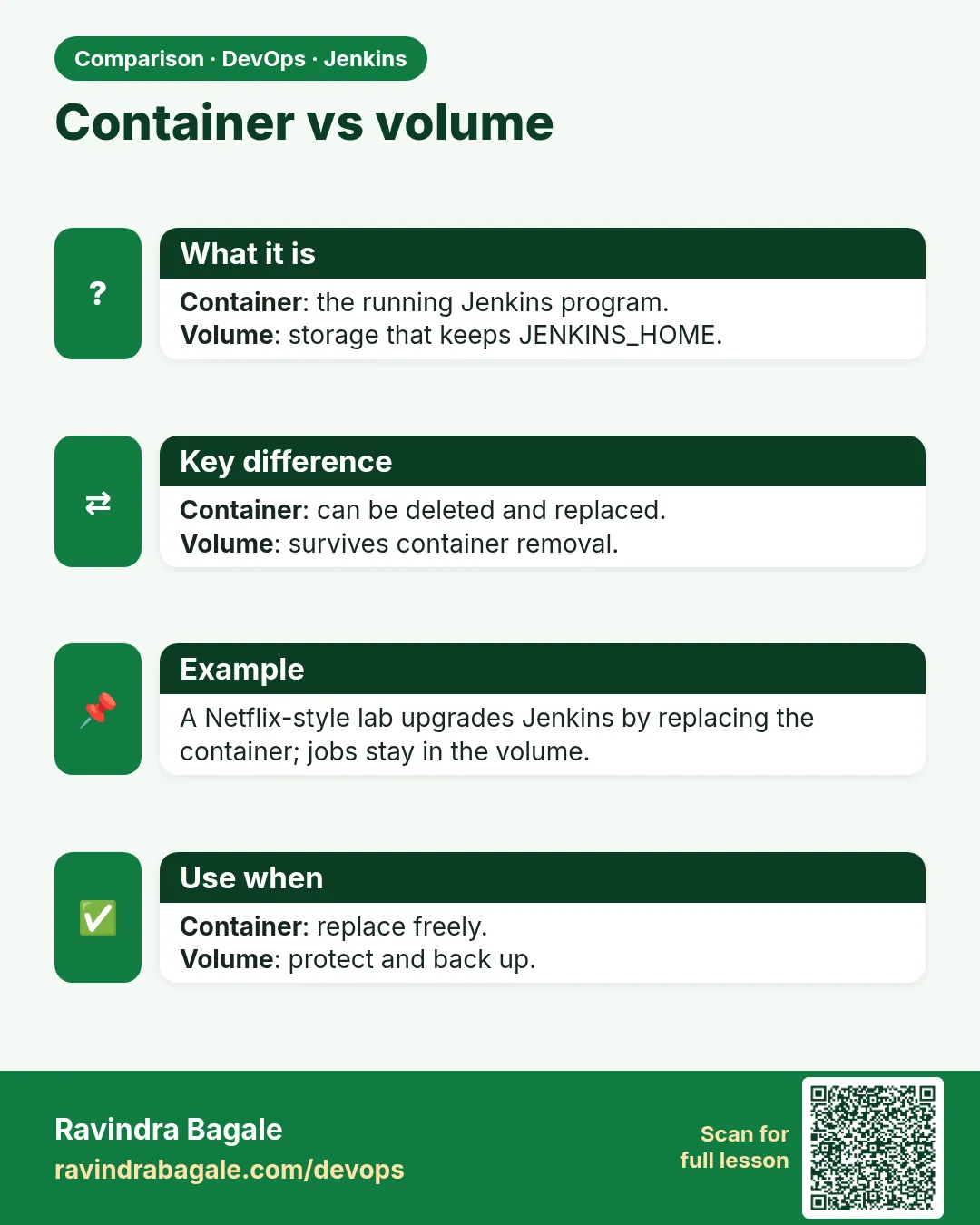
- Container — A running copy of an image.
- Named volume — Docker storage with a name, like jenkins_home. It survives container removal.
- Port 8080 — The Jenkins web page.
- Port 50000 — Used by inbound agents to talk to the controller.
- JENKINS_HOME — The data folder: jobs, plugins, users, credentials. Inside the container it is /var/jenkins_home.
- plugins.txt — A text file listing plugins to install while building a custom image.
How: step by step
-
Pull the image
docker pull jenkins/jenkins:lts-jdk17What it does: Downloads Jenkins with Java 17.
Output
lts-jdk17: Pulling from jenkins/jenkins Status: Downloaded newer image for jenkins/jenkins:lts-jdk17 -
Run it with a volume
docker run -d --name jenkins --restart unless-stopped -p 8080:8080 -p 50000:50000 -v jenkins_home:/var/jenkins_home jenkins/jenkins:lts-jdk17What it does: --restart brings it back after a reboot.
Output
8f2e1b... -
Watch the start log
docker logs -f jenkinsWhat it does: Wait for the ready line, then press Ctrl+C.
Output
Jenkins is fully up and running -
Get the admin password
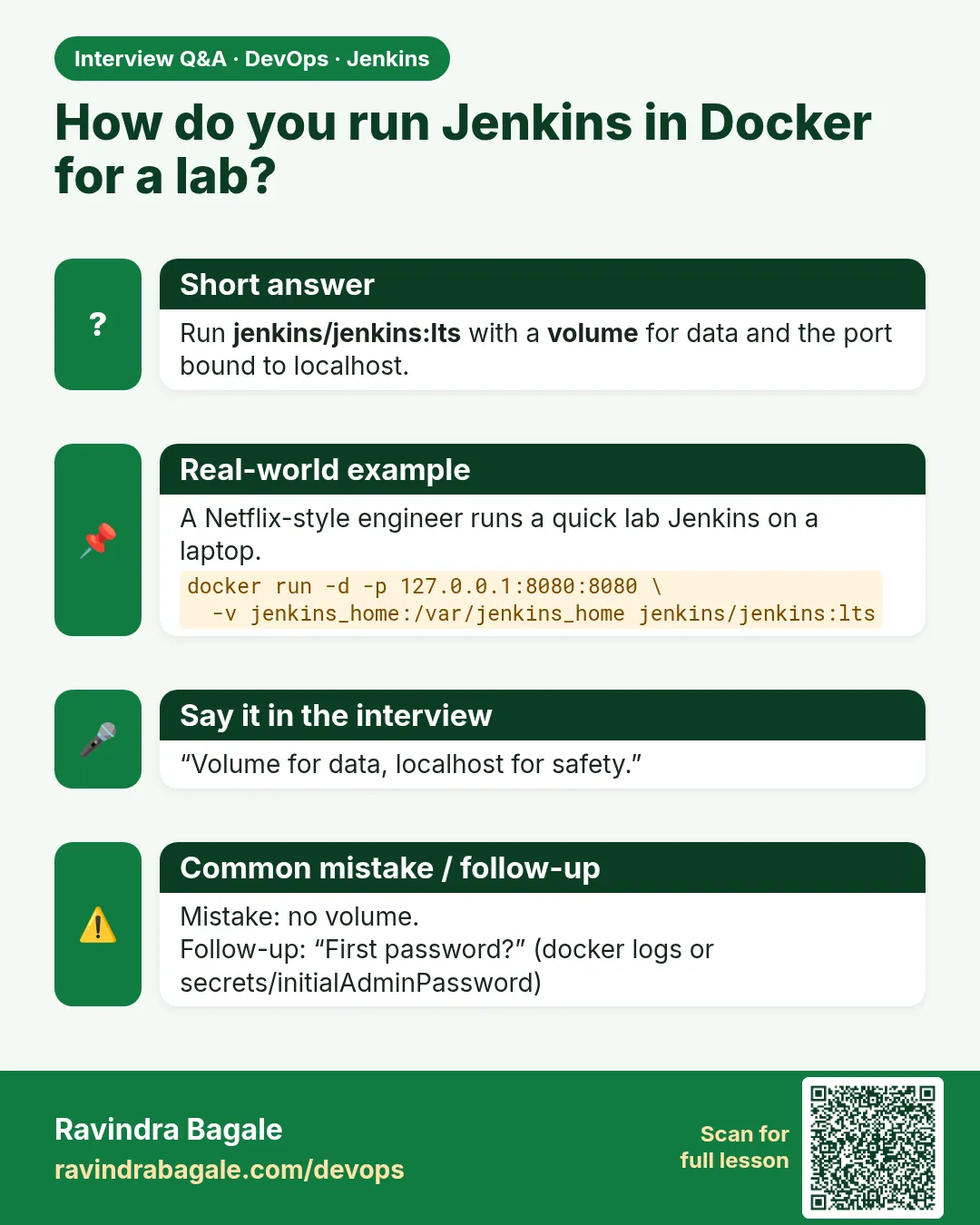
docker exec jenkins cat /var/jenkins_home/secrets/initialAdminPasswordWhat it does: One-time password for the wizard.
Output
9b1c...e4 -
Open the UI
Open http://localhost:8080What it does: Finish the wizard and create your admin user.
Output
Welcome to Jenkins!
Example 1: Compose file: keep the lab in Git
Stack. Docker Compose v2
Goal. Compose file: keep the lab in Git.
docker-compose.yml
services:
  jenkins:
    image: jenkins/jenkins:lts-jdk17
    container_name: jenkins
    restart: unless-stopped
    ports:
      - "8080:8080"
      - "50000:50000"
    volumes:
      - jenkins_home:/var/jenkins_home
    environment:
      - JAVA_OPTS=-Xmx1g
volumes:
  jenkins_home:
What each line does
image: jenkins/jenkins:lts-jdk17— Pin the LTS line, not latest.restart: unless-stopped— Start again after reboot, unless you stopped it."8080:8080"— Laptop port 8080 to container port 8080.jenkins_home:/var/jenkins_home— Data lives in the named volume.JAVA_OPTS=-Xmx1g— Limit Jenkins to 1 GB heap so the laptop stays fast.
Green output
$ docker compose up -d
[+] Running 2/2
 ✔ Volume "lab_jenkins_home"  Created
 ✔ Container jenkins          Started
$ docker compose ps
NAME      IMAGE                       STATUS         PORTS
jenkins   jenkins/jenkins:lts-jdk17   Up 20 seconds  0.0.0.0:8080->8080/tcp
Expected result. Anyone on the team can start the same lab with one command.
Example 2: Custom image with plugins already installed
Stack. Dockerfile, jenkins-plugin-cli
Goal. Custom image with plugins already installed.
plugins.txt
git
workflow-aggregator
docker-workflow
credentials-binding
pipeline-stage-view
Dockerfile
FROM jenkins/jenkins:lts-jdk17
USER root
RUN apt-get update && apt-get install -y --no-install-recommends python3 python3-venv \
    && rm -rf /var/lib/apt/lists/*
USER jenkins
COPY plugins.txt /usr/share/jenkins/ref/plugins.txt
RUN jenkins-plugin-cli --plugin-file /usr/share/jenkins/ref/plugins.txt
What each line does
FROM jenkins/jenkins:lts-jdk17— Start from the official image.USER root— apt-get needs root.apt-get install ... python3— Adds Python so Python pipelines work.USER jenkins— Switch back. Never run Jenkins as root.jenkins-plugin-cli— Official tool that installs plugins at build time.
Green output
$ docker build -t ravi/jenkins-lab:1.0 .
 => [4/4] RUN jenkins-plugin-cli --plugin-file /usr/share/jenkins/ref/plugins.txt
Done
 => naming to docker.io/ravi/jenkins-lab:1.0
$ docker run -d --name jenkins -p 8080:8080 -v jenkins_home:/var/jenkins_home ravi/jenkins-lab:1.0
Expected result. Plugins and Python are ready on first start. No clicking in the plugin manager.
Example 3: Back up and restore jenkins_home
Stack. Docker, alpine, tar
Goal. Back up and restore jenkins_home.
backup.sh
#!/usr/bin/env bash
set -euo pipefail
STAMP=$(date +%F)
docker run --rm -v jenkins_home:/data -v "$PWD":/backup alpine \
  tar czf /backup/jenkins_home-$STAMP.tgz -C /data .
ls -lh jenkins_home-$STAMP.tgz
What each line does
set -euo pipefail— Stop the script on any error.docker run --rm ... alpine— A tiny throwaway container that can see the volume.-v jenkins_home:/data— Mount the Jenkins volume read side.tar czf ...— Pack all Jenkins data into one file.
Green output
$ bash backup.sh
-rw-r--r-- 1 ravi ravi 182M Oct 25 10:12 jenkins_home-2026-10-25.tgz
Expected result. To restore, create a new volume and untar the file into it with the same alpine trick. Jobs and users come back.
Verify: did it work?
-
Check the container
docker ps --filter name=jenkinsWhat it does: Status must be Up.
Output
jenkins Up 3 minutes 0.0.0.0:8080->8080/tcp -
Check the version
curl -sI http://localhost:8080/login | grep -i x-jenkinsWhat it does: The header shows the Jenkins version.
Output
X-Jenkins: 2.462.3
When it is red 1
Bind for 0.0.0.0:8080 failed: port is already allocated
Cause. Another program uses port 8080.
Fix, step by step
- Find it: sudo ss -ltnp | grep 8080
- Stop it, or map another port: -p 8081:8080.
- Open http://localhost:8081.
When it is red 2
touch: cannot touch '/var/jenkins_home/copy_reference_file.log': Permission denied
Cause. You used a host folder owned by root instead of a named volume.
Fix, step by step
- Use a named volume: -v jenkins_home:/var/jenkins_home.
- Or give the folder to user id 1000: sudo chown -R 1000:1000 ./jenkins_home.
- Start the container again.
When it is red 3
java.lang.OutOfMemoryError: Java heap space
Cause. Jenkins has too little memory.
Fix, step by step
- Set JAVA_OPTS=-Xmx1g or more.
- Give Docker Desktop more RAM.
- Restart the container.
Cleanup
-
Remove the lab fully
docker rm -f jenkins && docker volume rm jenkins_homeWhat it does: Deletes the container and all data. Back up first if you need it.
Output
jenkins
jenkins_home
Ravindra Bagale's Tip
If the lab breaks, do not panic. Back up the volume, remove the container, start a new one. That is the Docker benefit!
Lab बिघडला तरी tension नका घेऊ. Volume चा backup घ्या, container काढून टाका, नवीन चालू करा. Docker चा हाच फायदा!
Lab बिगड़े तो tension मत लो. Volume का backup लो, container हटाओ, नया चालू करो. Docker का यही फायदा है!
Practice tasks
Easy Change the port
Why: Port clashes are common.
What to do: Run Jenkins on port 8081.
- -p 8081:8080
Check: The UI opens on 8081.
Medium Restore from backup
Why: Backups are useless untested.
What to do: Restore your backup into a new volume and start Jenkins on it.
- docker volume create jh2
- untar into it with alpine
Check: Your old jobs appear.
Hard Pin plugin versions
Why: Stop surprise upgrades.
What to do: Write versions in plugins.txt, like git:5.5.2.
- Rebuild the image.
Check: The plugin page shows your pinned versions.
Easy Say Jenkins in Docker in two lines
Why: If you can say it simply, you understand it. Juniors and interviewers both want the short version first.
What to do: Write two short lines about Jenkins in Docker for a fresher who knows only Linux, Git and Docker basics.
- Write the problem it solves.
- Write the one Jenkins screen, Jenkinsfile line or command you use for it.
- Read it aloud to a friend.
Check: A fresher understands it without asking a question.
Easy Keep a throwaway lab Jenkins
Why: Practice needs a Jenkins you can break. If the lab gets messy, you delete the container and volume and start again.
What to do: Run a lab Jenkins in Docker on your laptop with a named volume jenkins_home.
- docker volume create jenkins_home
- docker run -d --name jenkins -p 8080:8080 -v jenkins_home:/var/jenkins_home jenkins/jenkins:lts-jdk17
- Open http://localhost:8080 and finish the setup wizard.
Check: The Jenkins dashboard opens and shows "Welcome to Jenkins!".
Medium Do it on a second stack
Why: A pipeline idea must work for Node.js, Python and Java. Only the build and test lines should change.
What to do: Repeat this lesson with a different language than the one you used first.
- If you used Python, use Node.js or Maven now.
- Change only the sh lines for build and test.
- Keep the same stage names.
Check: Same green result, and the stage names did not change.
Medium Break it on purpose
Why: You must know the red console log by face. In a real outage there is no time to read slowly.
What to do: Cause one error from the "When it is red" part of this lesson and fix it.
- Follow the error section.
- Copy the exact message from Console Output into your notes.
- Write the fix in one line.
Check: You fixed it using only the steps, without searching the web.
Medium Write a one-page runbook
Why: At 2 a.m. nobody remembers Jenkins menus. A short page saves the on-call person.
What to do: Write a one-page runbook for this lesson.
- Title, when to use, exact clicks or Jenkinsfile lines, how to check, how to undo.
Check: A teammate can follow it alone.
Hard Explain it like an interview
Why: Interviewers want real stories, not definitions.
What to do: Record a 60 second answer about this lesson.
- Say the problem, the Jenkinsfile lines you wrote, and one error you hit.
Check: Your answer has a real Jenkinsfile line and a real error message.
Hard Draw the flow top to bottom
Why: A drawing shows the order of work and which stage waits for which.
What to do: Draw this lesson as boxes from top to bottom.
- Start at git push or Build Now, go through each stage, end at the green build or the deployed app.
Check: Each box matches a real line in your Console Output.
Homework: try at home
Try at home
At home, start Jenkins with the Compose file, build the custom image with plugins, and make one backup file of jenkins_home.
Recap
- The official image has Java and Jenkins inside.
- A named volume keeps JENKINS_HOME safe.
- Compose keeps the lab in Git.
- A custom image pre-installs plugins and tools.
- Back up jenkins_home with a tar file.
FAQ
Can I run Jenkins in Docker in production?
Yes, many teams do, with a backed up volume and agents on other machines.
Should I use latest?
No. Use the lts tag so updates are stable.
Why not run Jenkins as root?
A bad build step could then take over the whole host.
Where are plugins stored?
In /var/jenkins_home/plugins.
How do I upgrade?
Back up, pull the newer lts image, recreate the container with the same volume.
Interview questions
-
How do you run Jenkins in Docker?
docker run with the lts image, ports 8080 and 50000, and a named volume on /var/jenkins_home.
-
How do you persist Jenkins data?
Mount a volume on JENKINS_HOME and back it up.
-
How do you install plugins automatically?
List them in plugins.txt and run jenkins-plugin-cli in a custom Dockerfile.
-
How do you upgrade Jenkins safely?
Back up JENKINS_HOME, pin a new LTS tag, recreate the container, check plugins.
-
Why port 50000?
For inbound (JNLP) agents to connect to the controller.
Quick quiz
Q1. Which image tag do we use?
jenkins/jenkins:lts-jdk17.
Q2. Why a named volume?
Data survives when the container is removed.
Q3. Which file holds the first password?
/var/jenkins_home/secrets/initialAdminPassword.
Q4. What installs plugins in a Dockerfile?
jenkins-plugin-cli.
Q5. What is port 50000 for?
Inbound agents connecting to the controller.
Did you understand? Let us try it once more.
 Revision card
 Interview card
 Comparison card