Chapter 9: GitHub Actions Hands-On
9.1 Why Actions — checks on every push
Why: the problem
Suppose we are at Razorpay. A developer changes the payment refund code on Friday evening. He forgets to run the tests on his laptop. On Monday the refund API fails for 2,000 shops. Everybody asks: "Did anybody run the tests?" Nobody knows. The problem is not the developer. The problem is that testing depends on a human memory. GitHub Actions fixes this. It is a robot that lives next to your code. On every push and every pull request it runs the same checks, the same way, and shows a green tick or a red cross on the change. Nobody can forget, because nobody has to remember.
What we will build
You will create your first workflow file in a practice repo. It will print a hello message, show the runner machine details, and run one real test. You will do this for a Python app, a Node.js app and a plain shell script, so you see that the idea is the same for every stack.
What: every term in plain English
- CI — Continuous Integration. Every change is built and tested automatically, many times a day.
- Workflow — A YAML file in the folder .github/workflows/. It says when to run and what to run.
- Event — The thing that starts a workflow, like push, pull_request or a schedule.
- Job — A group of steps that runs on one machine.
- Step — One command (run:) or one ready-made action (uses:).
- Runner — The machine that runs the job. A hosted runner is a fresh Ubuntu, Windows or macOS VM given by the platform.
- Action — A ready-made, reusable step, like actions/checkout which downloads your code.
- Check — The green tick or red cross shown on a commit or pull request.
How: step by step
-
Create a practice repo
mkdir actions-lab && cd actions-lab && git init -b mainWhat it does: Makes a new local Git repo on the main branch.
Output
Initialized empty Git repository in /home/ravi/actions-lab/.git/ -
Create the workflow folder
mkdir -p .github/workflowsWhat it does: The platform only reads workflow files from this exact folder.
Output
(no output) -
Write the first workflow
vim .github/workflows/hello.ymlWhat it does: Paste the file from Example 1 and save.
Output
(file saved) -
Push it
git add . && git commit -m "first workflow" && git push -u origin mainWhat it does: The push is the event that starts the workflow.
Output
To https://git.example.com/ravi/actions-lab.git * [new branch] main -> main -
Watch the run
Open the repo page, click the Actions tab, click the newest runWhat it does: Each job and step shows its log live.
Output
hello Queued -> In progress -> Success (12s)
Example 1: Hello workflow: see the runner with your own eyes
Stack. Any repo, shell only
Goal. Hello workflow: see the runner with your own eyes.
.github/workflows/hello.yml
name: hello
on: [push]
jobs:
  say-hello:
    runs-on: ubuntu-latest
    steps:
      - run: echo "Hello from the runner"
      - run: uname -a
      - run: nproc && free -h && df -h /
      - run: whoami && pwd
What each line does
name: hello— The name shown in the Actions tab.on: [push]— Run on every push to any branch.jobs: say-hello:— One job. The id say-hello is your choice.runs-on: ubuntu-latest— Ask for a fresh hosted Ubuntu VM.run: uname -a— Prints the Linux kernel of the runner.nproc && free -h— Shows CPUs and memory you get for free.whoami && pwd— Shows the user (runner) and the work folder.
Green output
Run echo "Hello from the runner"
Hello from the runner
Run uname -a
Linux fv-az1234-56 6.8.0-1015-azure #17-Ubuntu SMP x86_64 GNU/Linux
Run nproc && free -h && df -h /
4
               total        used        free
Mem:            15Gi       1.1Gi        13Gi
/dev/root        73G         52G         21G  72% /
Run whoami && pwd
runner
/home/runner/work/actions-lab/actions-lab
Expected result. You see a real Linux machine that existed only for your job. When the job ends, the VM is thrown away.
Example 2: Python test on every push: the first real CI check
Stack. Python 3.12, pytest
Goal. Python test on every push: the first real CI check.
app/calc.py
def gst(amount):
    return round(amount * 0.18, 2)
tests/test_calc.py
from app.calc import gst

def test_gst():
    assert gst(100) == 18.0
.github/workflows/ci.yml
name: ci
on: [push, pull_request]
jobs:
  test:
    runs-on: ubuntu-latest
    steps:
      - uses: actions/checkout@v4
      - uses: actions/setup-python@v5
        with:
          python-version: "3.12"
      - run: pip install pytest
      - run: python -m pytest -q
What each line does
uses: actions/checkout@v4— Downloads your repo code into the runner. Without it, the folder is empty.actions/setup-python@v5— Installs the Python version you ask for.python-version: "3.12"— Quotes keep 3.10 from becoming 3.1 in YAML.pip install pytest— Installs the test tool.python -m pytest -q— Runs all tests quietly. Exit code 0 means green.
Green output
Run python -m pytest -q
.                                                                [100%]
1 passed in 0.02s
Expected result. The commit gets a green tick. Change 0.18 to 0.28 and push: you get a red cross and the line that failed.
Example 3: Node
Stack. Node.js 20, node:test
Goal. Node.js test: same shape, different setup line.
package.json
{
  "name": "swiggy-eta",
  "version": "1.0.0",
  "scripts": { "test": "node --test" }
}
eta.test.js
const test = require('node:test');
const assert = require('node:assert');
const eta = (km) => Math.ceil(km * 4 + 10);
test('eta for 5 km', () => assert.strictEqual(eta(5), 30));
.github/workflows/ci.yml
name: ci
on: [push, pull_request]
jobs:
  test:
    runs-on: ubuntu-latest
    steps:
      - uses: actions/checkout@v4
      - uses: actions/setup-node@v4
        with:
          node-version: 20
      - run: npm test
What each line does
"test": "node --test"— Node 20 has a built-in test runner. No extra package needed.actions/setup-node@v4— Installs Node.js.node-version: 20— Use the current LTS line.npm test— Runs the test script from package.json.
Green output
Run npm test
> swiggy-eta@1.0.0 test
> node --test
# tests 1
# pass 1
# fail 0
Expected result. Only two lines changed from the Python example: the setup action and the test command. The CI idea is the same.
Verify: did it work?
-
See the check on the commit
git log -1 --format=%h && open the commit page in the browserWhat it does: The tick or cross is next to the commit id.
Output
a3f2c1d ci / test (push) Successful in 18s -
List recent runs from the terminal
gh run list --limit 3What it does: The official CLI lists runs, if you have it installed and logged in.
Output
STATUS  TITLE           WORKFLOW  BRANCH  EVENT  ELAPSED
✓       first workflow  ci        main    push   18s
When it is red 1
Invalid workflow file: .github/workflows/ci.yml#L5
You have an error in your yaml syntax on line 5
Cause. Wrong indentation. YAML uses spaces, and a tab or one extra space breaks it.
Fix, step by step
- Open the file and check line 5.
- Use 2 spaces per level, never tabs.
- Run a YAML linter locally: pip install yamllint && yamllint .github/workflows/ci.yml
When it is red 2
No workflow runs yet. The Actions tab is empty after push.
Cause. The file is in the wrong folder, like .github/workflow/ (no s) or github/workflows/ (no dot).
Fix, step by step
- Run: ls -a .github/workflows
- Move the file into the exact folder.
- Push again.
When it is red 3
ModuleNotFoundError: No module named 'app'
Cause. You forgot actions/checkout, or the test runs from the wrong folder.
Fix, step by step
- Add - uses: actions/checkout@v4 as the first step.
- Add an empty app/init.py if needed.
- Run pytest from the repo root.
Cleanup
-
Delete the hello workflow when done
git rm .github/workflows/hello.yml && git commit -m "remove hello" && git pushWhat it does: Keeps the Actions tab clean. Old runs stay in history.
Output
delete mode 100644 .github/workflows/hello.yml
Ravindra Bagale's Tip
If you forget to run tests, the robot does not forget. That is CI. Push your first workflow today!
Tests run करायला विसरला तर robot विसरत नाही. म्हणून CI. पहिला workflow आजच push करा!
Tests चलाना भूल गए तो robot नहीं भूलता. इसलिए CI. पहला workflow आज ही push करो!
Practice tasks
Easy Read the runner details
Why: Know what machine you get.
What to do: Run the hello workflow and note CPUs, RAM and disk.
- Read the nproc and free -h lines.
Check: You can say how many CPUs a hosted runner has.
Medium Make the test fail
Why: Know the red screen.
What to do: Change the expected value in the test and push.
- Open the red run.
- Find the assert line in the log.
Check: You found the failing line in under one minute.
Hard Add a shell lint step
Why: Bad shell scripts break deploys.
What to do: Add a step that runs shellcheck on scripts/*.sh.
- sudo apt-get install -y shellcheck
- shellcheck scripts/*.sh
Check: A bad script makes the check red.
Easy Say a CI workflow in two lines
Why: If you can say it simply, you understand it. Juniors and interviewers both want the short version first.
What to do: Write two short lines about a CI workflow for a fresher who knows only Linux and Git basics.
- Write the problem it solves.
- Write the one workflow line or command you use for it.
- Read it aloud to a friend.
Check: A fresher understands it without asking a question.
Easy Make a throwaway practice repo
Why: Practice needs a repo you can break. If the workflow history gets messy, you delete the repo and start again.
What to do: Create a new empty repo named actions-lab with one small app and push it.
- mkdir actions-lab && cd actions-lab && git init -b main
- Add app code and a test file.
- git remote add origin https://git.example.com/ravi/actions-lab.git && git push -u origin main
Check: The Actions tab of the repo shows your first run.
Medium Do it on a second stack
Why: A CI idea must work for Node.js, Python and Java. Only the setup and test lines should change.
What to do: Repeat this lesson with a different language than the one you used first.
- If you used Python, use Node.js now.
- Change only the setup action and the test command.
- Keep the same job names.
Check: Same result, and the job names did not change.
Medium Break it on purpose
Why: You must know the red log by face. In a real outage there is no time to read slowly.
What to do: Cause one error from the "When it is red" part of this lesson and fix it.
- Follow the error section.
- Copy the exact message into your notes.
- Write the fix in one line.
Check: You fixed it using only the steps, without searching the web.
Medium Write a one-page runbook
Why: At 2 a.m. nobody remembers YAML keys. A short page saves the on-call person.
What to do: Write a one-page runbook for this lesson.
- Title, when to use, exact YAML or commands, how to check, how to undo.
Check: A teammate can follow it alone.
Hard Explain it like an interview
Why: Interviewers want real stories, not definitions.
What to do: Record a 60 second answer about this lesson.
- Say the problem, the workflow lines you wrote, and one error you hit.
Check: Your answer has a real YAML line and a real error message.
Hard Draw the flow top to bottom
Why: A drawing shows the order of work and which job waits for which.
What to do: Draw this lesson as boxes from top to bottom.
- Start at git push, go through each job and step, end at the green check or the deployed app.
Check: Each box matches a real step in your run log.
Homework: try at home
Try at home
At home, make the actions-lab repo, add the Python GST test and the workflow, push it, and get a green tick. Then break the test on purpose and see the red cross.
Recap
- A workflow is a YAML file in .github/workflows/.
- An event starts jobs; each job runs on a fresh runner.
- Steps are run: commands or uses: actions.
- The exit code decides green or red.
- Same idea for every stack; only setup and test lines change.
FAQ
Is GitHub Actions free?
Public repos get free minutes. Private repos get a monthly free quota, then you pay per minute.
Can I run it on my own server?
Yes, with a self-hosted runner. You will see it later.
Does it replace Jenkins?
For many teams yes. Big companies often use both.
Can one repo have many workflows?
Yes. Each YAML file in the folder is one workflow.
Why did my run not start?
Check the folder name, the YAML syntax and the on: event.
Interview questions
-
What is GitHub Actions?
A CI/CD service built into the code host. Workflows in YAML run jobs on runners when events happen.
-
What is the difference between a job and a step?
A job runs on one runner; steps run in order inside the job and share its files.
-
What is a runner?
The machine that executes a job, hosted by the platform or self-hosted.
-
Why use actions/checkout?
The runner starts empty; checkout puts the repo code there.
-
How does CI stop bad code?
A failing test returns a non-zero exit code, the check turns red, and branch rules can block the merge.
Quick quiz
Q1. Where must workflow files live?
In the .github/workflows/ folder of the repo.
Q2. What starts a workflow?
An event, like push or pull_request.
Q3. What does actions/checkout do?
It downloads your repo code onto the runner.
Q4. What is a hosted runner?
A fresh VM given by the platform for one job, thrown away after.
Q5. What decides green or red?
The exit code of each step. Non-zero means red.
Did you understand? Let us try it once more.
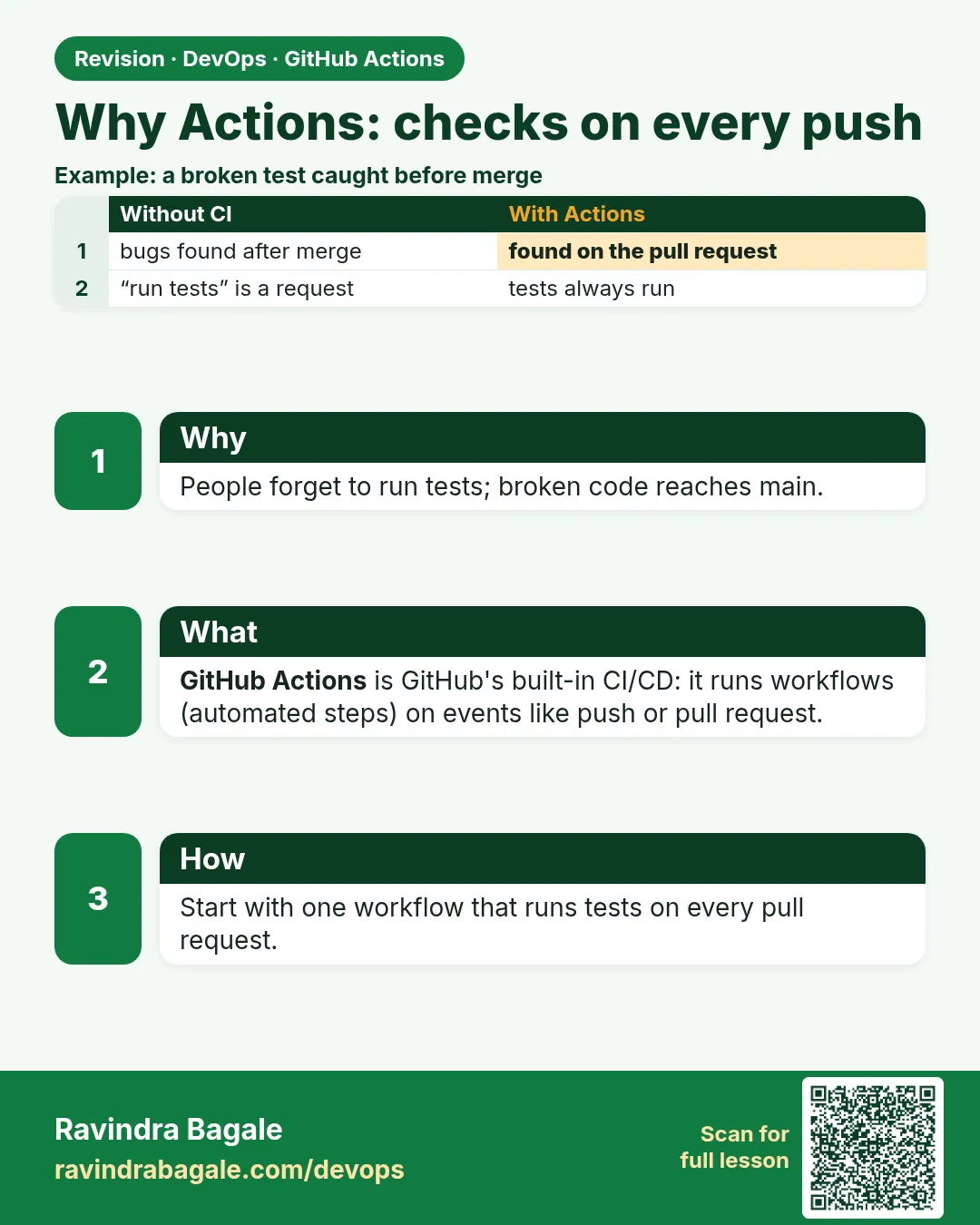 Revision card
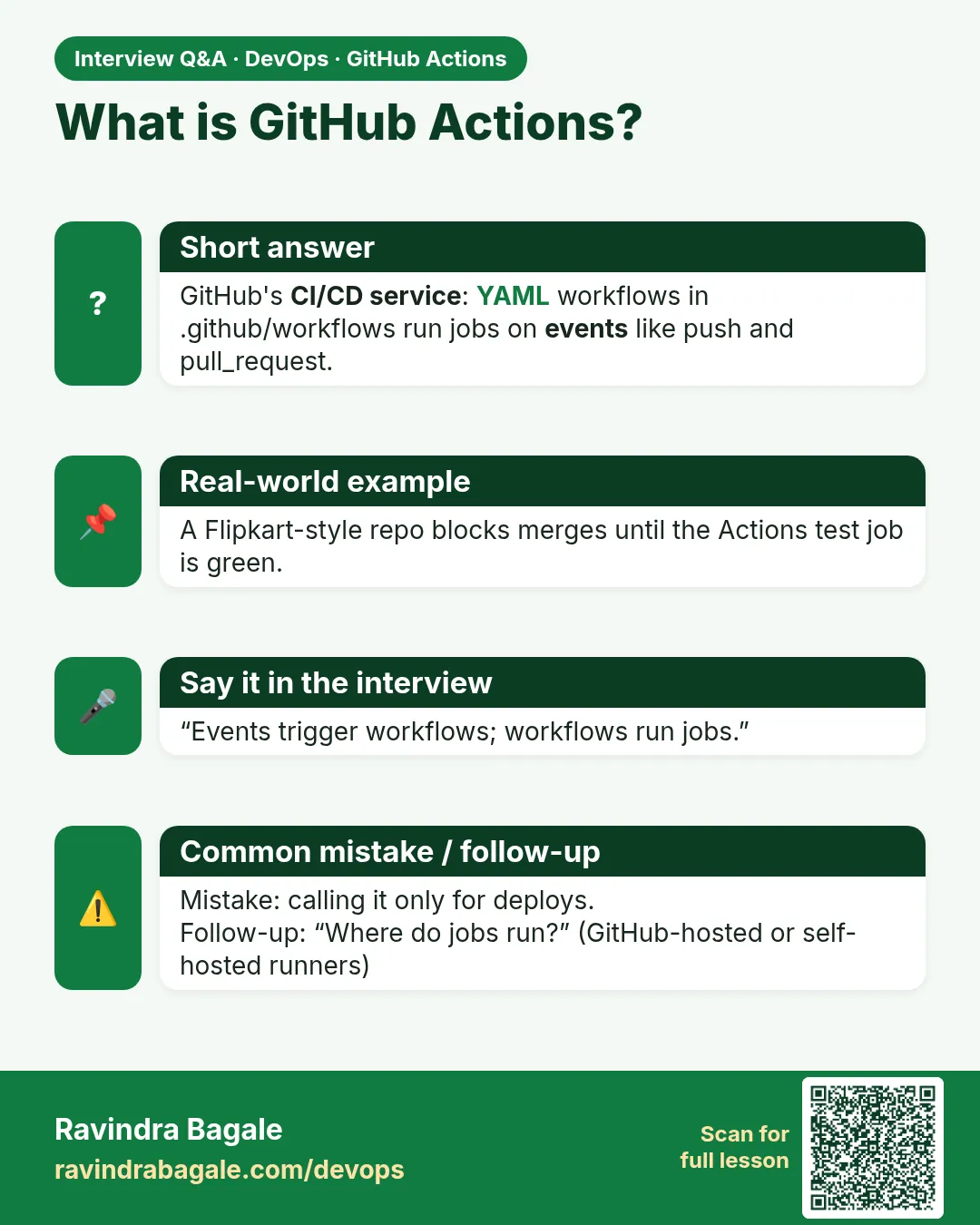 Interview card