29.2 Your First =PY Cell: Insert Python, Ctrl+Alt+Shift+P and Ctrl+Enter
Example first. Isha selects cell K2 on the Orders sheet, presses Ctrl+Alt+Shift+P, clicks G2, types +, clicks G3 and presses Ctrl+Enter. K2 shows 334: the amounts of the first two orders (64 + 270). She has written her first Python formula without typing a single bracket of Excel syntax. This lesson covers the three ways to start a Python cell, how to reference cells, and the keys that matter.
Your first Python cell — in 30 seconds
What: A Python cell is a cell whose formula is Python code. You start one with Formulas › Insert Python, by typing =PY and choosing PY, or with Ctrl+Alt+Shift+P. You commit the code with Ctrl+Enter.
Why: Knowing the start and commit keys removes the most common beginner problem: pressing Enter and getting a new line instead of a result.
Tiny example: In K2: start Python, type xl("G2") + xl("G3"), press Ctrl+Enter. Result: 334.
Your first Python cell — 30 सेकंदात
काय: Python cell म्हणजे जिचा formula Python code आहे अशी cell. ती Formulas › Insert Python ने, =PY type करून PY निवडून, किंवा Ctrl+Alt+Shift+P ने सुरू होते. Code Ctrl+Enter ने commit होतो.
का: Start आणि commit च्या keys माहीत असल्या की नव्या लोकांची सर्वात सामान्य अडचण जाते: Enter दाबल्यावर result ऐवजी नवीन line येणं.
छोटं उदाहरण: K2 मध्ये: Python सुरू करा, xl("G2") + xl("G3") type करा, Ctrl+Enter दाबा. Result: 334.
Your first Python cell — 30 सेकंड में
क्या: Python cell वह cell है जिसका formula Python code है. इसे Formulas › Insert Python से, =PY type करके PY चुनकर, या Ctrl+Alt+Shift+P से शुरू करते हैं. Code Ctrl+Enter से commit होता है.
क्यों: Start और commit की keys पता हों तो नए लोगों की सबसे आम दिक़्क़त ख़त्म हो जाती है: Enter दबाने पर result की जगह नई line आना.
छोटा उदाहरण: K2 में: Python शुरू करें, xl("G2") + xl("G3") type करें, Ctrl+Enter दबाएँ. Result: 334.
First look at the data (before → after):
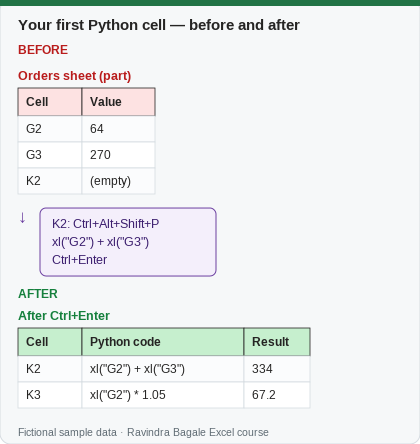
Expected result — After Ctrl+Enter
| Cell | Python code | Result |
|---|---|---|
| K2 | xl("G2") + xl("G3") | 334 |
| K3 | xl("G2") * 1.05 | 67.2 |
About this data: Teaching sample for a fictional shop “Orbit Logistics”. Figures and names (e.g. Vikram Rao) are made up for this lesson on your first py cell insert python ctrl alt shift.
Before table and formula as text
Before — Orders sheet (part)
| Cell | Value |
|---|---|
| G2 | 64 |
| G3 | 270 |
| K2 | (empty) |
About this data: Demo table only — not real customer or company data. Built to practise your first py cell insert python ctrl alt shift.
Formula / click path
K2: Ctrl+Alt+Shift+P
xl("G2") + xl("G3")
Ctrl+Enter
Do it step by step:
- Select K2 on the Orders sheet.
- Press Ctrl+Alt+Shift+P (or select Formulas › Insert Python, or type
=PYand press Tab). A PY icon appears. - Click G2 with the mouse. Excel types
xl("G2")for you. - Type
+and click G3. The cell now readsxl("G2") + xl("G3"). - Press Ctrl+Enter to commit. K2 shows 334.
- In K3 repeat with
xl("G2") * 1.05and commit: 67.2 (64 plus 5%).
स्टेप बाय स्टेप करून बघा:
- Orders sheet वर K2 निवडा.
- Ctrl+Alt+Shift+P दाबा (किंवा Formulas › Insert Python निवडा, किंवा
=PYtype करून Tab दाबा). PY icon दिसतो. - Mouse ने G2 वर click करा. Excel तुमच्यासाठी
xl("G2")type करतो. +type करा आणि G3 वर click करा. Cell आताxl("G2") + xl("G3")दाखवते.- Commit करायला Ctrl+Enter दाबा. K2 मध्ये 334 येतं.
- K3 मध्ये
xl("G2") * 1.05ने तेच करा आणि commit करा: 67.2 (64 अधिक 5%).
स्टेप बाय स्टेप करके देखें:
- Orders sheet पर K2 चुनें.
- Ctrl+Alt+Shift+P दबाएँ (या Formulas › Insert Python चुनें, या
=PYtype करके Tab दबाएँ). PY icon दिखता है. - Mouse से G2 पर click करें. Excel आपके लिए
xl("G2")type करता है. +type करें और G3 पर click करें. Cell अबxl("G2") + xl("G3")दिखाती है.- Commit करने के लिए Ctrl+Enter दबाएँ. K2 में 334 आता है.
- K3 में
xl("G2") * 1.05से यही करें और commit करें: 67.2 (64 और 5%).
Version note
Shortcuts verified on Microsoft's "Python in Excel keyboard shortcuts" page (Excel for Microsoft 365, Windows). Ctrl+Alt+Shift+P is listed there as "Like =PY, enables Python formulas in the current cell". On a Mac the menu path is the same; check the page for Mac keys.
The keys that matter (from Microsoft's shortcut list)
| Keys | What they do |
|---|---|
| =PY then Tab (or =PY( ) | Turn the cell into a Python cell |
| Ctrl+Alt+Shift+P | Same as =PY: Python in the current cell |
| Ctrl+Enter | Commit the Python code (Enter adds a new line) |
| F2 | Switch between Enter mode (pick cells with arrow keys) and Edit mode (type code) |
| Ctrl+Shift+U | Expand or collapse the formula bar to see more lines |
| Ctrl+Alt+Shift+F2 | Open the Python in Excel code editor pane (bigger editor, colours, IntelliSense) |
| Ctrl+Alt+Shift+M | Switch the result between Python object and Excel value (lesson 29.4) |
| Ctrl+Shift+F5 | Open the card of a cell that shows a card icon |
| Ctrl+Alt+Shift+F9 | Reset the Python runtime (helps with #BUSY! or #CONNECT!) |
About this data: Made-up rows so you can copy the pattern for your first py cell insert python ctrl alt shift. Currencies may use ₹, £, € or $.
Python is not an Excel formula, so the rules differ
| Excel formula | Python cell |
|---|---|
=G2+G3 |
xl("G2") + xl("G3") |
=G2*105% |
xl("G2") * 1.05 (no % sign in Python) |
=ROUND(G2*1.05,1) |
round(xl("G2") * 1.05, 1) |
=IF(H2>15,"Late","OK") |
"Late" if xl("H2") > 15 else "OK" |
| Text in double quotes | Text in single or double quotes |
| Case does not matter in function names | Case matters: Round is an error, round works |
About this data: Fictional worksheet used in class. Safe to edit; nothing here is live production data.
Many lines in one cell. Expand the formula bar (Ctrl+Shift+U) and press Enter for each new line. The value of the last line is what the cell shows. For example:
amount = xl("G2")
fee = amount * 0.05
amount + fee
returns 67.2. Lines that only assign a variable (fee = ...) show nothing by themselves.
When something is wrong the cell shows #PYTHON!. Select the error symbol and Show Error Message, or open the Diagnostics pane (right-click the cell › Diagnostics for this cell). The most common beginner causes: a missing bracket or quote, Round with a capital R, or a variable used before it was defined (lesson 29.7).
Microsoft sources (checked 7 October 2026): Get started with Python in Excel; Python in Excel keyboard shortcuts.
Practice task (try it before you open the answer):
- In K4 write a Python cell that returns the Mins of the first order (H2) plus 5.
- In K5 return "Late" if H8 is more than 15, else "OK".
- Say both results.
Answer
xl("H2") + 5returns 14 (H2 is 9)."Late" if xl("H8") > 15 else "OK"returns Late, because H8 (order BLK-1007) is 18.- K4 = 14, K5 = Late. Remember to commit each one with Ctrl+Enter.
Ravindra Bagale's Tip
Learn one shortcut today: Ctrl+Enter to commit. Nine out of ten "my Python cell does nothing" questions in class are an Enter that should have been Ctrl+Enter.
Ravindra Bagale's Tip – मराठी
आज एकच shortcut शिका: commit साठी Ctrl+Enter. Class मधले "माझी Python cell काहीच करत नाही" असे दहापैकी नऊ प्रश्न, Ctrl+Enter ऐवजी दाबलेला Enter असतात.
Ravindra Bagale's Tip – हिंदी
आज एक ही shortcut सीखें: commit के लिए Ctrl+Enter. Class में "मेरी Python cell कुछ नहीं करती" वाले दस में से नौ सवाल, Ctrl+Enter की जगह दबाया गया Enter होते हैं.
Practice tasks (6)
Use the Orders sheet from this lesson. The first two orders have the Amounts 64 and 270. Open a hint only if you are stuck, and check your result against the answer.
1. Start a Python cell in an empty cell without using the mouse.
Hint: There is a four-key shortcut, or you can type the formula name and press Tab.
Answer: Ctrl+Alt+Shift+P, or type =PY and press Tab. A PY icon appears in the cell.
2. Write Python that subtracts the first order's Amount from the second, and commit it.
Hint: Click the cells while typing so Excel writes the xl() references for you. Commit with the Python key, not Enter.
Answer: xl("G3") - xl("G2") committed with Ctrl+Enter gives 206.
3. You pressed Enter and the cell only moved to a new line. Explain why and fix it.
Hint: In a Python cell, Enter and Ctrl+Enter do different jobs.
Answer: Enter adds a new line of code. Press Ctrl+Enter to run the code and show the result.
4. Add 10% to the first order's Amount in a Python cell.
Hint: Python has no % sign for percentages. Multiply by a decimal.
Answer: xl("G2") * 1.1 gives 70.4.
5. Open the larger Python code editor pane.
Hint: The shortcut is Ctrl+Alt+Shift with a function key.
Answer: Ctrl+Alt+Shift+F2 opens the Python in Excel code editor.
6. A Python cell shows #BUSY! for a long time. Which shortcut resets the Python runtime?
Hint: It uses Ctrl+Alt+Shift with the recalculation key.
Answer: Ctrl+Alt+Shift+F9 resets the Python runtime.
Loading practice tasks...
- len(df) (Easy): How many rows are in the Order ID column?
- df['Amount'].sum() (Easy): Add up the Amount column.
- df['Qty'].max() (Easy): What is the largest value in the Qty column?
- df['Amount'].mean() (Easy): Find the average Amount, rounded to 0 decimals.
- value_counts() for App (Medium): How many rows have Channel "App"?
- groupby('Channel').sum() for Store (Medium): Add up Amount where Channel is "Store".
- df['Amount'].median() (Medium): Find the median of the Amount column.
- df['Amount'].min() (Medium): What is the smallest value in the Amount column?
- df[df['Qty']>=5] (Medium): How many rows have Qty of 5 or more?
- std() of Amount (Hard): Find the sample standard deviation of Amount, rounded to 1 decimal.
- groupby mean for Website (Hard): Find the average Amount where Channel is "Website", rounded to 0 decimals.
- idxmax() of Amount (Hard): Which Customer has the largest Amount?