29.1 What Python in Excel Is: Availability and Licensing
Example first. Amir knows pandas from college. His team lives in Excel and nobody wants to install Python. With Python in Excel he types Python straight into a cell, for example df.groupby("City")["Amount"].sum(), and the six city totals appear in the workbook. The code runs in the Microsoft Cloud, so there is nothing to install and colleagues with the same Excel can refresh it.
Python in Excel — in 30 seconds
What: Python in Excel lets you type Python code into a cell with the PY function. The code runs in the Microsoft Cloud with libraries from Anaconda (pandas, NumPy, Matplotlib, seaborn, statsmodels) and the result comes back to the cell.
Why: You get pandas grouping, statistics and charts inside the workbook your team already uses, with no local Python installation, and the results live next to normal Excel formulas.
Tiny example: In a Python cell: df.groupby("City")["Amount"].sum() returns Solapur 1299, Pune 544, Nashik 360 and the other cities from the Orders table.
Python in Excel — 30 सेकंदात
काय: Python in Excel मुळे PY function वापरून cell मध्ये Python code type करता येतो. Code Microsoft Cloud मध्ये Anaconda च्या libraries सह चालतो (pandas, NumPy, Matplotlib, seaborn, statsmodels) आणि result cell मध्ये परत येतो.
का: Team आधीच वापरत असलेल्या workbook मध्येच pandas grouping, statistics आणि charts मिळतात, local Python install न करता, आणि results नेहमीच्या Excel formulas शेजारी राहतात.
छोटं उदाहरण: Python cell मध्ये: df.groupby("City")["Amount"].sum() Orders table मधून Solapur 1299, Pune 544, Nashik 360 आणि बाकी cities देतो.
Python in Excel — 30 सेकंड में
क्या: Python in Excel से PY function के ज़रिए cell में Python code type किया जा सकता है. Code Microsoft Cloud में Anaconda की libraries के साथ चलता है (pandas, NumPy, Matplotlib, seaborn, statsmodels) और result cell में लौटता है.
क्यों: Team जिस workbook को पहले से इस्तेमाल करती है उसी में pandas grouping, statistics और charts मिलते हैं, local Python install किए बिना, और results आम Excel formulas के बगल में रहते हैं.
छोटा उदाहरण: Python cell में: df.groupby("City")["Amount"].sum() Orders table से Solapur 1299, Pune 544, Nashik 360 और बाकी cities देता है.
First look at the data (before → after):
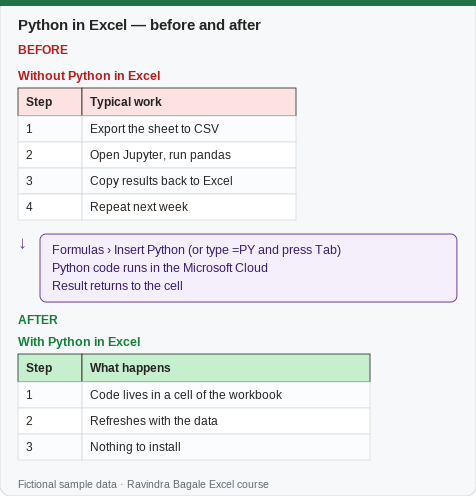
Expected result — With Python in Excel
| Step | What happens |
|---|---|
| 1 | Code lives in a cell of the workbook |
| 2 | Refreshes with the data |
| 3 | Nothing to install |
About this data: Teaching sample for a fictional shop “Skyline Clinics”. Figures and names (e.g. Neha Shah) are made up for this lesson on what python in excel is availability and.
Before table and formula as text
Before — Without Python in Excel
| Step | Typical work |
|---|---|
| 1 | Export the sheet to CSV |
| 2 | Open Jupyter, run pandas |
| 3 | Copy results back to Excel |
| 4 | Repeat next week |
About this data: Demo table only — not real customer or company data. Built to practise what python in excel is availability and.
Formula / click path
Formulas › Insert Python  (or type =PY and press Tab)
Python code runs in the Microsoft Cloud
Result returns to the cell
Do it step by step:
- Check your plan and version (version note below). Python in Excel is not in Excel 2024 or 2021.
- Open a workbook and select an empty cell.
- Select Formulas › Insert Python. The cell becomes a Python cell and shows a PY icon.
- Type
1 + 1and press Ctrl+Enter to commit (Enter only starts a new line of code). - The cell shows 2. Select it: the formula bar also shows the PY icon.
- If you see #BLOCKED! or the command is missing, read the availability table and ask IT.
स्टेप बाय स्टेप करून बघा:
- तुमचा plan आणि version तपासा (खाली version note). Python in Excel, Excel 2024 किंवा 2021 मध्ये नाही.
- Workbook उघडा आणि रिकामी cell निवडा.
- Formulas › Insert Python निवडा. Cell Python cell होते आणि PY icon दाखवते.
1 + 1type करा आणि commit करायला Ctrl+Enter दाबा (Enter फक्त code ची नवीन line सुरू करतो).- Cell 2 दाखवते. ती निवडा: formula bar मध्येही PY icon दिसतो.
- #BLOCKED! दिसला किंवा command नसेल, तर availability table वाचा आणि IT ला विचारा.
स्टेप बाय स्टेप करके देखें:
- अपना plan और version जाँचें (नीचे version note). Python in Excel, Excel 2024 या 2021 में नहीं है.
- Workbook खोलें और खाली cell चुनें.
- Formulas › Insert Python चुनें. Cell Python cell बन जाती है और PY icon दिखाती है.
1 + 1type करें और commit करने के लिए Ctrl+Enter दबाएँ (Enter सिर्फ़ code की नई line शुरू करता है).- Cell 2 दिखाती है. उसे चुनें: formula bar में भी PY icon दिखता है.
- #BLOCKED! दिखे या command न हो, तो availability table पढ़ें और IT से पूछें.
Version note
Python in Excel is part of Excel for Microsoft 365 (not Excel 2024 or 2021). Business and Enterprise users: Excel for Windows (Current Channel Version 2408 or later, Monthly Enterprise 2408, Semi-Annual Enterprise 2502), Excel on the web, and Excel for Mac (16.96 or later). Family and Personal users: in preview on the web and Windows Current Channel (Mac through the Insider Beta Channel). Education: preview through the Insider programme. Not available on iPad, iPhone or Android. It needs internet access, because the code runs in the Microsoft Cloud. Device-based and shared-computer-activation licences are not supported.
Standard compute, premium compute and the add-on
| Feature | Included with a qualifying Microsoft 365 subscription | Python in Excel add-on licence |
|---|---|---|
| Write Python formulas in the grid | Yes | Yes |
| Calculation speed | Standard compute (plus a limited monthly allowance of faster premium compute) | Premium compute |
| Calculation modes for Python | Automatic only | Automatic, partial and manual |
| Libraries, charts, analysis, sharing | Yes | Yes |
About this data: Made-up rows so you can copy the pattern for what python in excel is availability and. Currencies may use ₹, £, € or $.
When the monthly premium allowance runs out, Excel shows a message and switches to standard compute until the next month. Microsoft says Business and Enterprise users on Windows Current Channel can use Python in Excel at standard speed without a paid licence. Free consumer and perpetual (one-time purchase) licences do not support it.
What is in the box
- Libraries imported for you:
import matplotlib.pyplot as plt,import numpy as np,import pandas as pd,import seaborn as sns,import statsmodels as sm. You can see them in Formulas › Initialization (read-only). - More libraries from Anaconda can be imported with a normal import line, for example
import scipy. Microsoft recommends putting import lines on the first worksheet. - No network, no local files: the code cannot reach the internet or your computer. Data comes from the workbook through
xl()or from Power Query (lesson 29.7).
Python in Excel or Power Query or formulas?
| Job | Best tool | Why |
|---|---|---|
| Clean and combine imports every week | Power Query (Module 10) | Recorded steps, refresh with one click |
| Simple totals and lookups | Excel formulas | Fast, everyone can read them |
| Grouping, statistics, regression, custom charts | Python in Excel | pandas, statsmodels and seaborn in a few lines |
| Heavy data (hundreds of MB) | A real Python setup or a database | Python in Excel handles up to 100 MB of data per calculation |
About this data: Fictional worksheet used in class. Safe to edit; nothing here is live production data.
Microsoft sources (checked 7 October 2026): Introduction to Python in Excel; Python in Excel availability; Open-source libraries and Python in Excel.
Practice task (try it before you open the answer):
- Your company uses Microsoft 365 E3 on Windows, Current Channel. Can you use Python in Excel, and at what speed?
- Your cousin has Microsoft 365 Family. What does Microsoft say?
- Can you use Python in Excel on an iPad?
Answer
- Yes. Business and Enterprise users on Windows Current Channel (Version 2408 or later) can use it at standard compute speed without a paid licence, with a limited monthly allowance of premium compute. The add-on licence gives full premium compute and partial/manual calculation.
- It is available in preview for Family and Personal users in Excel on the web and Windows Current Channel.
- No. iPad, iPhone and Android can open the workbook, but Python cells show an error when they recalculate.
Ravindra Bagale's Tip
Start with one Python cell next to a formula that gives the same answer. When both agree, your team trusts the Python; when they differ, you learn something.
Ravindra Bagale's Tip – मराठी
एका Python cell ने सुरुवात करा, शेजारी तेच उत्तर देणारा formula ठेवा. दोन्ही जुळले की team Python वर विश्वास ठेवते; वेगळे आले की तुम्ही काहीतरी शिकता.
Ravindra Bagale's Tip – हिंदी
एक Python cell से शुरू करें, बगल में वही जवाब देने वाला formula रखें. दोनों मिलें तो team Python पर भरोसा करती है; अलग हों तो आप कुछ सीखते हैं.
Worked example — what python in excel is availability and
Why
Meera Joshi in Pune and Liam Murphy abroad both need a clear, repeatable way to use what python in excel is availability and on a NovaCraft Tools sheet without breaking totals.
What
What Python In Excel Is Availability And is the Excel idea this page teaches. We will walk one tiny example end to end.
How
- Open a blank sheet. In A1 type a short label for what python in excel is availability and.
- Enter a small made-up value for Meera Joshi using € where money appears.
- Add a second value for Liam Murphy using $ so you see mixed currencies stay numeric.
- Apply the method from this lesson step by step (menu or formula as shown above).
- Check the result still works inside SUM or a simple check cell.
Formula / action
Follow the formula or ribbon steps shown in this lesson (keep values numeric).Meaning: Once what python in excel is availability and is correct on one row, copy the same pattern down the column.
Practice tasks (10+)
Try these on a blank sheet. Open a hint only if you are stuck. No quiz — just practice.
1. Rebuild the smallest example of what python in excel is availability and on a blank sheet for BrightLedger Finance.
Hint: Use only the steps on this page. Keep numbers numeric.
2. Change one input for Rohan Patil and confirm the result updates.
Hint: If the result is stuck, check absolute vs relative references.
3. Repeat the same steps with a £ or € value for Carlos Rivera.
Hint: Formatting must not break SUM.
4. Write the result meaning in one plain sentence next to the cell.
Hint: Imagine explaining it to a new joiners.
5. Add a second row and fill the method down.
Hint: Double-click the fill handle if the pattern is consistent.
6. Break the example on purpose, then fix it using this lesson.
Hint: Common break: text instead of a number.
7. Apply what python in excel is availability and to a 5-row made-up BrightLedger Finance table.
Hint: Keep column headers clear.
8. Check your answer with a simple total or COUNT.
Hint: A wrong total usually means a format or key mismatch.
9. Swap ₹ and $ on one column and re-check totals.
Hint: Stored values stay the same; only the display changes.
10. List two mistakes beginners make with what python in excel is availability and.
Hint: Look back at the tip box on this page.
11. Teach the steps out loud in under one minute.
Hint: Why → What → How.
12. Save the sheet as BrightLedger_practice.xlsx.
Hint: Use a clear file name for class.
Loading practice tasks...
- len(df) (Easy): How many rows are in the Order ID column?
- df['Amount'].sum() (Easy): Add up the Amount column.
- df['Qty'].max() (Easy): What is the largest value in the Qty column?
- df['Amount'].mean() (Easy): Find the average Amount, rounded to 0 decimals.
- value_counts() for App (Medium): How many rows have Channel "App"?
- groupby('Channel').sum() for Store (Medium): Add up Amount where Channel is "Store".
- df['Amount'].median() (Medium): Find the median of the Amount column.
- df['Amount'].min() (Medium): What is the smallest value in the Amount column?
- df[df['Qty']>=5] (Medium): How many rows have Qty of 5 or more?
- std() of Amount (Hard): Find the sample standard deviation of Amount, rounded to 1 decimal.
- groupby mean for Website (Hard): Find the average Amount where Channel is "Website", rounded to 0 decimals.
- idxmax() of Amount (Hard): Which Customer has the largest Amount?