28.8 Copilot Data Privacy, Limits and Licensing
Example first. Ravina's company wants to know two things before anyone uses Copilot on the payroll workbook: "Does Microsoft train its AI on our data?" and "Who in the team actually has Copilot?" Microsoft answers both on its own pages. This lesson collects the answers in simple English, with the source for each, so you can tell your manager what is documented and what is not.
Copilot privacy, limits and licensing — in 30 seconds
What: Privacy rules depend on the account: work or school accounts are covered by Microsoft's enterprise data protection; personal accounts by the Microsoft Services Agreement. Limits and licences are listed on Microsoft's Copilot in Excel FAQ.
Why: Before you open a sensitive file with Copilot you should know where the prompt goes, whether it is stored, who can see the changes, and whether your plan includes Copilot at all.
Tiny example: Microsoft (work accounts): prompts, responses and data accessed through Microsoft Graph are not used to train foundation models. Copilot can still make mistakes, so sensitive numbers are always checked.
Copilot privacy, limits and licensing — 30 सेकंदात
काय: Privacy चे नियम account वर अवलंबून असतात: work किंवा school accounts Microsoft च्या enterprise data protection खाली येतात; personal accounts Microsoft Services Agreement खाली. Limits आणि licences Microsoft च्या Copilot in Excel FAQ मध्ये दिलेले आहेत.
का: Sensitive file Copilot सोबत उघडण्याआधी prompt कुठे जातो, तो store होतो का, बदल कोण बघू शकतं, आणि तुमच्या plan मध्ये Copilot आहे का हे माहीत हवं.
छोटं उदाहरण: Microsoft (work accounts): prompts, responses आणि Microsoft Graph मधून घेतलेला data foundation models train करायला वापरला जात नाही. तरीही Copilot चुकू शकतो, म्हणून sensitive आकडे नेहमी तपासले जातात.
Copilot privacy, limits and licensing — 30 सेकंड में
क्या: Privacy के नियम account पर निर्भर करते हैं: work या school accounts Microsoft के enterprise data protection में आते हैं; personal accounts Microsoft Services Agreement में. Limits और licences Microsoft के Copilot in Excel FAQ में दिए हैं.
क्यों: Sensitive file को Copilot के साथ खोलने से पहले पता होना चाहिए कि prompt कहाँ जाता है, क्या वह store होता है, बदलाव कौन देख सकता है, और क्या आपके plan में Copilot है.
छोटा उदाहरण: Microsoft (work accounts): prompts, responses और Microsoft Graph से लिया data foundation models train करने में इस्तेमाल नहीं होता. फिर भी Copilot ग़लती कर सकता है, इसलिए sensitive आँकड़े हमेशा जाँचे जाते हैं.
First look at the data (before → after):
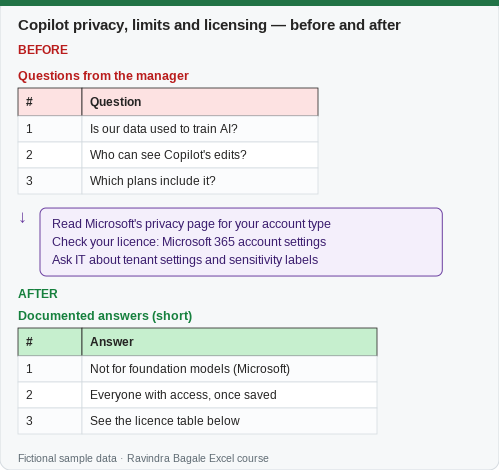
Expected result — Documented answers (short)
| # | Answer |
|---|---|
| 1 | Not for foundation models (Microsoft) |
| 2 | Everyone with access, once saved |
| 3 | See the licence table below |
About this data: Teaching sample for a fictional shop “FreshGo Mart”. Figures and names (e.g. Neha Shah) are made up for this lesson on copilot data privacy limits and licensing.
Before table and formula as text
Before — Questions from the manager
| # | Question |
|---|---|
| 1 | Is our data used to train AI? |
| 2 | Who can see Copilot's edits? |
| 3 | Which plans include it? |
About this data: Demo table only — not real customer or company data. Built to practise copilot data privacy limits and licensing.
Formula / click path
Read Microsoft's privacy page for your account type
Check your licence: Microsoft 365 account settings
Ask IT about tenant settings and sensitivity labels
Do it step by step:
- Find out which account you use in Excel: work or school, or a personal Microsoft account (File › Account).
- Read the matching Microsoft privacy page (links at the end of this lesson).
- Check your licence in your Microsoft 365 account settings, or ask IT which Copilot licence your account has.
- Ask IT whether sensitivity labels (for example Confidential) are used and what Copilot may do on labelled files.
- For sensitive or shared files, use Chat only or work on a copy, and keep personal data out of prompts unless your company allows it.
- Write the answers on a one-page team note so everyone follows the same rules.
स्टेप बाय स्टेप करून बघा:
- Excel मध्ये कोणतं account वापरता ते बघा: work किंवा school, की personal Microsoft account (File › Account).
- जुळणारं Microsoft privacy page वाचा (links या lesson च्या शेवटी).
- तुमच्या Microsoft 365 account settings मध्ये licence तपासा, किंवा तुमच्या account ला कोणतं Copilot licence आहे ते IT ला विचारा.
- Sensitivity labels (उदा. Confidential) वापरतात का आणि labelled files वर Copilot काय करू शकतो, ते IT ला विचारा.
- Sensitive किंवा shared files साठी Chat only वापरा किंवा copy वर काम करा, आणि company परवानगी देत नसेल तर personal data prompts मध्ये टाकू नका.
- उत्तरं एका पानाच्या team note वर लिहा म्हणजे सगळे तेच नियम पाळतील.
स्टेप बाय स्टेप करके देखें:
- Excel में कौन सा account इस्तेमाल करते हैं यह देखें: work या school, या personal Microsoft account (File › Account).
- मिलता हुआ Microsoft privacy page पढ़ें (links इस lesson के आख़िर में).
- अपनी Microsoft 365 account settings में licence जाँचें, या IT से पूछें कि आपके account में कौन सा Copilot licence है.
- IT से पूछें कि sensitivity labels (जैसे Confidential) इस्तेमाल होते हैं या नहीं और labelled files पर Copilot क्या कर सकता है.
- Sensitive या shared files के लिए Chat only इस्तेमाल करें या copy पर काम करें, और company इजाज़त न दे तो personal data prompts में न डालें.
- जवाब एक पन्ने के team note पर लिखें ताकि सब वही नियम मानें.
Version note
Licences, platforms and privacy wording below are quoted from Microsoft's pages as of 7 October 2026. Microsoft changes Copilot plans and names often (for example Microsoft 365 Premium and AI credits are recent), so check the linked pages before you advise anyone. This lesson is general information, not legal advice.
Privacy: what Microsoft documents
| Account type | What Microsoft says | Source |
|---|---|---|
| Work or school account (Entra ID) | Prompts, responses and data accessed through Microsoft Graph are not used to train foundation LLMs. Copilot interactions are stored encrypted as your activity history, under your organisation's contract terms. Web queries sent to Bing have user and tenant IDs removed. | Data, Privacy, and Security for Microsoft Copilot; Enterprise data protection |
| Personal Microsoft account (Personal, Family, Premium) | Covered by the Microsoft Services Agreement and the Microsoft Privacy Statement. You can see and export your Copilot activity history in the privacy dashboard. Turning off "Experiences that analyze content" or "All connected experiences" turns Copilot off in Excel. | Copilot in Microsoft 365 apps for home: your data and privacy |
About this data: Made-up rows so you can copy the pattern for copilot data privacy limits and licensing. Currencies may use ₹, £, € or $.
Practical privacy rules for a team (our advice, built on the facts above)
- Use the account your company gave you for company files; do not open company data with a personal Copilot subscription unless your company allows it (Microsoft notes that multi-account access must be turned on by the employer).
- Keep personal data (phone numbers, Aadhaar-style IDs, salaries) out of prompts unless your company's policy says it is fine.
- Respect sensitivity labels. Microsoft's COPILOT function refused to calculate in workbooks labelled Confidential or Highly Confidential; for the pane, ask IT what your labels allow.
- Remember that saved Copilot edits are normal edits: everyone with access to the file sees them, including people co-authoring at the same time.
Limits Microsoft lists
| Limit | What it means for you |
|---|---|
| AI can make mistakes | Verify every number (lesson 28.7); avoid using it for sensitive finance, legal or medical decisions |
| Calculation Options must be Automatic for editing | Formulas › Calculation Options › Automatic |
| Unsupported file state | File checked out in SharePoint, or saved as Strict Open XML: check it in / save as .xlsx |
| Language | Many languages are supported, but Copilot was trained mostly on English sources |
| Chat history | Rolling out for commercial subscriptions; you cannot yet delete single conversations |
| Model choice | Picking a model needs a commercial Copilot subscription or Microsoft 365 Premium; resets when you close Excel |
About this data: Fictional worksheet used in class. Safe to edit; nothing here is live production data.
Licensing: who has Copilot in Excel
| Plan | Copilot in Excel? | Notes from Microsoft |
|---|---|---|
| Microsoft 365 Personal or Family | Yes, with an AI credits plan | In Family, AI features belong to the subscription owner and cannot be shared; age limits apply |
| Microsoft 365 Premium | Yes | Includes the model picker |
| Commercial Microsoft Copilot subscription (add-on) | Yes, priority access | Pane label: M365 Copilot (Premium) |
| Copilot Chat-eligible business or enterprise Microsoft 365 / Office 365 | Yes, standard access | Pane label: M365 Copilot (Basic) |
| Excel 2024, 2021 or other one-time purchase | No | Copilot is a Microsoft 365 service |
About this data: Teaching sample for a fictional shop “FreshGo Mart”. Figures and names (e.g. Neha Shah) are made up for this lesson on copilot data privacy limits and licensing.
Prices change by country and over time, so this course does not quote them; see Microsoft's plan pages for your country.
Microsoft sources (checked 7 October 2026): Data, Privacy, and Security for Microsoft Copilot; Enterprise data protection in Microsoft Copilot and Copilot Chat; Copilot in Microsoft 365 apps for home: your data and privacy; Frequently asked questions about Copilot in Excel; FAQ about Copilot in Microsoft 365 subscriptions.
Practice task (try it before you open the answer):
- Your friend uses Excel 2021 bought in a shop. Can she use Copilot in Excel?
- Your company account shows M365 Copilot (Basic). What does that mean?
- Name two things to do before using Copilot on a shared payroll file.
Answer
- No. Copilot in Excel needs one of the Microsoft 365 plans in the licence table; one-time purchases such as Excel 2021 do not include it.
- You have standard access to Copilot in Excel through a Copilot Chat-eligible business subscription, without the Microsoft Copilot add-on licence (which would show Premium and give priority access).
- Any two of: work on a copy or use Chat only; check the file's sensitivity label and company policy with IT; keep personal data out of prompts; verify every number before it is shared.
Ravindra Bagale's Tip
Write a five-line Copilot rule note for your team: which account, which files, which mode, what never goes in a prompt, and how numbers are checked. Rules agreed once save arguments every week.
Ravindra Bagale's Tip – मराठी
Team साठी पाच ओळींची Copilot rule note लिहा: कोणतं account, कोणत्या files, कोणता mode, prompt मध्ये काय कधीच जात नाही, आणि आकडे कसे तपासायचे. एकदा ठरलेले नियम दर आठवड्याचे वाद वाचवतात.
Ravindra Bagale's Tip – हिंदी
Team के लिए पाँच लाइनों का Copilot rule note लिखें: कौन सा account, कौन सी files, कौन सा mode, prompt में क्या कभी नहीं जाता, और आँकड़े कैसे जाँचे जाते हैं. एक बार तय नियम हर हफ़्ते की बहस बचाते हैं.
Worked example — copilot data privacy limits and licensing
Why
Rohan Patil in Pune and Anna Kowalski abroad both need a clear, repeatable way to use copilot data privacy limits and licensing on a BrightLedger Finance sheet without breaking totals.
What
Copilot Data Privacy Limits And Licensing is the Excel idea this page teaches. We will walk one tiny example end to end.
How
- Open a blank sheet. In A1 type a short label for copilot data privacy limits and licensing.
- Enter a small made-up value for Rohan Patil using ₹ where money appears.
- Add a second value for Anna Kowalski using £ so you see mixed currencies stay numeric.
- Apply the method from this lesson step by step (menu or formula as shown above).
- Check the result still works inside SUM or a simple check cell.
Formula / action
Follow the formula or ribbon steps shown in this lesson (keep values numeric).Meaning: Once copilot data privacy limits and licensing is correct on one row, copy the same pattern down the column.
Practice tasks (10+)
Try these on a blank sheet. Open a hint only if you are stuck. No quiz — just practice.
1. Rebuild the smallest example of copilot data privacy limits and licensing on a blank sheet for QuickCart Delivery.
Hint: Use only the steps on this page. Keep numbers numeric.
2. Change one input for Sana Sheikh and confirm the result updates.
Hint: If the result is stuck, check absolute vs relative references.
3. Repeat the same steps with a £ or € value for Yuki Tanaka.
Hint: Formatting must not break SUM.
4. Write the result meaning in one plain sentence next to the cell.
Hint: Imagine explaining it to a new joiners.
5. Add a second row and fill the method down.
Hint: Double-click the fill handle if the pattern is consistent.
6. Break the example on purpose, then fix it using this lesson.
Hint: Common break: text instead of a number.
7. Apply copilot data privacy limits and licensing to a 5-row made-up QuickCart Delivery table.
Hint: Keep column headers clear.
8. Check your answer with a simple total or COUNT.
Hint: A wrong total usually means a format or key mismatch.
9. Swap ₹ and $ on one column and re-check totals.
Hint: Stored values stay the same; only the display changes.
10. List two mistakes beginners make with copilot data privacy limits and licensing.
Hint: Look back at the tip box on this page.
11. Teach the steps out loud in under one minute.
Hint: Why → What → How.
12. Save the sheet as QuickCartDe_practice.xlsx.
Hint: Use a clear file name for class.
Loading practice tasks...
- Real total (Easy): Add up the Amount column.
- Check: "Total is 20942" (Easy): Copilot says the total Amount is 20942. Is that TRUE?
- Real row count (Easy): How many rows are in the Rep column?
- Check: "10 sales" (Easy): Copilot says there are 10 sales. Is that TRUE?
- Check: "Rohan Iyer made the top sale" (Medium): Copilot says Rohan Iyer made the largest sale. Is that TRUE?
- Real largest sale (Medium): What is the largest value in the Amount column?
- Check: "Lucas Rossi has 5 sales" (Medium): Copilot says Lucas Rossi has 5 sales. Is that TRUE?
- Real sales for Lucas Rossi (Medium): How many rows have Rep "Lucas Rossi"?
- Check: "Average units is 39.4" (Medium): Copilot says the average Units is 39.4. Is that TRUE?
- How far off is the total? (Hard): Find 20942 minus the real total Amount.
- Safe to send? (Hard): Return "Send" if the total Amount equals 20942, else "Fix first".
- Share of the top sale (Hard): What share of the total Amount is the largest sale? Round to 3 decimals.