28.2 Get Your Data Ready: Copilot Works Best on a Clean Excel Table
Example first. Amir points Copilot at an export with a blank row in the middle, a typed "Total" row, a header called Amt and two merged title cells. He asks for "sales by city" and gets a total that includes the Total row twice. Nothing is wrong with Copilot here: the data was ambiguous. Ten minutes of cleaning turns the export into an Excel Table called tblOrders with clear headers, and the same prompt now gives the right answer first time.
Preparing data for Copilot — in 30 seconds
What: Copilot understands data best when it is an Excel Table with one header row, clear column names (with units), one fact per column and no blank rows, merged cells or typed totals.
Why: Copilot reads headers and table boundaries to decide what you mean. A Table gives it named columns such as tblOrders[Amount], and the formulas it writes are then easy for you to read and check.
Tiny example: Rename Amt to Amount (₹), delete the blank row and the typed Total row, press Ctrl+T, and name the Table tblOrders. Then the prompt can say "In tblOrders, sum Amount by City".
Preparing data for Copilot — 30 सेकंदात
काय: Data एका header row सह Excel Table मध्ये असेल, column names स्पष्ट (units सह) असतील, प्रत्येक column मध्ये एकच गोष्ट असेल आणि blank rows, merged cells किंवा type केलेले totals नसतील, तेव्हा Copilot ला data सर्वात चांगला कळतो.
का: तुम्हाला काय हवं ते ठरवायला Copilot headers आणि table च्या सीमा वाचतो. Table मुळे त्याला tblOrders[Amount] सारखे नाव असलेले columns मिळतात, आणि तो लिहितो ते formulas वाचायला व तपासायला सोपे होतात.
छोटं उदाहरण: Amt चं नाव Amount (₹) करा, blank row आणि type केलेली Total row delete करा, Ctrl+T दाबा, आणि Table ला tblOrders नाव द्या. मग prompt मध्ये "In tblOrders, sum Amount by City" लिहिता येतं.
Preparing data for Copilot — 30 सेकंड में
क्या: Data एक header row वाली Excel Table में हो, column names साफ़ (units के साथ) हों, हर column में एक ही चीज़ हो और blank rows, merged cells या type किए totals न हों, तब Copilot data को सबसे अच्छी तरह समझता है.
क्यों: आप क्या चाहते हैं यह तय करने के लिए Copilot headers और table की सीमाएँ पढ़ता है. Table से उसे tblOrders[Amount] जैसे नाम वाले columns मिलते हैं, और उसके लिखे formulas पढ़ना और जाँचना आसान होता है.
छोटा उदाहरण: Amt का नाम Amount (₹) करें, blank row और type की हुई Total row delete करें, Ctrl+T दबाएँ, और Table का नाम tblOrders रखें. फिर prompt में "In tblOrders, sum Amount by City" लिखा जा सकता है.
First look at the data (before → after):
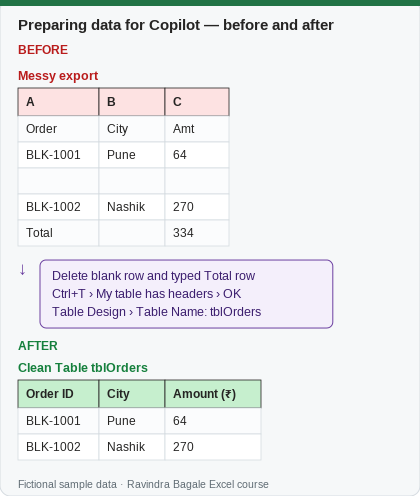
Expected result — Clean Table tblOrders
| Order ID | City | Amount (₹) |
|---|---|---|
| BLK-1001 | Pune | 64 |
| BLK-1002 | Nashik | 270 |
About this data: Teaching sample for a fictional shop “NovaCraft Tools”. Figures and names (e.g. Neha Shah) are made up for this lesson on get your data ready copilot works best on a.
Before table and formula as text
Before — Messy export
| A | B | C |
|---|---|---|
| Order | City | Amt |
| BLK-1001 | Pune | 64 |
| — | — | — |
| BLK-1002 | Nashik | 270 |
| Total | — | 334 |
About this data: Demo table only — not real customer or company data. Built to practise get your data ready copilot works best on a.
Formula / click path
Delete blank row and typed Total row
Ctrl+T › My table has headers › OK
Table Design › Table Name: tblOrders
Do it step by step:
- Delete fully blank rows and any typed Total or Subtotal rows inside the data. Totals belong in the Table's Total Row, not in the data.
- Unmerge cells (Home › Merge & Center › Unmerge Cells) and keep only one header row.
- Give every column a clear name with units, for example Amount (₹) and Mins.
- Click any cell in the data and press
Ctrl+T. Keep My table has headers ticked and select OK. - On Table Design, type the name tblOrders in Table Name and press Enter.
- Save the workbook in OneDrive or SharePoint and make sure Formulas › Calculation Options is set to Automatic.
स्टेप बाय स्टेप करून बघा:
- Data मधल्या पूर्ण रिकाम्या rows आणि type केलेल्या Total किंवा Subtotal rows delete करा. Totals data मध्ये नाही, Table च्या Total Row मध्ये असतात.
- Cells unmerge करा (Home › Merge & Center › Unmerge Cells) आणि एकच header row ठेवा.
- प्रत्येक column ला units सह स्पष्ट नाव द्या, उदा. Amount (₹) आणि Mins.
- Data मधल्या कोणत्याही cell वर click करून
Ctrl+Tदाबा. My table has headers tick ठेवा आणि OK निवडा. - Table Design वर Table Name मध्ये tblOrders type करा आणि Enter दाबा.
- Workbook OneDrive किंवा SharePoint मध्ये save करा आणि Formulas › Calculation Options Automatic आहे ना ते बघा.
स्टेप बाय स्टेप करके देखें:
- Data के अंदर की पूरी खाली rows और type की हुई Total या Subtotal rows delete करें. Totals data में नहीं, Table की Total Row में होते हैं.
- Cells unmerge करें (Home › Merge & Center › Unmerge Cells) और एक ही header row रखें.
- हर column को units के साथ साफ़ नाम दें, जैसे Amount (₹) और Mins.
- Data की किसी भी cell पर click करके
Ctrl+Tदबाएँ. My table has headers tick रखें और OK चुनें. - Table Design पर Table Name में tblOrders type करें और Enter दबाएँ.
- Workbook को OneDrive या SharePoint में save करें और देखें कि Formulas › Calculation Options Automatic है.
Why a typed Total row is the most dangerous mistake
In the messy export above, the data rows add up to ₹334 (64 + 270), and there is also a typed row "Total 334". Any tool that sums column C, a person with AutoSum or Copilot, can get ₹668 because the Total row is counted as one more order. In a Table there is no such row: you switch on Table Design › Total Row and Excel adds a SUBTOTAL that sits outside the data.
A 10-point "Copilot-ready" checklist
| # | Check | Why Copilot cares |
|---|---|---|
| 1 | Data is an Excel Table (Ctrl+T) with a short name like tblOrders | Clear boundaries and named columns |
| 2 | Exactly one header row | Two header rows make the second one look like data |
| 3 | Headers say what and which unit: Amount (₹), Mins | "Amt2" tells Copilot nothing |
| 4 | No blank rows or columns inside the data | A blank row can look like the end of the data |
| 5 | No typed totals or subtotals inside the data | They get counted again |
| 6 | No merged cells | Merged cells break sorting, filtering and reading |
| 7 | Dates are real dates, numbers are real numbers | Text "450" is not summed; text dates cannot be grouped by month |
| 8 | One kind of fact per column (no "Pune - 411001" in one cell) | Split it first (Module 5) |
| 9 | Calculation Options set to Automatic | Microsoft: editing with Copilot is only supported in Automatic mode |
| 10 | File saved in a modern format (.xlsx) in OneDrive or SharePoint | Microsoft lists Strict Open XML as unsupported; home plans need the file in OneDrive |
About this data: Made-up rows so you can copy the pattern for get your data ready copilot works best on a. Currencies may use ₹, £, € or $.
Is a Table required? Microsoft's current tips page does not insist on a Table, and Copilot can read normal ranges. Older Microsoft guidance did require a Table or a supported range. In practice a Table still gives the most reliable answers, because the prompt and the formulas can use names like tblOrders[Amount] instead of guessing where the data ends.
AutoSave: Microsoft's pages disagree. The FAQ for home subscriptions says Copilot in Excel needs AutoSave on, which means the file must be in OneDrive. The newer Copilot in Excel tips page says Copilot runs with AutoSave on or off, and even suggests turning AutoSave off when you want to try Copilot's changes without saving them. Safe habit: keep the file in OneDrive, and when you experiment on an important file, work on a copy.
Add a Definitions sheet. If your company has its own meaning for a word, write it down in the workbook. For example a sheet called Definitions with "Net sales = Amount of Delivered orders only; Late = Mins more than 15". Then start prompts with "Use the Definitions sheet". Microsoft's tips page also mentions workbook rules and custom skills for the same purpose: telling Copilot your house rules once instead of in every prompt.
Microsoft sources (checked 7 October 2026): Copilot in Excel tips; Frequently asked questions about Copilot in Excel; FAQ about Copilot in Microsoft 365 subscriptions.
Practice task (try it before you open the answer):
- Take the messy export above (headers Order, City , Amt; a blank row; a typed Total row).
- Make it Copilot-ready using the checklist.
- Say what the correct total is and what a careless sum of column C would give.
Answer
- Delete the blank row and the typed Total row, rename the headers to Order ID, City (no trailing space) and Amount (₹).
- Press Ctrl+T, keep My table has headers, name the Table tblOrders, and switch on Table Design › Total Row if you want a total.
- Correct total ₹334 (64 + 270). A careless sum of column C including the typed Total row gives ₹668.
Ravindra Bagale's Tip
Spend the first ten minutes on the data, not on the prompt. A clean Table with honest headers beats the cleverest prompt on a messy sheet.
Ravindra Bagale's Tip – मराठी
पहली दहा मिनिटं prompt वर नाही, data वर घालवा. प्रामाणिक headers असलेली स्वच्छ Table, messy sheet वरच्या सर्वात हुशार prompt पेक्षा चांगली.
Ravindra Bagale's Tip – हिंदी
पहले दस मिनट prompt पर नहीं, data पर लगाएँ. साफ़ headers वाली साफ़ Table, गंदी sheet पर सबसे चतुर prompt से बेहतर है.
Worked example — get your data ready copilot works best on a
Why
Vikram Rao in Pune and Yuki Tanaka abroad both need a clear, repeatable way to use get your data ready copilot works best on a on a HomeNest Supplies sheet without breaking totals.
What
Get Your Data Ready Copilot Works Best On A is the Excel idea this page teaches. We will walk one tiny example end to end.
How
- Open a blank sheet. In A1 type a short label for get your data ready copilot works best on a.
- Enter a small made-up value for Vikram Rao using £ where money appears.
- Add a second value for Yuki Tanaka using £ so you see mixed currencies stay numeric.
- Apply the method from this lesson step by step (menu or formula as shown above).
- Check the result still works inside SUM or a simple check cell.
Formula / action
Follow the formula or ribbon steps shown in this lesson (keep values numeric).Meaning: Once get your data ready copilot works best on a is correct on one row, copy the same pattern down the column.
Practice tasks (10+)
Try these on a blank sheet. Open a hint only if you are stuck. No quiz — just practice.
1. Rebuild the smallest example of get your data ready copilot works best on a on a blank sheet for FreshGo Mart.
Hint: Use only the steps on this page. Keep numbers numeric.
2. Change one input for Aamir Khan and confirm the result updates.
Hint: If the result is stuck, check absolute vs relative references.
3. Repeat the same steps with a £ or € value for Liam Murphy.
Hint: Formatting must not break SUM.
4. Write the result meaning in one plain sentence next to the cell.
Hint: Imagine explaining it to a new joiners.
5. Add a second row and fill the method down.
Hint: Double-click the fill handle if the pattern is consistent.
6. Break the example on purpose, then fix it using this lesson.
Hint: Common break: text instead of a number.
7. Apply get your data ready copilot works best on a to a 5-row made-up FreshGo Mart table.
Hint: Keep column headers clear.
8. Check your answer with a simple total or COUNT.
Hint: A wrong total usually means a format or key mismatch.
9. Swap ₹ and $ on one column and re-check totals.
Hint: Stored values stay the same; only the display changes.
10. List two mistakes beginners make with get your data ready copilot works best on a.
Hint: Look back at the tip box on this page.
11. Teach the steps out loud in under one minute.
Hint: Why → What → How.
12. Save the sheet as FreshGoMart_practice.xlsx.
Hint: Use a clear file name for class.
Loading practice tasks...
- Real total (Easy): Add up the Amount column.
- Check: "Total is 12156" (Easy): Copilot says the total Amount is 12156. Is that TRUE?
- Real row count (Easy): How many rows are in the Rep column?
- Check: "10 sales" (Easy): Copilot says there are 10 sales. Is that TRUE?
- Check: "Diego Lopez made the top sale" (Medium): Copilot says Diego Lopez made the largest sale. Is that TRUE?
- Real largest sale (Medium): What is the largest value in the Amount column?
- Check: "Yuki Tanaka has 4 sales" (Medium): Copilot says Yuki Tanaka has 4 sales. Is that TRUE?
- Real sales for Yuki Tanaka (Medium): How many rows have Rep "Yuki Tanaka"?
- Check: "Average units is 22.1" (Medium): Copilot says the average Units is 22.1. Is that TRUE?
- How far off is the total? (Hard): Find 12156 minus the real total Amount.
- Safe to send? (Hard): Return "Send" if the total Amount equals 12156, else "Fix first".
- Share of the top sale (Hard): What share of the total Amount is the largest sale? Round to 3 decimals.