25. All Excel Keyboard Shortcuts (Windows and Mac)
25.8 Ribbon KeyTips: the Alt Keys (Windows)
Example first. Shahrukh wants Page Break Preview before printing. He presses Alt, letters appear on the ribbon (KeyTips), then he presses W (View) and I (Page Break Preview). Alt, W, L takes him back to Normal view. No mouse at all.
Ribbon KeyTips — in 30 seconds
What: Pressing Alt on Windows shows a letter on every ribbon tab and command. Press the letters in order to run any command, even ones that have no Ctrl shortcut.
Why: Every ribbon command becomes a keyboard command, and the sequence is shown on screen, so you never have to memorise it. Mac Excel has no KeyTips; use the menus or the Mac shortcuts.
Tiny example: Alt, W, I: Page Break Preview. Alt, W, L: Normal view. Alt, H, H: fill colour menu. Alt, H, A, C: centre.
Ribbon KeyTips — 30 सेकंदात
काय: Windows वर Alt दाबल्यावर ribbon च्या प्रत्येक tab आणि command वर एक अक्षर दिसतं. ती अक्षरं क्रमाने दाबली की कोणतीही command चालते, ज्यांना Ctrl shortcut नाही त्या पण.
का: प्रत्येक ribbon command keyboard command बनते, आणि sequence screen वर दिसतो, त्यामुळे तो पाठ करावा लागत नाही. Mac Excel मध्ये KeyTips नसतात; menus किंवा Mac shortcuts वापरा.
छोटं उदाहरण: Alt, W, I: Page Break Preview. Alt, W, L: Normal view. Alt, H, H: fill colour menu. Alt, H, A, C: centre.
Ribbon KeyTips — 30 सेकंड में
क्या: Windows पर Alt दबाने से ribbon के हर tab और command पर एक अक्षर दिखता है. वे अक्षर क्रम से दबाने पर कोई भी command चलती है, जिनका Ctrl shortcut नहीं है वे भी.
क्यों: हर ribbon command keyboard command बन जाती है, और sequence screen पर दिखता है, इसलिए उसे याद नहीं करना पड़ता. Mac Excel में KeyTips नहीं होते; menus या Mac shortcuts इस्तेमाल करें.
छोटा उदाहरण: Alt, W, I: Page Break Preview. Alt, W, L: Normal view. Alt, H, H: fill colour menu. Alt, H, A, C: centre.
First look at the data (before → after):
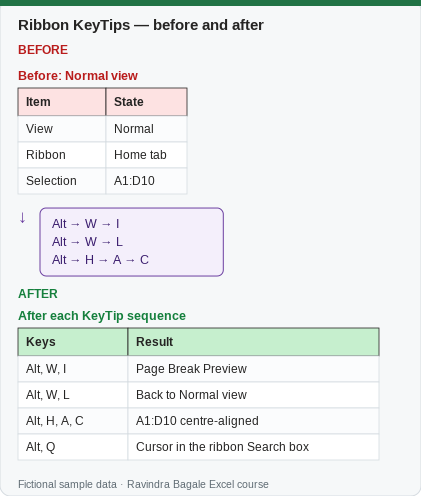
Expected result — After each KeyTip sequence
| Keys | Result |
|---|---|
| Alt, W, I | Page Break Preview |
| Alt, W, L | Back to Normal view |
| Alt, H, A, C | A1:D10 centre-aligned |
| Alt, Q | Cursor in the ribbon Search box |
About this data: Teaching sample for a fictional shop “Pearl Textiles”. Figures and names (e.g. Vikram Rao) are made up for this lesson on ribbon keytips the alt keys windows.
Before table and formula as text
Before — Before: Normal view
| Item | State |
|---|---|
| View | Normal |
| Ribbon | Home tab |
| Selection | A1:D10 |
About this data: Demo table only — not real customer or company data. Built to practise ribbon keytips the alt keys windows.
Formula / click path
Alt  →  W  →  I
Alt  →  W  →  L
Alt  →  H  →  A  →  C
Do it step by step:
- Press and release Alt. Letters appear on the ribbon tabs.
- Press W for the View tab; letters appear on its commands.
- Press I for Page Break Preview.
- Press Alt, W, L to return to Normal view.
- Not sure of a letter? Press Alt, Q and type the command name.
स्टेप बाय स्टेप करून बघा:
- Alt दाबून सोडा. Ribbon tabs वर अक्षरं दिसतात.
- View tab साठी W दाबा; त्याच्या commands वर अक्षरं दिसतात.
- Page Break Preview साठी I दाबा.
- Normal view ला परत यायला Alt, W, L दाबा.
- अक्षर माहीत नाही? Alt, Q दाबा आणि command चं नाव type करा.
स्टेप बाय स्टेप करके देखें:
- Alt दबाकर छोड़ें. Ribbon tabs पर अक्षर दिखते हैं.
- View tab के लिए W दबाएँ; उसकी commands पर अक्षर दिखते हैं.
- Page Break Preview के लिए I दबाएँ.
- Normal view पर लौटने के लिए Alt, W, L दबाएँ.
- अक्षर नहीं पता? Alt, Q दबाएँ और command का नाम type करें.
Ribbon KeyTips: Windows and Mac side by side
| To do this | Windows | Mac |
|---|---|---|
| Search the ribbon (Tell me) | Alt+Q | (menu: click the Search box) |
| File menu | Alt+F | (menu: File menu) |
| Home tab | Alt+H | (menu: Home tab) |
| Insert tab | Alt+N | (menu: Insert tab) |
| Page Layout tab | Alt+P | (menu: Page Layout tab) |
| Formulas tab | Alt+M | (menu: Formulas tab) |
| Data tab | Alt+A | (menu: Data tab) |
| Review tab | Alt+R | (menu: Review tab) |
| View tab | Alt+W | (menu: View tab) |
| Fill colour | Alt+H, H | (menu: Home › Fill Color) |
| Borders | Alt+H, B | (menu: Home › Borders) |
| Centre-align | Alt+H, A, C | Cmd+E |
| Delete column | Alt+H, D, C | (menu: Home › Delete › Delete Sheet Columns) |
| Define a name | Alt+M, M, D | Cmd+F3 |
| Page Layout view | Alt, W, P | (menu: View › Page Layout) |
| Normal view | Alt, W, L | (menu: View › Normal) |
| Page Break Preview | Alt, W, I | (menu: View › Page Break Preview) |
| Show KeyTips (or F10) | Alt or F10 | — |
| Expand or collapse the ribbon | Ctrl+F1 | Cmd+Option+R |
| Move focus between sheet, ribbon and panes | F6 | F6 or Shift+F6 |
About this data: Made-up rows so you can copy the pattern for ribbon keytips the alt keys windows. Currencies may use ₹, £, € or $.
How to read "Alt+H, A, C": press Alt and H together (or Alt, then H), release, then press A, then C. Commas mean "one after the other".
Practice task (try it before you open the answer):
- Switch to Page Layout view with KeyTips.
- Open the Data tab from the keyboard.
- Delete column D without the mouse.
Answer
Alt, W, P. Alt+A. Select a cell in column D, then Alt, H, D, C. (On Mac: View › Page Layout, the Data tab, and Home › Delete › Delete Sheet Columns.)
Ravindra Bagale's Tip
You do not need to learn KeyTips by heart. Press Alt, read the letters, and after a week your fingers will remember the five you use most.
Ravindra Bagale's Tip – मराठी
KeyTips पाठ करायची गरज नाही. Alt दाबा, अक्षरं वाचा, आणि एका आठवड्यात सगळ्यात जास्त वापरलेल्या पाच तुमच्या बोटांना लक्षात राहतील.
Ravindra Bagale's Tip – हिंदी
KeyTips रटने की ज़रूरत नहीं. Alt दबाएँ, अक्षर पढ़ें, और एक हफ़्ते में सबसे ज़्यादा इस्तेमाल होने वाले पाँच आपकी उँगलियों को याद हो जाएँगे.
Worked example — ribbon keytips the alt keys windows
Why
Rohan Patil in Pune and Anna Kowalski abroad both need a clear, repeatable way to use ribbon keytips the alt keys windows on a NovaCraft Tools sheet without breaking totals.
What
Ribbon Keytips The Alt Keys Windows is the Excel idea this page teaches. We will walk one tiny example end to end.
How
- Open a blank sheet. In A1 type a short label for ribbon keytips the alt keys windows.
- Enter a small made-up value for Rohan Patil using ₹ where money appears.
- Add a second value for Anna Kowalski using $ so you see mixed currencies stay numeric.
- Apply the method from this lesson step by step (menu or formula as shown above).
- Check the result still works inside SUM or a simple check cell.
Formula / action
Follow the formula or ribbon steps shown in this lesson (keep values numeric).Meaning: Once ribbon keytips the alt keys windows is correct on one row, copy the same pattern down the column.
Practice tasks (10+)
Try these on a blank sheet. Open a hint only if you are stuck. No quiz — just practice.
1. Rebuild the smallest example of ribbon keytips the alt keys windows on a blank sheet for QuickCart Delivery.
Hint: Use only the steps on this page. Keep numbers numeric.
2. Change one input for Sana Sheikh and confirm the result updates.
Hint: If the result is stuck, check absolute vs relative references.
3. Repeat the same steps with a £ or € value for Sophie Martin.
Hint: Formatting must not break SUM.
4. Write the result meaning in one plain sentence next to the cell.
Hint: Imagine explaining it to a new joiners.
5. Add a second row and fill the method down.
Hint: Double-click the fill handle if the pattern is consistent.
6. Break the example on purpose, then fix it using this lesson.
Hint: Common break: text instead of a number.
7. Apply ribbon keytips the alt keys windows to a 5-row made-up QuickCart Delivery table.
Hint: Keep column headers clear.
8. Check your answer with a simple total or COUNT.
Hint: A wrong total usually means a format or key mismatch.
9. Swap ₹ and $ on one column and re-check totals.
Hint: Stored values stay the same; only the display changes.
10. List two mistakes beginners make with ribbon keytips the alt keys windows.
Hint: Look back at the tip box on this page.
11. Teach the steps out loud in under one minute.
Hint: Why → What → How.
12. Save the sheet as QuickCartDe_practice.xlsx.
Hint: Use a clear file name for class.
Loading practice tasks...
- AutoSum (Alt + =) (Easy): Add up the Amount column.
- Count the rows (Ctrl + Down) (Easy): How many rows are in the Rep column?
- Total units (Easy): Add up the Units column.
- Largest sale (Easy): What is the largest value in the Amount column?
- Filter one rep (Ctrl + Shift + L) (Medium): How many rows have Rep "Rohan Iyer"?
- Amount for one rep (Medium): Add up Amount where Rep is "Rohan Iyer".
- Amount for one city (Medium): Add up Amount where City is "Singapore".
- Average units (status bar) (Medium): Find the average of the Units column, rounded to 1 decimal.
- Locked share (F4) (Medium): What share of the total Amount is the first row? Round to 3 decimals.
- Big sales by one rep (Hard): How many rows have Rep "Rohan Iyer" and Amount of 1000 or more?
- Who made the top sale? (Hard): Which Rep has the largest Amount?
- Price per unit (Hard): For the first row, divide Amount by Units. Round to 0 decimals.