25. All Excel Keyboard Shortcuts (Windows and Mac)
25.1 Navigation Shortcuts
1. Know the destination before navigating
Priyanka Shinde has a short order export open. She needs to confirm the last transaction’s ID and amount, then return to the header to inspect the fields. In a large workbook a fast jump avoids a long scroll. Its correct result still depends on where the active cell starts, which column contains gaps and which worksheet receives the keys. This lesson gives you multiple routes to a known destination and a way to prove each route worked.
Use the original fictional Orders sample in the ten-order function reference. This navigation lesson uses the complete nine-column arrangement A1:I11, with City in C, Amount in G and Status in I. The shorter report exercise later in this chapter has five columns and Amount in D. Read the header after opening a worksheet even if the same order numbers appear on it. A cell’s meaning depends on its sheet and column.
Choose which kind of movement you need
- One position at a time. Use an arrow to inspect the adjacent field or record while the grid is focused and movement mode is normal.
- Edge of a run. Use Ctrl plus Arrow in Windows or Command plus Arrow on Mac to move toward the boundary of the current data region in that direction.
- Exact cell. Use the Name Box or Go To when you know the address. A known target is useful even with incomplete data, hidden details or a distant location.
- Another area of Excel. Move to a sheet tab, ribbon, menu or task pane using the appropriate command. Check the new focus before sending another grid key.
Confirm the sheet, address and contents. “Orders, G11, ₹90” identifies a destination completely. “I reached the bottom” leaves several possibilities.
2. Compare the documented Windows and Mac routes
Read the key groups by action rather than by modifier
| Desired action | Windows | Mac |
|---|---|---|
| Move to the current data boundary | Ctrl+Arrow | Command+Arrow |
| Move to the sheet start | Ctrl+Home | Control+Home. On MacBook, Control+Fn+Left Arrow. |
| Move to the used range corner | Ctrl+End | Control+End. On MacBook, Control+Fn+Right Arrow. |
| Move to the start of a row | Home | Home. On MacBook, Fn+Left Arrow. |
| Move one screen up or down | Page Up or Page Down | Page Up or Page Down. On MacBook, Fn+Up or Fn+Down. |
| Move one screen left or right | Alt+Page Up or Alt+Page Down | Option+Page Up or Option+Page Down. On MacBook, Fn+Option+Up or Fn+Option+Down. |
| Activate the next sheet | Ctrl+Page Down | Option+Right Arrow |
| Activate the previous sheet | Ctrl+Page Up | Option+Left Arrow |
| Open Go To | F5 or Ctrl+G | Control+G. F5 can also display Go To where the function key is available. |
| Find text or numbers | Ctrl+F | Control+F or Shift+F5 for the dialog. Command+F opens search in the documented context. |
| Replace in a controlled test | Ctrl+H | Control+H. Microsoft also documents Command+Shift+H. |
| Move among permitted cells on a protected sheet | Tab where permitted | Tab where permitted |
| Adjust zoom | Ctrl+Alt+= or Ctrl+Alt+- where received by Excel | Use View Zoom controls where available. |
Read your keyboard’s printed labels. If the keyboard has no Home or End key, the MacBook alternatives synthesize the expected movement key with Fn and an arrow. A Mac modifier such as Control has a different physical identity from Command. The operating system may also reserve an arrow combination or treat a function key as a hardware control. If a reported shortcut cannot reach Excel, first use the documented application route and verify the same destination instead of assuming the keyboard is at fault.
Use the client’s own help when you are in a browser
Spreadsheet navigation in Excel for the web occurs inside a browser window. Changing a browser tab gives a visibly different outcome from changing a workbook sheet. Microsoft documents web-specific shortcuts and a setting for certain browser overrides. If a desktop combination moves the browser instead, return to the correct worksheet, use the web client’s shortcut list, and confirm the active tab and address afterward. Keep a short note that identifies the actual client you tested.
3. Reproduce the original A1 to I11 checks
Reset the starting address for each independent test
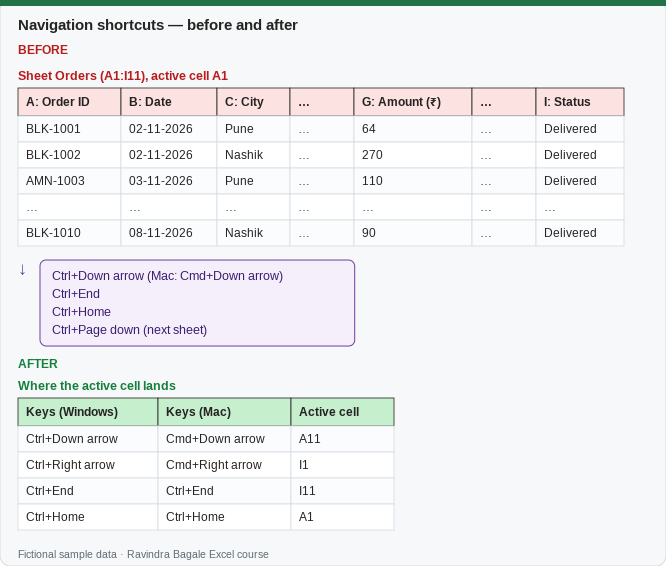
Open a clean practice sheet and start at A1 before running each command below. In the original sample all nine header fields from A1 through I1 are populated. Column A is also continuous from the header through all ten Order IDs. Values and date cells are within A1:I11, and there is no formatting or other deliberate content beyond that rectangle in the clean version. These assumptions let you predict the endpoint.
| Move from A1 | Windows | Mac | Address and evidence |
|---|---|---|---|
| End of the ID column’s run | Ctrl+Down Arrow | Command+Down Arrow | A11, BLK-1010 |
| End of the header’s run | Ctrl+Right Arrow | Command+Right Arrow | I1, Status |
| Used range corner | Ctrl+End | Control+End | I11, Delivered |
| Beginning of the worksheet | Ctrl+Home | Control+Home | A1, Order ID |
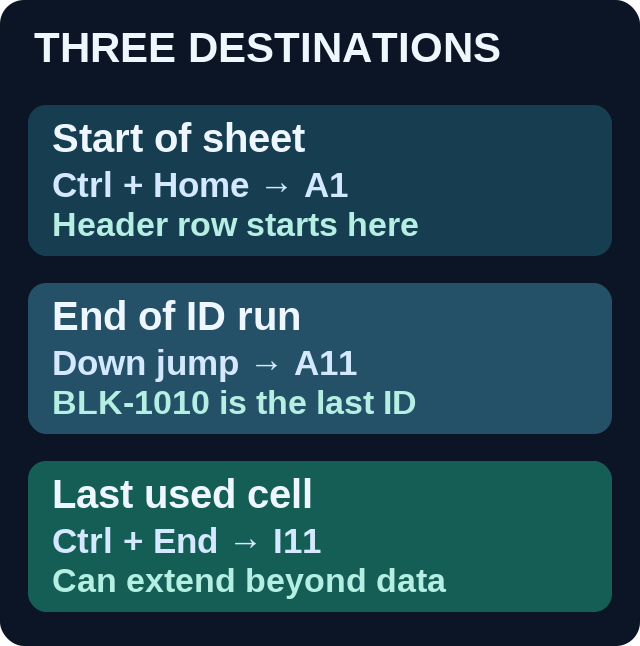
From A11 press the Right Arrow six times. The order row stays the same and the selection reaches G11, which contains ₹90. In this navigation sample the nine-column layout makes G the amount. If you see a status at E11, the worksheet may use the shorter report arrangement. Inspect the header names rather than assigning a field meaning from memory. Then return to A1 and use the horizontal data jump. I1 reads Status. From I1 a downward jump through the original populated Status entries reaches I11.
Keep input evidence separate from the visible screen
The active cell can move while you are already viewing its destination, or the screen can move while the active cell stays where it was. Window dimensions, zoom, row height and frozen panes influence what you can see. The Name Box or current spreadsheet address gives more precise evidence than a description such as “bottom right of the screen.” When using a screen reader, listen for the announced cell, row or column and the active worksheet. Record that address in your verification note.
For a model inspection, record two values you can compare later. At A11 the Order ID is BLK-1010, and at G11 its amount is 90. An accidental sort can put another ID at A11. A navigation action can then land at the correct address but show a different transaction. When the task is to locate that specific order after changes, use an exact search by its ID and verify the amount on the same row.
4. Discover how gaps and formatting change a move
Follow the boundary from the active starting cell
In a disposable copy, clear the value at A6 while leaving all other fields intact. From A1, the first Ctrl or Command plus Down now reaches A5, the end of the uninterrupted run. The shortcut drops you at the data edge before the blank. From A5, another region jump can reach the next populated cell A7 across the gap. If the data pattern changes again, inspect the address before continuing. Exact results depend on the starting cell and the filled or blank runs around it.
A missing entry is evidence about the file. Filling the blank with a made-up order ID would change the accepted dataset. If you need to navigate past that position, use Go To for A11 or a reliable named range. Inspect A6’s remaining fields to determine whether the record lacks a key or whether the blank is intentional. In the original case A6 is AMN-1005 in the accepted file. Restore that value only from the known source or approved change, and then verify that A1 to A11 again forms a continuous run.
Make a second scratch change in the header row. If G1 is cleared, a rightward jump from A1 reaches F1 as the last populated cell before the gap, assuming the earlier headers remain in place. The record data can still extend to I11. The missing header is a different acceptance problem from an empty fact cell. Restore it from the original header list. Fix the source or layout intentionally before using the sheet as a named input.
Understand where the used range really ends
Excel locates the lower-right used corner according to data and formatting. In a practice copy, give M20 a distinctive fill while leaving its value empty. The worksheet’s used boundary can extend to that newly formatted area. Verify where Ctrl plus End or its Mac counterpart lands and compare it with the accepted A1:I11 source rectangle. Record what you changed. You can return to a clean copy because the source data was never meant to end at M20.
If the workbook owner wants to reset a used area that includes unintended formatting, first confirm where it is safe to clear. Microsoft describes resetting excess unused formatting, saving, closing and reopening on Windows. Do that only in a disposable copy for this exercise. Extra formatting may currently be part of a print layout or intentional template, so inspect the underlying structure before treating it as junk. Keep the distinction between worksheet maintenance and the simple act of navigating to the most recently used corner.
5. Use a known address or a specific record key
Go To chooses a location; Find chooses a matching item
If a teacher asks you to inspect Orders G11, you know exactly where to go. In Windows open Go To with F5 or Ctrl plus G. On Mac use Control plus G. Type Orders!G11 if you want to include the sheet name within the workbook, then confirm the route and read the result. For a simple single-sheet target, G11 suffices. A sheet name with spaces can use the appropriate quoted reference, such as 'Daily Orders'!G11. Verify the current workbook and worksheet after accepting the reference.
If the teacher asks where BLK-1010 appears after a sort, its address may be different. Use Find with the original key, sheet scope and exact cell matching as appropriate. The search can look in values, formulas or annotations depending on its options and client. Choose the field representation you intend. Spot-check the City and Amount in the found row. In the original sample BLK-1010 belongs to Nashik and has amount ₹90. Finding the key helps identify that row even if its position changes.
Set the search scope before considering an edit
Open Find and type BLK-10* when you want to explore order IDs with that prefix. In this exercise that pattern can match seven IDs in the Order ID field. Narrow the region first if you only want that field. An exact search for BLK-1010 should find one record in the original Orders table. A workbook-wide search can also find the same text in a summary note or another copy. Compare the found location with the intended sheet or range before drawing an eligibility conclusion.
Replace is an editing command. Use it in a disposable copy if the exercise includes a temporary correction, and verify the settings. For example, type BLK-1010 in Find and inspect the matches without replacing anything at first. A broad search for a substring can affect many unrelated cells when used with Replace All. Use a single confirmed replacement when the added case requires it, inspect its neighboring fields, and restore the known original value in the practice copy.
6. Keep the visible window, active cell and sheet separate
Observe screen movement with a known address
Work on a fresh copy and record the active address. Press Page Down and look at both the rows now visible and the cell address. Try the same move with a different zoom level. The number of displayed rows can change, because worksheet row heights and window size affect how much you can see. Use Page Up or a direct Go To when you know which direction to move. Keep an exact address in your notes if you expect to find the same record later.
Horizontal screen movement is useful in a wide file. Try Alt plus Page Down on Windows or Option plus Page Down on Mac. Then return with the Page Up counterpart. A MacBook’s Fn arrow alternatives can help when Page keys are unavailable. Horizontal movement exposes columns without changing the business source. When you reach the right portion of the sheet, read the header to confirm whether you are looking at Status, order value or a calculation.
With Scroll Lock enabled on a supported keyboard, arrow keys can scroll the viewport instead of moving the active cell. Observe whether the visible portion changes while the address stays put. If you expect normal cell motion, use the supported Scroll Lock control for your keyboard or operating system, and check the status indication where available. On another machine the same symptom can come from a focused object, so verify the state before toggling a setting.
Use a frozen header as a landmark
In a disposable window, try keeping the first row and the first column visible. In supported Excel, select B2 and use the corresponding Freeze Panes command to retain the rows above and columns to the left. This leaves row 1 and column A available as landmarks while you view lower rows or later columns. The worksheet coordinates and values are the same. Your visual starting point can look different because the frozen area stays on screen.
Freeze Panes is a display choice. It does not protect a cell from edits or require a change to the orders. A split pane may give multiple views of the same worksheet. Record the pane and active area when showing a teammate where a navigation command landed. For a verified worksheet handoff, leave the view in a clear state and explain any frozen headers or initial filters that are useful for the report.
7. Move between sheets and respect the intended entry area
Use the tab label as a second navigation check
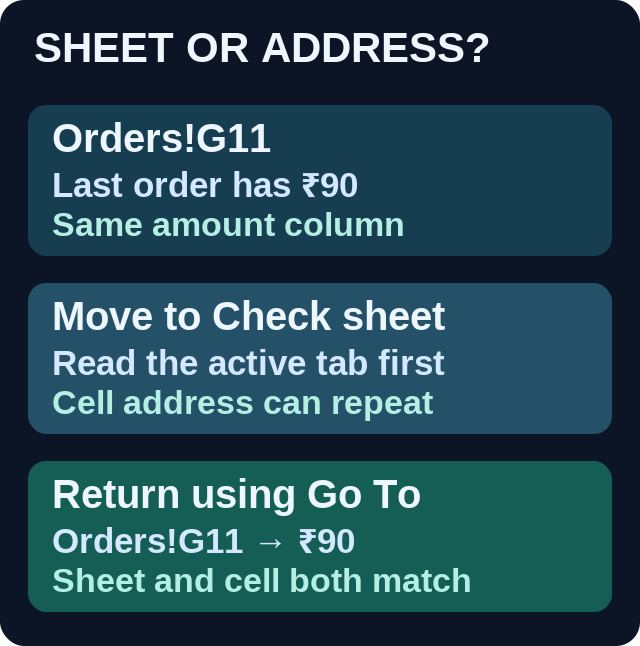
Place a sheet called Check immediately after Orders. Enter an arbitrary comparison label in Check G11, such as “Control note.” Keep Orders G11 numeric 90. Move to the next sheet using Ctrl plus Page Down on Windows or Option plus Right Arrow on Mac. The active sheet is now Check. Use Go To for G11 within that sheet and observe the different contents. Move to the previous sheet with the appropriate counterpart, or use the fully qualified Orders address to return directly to the intended item.
Workbook sheet navigation and window navigation are different. For example, you can have two workbooks each with a sheet called Orders. After a window change, a title and sheet name can look familiar. Read the workbook title or approved file location before checking a value. If the platform’s workbooks are open in different windows, use its supported switch command or window controls and verify the target workbook. Keep the exact filename with the sheet coordinate in a shared review note.
Test a protected-entry route only where you have permission
Some team workbooks provide a few unlockable input cells while protecting formula fields. Tab can navigate permitted cells depending on the workbook’s protection options. For a practice workbook, the owner can set aside an approved input area with two named cells and describe the expected Tab route. Verify the current focus before typing. If the sheet does not allow a desired move or edit, use the intended input area or request the authorized working copy. Reaching a cell with Go To is not the same as having permission to edit it.
Next, consider a selection mode such as Extend Selection or Add to Selection. A learner may accidentally leave that mode on after navigating. Watch the current selection and the status indicator. In a practice sheet, return to the expected grid state and select a single verified cell. Before starting an edit, check that adjacent cells are not part of an unexpected selected block. The next lesson explores selection-specific behavior in more detail.
8. Follow a location audit across two worksheets
Move from the original order to another sheet and back
Confirm the original header
Start at Orders A1. The placement of Amount in column G identifies the nine-field navigation sample.
Jump to the last order
Use Ctrl or Command plus Down to reach A11 in the clean sample. Read BLK-1010, then move six columns toward the amount.
Switch the worksheet context
Use the next-sheet key and inspect the active tab. Check G11 is a separate place, even though it uses the same coordinate.
Return with a fully qualified Go To address
Go to Orders G11 and verify ₹90. If the workbook changed, confirm its title before treating the value as accepted evidence.
9. Navigate and verify two deliberate variations
Lab A — Compare clean, gapped and explicitly named targets
- Create the exact nine-field Orders sheet or reuse the fixture in a disposable copy. Verify A1 is Order ID, G1 is Amount and I1 is Status. Keep its original order and total ₹2,870.
- From A1 independently test the downward and rightward edge jumps. Expect A11 and I1. Then test the used corner I11 and the sheet start A1. Record the actual client and all starting addresses.
- Return to A11 and move six cells right to G11. Expect ₹90. If you jump to I11 instead, inspect the field names and use a single-step arrow or explicit address rather than a region jump for a particular offset.
- Temporarily clear A6. With the unchanged source arrangement, navigate downward from A1 and confirm A5 before the gap. Use Go To A11 and verify the last ID remains present. Restore A6 as AMN-1005, check the row still has amount ₹232 and reopen the baseline if necessary.
- In a separate duplicate, format M20 without typing a value. Inspect the used boundary and note any client-specific behavior. Confirm the real order scope is still A1:I11 and the cell at G11 still shows 90. Close the duplicate after the experiment.
Expected evidence. The same navigation command has a predictable different endpoint when a gap changes the current run. A formatted but empty cell can alter the worksheet boundary without contributing a transaction. The original ten accepted Order IDs remain your data source control.
Lab B — Move across tabs, then find a moved record
- On a disposable workbook, add Check after Orders. Put a different note in Check G11. Switch to that sheet and verify its name. Use the previous-sheet command or Go To Orders G11 and confirm the original 90.
- Find exact BLK-1010 in Orders using the documented dialog. Confirm its City Nashik and amount ₹90. Restrict the check to the correct worksheet and use exact matching when appropriate.
- Make a copy and sort the complete A1:I11 records by numeric Amount ascending, keeping the header and all fields together. BLK-1001 at ₹64 becomes the first record and BLK-1010 at ₹90 the second record. Its ID appears at A3 and amount at G3.
- Use Find again and verify the order is now at A3 with the same city and amount. Go to G11 separately. The later cell now belongs to the largest accepted order, BLK-1007 for ₹1,299. Use the OrderID when the task follows a record.
- Remove the temporary copy or return to the untouched file. Confirm the original A11 and G11 values before saving any practice screenshot. Record the reason the fixed address changed its contents in the sorted file.
Expected evidence. A reference by sheet and cell reaches a stable address. Find follows the value you requested after a sort. The sorted practice keeps exactly ten orders and ₹2,870 and still connects the correct fields to each ID.
10. Diagnose what moved and keep a repeatable check
Start with the three most useful questions
- Where did Excel begin? A boundary command operates from the active cell and according to the nearby values. Read the address or return to a known point.
- Which application received the key? Check the Excel client, selected object or edit state, hardware modifier behavior and any browser or OS shortcut.
- What destination proves success? Record the expected cell, sheet and value. If the task follows a record after reordering, verify its key instead of assuming the old address identifies it.
Suppose A11 contains the last visible order, but a filter earlier in the sheet hides several transaction rows. The filtered viewport and the underlying stored rows are distinct. Clear or inspect the existing filter in the practice copy and check the accepted data range. To compile a list of the visible IDs, deliberately use the supported selection workflow for visible cells. A normal cell address or region can include data that currently is not shown in the view.
Suppose the current menu uses arrows to cycle commands and the grid seems to ignore them. Read the highlighted menu, cancel it with Escape if needed and check where focus returns. If a selected chart responds to arrows, use the client’s supported focus route back to the worksheet before moving from A1. If ordinary arrows scroll instead of advancing the active cell, inspect Scroll Lock. These tests identify different causes even when the first symptom sounds like “the arrow stopped working.”
Save an input pattern that makes the result easy to compare
In a long worksheet, choose a known address near the beginning and one near the end, with distinctive accepted values. Use the same pair once before and once after modifying a view. For example, A2 stores BLK-1001 and G2 stores ₹64 while A11 stores BLK-1010 and G11 stores ₹90. Those checks can detect the wrong workbook version or a misplaced sort. An address alone cannot distinguish two different source files with the same structure.
Repeatedly navigating a thousand rows by viewport might be appropriate while reviewing layout. A known address, named cell or exact search can be quicker for checking one record. Document the reason for the route you chose. A workbook designed for quick inspection can include a well-named Check sheet and links to frequently audited inputs. The same content remains accessible when someone prefers a mouse, keyboard or screen reader.
Use End mode as a distinct navigation route on Windows
In the Windows grid, End can enter a mode that waits for a direction. Check for its indicator on the status bar. Press the direction afterward as a separate key. End mode then turns off after the movement. Compare it with a simultaneous Ctrl and Arrow chord in a worksheet copy to see how each command finds a boundary. From an empty part of the sheet a boundary move can reach the next nonblank position or the edge, depending on what lies in that direction. Start within the known source when you test this behavior, and use the exact address when reaching the absolute worksheet limit would be disruptive.
Think of a learner who presses End and expects the last used corner immediately. End can simply change the current movement mode. Ctrl plus End is the documented action for the lower-right used region. In a control note, distinguish the ordered pair “End, Right Arrow” from “Ctrl+End.” They communicate different starting conditions and expected outcomes. A second press of End can exit the mode when you want normal arrows again. Confirm the status line before passing the workbook to someone else.
Record both the field and the order after a horizontal move
In the original export, row 2 starts at A2 with BLK-1001. Move individually through to C2 for Pune and G2 for ₹64. At I2 you should see Delivered. The coordinate changes each step; the order row stays two. Now start at I2 and use the horizontal region jump in the opposite direction. The grid should find the left side of that continuous row if all accepted fields are still adjacent. Check that A2 rather than a hidden or separate input ended the run. The immediate single-step moves have a fixed offset, while the region jump follows the observed input arrangement.
Try a second verification with AMN-1003, the third data row. Its original position is A4, its City is Pune, and its amount in G4 is ₹110. Read I4 for the Status. If a colleague appended or moved a field, the address of the existing amount column may differ even while OrderID and City are intact. Before running a batch navigation routine, inspect the actual introduced header and adjust the expected target. That is often enough to distinguish a harmless layout change from a missing or shifted dataset.
Turn a visual inspection into a check another student can run
A note saying “I checked the last line” leaves questions about the source, row, field and expected value. Instead, specify the approved workbook version, worksheet, target ID, location after navigation and the two confirmed fields. Include the initial selection and the actual key if the exercise is about the shortcut. For movement between tabs, give the tab order and selected tab again. A local recording of the correct outcome is more useful than promising that the same key will work on every keyboard.
Use a simple comparison worksheet with columns for start, action, observed destination and check result. Enter the clean cases A1 to A11, A1 to I1 and A1 to I11 separately. Add the gapped A6 trial where the first jump reaches A5. If you want to compare how a colleague navigates, let them run the same workbook with a different client and report the actual observed address. A MacBook may need Fn for compact keys, and a browser may use other commands. Comparing destination lets you evaluate the test even when the key paths differ.
Establish what counts as a pass before recording the outcome. The final order control needs the address A11 and the ID BLK-1010 in the clean workbook. The amount check requires G11 and ₹90. A displayed value alone is insufficient because another order could have the same amount, and the matching address alone is insufficient after someone sorts a different copy. For the sorted trial, record the changed address and confirm the same key and amount. This turns a navigation drill into an audit of how worksheet layout and record identity interact.
When movement only changes the screen, record its scope separately from data edits. Save a safe copy before adding practice formatting or changing the tab arrangement. At the end, check the order count and accepted total. In the original sample, entering and exiting views leaves ten orders and ₹2,870. A temporary cleared identifier can leave the same total while changing the key count. For an intake check, both the original key count and amount matter.
11. Check your next move
Quick checks
1. Where does the clean region jump from A1 end?
At A11 for the contiguous original Order IDs. That cell contains BLK-1010. Its order amount is in G11, six columns to the right.
2. What does Ctrl plus End represent in this original example?
It moves to the used-range corner I11 in the clean worksheet. Extra formatting or other worksheet entries can extend the used area beyond the accepted table.
3. Which Mac keys can move to another sheet without Page keys?
Option plus Right Arrow moves to the next sheet and Option plus Left Arrow moves to the previous one where the OS passes those combinations to Excel. Inspect the active sheet label.
4. What changes when A6 is blank?
The first downward region jump from A1 reaches A5, the end of the immediate filled run. The known direct address A11 still exists. Restore the approved A6 value after the test.
5. Where does BLK-1010 appear after sorting amounts ascending?
It becomes the second detail row, at A3, with ₹90 in G3. Its identity stays the same while the position changes.
Interview practice
1. When do you choose Find over Go To?
Find locates matching values or formulas under the search settings. Go To reaches an address or defined range. After sorting, Find the Order ID and verify the amount on its row.
2. How do you distinguish an active-cell move from screen scrolling?
Record the grid address and read it again after the key. The viewport can change without moving the active cell. Check the current focus and Scroll Lock if the behavior is unexpected.
3. How do you help someone on Mac follow a Windows navigation exercise?
Give the expected start and destination, then choose the equivalent action from Microsoft’s platform-specific list. Control, Command and Option have different assignments. Use an exact Go To address if the shortcut is intercepted.
4. Why should a formatted last cell stay separate from an intake range?
The worksheet used boundary can include empty cells with formatting. Verify the source’s named range, table and actual accepted rows before using the used corner as a report boundary.
5. What do you record when showing someone a result across sheets?
Give the workbook, sheet and address as well as the expected contents. Orders G11 has ₹90 in the original source and Check G11 may have a different value. Verify both tab and cell.
Six revision cards
- Start from a verified cell. Region movement depends on the current address and direction.
- Read the boundary. A gap can divide a column into several runs.
- Use an exact target. Go To or the Name Box reaches the known worksheet location.
- Identify the record. Find a checked key when sorting or filtering can change the position.
- Confirm focus. An unexpected screen move can reveal a dialog, object, OS shortcut or Scroll Lock.
- Read the full address. The sheet name, coordinate and source value form one reproducible check.
Compare the original navigation illustration for the clean A1:I11 case. Continue to precise keyboard selections or the Excel Practice Task Hub.