Chapter 92: GitLab CI Deep Dive
92.6 Variables and secrets — protected, masked, hidden and their limits
Story (fictional teaching scenario). At a fictional courier company in Lucknow, Amir from Istanbul put an API token in .gitlab-ci.yml. Everyone with read access could see it. They moved it to Settings → CI/CD → Variables, marked it protected (only protected branches get it) and masked (hidden in logs). Then a reviewer caught a merge request that ran env in a job — a reminder that masking is not a guarantee.
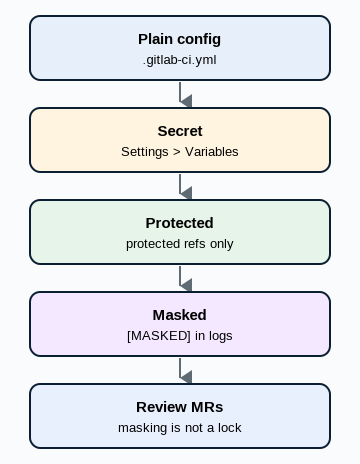
Why
CI jobs need secrets to deploy. The file is readable by anyone with repo access, so secrets must live somewhere else, with extra limits.
What
- Predefined variables — Set by GitLab, like
CI_COMMIT_SHA,CI_PROJECT_NAME,CI_DEFAULT_BRANCH. - File variables —
variables:in.gitlab-ci.yml. For non-secret config only. - Project / group variables — Set in the UI. Can be:
- Protected — only given to pipelines on protected branches or tags.
- Masked — the value is replaced with
[MASKED]in job logs. GitLab requires a masked value to be one line, no spaces, at least 8 characters. - Masked and hidden — also cannot be shown again in the settings page after saving.
- File type — the value is written to a temp file and the variable holds the file path.
- Precedence — Project variables beat values in
.gitlab-ci.yml; values you type when running a pipeline manually beat project variables.
How
- Keep secrets out of
.gitlab-ci.yml. - Add them in the UI as protected and masked.
- Protect your
mainbranch so only trusted people can push to it. - Never
echoa secret, and review any merge request that changes CI files. - For bigger teams, use an external secrets manager.
Example 1: Predefined and file variables
variables:
  DEPLOY_TARGET: "staging"

show-info:
  script:
    - echo "Project $CI_PROJECT_NAME, commit $CI_COMMIT_SHORT_SHA, target $DEPLOY_TARGET"
Output (illustrative — pipeline not run)
Project claims-api, commit 3f9c2a1d, target staging
What it means: GitLab filled the predefined names; DEPLOY_TARGET came from the file.
Example 2: What masking looks like
check-token:
  script:
    - echo "Token length is ${#DEMO_API_TOKEN}"
    - echo "$DEMO_API_TOKEN"
Output (illustrative — pipeline not run)
Token length is 32
[MASKED]
What it means: DEMO_API_TOKEN is a fake name for a masked project variable. Line 1 prints only its length, which is safe. Line 2 shows masking at work — but do not write line 2 in real jobs. GitLab's docs say masking is not a guaranteed protection: if a tool prints the value slightly changed (for example with extra backslashes), it will not be masked.
Example 3: Which value wins
variables:
  DEPLOY_TARGET: "staging"
deploy:
  variables:
    DEPLOY_TARGET: "review"
  script: ['echo "Deploying to $DEPLOY_TARGET"']
Output (illustrative — pipeline not run)
No project variable set           -> Deploying to review
Project variable DEPLOY_TARGET=production -> Deploying to production
What it means: This is the example from GitLab's own precedence docs. The job value beats the top-level value, and a project variable from the UI beats both.
Ravindra Bagale's Tip
Masked is about logs. Protected is about which branches get the secret. Use both, and still review CI changes.
Masked म्हणजे logs मध्ये लपवणं. Protected म्हणजे कोणत्या branches ला secret मिळतं. दोन्ही वापरा, आणि तरीही CI बदल review करा.
Masked का मतलब logs में छिपाना. Protected का मतलब किन branches को secret मिले. दोनों इस्तेमाल करो, और फिर भी CI बदलाव review करो.
Did you understand? Let us try it once more.