26. Excel Tricks Every Analyst Should Know
26.1 Fast Data Entry Tricks
Example first. Five orders need an Amount formula, an export has blank City cells, three names need first names, and a schedule needs working days only. Four tricks, each under a minute.
Trick 1. Fill one formula into a whole selection with Ctrl+Enter is shown in the box below; tricks 2–4 follow it.
Ctrl+Enter for formulas — in 30 seconds
What: Select a block, type one formula and press Ctrl+Enter: every selected cell gets the formula, with its row adjusted.
Why: It replaces typing plus fill-handle dragging, and works even on non-adjacent selections.
Tiny example: D2:D6 selected, =B2*C2, Ctrl+Enter → 64, 270, 110, 232, 150.
Ctrl+Enter for formulas — 30 सेकंदात
काय: एक block select करा, एक formula type करा आणि Ctrl+Enter दाबा: प्रत्येक select केलेल्या cell ला row प्रमाणे बदललेला formula मिळतो.
का: Type करून fill handle ओढण्याची गरज संपते, आणि एकमेकांशेजारी नसलेल्या selections वर पण चालतं.
छोटं उदाहरण: D2:D6 select, =B2*C2, Ctrl+Enter → 64, 270, 110, 232, 150.
Ctrl+Enter for formulas — 30 सेकंड में
क्या: एक block select करें, एक formula type करें और Ctrl+Enter दबाएँ: हर select की गई cell को row के हिसाब से बदला formula मिलता है.
क्यों: Type करके fill handle खींचने की ज़रूरत ख़त्म होती है, और अलग-अलग selections पर भी चलता है.
छोटा उदाहरण: D2:D6 select, =B2*C2, Ctrl+Enter → 64, 270, 110, 232, 150.
First look at the data (before → after):
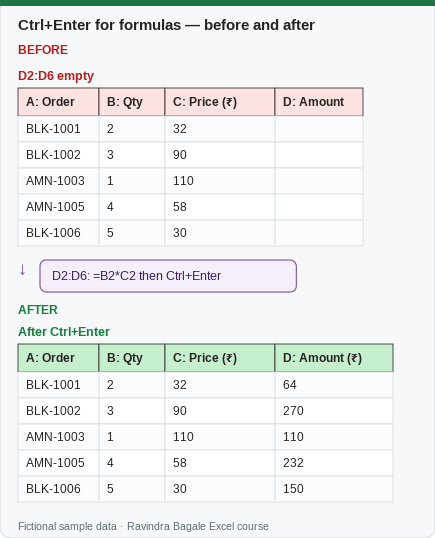
Expected result — After Ctrl+Enter
| A: Order | B: Qty | C: Price (₹) | D: Amount (₹) |
|---|---|---|---|
| BLK-1001 | 2 | 32 | 64 |
| BLK-1002 | 3 | 90 | 270 |
| AMN-1003 | 1 | 110 | 110 |
| AMN-1005 | 4 | 58 | 232 |
| BLK-1006 | 5 | 30 | 150 |
About this data: Teaching sample for a fictional shop “Maple Bakery Co”. Figures and names (e.g. Meera Joshi) are made up for this lesson on fast data entry tricks.
Before table and formula as text
Before — D2:D6 empty
| A: Order | B: Qty | C: Price (₹) | D: Amount |
|---|---|---|---|
| BLK-1001 | 2 | 32 | — |
| BLK-1002 | 3 | 90 | — |
| AMN-1003 | 1 | 110 | — |
| AMN-1005 | 4 | 58 | — |
| BLK-1006 | 5 | 30 | — |
About this data: Demo table only — not real customer or company data. Built to practise fast data entry tricks.
Formula / click path
D2:D6: =B2*C2 then Ctrl+Enter
Do it step by step:
- Select D2:D6.
- Type
=B2*C2(D2 is the active cell). - Press Ctrl+Enter. Every cell gets the formula with its own row number.
स्टेप बाय स्टेप करून बघा:
- D2:D6 select करा.
=B2*C2type करा (D2 active cell आहे).- Ctrl+Enter दाबा. प्रत्येक cell ला स्वतःच्या row number सह formula मिळतो.
स्टेप बाय स्टेप करके देखें:
- D2:D6 select करें.
=B2*C2type करें (D2 active cell है).- Ctrl+Enter दबाएँ. हर cell को अपने row number के साथ formula मिलता है.
Trick 2. Fill blank cells with the value above
Before:
| A: City | B: Order |
|---|---|
| Pune | O-1 |
| — | O-2 |
| — | O-3 |
| Nashik | O-4 |
| — | O-5 |
About this data: Made-up rows so you can copy the pattern for fast data entry tricks. Currencies may use ₹, £, € or $.
After:
| A: City | B: Order |
|---|---|
| Pune | O-1 |
| Pune | O-2 |
| Pune | O-3 |
| Nashik | O-4 |
| Nashik | O-5 |
About this data: Fictional worksheet used in class. Safe to edit; nothing here is live production data.
Steps:
- Select A1:A5.
- Click Home › Find & Select › Go To Special › Blanks › OK. Only the blank cells stay selected.
- Type
=and press the Up arrow key (the formula points to the cell above). - Press Ctrl+Enter.
- Copy column A and use Home › Paste › Paste Values so the formulas become text.
Trick 3. Split names with Flash Fill
Before:
| A: Name | B: First name |
|---|---|
| Abhishek Shinde | — |
| Priyanka Shinde | — |
| Isha Shinde | — |
About this data: Teaching sample for a fictional shop “Maple Bakery Co”. Figures and names (e.g. Meera Joshi) are made up for this lesson on fast data entry tricks.
After:
| A: Name | B: First name |
|---|---|
| Abhishek Shinde | Abhishek |
| Priyanka Shinde | Priyanka |
| Isha Shinde | Isha |
About this data: Demo table only — not real customer or company data. Built to practise fast data entry tricks.
Steps:
- In B1 type
Abhishek(the first name from A1). - Click B2 and press Ctrl+E (or Data › Data Tools › Flash Fill).
- Check every row: Flash Fill guesses from the pattern, and the result is values, not formulas.
Trick 4. A series of working days only
Before:
| A: Date |
|---|
| 02-11-2026 (Monday) |
About this data: Made-up rows so you can copy the pattern for fast data entry tricks. Currencies may use ₹, £, € or $.
After:
| A: Date | Day |
|---|---|
| 02-11-2026 | Mon |
| 03-11-2026 | Tue |
| 04-11-2026 | Wed |
| 05-11-2026 | Thu |
| 06-11-2026 | Fri |
| 09-11-2026 | Mon |
About this data: Fictional worksheet used in class. Safe to edit; nothing here is live production data.
Steps:
- Type
02-11-2026in A1 and select A1:A6. - Click Home › Editing › Fill › Series.
- Choose Columns, Type: Date, Date unit: Weekday, Step value 1, and click OK.
- Saturday and Sunday are skipped: 06-11 is followed by 09-11.
Practice task (try it before you open the answer):
- Fill blanks in a City column with the value above.
- Make a series of 6 working days from 02-11-2026.
- Extract first names from three full names.
Answer
Go To Special › Blanks, =Up arrow, Ctrl+Enter gives Pune, Pune, Pune, Nashik, Nashik. Working days: 02-11, 03-11, 04-11, 05-11, 06-11, 09-11. Flash Fill: Abhishek, Priyanka, Isha.
Ravindra Bagale's Tip
After filling blanks with formulas, always paste values. If you sort first, every formula points to a new "cell above" and the cities get mixed up.
Ravindra Bagale's Tip – मराठी
Blanks formulas ने भरल्यानंतर नेहमी values paste करा. आधी sort केलं तर प्रत्येक formula नव्या "वरच्या cell" कडे बघतो आणि cities गोंधळतात.
Ravindra Bagale's Tip – हिंदी
Blanks को formulas से भरने के बाद हमेशा values paste करें. पहले sort किया तो हर formula नई "ऊपर वाली cell" देखता है और cities गड़बड़ा जाती हैं.
Loading practice tasks...
- Total units sold (Easy): Add up Units sold in the "Units sold" column.
- Average price (Easy): Average of the Price (₹) column, rounded to 2 decimals.
- Rows in Snacks (Easy): How many rows have Category "Snacks"?
- Largest units sold (Easy): The largest value in the "Units sold" column.
- Units sold for Snacks (Medium): Total of the Units sold column where Category is "Snacks".
- Snacks in Delhi (Medium): Total of the Units sold column where Category is "Snacks" and City is "Delhi".
- Best in Snacks (Medium): Largest value in the "Price (₹)" column where "Category" is "Snacks".
- Value of row 2 (Medium): Multiply the first-row Units sold by the first-row Price (₹).
- Look up Neha Gupta (Medium): The Units sold for "Neha Gupta" (use a lookup on the "Name" column).
- Total value (Hard): Sum of "Units sold" times "Price (₹)" for all rows.
- Share of Snacks (Hard): Share of the "Units sold" column that is "Snacks", rounded to 3 decimals.
- Share of the total "Price (₹)" with a locked range (Hard): Find what share of the total "Price (₹)" the first row has. Round it to 3 decimals.
- Above average? (Hard): "Above" if the "Price (₹)" value in the first row is above the average of the "Price (₹)" column, else "Below".