24. Power Pivot and the Data Model
24.6 Relationships Across Multiple Files (Power Query from a Folder)
Turn two approved monthly files into one model fact table
Every month a teammate saves an approved orders workbook in a practice folder. October and November use the same seven fields, and each contains six fictional order records. Instead of replacing the report manually twice, the team can build one Power Query intake. It reads the accepted files, runs a common preparation on each, and stacks their records. The Excel Data Model can then use one Orders fact table with the existing store, product and calendar logic.
A folder is a way to locate possible inputs. It is not an approval rule. A backup workbook, a temporary lock file or a copy in a subfolder may appear in its listing. Choose which files are expected and compare that list against the actual accepted result. A successful refresh can still omit an expected file or include a duplicate that follows the same schema. Preserve the provenance in the facts so the reader can see which file contributed each amount.
- Filter the file list before combining its content. Confirm the approved folder, filename, file type and scope.
- Use the same source object and accepted schema in every file. Column labels, business grain and types need a consistent agreement.
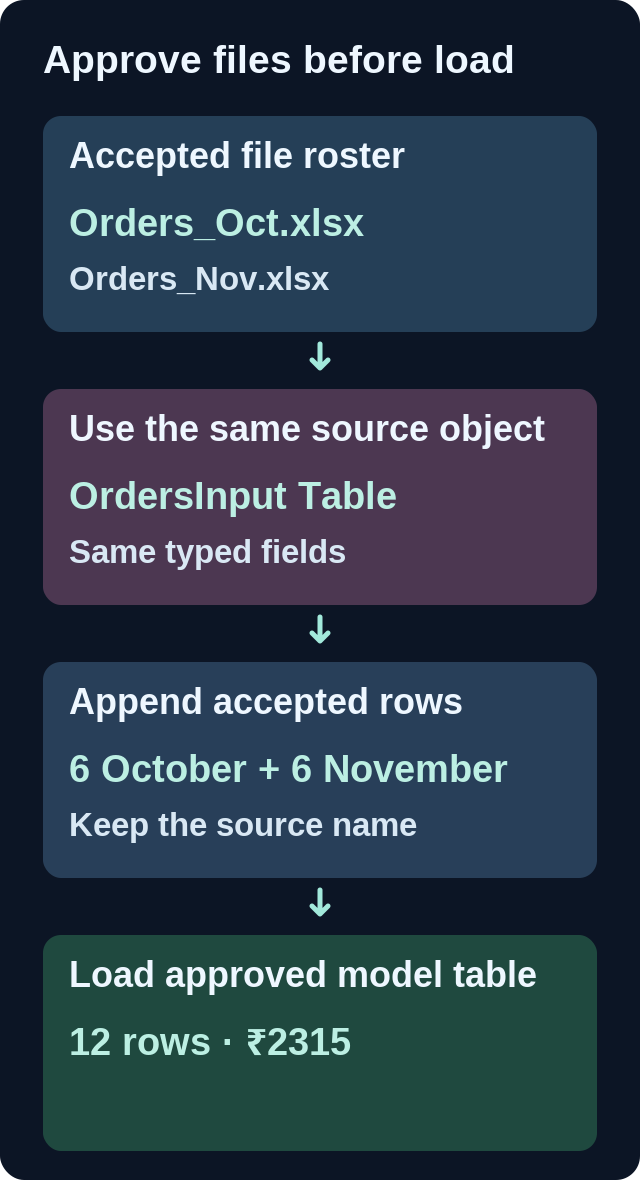
- Separate loading from relationships and reporting. Power Query appends records, the Data Model relates approved tables, and the report evaluates measures.
Prepare two exact source files and a separate destination
Use fully disposable folders and fictional data you are authorized to create. Start from the original twelve Orders records in 24.1. Place O-101 through O-106 in Orders_Oct.xlsx and O-107 through O-112 in Orders_Nov.xlsx. In each file create an Excel Table named OrdersInput with exactly these fields: OrderID, Date, StoreID, ProductID, CustomerID, Qty and Amount. Use actual dates, numbers for Qty and Amount, and text for IDs. The two workbooks can use the same source Table name because each Table name belongs to its own workbook.
Choose a practice folder dedicated to the approved monthly source files. Keep the reporting workbook outside that folder. Save and close the two source files before testing the intake. When you compare with the earlier linked-worksheet route, make a fresh destination model or isolate the test copy so it does not have two source tables both mistaken for the approved Orders. Stores, Products and Calendar can remain separate approved lookup sources in the reporting file. Their IDs and dates still need to match the imported Orders values.
| Source.Name | Accepted order identifiers | Rows | Amount |
|---|---|---|---|
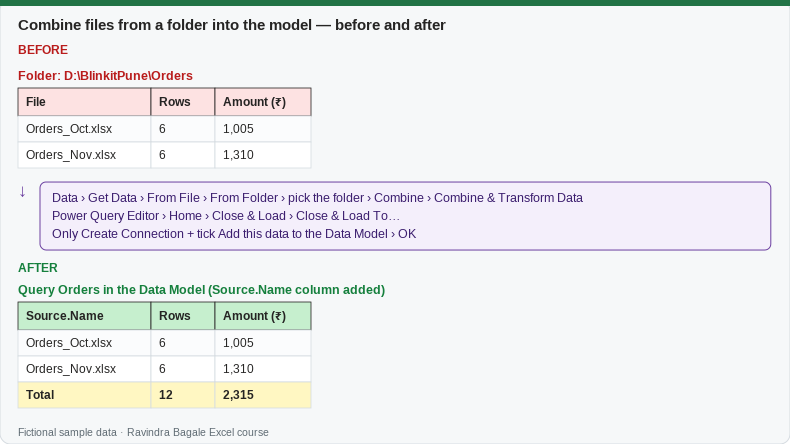
| Orders_Oct.xlsx | O-101 through O-106 | 6 | 1005 |
| Orders_Nov.xlsx | O-107 through O-112 | 6 | 1310 |
| Both files | Twelve unique OrderIDs | 12 | 2315 |
The amounts and counts identify the exact sample. A report with twelve numeric records can still use a wrong file if its batch was renamed or copied. Use an expected file roster with filename, intended period, count, dates and amount. This practice keeps both files in the same year. Real monthly sources should identify the year as well as the month through the approved file and data definitions. Reusing the name Orders_Nov.xlsx next year without a controlled folder or roster could select the wrong November.
Filter the candidate files before opening their tables
In supported Windows desktop Excel choose Data, Get Data, From File, From Folder. Select your practice input folder. In the first list choose Transform Data so you can review the entries and filter the source query before combining. Microsoft documents that the folder workflow can include files in subfolders. Verify the accepted Folder Path and the set of approved filenames. Do not rely solely on the workbook extension.
- Filter Extension to the approved .xlsx files using the actual source naming policy and casing.
- Filter the path to the intended source folder if nested folders should be excluded. Keep the current approved roster of Orders_Oct.xlsx and Orders_Nov.xlsx for this test.
- Exclude lock files, temporary files or other irrelevant entries. A file starting with ~$ is not an approved input under this practice policy.
- Inspect Name, Folder Path and Content for the retained entries. Each retained file should match one approved source on your separate roster.
- Only then choose the Combine Files command on Content. Verify you are combining the filtered listing rather than the original unreviewed folder.
If a teammate puts an archive under the input folder, the original listing may find both the active Orders_Nov.xlsx and the archived one. Match the folder and name together. An allowed filename can exist in two places. Keep the output workbook, backup folder and personal notes outside the scope of the intake. A rule discarding all files that do not have the xlsx extension still accepts old workbooks and copies with the right extension. A file filter should express approved membership, not merely a guess about the file format.
Choose a representative sample object
In Combine Files select Orders_Oct.xlsx as the sample and choose its named OrdersInput Table. The command applies the sample extraction approach to each retained file. Choosing the named Table gives you a stable source object independent of which worksheet position contains it. It also makes the required headers explicit. Verify the November file has the same Table name and the same accepted field meanings. If it only has a worksheet named OrdersInput, confirm the actual object selection instead of assuming the names are interchangeable.
Power Query creates helper queries and a function that transforms each file binary. The sample transformation may select an object, choose columns and set types. When a step belongs before stacking all files, such as selecting the same object in every workbook, inspect the generated sample transform and resulting function. When a step applies to the entire accepted result, such as checking duplicates across months, do it on the combined query or a separate audit. Individual files can be internally unique while an OrderID appears in more than one file.
Keep Skip files with errors off for the first controlled exercise. Turning it on can skip an expected workbook when a table name or column is wrong. Such a result can look like a successful refresh containing fewer orders than approved. If a production workflow deliberately permits some files to be skipped, keep a separate failure list and completeness check. A report must establish which sources were actually accepted, even if the connector says the query finished.
Approve the combined schema and bring it into the model
Review the expanded facts in the Editor. Confirm all seven approved fields, and preserve the source name field produced by the combine operation or retained from the input. It often appears as Source.Name. Inspect or rename it deliberately instead of assuming a fixed generated name in every client. Keep a file identifier suitable for your workflow. The practice folder has only one active copy of each filename. In a larger intake, preserving full approved path or source version separately can distinguish entries that share the same name.
Check types again after combining. Date should represent the actual approved day, Qty whole units in this fixture, Amount numeric rupees, and the identifiers text. A file can add a column or rename a field in a later edition. Depending on the group transformation, a new attribute may be outside the chosen expansion, or a step may fail if it expects a missing required field. Inspect both the sample steps and the final output. Normalize a changed name only after verifying the new value means the same thing.
Name the final query Orders if the chosen model has no existing authoritative Orders table. Use Close & Load To for the supported model workflow. Choose Only Create Connection if you do not want a new worksheet output, and explicitly select Add this data to the Data Model. The resulting model table belongs to the approved query. The list of queries on the worksheet does not establish by itself what reached the model. Open Manage to check its data, including the expected file source values.
In a fresh destination set up the StoreID and ProductID relationships to the approved unique lookup fields and the intended Date relationship to Calendar. If refactoring an existing report, changing how Orders is loaded may produce a different table object, and deleting or renaming an old model table can affect relationships and calculations. Verify the new source table's identity, existing dependent calculations and relationships. Subsequent ordinary refreshes of the same verified schema can preserve the intended model objects. Test an actual refresh before assuming a change of intake is invisible to the report.
Verify the source identity and the reporting period separately
Create a model PivotTable using Source.Name in Rows and Orders amounts in Values. Add a row count with an explicit model measure or a verified nonblank OrderID count for this fixture. Check six approved October records and six November records against your independent roster. Then use Calendar month fields in a separate report view and verify ₹1005 and ₹1310 for amounts. The report will not match by month if a file labeled October contains a wrong date, even if its own row count and totals agree.
One more check uses Stores City. The original combined query should give ₹940 for Pune, ₹670 for Nashik, ₹355 for Nagpur and ₹350 for Solapur when the relevant relationship is in place. If Source.Name amounts pass but a city group fails, inspect the loaded keys and relationship coverage. The folder query explains which facts reached the workbook. It does not establish that a particular city filter reached those facts.
Track the November file through the refresh
List the file
Orders_Nov.xlsx is expected at the approved path. Check that there is one eligible copy.
Read the intended table
OrdersInput contains O-107 through O-112. The confirmed inputs use the shared seven-field schema.
Verify the combined rows
Six November rows contribute ₹1310. The full combined output has twelve rows worth ₹2315.
Check the model slice
Verify the loaded source list and Calendar November in separate views. Confirm both align with the expected approved facts.
Diagnose a missing, duplicated or mismatched monthly file
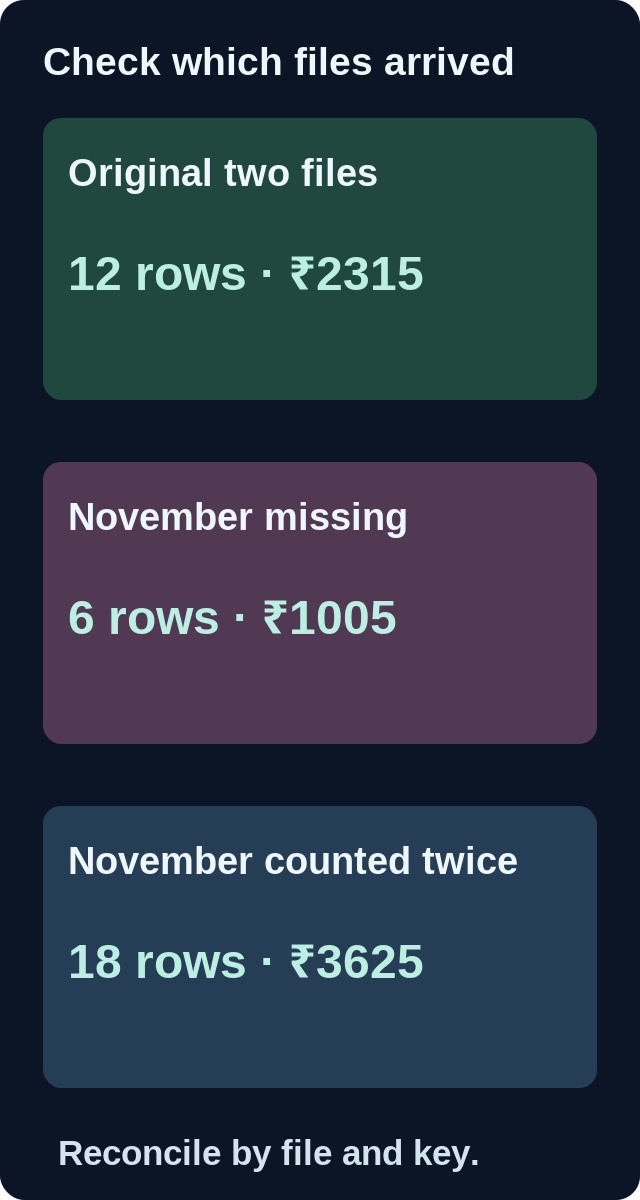
On a scratch practice copy, move the November workbook to a known location outside the entire watched folder. Leaving Oct alone can produce a result of six approved-looking rows totaling ₹1005. That part of the query may succeed. The intended two-month roster is incomplete. Review file identities and counts instead of publishing the newest successful-looking number. Restore the file when the evidence is recorded. Never use a file rename, broad delete or refresh test on shared production sources for this exercise.
In a separate scope test, prepare an extra copy of November within a controlled test archive under the watched folder. A deliberately loose query can accept the duplicate content. If Oct appears once and Nov twice, the combined table has 18 rows and ₹3625 with duplicated November OrderIDs. November’s date result becomes ₹2620, while October stays ₹1005. Restrict the folder, source roster and accepted distinct order keys. Verify every expected ID appears once under this fixture’s grain before removing a duplicate. Two similar-looking orders may be distinct legitimate purchases in another dataset.
A schema departure calls for a different repair. Suppose the November table calls the money field NetAmount. First verify the meaning and approval. If it was a benign header variation, map it consistently in a staging step and confirm the aggregate values. If it genuinely excludes charges that Amount previously included, a rename alone would combine different measures. Keep two definitions separate or transform both to an approved comparable unit. Check which file and step first produced an error.
Run two repeatable intake trials
Lab 1. Combine the original Oct and Nov files
- Split the original twelve Orders records into the two approved input files, each with an OrdersInput Table. Save the destination outside the approved folder.
- Connect to the folder and filter the actual listing. Choose the sample table and review the seven expected fact fields plus provenance.
- Load the approved result into the model, connect verified lookup tables and record the exact 12-row population.
- Make a file-based check showing ₹1005 over six October rows and ₹1310 over six November rows. Compare with separate calendar and city reports.
- Save the accepted workbook and note the expected inputs. A second learner should be able to reproduce the output from your documented fixture and source choices.
Lab 2. Challenge the file list and approve a new month
- In a separate practice folder test one missing or extra November workbook. Predict 6 and ₹1005 for missing, or 18 and ₹3625 for one duplicate November under an intentionally permissive query.
- Fix the allowed source selection so the actual accepted file roster matches October and November. Verify the origin and number of input rows before checking the report.
- For a separate new-month trial create Orders_Dec.xlsx with two approved practice rows: O-113 on 2026-12-02, BLK-PUN-01, P04, C07, Qty 1, Amount 110; and O-114 on 2026-12-05, AMN-SLP-01, P02, C08, Qty 2, Amount 180.
- Add that specific file to the approved intake and confirm the Calendar includes December. Use the established refresh path. Expect December 2 rows and ₹290, combined 14 and ₹2605.
- Verify October and November amounts are unchanged and trace the two December fact row matches. Keep the clean two-file baseline distinct from the approved three-file test.
The option to add December is a new source approval. A fixed approved filename list does not expand by itself. A recurring process can use a controlled naming and intake log, but its responsibilities must be clear. Document who approves the next file, what schema it needs and how the loaded count and totals will be checked after refresh. For this exercise expanding to December is deliberate and measured rather than a consequence of dropping any workbook in a folder.
Create a review that catches successful but incomplete refreshes
Keep the expected files separate from the refreshed listing
Write an approved source roster before opening the folder connector. For this exercise it contains October and November 2026, their exact filenames, the named OrdersInput object, six expected records per file and the known amounts. The roster is evidence outside the query's actual enumeration. If an expected file goes missing, the query's listing alone cannot tell you it ought to exist. A sample comparison between approved and actual lists can catch a missing required file even when Power Query processes every file that did arrive.
Use a two-part check. First, compare the candidate listing after its filters to the approved path and file names. Second, compare the successfully transformed row-level facts to the approved files and IDs. An expected file might be present in the first check and then produce no accepted facts because its table is empty, an error was skipped or a later filter excludes its rows. The filtered folder listing establishes eligibility. The final loaded table establishes what reached the model. Keep both checkpoints.
Record which files were rejected before combining if your workflow includes legitimate extra entries. Your sorted file list may include Orders_Nov_backup.xlsx, a notes file and a temporary lock file. Reject them according to written rules. If an unrelated workbook would have caused the sample extraction to fail, filtering it after opening its content is too late. Filter metadata before applying the sample transformation to the file. A previously approved workbook moved into an archive can be eligible by name before you explicitly check its folder.
| Intake case | Actual fact rows | Actual amount | What to review |
|---|---|---|---|
| Oct and Nov once each | 12 | 2315 | Two expected files and twelve unique order IDs |
| Nov missing from eligible files | 6 | 1005 | One expected source did not arrive |
| Nov accepted twice | 18 | 3625 | Six repeated November order IDs in the combined output |
| Approved Dec added once | 14 | 2605 | New roster contains three approved files and 14 unique IDs |
Use the case table to teach the difference between success and approval. The query engine can successfully combine a folder with October only. The business requested two months, so that result should wait for source confirmation or be clearly labeled October-only. The same engine can accept both a November file and its enabled archive. A filename-only check that sees one group named Orders_Nov.xlsx in the final output can overlook two distinct paths. A grouped row count of twelve for that filename reveals the duplicate in this fixture.
Add a separate provenance reconciliation query
In an authoring client you can build a Power Query audit using Group By, or use the small M example below in a new blank audit query. It assumes the actual combined query is named Orders and the preserved filename column is exactly Source.Name. Adjust the name if your approved query uses a different label. It does not replace the main Orders query or modify its rows. It creates a short report of accepted fact rows, non-null amounts after type checks, and the summed amount for each file.
let
    Inputs = Orders,
    PerFile = Table.Group(
        Inputs,
        {"Source.Name"},
        {
            {"OrderRows", each Table.RowCount(_), Int64.Type},
            {"TypedAmounts", each List.NonNullCount([Amount]), Int64.Type},
            {"SalesAmount", each List.Sum([Amount]), type nullable number}
        }
    )
in
    PerFile
Compare the result by filename instead of assuming Table.Group returns a fixed row order. Oct has six rows and six eligible numbers with sum ₹1005. Nov has six and six with sum ₹1310. These calculations rely on verified numeric type and the absence of cell conversion errors. A non-null count by itself does not test whether a string could be safely treated as a number. A null amount can be ignored by List.Sum and still produce an apparently sensible total. Verify typed amount count equals OrderRows for each accepted file. If all amounts for a file are null, the M sum can also be null. Decide how to report that missing measurement before loading a complete sales result.
In a separate workbook copy clear Amount of O-112 in the November source, leaving its date, store and order ID. After a compatible query refresh the actual November population still contains six orders but only five non-null amounts. The visible sum becomes ₹1040. A case that removed O-112 entirely would also give ₹1040 and would produce only five orders. The grouped audit shows which evidence differs. Restore the original ₹270 after reviewing the two states. The test assumes the blank amount is carried as a null in the typed prepared results.
Check period meaning separately from source provenance
Create a separate bad-date test. Keep O-112 in the intended Orders_Nov.xlsx source and retain its ₹270. In a disposable copy set its real date to October 27, 2026. The source-name view still shows six records and ₹1310 under the November filename. The date-based view now attributes the ₹270 to October. October becomes ₹1275 and November falls to ₹1040, while their combined total stays ₹2315. A successful file check verifies where an order came from. It does not guarantee the approved event date was assigned correctly.
A realistic report may intentionally include corrections to earlier periods in a later file. It can record the source batch date and the event date separately. In this sample the accepted rule is that each file contains orders for its named month. In another workflow the rule can permit catch-up corrections with approval. Write the month policy before rejecting records. A report using calendar filters should follow the approved fact date, while a review of file intake can answer which batch brought the data in.
Use the difference between the two grouped views to decide where to inspect. If both sums fall, first identify missing data or typed values. If file sums pass but Calendar groups differ, inspect actual dates and relationship coverage. If those pass but the city view differs, inspect fact StoreIDs and Store lookup records. The earliest failed check gives you a focused repair path. Changing a DAX measure because a month disappeared will not restore the missing approved file.
Review recurring intake when folder locations or permissions change
A folder workflow can use a defined source location in Data Source Settings or another appropriate query configuration. If the approved folder moves, update the authorized source path in a copy and verify what files the connector enumerates now. A workbook can contain several related queries with different sources. Read the actual configuration of the reporting query instead of assuming a changed path updates every connection. Save and recheck the new location after a controlled refresh.
For a colleague to refresh the same workbook, the source must be reachable under their authorized credentials and supported by their Excel environment. A path on your own computer or a mounted drive may be unavailable on theirs. The practice path is locally controlled. Shared or cloud sources have separate connector and access choices. Use an approved support channel if the connector cannot authenticate or the platform cannot run the planned refresh. Do not turn off organization privacy or trust settings to make a practice connection work. Use only your verified synthetic inputs.
After a file format or schema issue, an earlier report can still be visible. Treat a visible saved last value as historical evidence until a refreshed load is confirmed. Inspect actual refresh status, source names, row counts and the known newest records. A timestamp from the source approval note helps distinguish an intentionally preserved snapshot from an unresolved refresh. Do not approve the new month simply because the chart still displays the old two-month amount.
Approve a new month as a change in scope and not only a file drop
For December the authorized copy should add two records worth ₹290. Verify them independently after pressing refresh. The added Pune record uses an existing store and product and contributes ₹110. Solapur gains the other new contribution of ₹180 in this example. Pune’s previous ₹940 becomes ₹1050 and Solapur’s ₹350 becomes ₹530. Nashik and Nagpur are unchanged. The Calendar report should show December ₹290 when its date dimension includes both new facts.
The new key C07 in one row and C08 in the other are customer identifiers. The original fixture had six known unique customers. With these two approved new IDs the distinct count becomes eight across the extended source. If the combined report has fourteen rows but still excludes the December Calendar member, check approved event dates and the date range. A complete new file intake and a covered report date are independent requirements. Adding rows cannot update a fixed date dimension horizon unless you planned and verified that source as well.
Save the approved test report with its table and file versions. Record one normal refresh after the next approved edition and one rejected input with its cause. A recurring folder workflow earns its value when another person can detect a missed month without guessing what changed. Keep the original fixture, the altered copies, and the published test result distinct. For each status note what you checked in the connector, the approved data and the final model.
Use a documented rule for corrected and reissued files
Suppose the October team corrects O-101 after the first acceptable report. The approved amount becomes ₹160 instead of ₹128. The corrected October file has the same six OrderIDs and a new total of ₹1037. The complete October-November total becomes ₹2347 while November remains ₹1310. If you keep the original archived file in the query scope with the replacement, the October data can contribute twice. Decide whether a reissue replaces a full prior edition or supplies a distinct adjustment record. Those operations have different effects on the accepted population.
For a small replacement practice, back up the baseline and give your isolated corrected source the approved active name. Keep the historical copy outside the watched input selection. After refreshing, verify one eligible October workbook, six October records, the specific approved O-101 amount and the new aggregate. The expected November controls do not move. File names alone cannot establish which source edition authorized the corrected amount. Store a received date and approval reference separately even when the active filename must stay stable.
A monthly folder may instead receive separate incremental detail files. In that workflow use a file naming convention and approved roster that tell you whether they are complete periods or batches. Overlapping OrderIDs do not always imply accidental duplication. A controlled refresh should either select replacement snapshots by their verified versions or accept incremental batches with validated row keys and a correction policy. Do not use a general “keep last” rule without defining which record date and approval determine last. A late-arriving order should not become a reason to discard an earlier approved record with a different ID.
Trace the recorded money back to a worksheet row on request
Choose one known accepted result. November’s ₹1310 is the sum of ₹270, ₹220, ₹160, ₹260, ₹130 and ₹270 from its six original orders. Two separate purchases have the same ₹270 amount. The duplicate check must read OrderID, not Amount. O-107 is Pune and O-112 is Nashik. An analyst who removes duplicate amounts would lose one real order despite having loaded the right file. Preserve the exact recorded IDs in the model if review of order-grain facts is part of the business task.
Extend the example to a source list where some records contain tabs or separators in their product descriptions. Selecting the named Excel Table keeps your input on the intended structured data rather than a file's formatted presentation notes. The approved schema still needs explicit data types, field names and accepted grains. Inspect the combined report after applying a transformation intended for all files. If only one batch needs an exception, consider a reviewed staging rule that documents which version requires it. Broad changes based on one atypical file can disturb the other accepted entries.
Make a final record that answers five questions: which path and approved filenames were scanned, which named object was extracted, which row keys were accepted, what sum and count the model received, and which calendar or store grouping reproduced a known result. This record makes a large recurring query easier to maintain. It also gives a beginner an understandable order for debugging, from source metadata through the fact table and into a report.
Review the output workbook with somebody who did not set up the folder query. Ask them to identify which two files are actually approved, how the October file was read, and which report value proves that November made it into the model. Then have them hide an archive in a practice subfolder and inspect whether the filter excludes it. The desired result stays at twelve orders. This test helps decide whether the workbook's documented behavior survives a realistic folder arrangement.
One important difference is when a fact field is hidden from the PivotTable Field List but still loaded in the model. Keeping Source.Name for an authorized evidence view can be useful even if a sales report normally displays only City and Month. Removing the source field outright prevents the file-level calculation from being reproduced later. Keep only the provenance needed for review, especially if full paths contain unnecessary personal or organizational details. Use a stable business source label when that is enough, and retain approved complete paths in a restricted source record where appropriate.
Check the original totals again after restoring the approved two-file fixture and clearing any report filters.
Explain the intake before trusting the refreshed report
Quiz
Why filter Folder Path before combining?
The folder listing can include subfolders. Filtering to the approved path and file roster helps prevent archive copies and unrelated inputs from becoming Orders rows.
What should the original two files contribute?
Six October rows worth ₹1005 and six November rows worth ₹1310. Combined, there are twelve rows worth ₹2315.
What does Source.Name provide?
It preserves which accepted file supplied an output row. A separate approval and coverage check establishes whether the file belonged in the intake.
Why can a successful refresh produce the wrong number?
It can accept an extra matching file or continue with fewer files if a source is missing or skipped. Check expected names, dates and rows.
How is the model loaded without a new worksheet copy?
Choose the no-worksheet output option and select Add this data to the Data Model. Confirm the approved query output exists in the actual model.
Interview questions and answers
What information belongs in a monthly source agreement?
The approved file and source object names, expected fields and types, reporting period, row grain, record identifiers and acceptance controls.
How can you detect a duplicated archived workbook?
Inspect the accepted paths and filenames, compare expected row counts and verify OrderID coverage across all combined records. Use a known monthly total as a separate check.
When should you change the sample transform instead of grouping the final output?
Change the sample transform when the same extraction or cleanup should be applied to each file. Review cross-file duplicates or period coverage after the data is combined.
Why verify both Source.Name and Calendar month?
The file field tracks provenance. The date field controls period analysis. A correctly named workbook can contain dates outside its approved reporting month.
What would you do if the same dataset refreshes but city values are wrong?
Check loaded StoreID values, unique lookup dimensions and the actual relationship. A correct folder load does not establish a correct city slice.
Revision cards
- Approved listing. Filter candidate paths, names and types before opening their contents.
- Common source object. Each accepted sample workbook provides the same named OrdersInput Table.
- Provenance. Retain a traceable file identity beside its records.
- Audit refresh. Check expected files, record IDs, count and value after every approved change.
- Model load. Select and verify the actual destination setting, then inspect relationships.
- Date period. A filename and an approved fact date answer different questions.
See the original folder and result illustration, visit the Excel Practice Task Hub, or compare the Power BI folder lesson. Continue to building the model’s DAX measures.
Microsoft references
- Excel folder import, file filters, sample selection and skip behavior
- Folder connector and supported scope
- Combine Files example transform and function
- Load a query to the workbook Data Model
- Connect the loaded facts to lookup fields
- Diagnosing changed source schemas and query errors
- Model column types and interpretation
- Grouping accepted records by filename
- Summing non-null numeric values
- Counting non-null measurements