23. Formulas Across Sheets and Workbooks
23.7 Workbook Links: Change Source, Break Links and Fix Broken Links
Repair one moved workbook link and verify what changed
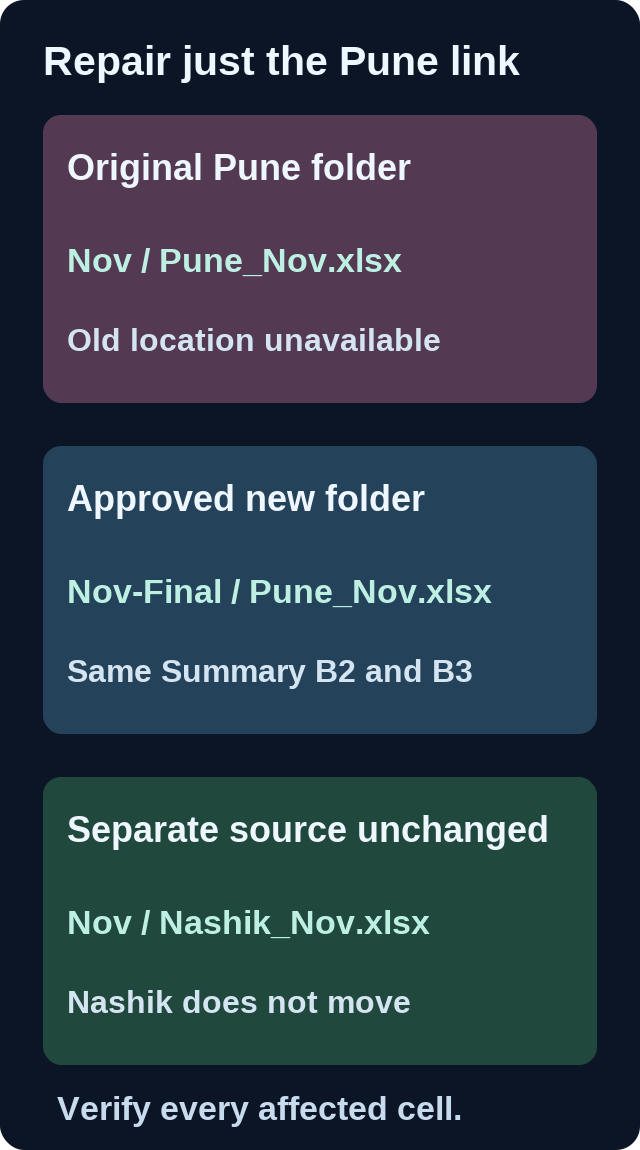
Raja opens a regional sales workbook before a meeting. It contains three linked city files, and a notification says one could not update. The Pune source was moved to a folder named Nov-Final after approval. The displayed Pune value might still be the right number from an earlier update. The destination might also need the revised file. Start by establishing which source failed and what output the report is supposed to show. You can usually repair the intended source without rewriting all its formulas by hand.
Workbook Links lists workbook-level dependencies and provides supported commands for checking them. Common commands refresh a link, open its source, change a source, or break the link. Refresh asks Excel to retrieve values from the existing source. Change Source redirects the selected relationship. Break Links replaces formulas that directly use a selected source with their current values. Each command has a different consequence for later recalculation. Save a test copy and review the consequences before using a command that stops formulas from updating.
- Identify the failure first. A wrong path, permission problem, changed worksheet and stale value require different actions.
- Change one confirmed source. Check its expected layout and prove the unrelated links still point to their approved files.
- Preserve the working report. Create a separate, dated copy when someone needs fixed historical figures.
Recreate the small approved report first
Use the three fictional files from lesson 23.6, or recreate them inside a new practice folder. Every file has a Summary worksheet with delivered sales in B2 and delivered order count in B3. In Region.xlsx link the pairs into the city rows. With the approved original files the Region worksheet uses the following values. Save this baseline before working with moved files or testing break commands.
| City | Expected file | Snapshot sales | Orders |
|---|---|---|---|
| Pune | Pune_Nov.xlsx | 412000 | 1430 |
| Nashik | Nashik_Nov.xlsx | 268000 | 980 |
| Nagpur | Nagpur_Nov.xlsx | 231000 | 905 |
On Region put Pune, Nashik and Nagpur in A2:A4. B2:B4 receives sales and C2:C4 receives counts. The totals are ₹911000 and 3315. For this lesson keep B5 as =SUM(B2:B4). It is a local formula that uses the resulting city values. This design will later help you tell whether a direct linked formula was replaced by a value while a dependent local formula survived.
Find the cause before replacing a link
Inspect the workbook and the current references
Open Region in a compatible Excel client. Current desktop Excel can offer Workbook Links on the Data tab in the Queries and Connections area. Some desktop builds use the earlier Edit Links dialog with commands such as Update Values, Change Source, Open Source and Check Status. Use the documented interface for your client. If the command is unavailable, confirm the workbook contains an actual external workbook link and check edit permissions. A web workbook must also be in supported online storage with the required access, while this lesson’s moved local folder is a desktop practice setup.
Read the candidate source identity. On your practice copy a failure may indicate missing Pune_Nov.xlsx in its old folder while the other two rows are available. Its original amount can continue to display, or you may see an error or warning depending on the workbook’s state and client. Inspect the formula bar for the source file, sheet and linked addresses. Look at Pune’s sales and order cells together. The fact that one value looks plausible does not establish that either address has refreshed.
| Observed evidence | Likely kind of issue | Next check |
|---|---|---|
| Expected file no longer exists in the original folder | Moved or renamed source | Confirm the approved replacement’s exact path and source layout. |
| A reviewer has no access to the file | Permissions or unsupported storage | Verify authorized access and client support before retargeting. |
| The source path is correct, but the number looks wrong | Stale refresh, wrong saved edition or changed input | Check the saved source value, expected version and refresh result. |
| The workbook opens, but its Summary layout differs | Changed source interface | Verify sheet names, cell labels, units and all affected formulas. |
Some workbooks use relative link storage when source and destination have a supported arrangement. Moving both files while preserving their relative layout can work differently from moving the source separately. A formula displayed as a full path is also not proof Excel stored an absolute path. This practice moves only the source on purpose. In a real incident check the exact copy and old folder first so you can reproduce the actual failure. If the workbook can locate the moved source in your environment, verify the resolved path rather than forcing an error.
Read the source record someone approved
Before changing anything, open the confirmed replacement you own and label its exact approved meaning. For this exercise the new Nov-Final copy of Pune_Nov.xlsx still has Summary B2 at 412000 and B3 at 1430. A draft copy with similar name could contain less complete figures or a different reporting window. If the replacement tab is called Monthly Summary or its amount moved to B4, pointing the old link at the new file alone cannot repair the agreement. Edit or recreate the specific references based on verified inputs, or ask the source owner to preserve the agreed arrangement.
When Excel prompts you to enable or refresh external links, first verify the known practice files or approved sources. Giving permission to one trusted workbook should not become a global security settings change. If a cloud source cannot refresh in Excel for the web because its domain or tenant lies outside the supported link environment, use an approved alternative or authorized desktop access as documented. A source-path change is useful only when the intended source can be read and is compatible with the workbook.
Change the Pune source and check related results
Save an untouched linked copy of Region and work on a separate fixture. On that copy confirm all its links point into your own practice source set, including any absolute paths. Close Excel files that use the source before moving it in the filesystem so you can control which path the test uses. Move only Pune_Nov.xlsx to a new Nov-Final folder under your practice area. Keep the Nashik and Nagpur source files in their original folder. Open the destination and confirm the missing or stale Pune path.
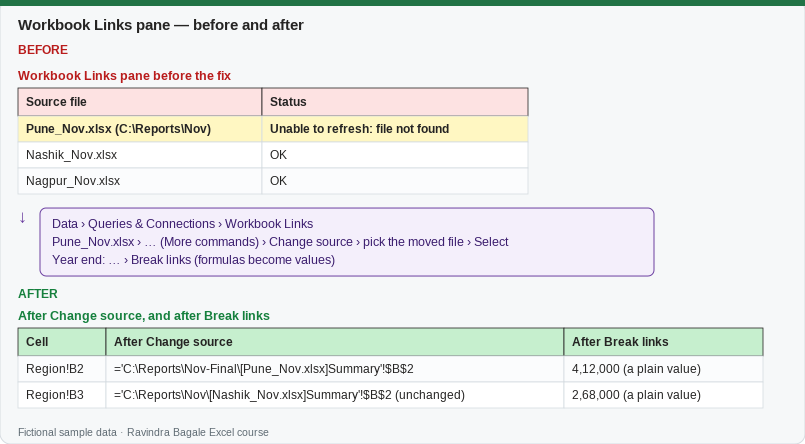
- Open Data and the Workbook Links pane, or the legacy Edit Links dialog in a compatible desktop version.
- Select the entry for the old Pune_Nov.xlsx. Inspect its old location and which workbook relationship is selected.
- Choose Change Source and browse to the verified moved file in Nov-Final. Keep the identity and workbook layout in mind.
- Open or refresh the approved new source as appropriate. Recalculate and verify the formula addresses, source path, Pune’s two expected values and the unchanged other cities.
- Save a clearly named repaired version and reopen it once if your test client can verify that the repaired link persists.
In the original Windows example, the Pune sales link can display the old and new forms below with the source files closed. Let your Excel client generate the exact path. With a portable practice folder that path may differ. The file and worksheet may be unchanged while the resolved source location changes. Nashik should still point to its own original approved file and use 268000 and 980. A source-targeted operation should direct both Pune formulas to the replacement if they used the same source relationship.
='C:\Reports\Nov\[Pune_Nov.xlsx]Summary'!$B$2
='C:\Reports\Nov-Final\[Pune_Nov.xlsx]Summary'!$B$2
='C:\Reports\Nov-Final\[Pune_Nov.xlsx]Summary'!$B$3
Prove the repaired link even when the number is unchanged
Because the moved source holds the same approved amounts, the repaired report can look identical to the earlier saved report. Inspect the actual new source path and current link status. On a separate correction copy where both link targets and the fixture are verified, change Pune’s B2 to 413000. Save and refresh the destination. Pune becomes ₹413000 and the region total becomes ₹912000, while the other approved results are unchanged. Restore the test value to 412000, save and refresh after retaining the evidence. That independent temporary change makes it clear which location the formula actually read.
A typical support question is “Why did every Pune formula change when I selected one source?” The command redirected the workbook-level relationship used by those formulas. If there are multiple downstream inputs to review, record all affected addresses before acting. For one cell that deliberately needs a different source while other cells stay linked to the older workbook, change that specific reference instead of retargeting the whole workbook relationship. Use the formula bar or reselect the approved source while editing that cell, then verify the other dependencies remain correct.
Choose the action that matches the goal
Record the old evidence
Pune’s old folder cannot be used. Region may still show ₹412000. Record the path, link status and expected approved values.
Confirm the replacement
Open your approved Nov-Final copy and verify Summary B2 and B3. Check the metric labels and date.
Redirect and refresh
Change the Pune relationship. Confirm both Pune references, then verify Nashik and Nagpur still point to their original sources.
Decide what the recipient needs
Preserve the repaired dynamic report for future updates. If an approved snapshot is needed, create it in a separate file and test its current values.
Freeze a report copy without losing the working workbook
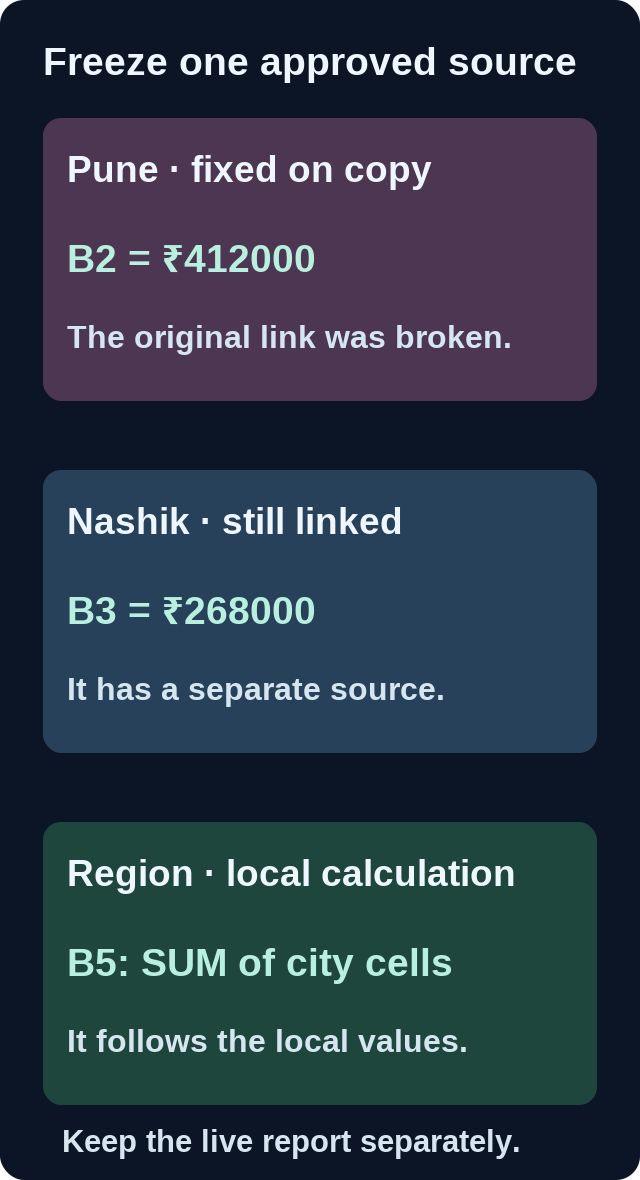
Break Links converts formulas that directly refer to the selected source into their current values. If you break Pune in the copied Region workbook, B2 and C2 can become the plain values 412000 and 1430. If you break only that source, a separate Nashik formula can remain linked. If your task is to preserve one specific cell only, replace it with its verified value in a separate copy rather than breaking all formulas that refer to its source. If the snapshot must sever all workbook links, explicitly verify its dependencies and use the appropriate source-by-source or all-links command on the copy.
Trace a whole expression through a targeted break
Place a direct mixed calculation in unused copy cell F2 while the approved Pune source is open. Add Pune’s external sales input to the local B3 cell. The result starts as ₹680000. In F3 put a local version with the same current result using B2 and B3. Compare the formulas and keep both during the break experiment.
=[Pune_Nov.xlsx]Summary!$B$2+B3
=SUM(B2:B3)
After breaking Pune’s workbook link on the copy, F2 can become the plain result ₹680000. Excel replaces that formula as a whole because it directly used the selected source. F3 stays a local formula. In a separate controlled test change Nashik’s source from 268000 to 300000 and refresh the remaining Nashik link. F2 stays ₹680000, while F3 becomes ₹712000. The two initially equal cells have different update behavior because one lost its entire dependency expression and the other still reads the local rows. Restore the changed practice inputs and discard altered destinations after recording the result.
Microsoft documents that Windows desktop’s workbook Break Links cannot be undone. Its Excel for the web documentation says that the corresponding web operation can be undone. Preserve a separate working version in either case. Browser undo history, syncing and recovery differ by workflow. Retain the approved source file versions and reports so you can reproduce the calculation or issue an amended snapshot later. A frozen workbook cell only provides a retained value, not an independent explanation of how that value was established.
Do a source-free review before sharing an approved snapshot
Compare the snapshot’s source-dependent cell values with the signed-off reports before breaking any links. A value that already displays a stale amount or error can be retained by the operation. Compare totals and each expected row after the break too. Add a clear cutoff and purpose inside the copy. When you need a plain distribution record without dynamic elements, copying only the approved report values into a new workbook can be easier to verify than converting a complex inherited file with hidden objects.
Do not assume workbook links are the only way a document can reach external sources. A destination could have queries, defined names, chart series, linked objects or other data connections. Select the appropriate verification for the accepted copy. A live source is valuable when someone needs to update again. A static copy should be deliberate, tied to an approved period, and verified without relying on whatever solution you used for this month's data update.
Find workbook references beyond a single visible cell
On desktop use Find Next in the Workbook Links pane, or search the whole workbook with Find configured to look in formulas. Microsoft’s example searches for .xl across the workbook. Looking for the precise approved source filename can narrow the search. Either way, searching cells helps you inspect formulas with literal references. It cannot establish that you found all dependencies in other workbook objects. Microsoft distinguishes formulas, defined names, linked objects and chart series in its link discovery guidance.
| Workbook location | Evidence to check |
|---|---|
| Worksheet formulas | Find within Workbook and look in Formulas, then inspect matched addresses and purpose. |
| Defined names | Inspect Refers To in Name Manager and review whether a workbook-qualified name is in use. |
| Charts and linked objects | Inspect chart titles, series formula bars and linked object sources where supported. |
| Validation and formatting rules | Check whether rules use names or ranges that still lead to external sources. |
| Queries and data connections | Review the connection list and query source or parameters separately from the workbook formulas. |
Before removing a name, determine which objects use it. A workbook can keep a meaningful named source so that learners can locate an input instead of memorizing numeric coordinates. Removing it can change a validation list, chart title, or dependent formula even when the cells you were originally checking look fine. Test the copy after replacing a name and check the actual report outputs. Spreadsheet Inquire is another option in licensed supported Windows clients, with its own availability. The underlying report and source roster still need to reconcile.
Rehearse the complete repair and handoff
Lab 1. Move, diagnose and retarget only the Pune workbook
- Construct the three-source linked fixture and save a clean baseline. Make a separate destination and source set and confirm their actual links before edits.
- Close the files, move only the practice Pune source into Nov-Final and leave both other files where they are. Confirm Nashik and Nagpur remain available in the original folder.
- Open the practice Region destination. Inspect its saved or displayed Pune amount, link status and old directory. Confirm the path evidence before deciding that source movement caused the issue.
- Use the available Change Source command on the Pune row and select the known replacement. Verify 412000 and 1430, B2 and B3 source addresses, and unchanged Nashik and Nagpur link locations.
- On a verified separate test copy, increase Pune to 413000, save, refresh and verify ₹912000 total. Restore the baseline 412000 and verify ₹911000 again.
Lab 2. Compare a targeted break with an all-source snapshot
- From the repaired report, save a working version and make a new snapshot test copy. Verify all three original amounts and counts.
- Put the mixed direct and local comparison formulas in F2 and F3, then break Pune links only. Confirm B2 is the fixed 412000 and F2 is 680000, while Nashik’s B3 remains linked.
- On isolated practice sources change Nashik from 268000 to 300000 and refresh the remaining link. Confirm the local F3 reaches 712000 while F2 remains the static 680000. Restore Nashik afterward.
- Use a separate practice copy for the original full-freeze exercise. After verification, break all workbook links and verify both B2 and B3 are fixed values. Inspect whether other external dependencies exist before describing the copy as source-free.
- Reopen the retained linked original and verify the dependency expressions still exist. Keep the approval date on the snapshot or dispose of your lab copies.
Make the workbook’s approval history reproducible
Check folder layout and approval before opening a replacement
Draw the practice folder structure once. Suppose Region.xlsx lives in a Reporting folder and its approved source files are in a child folder called Nov. Excel can retain a relative relationship under supported arrangements. If all four files move together and their layout is preserved, the destination may still find same-named source files in its neighboring child folder. If only Pune moves from Nov to Nov-Final, its expected relative location differs from the actual one. Check the destination’s own source address after each scenario. Someone opening a copy in another working directory can otherwise test a different set of sources without knowing it.
Try the reasoning without touching real reports. Compare a folder that contains all four copied files in their original relative arrangement with another practice folder that holds only Region.xlsx. Open each destination in your compatible client and inspect the link paths before requesting refresh. On the second copy a link may still point at a place outside your sample folder, or it may fail if the relative source is absent. Read the current identity rather than assuming all links behave the same. Your download folder, a mounted drive and a cloud synchronization root can expose different resolved paths.
Record an exact placement before saying a file was “moved with the report.” Useful notes include the source’s old parent folder, new parent folder, relative layout, identifying filename and the openable approved version. As the exercise maintainer, use a local practice folder you own and no real company report paths. Microsoft offers the Windows examples to show formula notation. The files your workbook selects may show a different path on another system. A successful repair in your practice folder should be documented with its actual displayed filename and current source status.
Differentiate lookup success from a compatible source interface
Imagine Nov-Final has the right Pune_Nov.xlsx name and opens in your Excel client. In the new file, the reporting team moved the delivered-sales measure to Summary B4 and B2 is now a provisional amount of ₹402000. The old destination formula still reads B2. It can return the new provisional figure and lower the region sales total to ₹901000 with no broken link warning. Opening the approved path is only one test. Confirm the source field and its business meaning are still the same.
The safest fix for an intentionally redesigned source is to pair interface review and formula update. Ask the source owner to confirm that B4 contains ₹412000 and that B3 still counts the intended 1430 delivered orders. On a copy, redirect the source relationship to the correct file if necessary, then update the individual sales formula so it reads B4. Verify that count still uses B3 and that the overall sales returns to ₹911000. A source-wide path change correctly moves all references to the replacement workbook. It does not supply new row or column instructions for a changed layout.
Now evaluate a different revision: the replacement uses the same Summary addresses, but B2 comes from a February rather than November worksheet export. The number could equal one of the known controls by chance. An approved period and a source edition label are still necessary before treating the replacement as valid. Put the reporting period near the source data and include it in your approved input roster. A reviewer can then compare the known cutoff, the data field label and the numeric control separately.
Record evidence for three distinct link states
| Scenario | Pune Region B2 | Nashik Region B3 | Region B5 if no source amount changed |
|---|---|---|---|
| After retargeting to Nov-Final | Linked · 412000 | Linked · 268000 | Local formula · 911000 |
| Pune only broken on copy | Fixed · 412000 | Linked · 268000 | Local formula · 911000 |
| All three workbook links broken on copy | Fixed · 412000 | Fixed · 268000 | Local formula · 911000 |
This table is why clicking cells and reviewing the formula bar matters. All three states display the same numbers. In the repaired state, changing Pune’s approved source can affect its linked cells. A targeted snapshot copy can keep the Pune figures fixed while Nashik and Nagpur remain dynamic. After an all-source break, the three original city input pairs are fixed. Local formulas can still respond to local edits, so a fixed-source workbook is not protected against someone typing new values into its own cells. Choose an appropriate format and ownership for the approved distribution copy.
If a recipient was promised a completely fixed numeric grid, compare its cell values and other objects to that promise. The local formula in B5 can be appropriate when their task includes changing inputs and recalculating. If the task is only to read the approved original, another static export can give the city rows, total and controls a fixed state. Keep the statement honest about what changes: “fixed approved source values” and “every displayed cell fixed” mean different things. Verify what your team asked for before breaking a link.
Design a counter-test for an unwanted broad change
Before redirecting Pune, note the two Nashik and two Nagpur linked cells. In the practice fixture Nashik has 268000 and 980, Nagpur 231000 and 905. Save their formula addresses or inspect the source roster. After choosing an alternate file in Change Source, check all four cells individually. A ₹911000 grand total alone could coincide after two substituted values cancel, so the unrelated file identities serve as a more direct control. Use the same evidence to review a suspected accidental break of all sources.
For one more deliberate test, set Pune’s count to 1500 in a verified disposable source after breaking only its relationship on the snapshot copy. Use a separate working copy that still reads Pune, refresh its allowed source link and verify the count can increase to 1500 there. This changes the working region’s order total from 3315 to 3385. In the snapshot copy Pune stays at 1430 and the region’s total remains 3315 if everything else stays at baseline. The contrast demonstrates intentional fixed state even when both files share the same outer report format. Restore the original source and save it after the experiment.
Use a deliberately different numerical result to catch the wrong test. Changing an approved Pune source value from 412000 to 412000 does not tell whether the active formula reads the corrected source. Closing the source workbook and observing the old report value also cannot prove a fixed snapshot because cached values can persist. Make a safe controlled change in a known practice copy, record which result should move, and verify both the working and fixed destinations. The resulting evidence tells another person which source behavior you actually checked.
Choose one recovery action after locating the first failed stage
If the expected workbook no longer opens from Excel, verify that the source has not been relocated and that the reader has permission. If the correct workbook opens but Summary B2 is wrong, leave the destination link alone until the source owner verifies it. If B2 is current in the saved source but the linked destination remains stale, inspect whether refresh was permitted and completed for that source. If a formula has already become a literal number, use the saved live workbook or recreate the necessary reference in a repair copy. Asking for a link refresh cannot restore a formula that has been replaced with a value.
After repairing the first failed stage, retest the next one rather than assuming all later stages succeeded. Reopen the approved Region workbook or load a fresh authorized copy if appropriate. Confirm the path now resolves, the intended fields are updated, and the local totals and ratio behave as expected. For a support note state the observed symptom, the confirmed cause, the exact checked sources and the result. Someone who receives the workbook later can distinguish a simple file move from a policy or data correction.
Keep a separate inventory of workbook and query dependencies
Suppose the original Region workbook also contains a chart title linked to a label in another file. Searching cell formulas for the approved Pune filename may yield only B2 and C2. That tells you something useful about visible calculation cells while leaving the title outside the search. In the practice review, click the title in a compatible client and look at its formula bar. If it references a stored workbook name, inspect where that name points before changing or deleting it. A chart sourced entirely from local snapshot cells can retain its visual meaning without needing to read the original file again.
Separately, inspect any query connections that were used for different reports in the same file. A query might retain a file path in its Source step even after all visible worksheet formulas become plain values. Disabling a workbook link does not rewrite the query logic. If you need a static recipient file, copying the approved output to a fresh workbook can avoid carrying unrelated dependencies. Verify that the new file has the required figures, headings, date and permitted metadata. The reports you preserve internally can keep their working links for the next approved refresh.
Handle a workbook with two different close decisions
Suppose the reporting team signs off Pune and Nagpur but awaits Nashik’s correction. A working Region workbook may continue to track the three city sources. A frozen distribution copy should say that its Nashik value was approved only through an earlier cutoff, or wait for the missing approval under the team’s policy. Breaking links on the snapshot does not turn a provisional input into an approved one. Distinguish the technical freshness you can prove from the business status for which someone remains accountable.
For the sample, assume the owner approves a new Nashik source of 300000 after the initial ₹911000 handoff. The forwarded historical copy should stay at its dated original figure. Use a clean working file to validate and calculate the amended ₹943000 figure, with the other two approved sources unchanged. Issue a separate amended report only after the expected six source values and period reconcile. This leaves two calculable versions of the report rather than trying to reconstruct what the old snapshot contained after editing it in place.
A classroom team can compare its two report copies using only the approved fictional amounts and source identities. Give each member one role: locate the file, inspect the city input, and reconcile the region output. The learner checking publication should see a source-change record and the intended report type before choosing any command. If someone clicks Break All while intending to fix one missing file, they can recover using a saved working baseline and follow the verified source change instead of rebuilding from memory.
When the final evidence sheet is ready, write down whether the compatibility check included values, formulas and other dependencies. “Totals match” covers arithmetic after the edit. “Pune's path and two source cells verified” covers the targeted maintenance task. “No external dependency in the distribution file after review” requires more than the formula check. Give the next reviewer the evidence appropriate to the claim.
Check that you can choose a link action deliberately
Quiz
Which action fixes a confirmed moved file with the same layout?
Use Change Source on the specific workbook relationship, browse to the approved moved file, and verify paths and values afterward.
Which existing workbook link should be selected in the lab?
The Pune source. Nashik and Nagpur still use their own original approved files, and their references act as controls.
What does breaking a selected source do to a directly dependent formula?
It replaces the full formula with its current calculated value. Verify current values before doing this on a separate copy.
Can correct-looking numbers prove a changed path has been refreshed?
No. The earlier value may persist. Record the new approved path and check a controlled source change with an expected output.
Why might searching cell formulas leave a link undiscovered?
Defined names, charts, objects or queries may hold other dependencies. Inspect these locations as relevant to the workbook.
Interview questions and answers
What evidence would you gather from a stale Region report?
Inspect the report copy, saved city versions, actual path, workbook link status, expected source values and addresses, and the date of the most recent approved calculation.
Which checks would you do before selecting a replacement file?
Confirm it's the approved period and edition, then inspect required worksheets, cells, metric definitions and permissions. Test a known input after the repair.
What is the difference between refreshing and retargeting a source?
Refreshing re-reads the existing link. Retargeting changes which file Excel tries to read. If the file moved, the path repair must precede the useful refresh.
Would you break links in a master report?
I would normally preserve a dynamic working copy and verify a separate signed-off snapshot if required. Breaking a source can replace full formulas with retained values.
How do you show a link repair did not change the unrelated city measures?
Capture their approved file paths and both Summary values before the change and compare after it. Then reconcile the displayed totals to the approved source roster.
Revision cards
- Refresh. Read the approved workbook link again under allowed client settings.
- Change Source. Retarget the chosen relationship and check every cell using it.
- Break. Save a copy first and verify the current value that will replace the expression.
- Inspect source layout. A replacement workbook can open successfully and still use different cells.
- Check all locations. Cell formulas are one of several places a dependency can live.
- Save two deliverables if needed. Preserve an updateable report and an independent verified snapshot.
Use the original comparison of a changed source and a complete snapshot, or revisit the Excel Practice Task Hub. Continue to consolidating sources with differently ordered categories.
Microsoft references
- Managing and finding workbook links, with Windows and web behavior
- Creating source links and inspecting workbook notation
- Workbook link storage and relative/absolute paths
- External content trust and permissions
- Checking for retained external dependencies
- Formulas and names in Name Manager
- Workbook relationships in Spreadsheet Inquire