6. Tables, Sorting and Filtering
6.12 Sorting and Filtering Inside an Excel Table
Choose which orders to see and which should appear first
A fictional delivery lead needs the orders over ₹200. Then they need those orders displayed largest first so they can start checking the most expensive packs. A filter answers the first request. It hides rows that fail the condition. A sort answers the second. It changes the sequence of records. The same dropdown in a Table header offers both actions. Reading the action correctly helps when the displayed total changes under a filter and then stays the same after a sort.
This lesson works inside an Excel Table, using the imaginary Chapter 3 marketplace source and a second queue inspired by Swiggy. The marketplace names Blinkit and Amazon Now are familiar labels for the first scenario. The orders, times, handling decisions and figures are made up. You will pick an exact population, sort it by a stated rule, check two totals with different scopes and return to a known starting order.
Read the header as two sets of controls
A filter controls the current selection of records
In the Amount menu, Greater Than 200 tests every record’s numeric Amount. A record worth exactly 200 does not pass. A checkbox list in Status lets you pick actual existing labels. You can select more than one value within the same list. Across columns, Excel keeps the rows that satisfy the separate restrictions together, so an Amount condition and a Delivered selection have to be checked against the same order. Open a filtered header to inspect its active setting. A simple dropdown means the control is available. A filter indicator means a selection or criterion is in effect.
A sort changes the order of complete records
On Amount choose Largest to Smallest to bring the highest amounts to the top of the Table. The order’s ID, date, city and status should remain associated with its amount. In a Table the sort action operates on the complete records. Verify a known row after sorting because a later manual paste into one column can still corrupt those relationships. If you need more than one sort key, use the full Sort or Custom Sort dialog, not a sequence of independent one-column sorts. The dialog lets you state which key is primary and which keys break ties.
Excel can save Table sort and filter criteria with the workbook so you can reapply a complicated view. The preserved criteria are a recipe rather than a permanent copy of the original order. Clearing a filter shows other records again. It does not reconstruct the order in which the rows arrived. Capture a plain Import Seq value for each source record before your first sort if arrival order is important. Later, use that field as a tiebreaker or sort it ascending to return to the captured sequence. A formula using the current sheet row number is not a good snapshot of arrival order, because the row numbers describe positions in the current layout.
Use a second measure to distinguish structure from view
- Table Total Row. Choose Sum under Amount. The usual Table calculation is a SUBTOTAL that follows the current visible rows. Inspect the generated formula if the report has been customized.
- Whole-source reconciliation. On a separate Check sheet, enter
=SUM(tblMini[Amount])to read the full named data column. This amount diagnoses whether values or membership have changed. - Visible ID count. Use
=SUBTOTAL(103,tblMini[Order ID])on Check. It counts nonempty visible ID cells. An order ID should identify one record, and the exercise source is deliberately clean. - Known view. Compare the counts, amount and visible IDs with a written rule. A report that says “all orders” while the Table displays only Pune is an ambiguous handoff even when the arithmetic is correct.
Pick a comparison that matches the stored type
Numbers, text and dates have different menu choices
The header menu reflects the cells that supply a field. Use typed numeric values for the Amount. Apply a currency format to display their unit. If an import mixes text amounts and numbers, check with ISNUMBER and examine the unconverted values before setting numeric criteria. A sheet reader can see what looks like 240 rupees even when the stored data is text. A check of exactly known boundary rows exposes this problem more directly than scrolling through the visible list.
Use Status’s Begins With C to find all clearly matching text in the current example. There are two Cancelled records. If a real sheet also contained Confirmed or Collected, those statuses could pass the prefix too. If the intent is exactly Cancelled, choose the full value in the checklist. A type-specific command and the checked labels answer different questions. Ask whether you want a specific value or all labels matching a pattern.
For date filters, enter real calendar dates using a local representation your Excel understands or a formula such as =DATE(2026,11,3) formatted as a date. Use a fixed period when the report should be reproducible. Date-only values in November 2026 let you test 3, 4 and 5 November. If an input date includes a time, use a window that starts on or after 3 November at midnight and ends before 6 November at midnight. That last comparison includes the whole of 5 November.
Use color for review while keeping a named decision
Sort by Color can move a highlighted group to the top. Filter by Color can hide rows that do not have the selected formatting in the chosen column. These tools are useful when the visual marker itself is what the reviewer needs to inspect. For a policy that should survive formatting changes or be applied to another system, use a separate field such as Review Decision. This field can be filtered, counted and checked without relying on a particular color. Keep a legend so a teammate can tell which formatting the workbook uses and how the decision was made.
Lab 1. Build a value and date view, then sort it
In a new practice workbook enter the ten orders on a sheet called Mini. Use the exact five headings in A1:E1. The Date field uses typed dates in November 2026 and the Amount field uses numbers. Create a Table with headers from A1:E11 and call it tblMini where supported. Start with all source records visible and no manually hidden rows.
| Order ID | Date | City | Amount | Status |
|---|---|---|---|---|
| BLK-1001 | 2 Nov 2026 | Pune | 64 | Delivered |
| BLK-1002 | 2 Nov 2026 | Nashik | 270 | Delivered |
| AMN-1003 | 3 Nov 2026 | Pune | 110 | Delivered |
| BLK-1004 | 3 Nov 2026 | Nagpur | 240 | Cancelled |
| AMN-1005 | 4 Nov 2026 | Kolhapur | 232 | Delivered |
| BLK-1006 | 4 Nov 2026 | Pune | 150 | Delivered |
| BLK-1007 | 5 Nov 2026 | Solapur | 1299 | Delivered |
| AMN-1008 | 6 Nov 2026 | Sambhaji Nagar | 195 | Returned |
| BLK-1009 | 7 Nov 2026 | Pune | 220 | Cancelled |
| BLK-1010 | 8 Nov 2026 | Nashik | 90 | Delivered |
Test original and filtered views against a known result
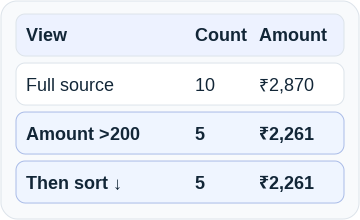
- Establish the full amount. Turn on the Table Total Row and choose Sum under Amount. On an independent Check tab use SUM on the named amount field and SUBTOTAL with 103 on the named ID field. At the start the Total Row and the whole-source amount are both ₹2,870, and the visible count is 10.
- Apply the numeric selection. On Amount select the numeric comparison Greater Than and enter 200. Expect BLK-1002, BLK-1004, AMN-1005, BLK-1007 and BLK-1009 from the original order. The sum of those five amounts is ₹2,261. City and Status are still unrestricted.
- Order those results for review. Open the Amount header again and choose largest first. The top five visible amounts are now 1,299, 270, 240, 232 and 220, beside BLK-1007, BLK-1002, BLK-1004, AMN-1005 and BLK-1009 respectively. The visible total remains ₹2,261. Check that the ₹1,299 order still has City Solapur and Status Delivered.
- Restrict the sorted view further. In Status select Delivered only. This hides the two cancelled records. The three visible IDs in amount order are BLK-1007, BLK-1002 and AMN-1005. They total ₹1,801. The all-source SUM remains ₹2,870.
- Clear Amount without changing the Status rule. Use Clear Filter From Amount in its menu. There should now be seven Delivered records with amount ₹2,215. The existing Amount sort can remain even though its filter was cleared. Clear Status to verify ten source rows again, then check the current sequence separately.
| View rule | Visible IDs | Visible amount |
|---|---|---|
| No filter | 10 | 2870 |
| City is Pune | 4 | 544 |
| Amount above 200 | 5 | 2261 |
| Status begins with C | 2 | 460 |
| Date is 3 to 5 November | 5 | 2031 |
| Amount above 200 and Delivered | 3 | 1801 |
| Only Delivered | 7 | 2215 |
Validate date boundaries and use color deliberately
Clear current restrictions and apply the fixed date window to the date-only source, keeping dates from 3 through 5 November. Expect AMN-1003, BLK-1004, AMN-1005, BLK-1006 and BLK-1007 in whichever sort order you currently use. Their total is ₹2,031. If the result includes BLK-1002, read the lower boundary because that order’s date is 2 November. If it excludes BLK-1007, check the endpoint and the stored date value. If the date column has been imported as text, enter two known dates with DATE on a scratch copy and confirm their dates before repairing the full field using the correct locale.
As a separate small test, clear other filters and give the Amount cells for BLK-1002 and BLK-1007 the same distinctive fill color. On a client with color filtering, choose that color in the Amount menu. The filtered view should show those two IDs and ₹1,569, assuming those are the only cells in that field with the selected color. Check how the criterion responds when one fill is removed and the filter is reapplied. If the business rule is simply “review these orders,” a textual Review flag would still identify the same records after the workbook theme changes.
Lab 2. Maintain a packed-order queue as records change
A fictional food delivery shift prepares orders in arrival order and reviews ready orders largest first. Arrival order is an independent fact you can store in Import Seq. The practice queue is inspired by a familiar Swiggy order flow. Its packing statuses and costs are entirely invented. Enter the following rows on a new scratch sheet named Packing, convert A1:F8 to a Table with headers, and name it tblQueue where available. Keep every field attached to its receipt ID.
| Receipt | City | Status | Amount | Order Date | Import Seq |
|---|---|---|---|---|---|
| SD-201 | Pune | Pending | 240 | 3 Nov 2026 | 1 |
| SD-202 | Nashik | Packed | 180 | 3 Nov 2026 | 2 |
| SD-203 | Pune | Packed | 170 | 2 Nov 2026 | 3 |
| SD-204 | Pune | Packed | 240 | 2 Nov 2026 | 4 |
| SD-205 | Nashik | Pending | 310 | 4 Nov 2026 | 5 |
| SD-206 | Pune | Packed | 240 | 2 Nov 2026 | 6 |
| SD-207 | Mumbai | Delivered | 290 | 5 Nov 2026 | 7 |
Build a repeatable view with a tiebreaker
- Record the input control. With all seven records visible, add the amounts or use a separate structured SUM. The total is ₹1,670. Add an independent visible count if you want one. Confirm the City field is a label and the Order Date field contains dates.
- Sort all Table records first. Use a multi-level sort: Amount descending, Order Date ascending, then Import Seq ascending. This puts the largest amounts first, uses earlier dates to break the first tie, then relies on the unique recorded sequence if the amounts and dates are the same. Both of the Pune packed ₹240 orders have the same date, so 204 goes before 206 by sequence.
- Filter to the intended queue. Select Pune in City and Packed in Status. The three visible IDs in order are SD-204, SD-206 and SD-203. The visible total is ₹650. SD-201 is Pune and high enough to rank among them, but its status is Pending, so it fails this view.
- Change a status by ID. Clear only the Status filter to find SD-201, verify its ID and change Pending to Packed. Restore the Packed criterion while keeping City as Pune. SD-201 now appears with ₹240. Its date is 3 November, later than the other ₹240 records, so it follows 204 and 206 when the same sort criteria are reapplied. The amount goes to ₹890 and the source total remains ₹1,670 because only a label changed.
- Change a value that affects sort order. In the same practice view, correct SD-203’s amount from ₹170 to ₹300. Use Reapply where available or explicitly rerun the same sort and filters. Verify the display first, because some edits may already be reflected. After the update, the sequence should be SD-203, SD-204, SD-206 and SD-201. The visible total rises to ₹1,020 and the grand total rises to ₹1,800. Your two checks now show both a population change from the previous step and a source amount change in this step.
- Clear and restore the original sequence. Restore SD-203 to ₹170 and SD-201 to Pending on the scratch sheet. Clear the restrictions so all seven are visible. Sort Import Seq smallest first to get SD-201 through SD-207 again. Check the source total has returned to ₹1,670. Clearing filters by itself does not restore the chronological or import sequence of rows.
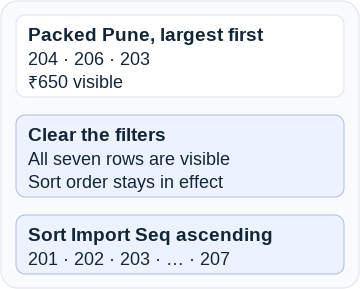
Compare the four queue states
Select the packed Pune view
Initial order is SD-204, SD-206, SD-203. Their amount total is ₹650. The Table still has seven records.
Mark SD-201 as Packed
After restoring the filter and sort, it appears after the other ₹240 orders because it arrived on the later date. Four visible records total ₹890.
Set SD-203’s amount to ₹300
Reapply the sort. SD-203 moves first, while the other three follow the tiebreakers. The total rises to ₹1,020.
Restore values and the original order
Clear filters, undo the practice value changes, then sort by Import Seq ascending. All seven IDs and ₹1,670 are available again.
Make a new row test when the Table grows
After returning to all seven original records, append SD-208, Pune, Packed, ₹240, 2 November 2026 with Import Seq 8. If you have turned on the Total Row, insert the new record above it or temporarily disable it. Confirm the Table includes the record. Reapply the original sort and the two filters. The sequence should be SD-204, SD-206, SD-208 and SD-203. The three tied ₹240 amounts share a date and use the stored order 4, 6 and 8. The visible total is ₹890 and the whole Table amount is ₹1,910. Unlike the earlier status edit, the entire source grows to eight records. Check both counts if the two cases seem alike.
Compare views that have the same amount but different records
Trace the ₹890 result back to its source change
The queue lab reaches a visible amount of ₹890 in two different ways. When SD-201 becomes Packed, it enters the existing Table view and there are four matching IDs. In the later append test, SD-201 is Pending again and the new SD-208 enters instead. Both of those individual rows are worth ₹240. The two states show four visible records and the same amount. A reviewer comparing only the amount and count could believe they saw the same result twice.
| Change from clean source | Visible sequence | Visible amount | Full source count | Full source amount |
|---|---|---|---|---|
| SD-201 becomes Packed | 204, 206, 201, 203 | 890 | 7 | 1670 |
| SD-208 appended | 204, 206, 208, 203 | 890 | 8 | 1910 |
To check a report, write down the one record that explains the difference, not just the subtotal. In the first state, the value changed in an existing source row, and the number of records and their total did not change. In the second, the source gains a new row. The relationship between the original ID and the new ID matters to the dispatch team. If the snapshot is to be used as a work queue, compare the ordered list of IDs, and send a new version when its membership changes.
Try a helper when the team changes the inclusion rule
In the original Packing copy, suppose the coordinator now wants every Packed order in Pune but also wants to see any Pending order over ₹300 for escalation. The existing City filter would exclude Nashik entirely, including the Pending SD-205 worth ₹310. The shared fields cannot be combined with independent header filters to represent this alternative across two different routes.
Add a field named Queue Review and use a short formula on each row. In the Table, enter =OR(AND([@City]="Pune",[@Status]="Packed"),AND([@Status]="Pending",[@Amount]>300)). The first inner AND checks one route, the second inner AND checks the other and OR checks whether either route passes. Clear previous City and Status filters. Filter Queue Review to TRUE. With the existing amount-first sort, expect SD-205, SD-204, SD-206 and SD-203 for a total of ₹960. SD-201 is still Pending and its amount of ₹240 does not reach the escalation threshold. Check that row as a useful failing example.
A separate Ready only control might still report three packed Pune orders and ₹650. Keep the two worksheets or named views clearly labeled. A formula calculated from all original rows can verify the helper result, and a filter can show its TRUE members for review. If somebody changes the policy to escalate Pending amounts of at least ₹300, use an exact ₹300 Pending example to confirm the border behavior. The current fixture has no Pending amount exactly 300, so the original totals alone would not reveal the difference between those two forms of the rule.
Pick the order of preparation to make checks easier
The queue case has an independently captured original sequence. When testing a multi-level sort for the first time, clear filters and inspect the entire sort key pattern. Restore the required filter afterward and verify the relative order of matching IDs. This workflow gives you more context to diagnose a row you cannot see. When the shared sorting rule is already known, you can use the filtered view as a focused working space, then reapply or rerun the full recipe after making changes to the source. The final evidence is the correct membership and sequence, not how many dropdowns you opened.
Use a small check when the view looks wrong
In a training copy of the Mini Table, suppose the lead says the ₹2,261 amount is too low. Inspect the workbook before editing any value. The Amount header has an active comparison, so some records are absent from the view. The visible count confirms five, while the independent source count is ten. The full-source amount is still ₹2,870. That accounts for a difference of ₹609 stored across the five hidden records. Once you clear the Amount restriction, those amounts should come back into the visible calculation unless another active criterion or hide still affects them.
Next consider a wrong source formula aimed at just the first five original records. Its sum is ₹916. That is a third credible-looking amount, even though it is neither the full ten nor the five over 200. The five original records are positions in a list, whereas the five displayed after the filter are a set selected by value. Counting five is not enough. Read the identities: the amount-filtered group includes BLK-1007 and BLK-1009. The original first five do not. The labels on the check sheet should describe the reference’s intended population rather than a visible record count only.
Validate sequence as a number and status as an approved label
A receipt ID is a label. Sorting a group of IDs as text can place SD-100 ahead of SD-99 because the visible prefix is the same and the following characters are compared as text. That does not say which order arrived first. Keep the separate Import Seq column numeric and check for duplicates. In the seven-record exercise, the sequence is 1 through 7. If the next import starts again at 1 and you join the two files into one Table, add a batch identifier or continue the numerical sequence so the final tiebreaker remains meaningful.
Imported status text can have a similar appearance with a different stored value. In a scratch copy, append an ordinary trailing space to one Packed label. Check the length or formula bar and compare it with the originally verified label. If the exact filter reveals a second entry or excludes that row, recover the approved status from the import’s rule before applying the view again. Keep a trace of original input when changing data for a working report. A clean read of current Status is required even when the receipt ID and amount are correct.
Test the corrected view on both a normal Packed row and the affected row. A student who fixes only the displayed label can still leave the filter in its old state. Reapply the stated rule and look for the expected IDs before reporting the new total.
When asking a coworker for help, give them a minimum reproduction that can be tested on the training list. Describe the Table name, the active field and criterion, one order you expected to see and one you expected to hide, and the current visible count and sum. A statement like “the filter is broken” leaves them guessing whether to inspect the values, the sort order, the Table boundary or the summary calculation. The details let them read the same view without changing the recorded order data.
Document and reuse the intended view
Save the recipe with the question it answers
A view is useful when a teammate can reconstruct it. The pack queue recipe is City Pune, Status Packed, then Amount highest first, earlier Order Date and original sequence. The criteria describe the work to do. The workbook can save the Table’s sort and filter criteria, and Reapply can update its results after changes to values or calculated fields. You can also write the recipe as a note on a separate check sheet. Keeping it in words helps if a teammate opens the file in a different Excel client or resets the view to inspect the complete list.
Decide what time or date the report describes. “Orders over ₹200 from 3–5 November 2026” gives a reproducible range. “This week” can represent a different set when you reopen the workbook later. If a trend check needs to compare the same week again, store an exact start and end date. If the workbook is meant for a live operational view, a relative date option can be appropriate, and it may be worth reapplying the condition after the calendar day changes. Record which behavior you intended.
In a supported shared workbook, distinguish views from data edits
Microsoft documents Sheet Views for Excel workbooks stored in OneDrive or SharePoint on supported clients. This feature lets collaborators maintain particular sorts and filters for their viewing task. Start on the correct worksheet and select View → Sheet View → New. Apply the intended sort and filter, and give the resulting view a name such as Pune packing queue. Choose an available view in the same menu to see its current results again. If you are working in a local scratch workbook, continue with the written recipe and the native Table header controls instead.
Other people with workbook access may be able to see the named views. Edits to cells are saved to the workbook even if you made them while a Sheet View was active. The view does not create a separate set of order facts. The Microsoft documentation also notes platform-specific behavior around the default view when saving or hiding rows and columns. Check the active view and shared default before editing a live team workbook. Run the practice corrections on local copies and keep the exact starting data available.
Build a safe handoff when a colleague needs only the results
Before handing off a snapshot, choose whether the recipient needs the filtered output, the complete accountable list or both. If you copy the selected view, put the result on a new scratch tab with no hidden or filtered rows and compare its IDs with the desired list. For the initial pack queue, the three IDs should be SD-204, SD-206 and SD-203, ordered as agreed, totaling ₹650. Some copy modes and clients handle invisible data differently. Review the output directly using the documented visible-copy method where applicable. The full Table file still contains the hidden orders when a filter is applied.
Troubleshoot the existing view before changing records
- The expected order cannot be found. Compare the active filters with the intended recipe. Microsoft notes that Find within filtered data searches visible records. Clear filters in the appropriate view when you need to search the whole source. Verify the expected record belongs to this Table.
- The amount changed after a sort. With the same visible membership and source values, a straightforward subtotal sum should not depend on sequence. Check for a filter that also changed, an overwritten row, a formula tied to positions, or a different set of visible IDs.
- Some identical amounts appear in an unexpected order. Read the key order in the Sort dialog. In the queue, Order Date and Import Seq distinguish the three ₹240 records after a status edit or append. Use a unique final key to make the desired sequence explicit.
- Clear shows more records but does not return the starting order. Use the saved Import Seq ascending to reconstruct that order. Undo can reverse a recent action in an appropriate practice session, but a saved sequence gives you a repeatable choice later.
- The new row stays outside the result. Confirm Table membership first. Then compare the actual date, amount or status with the filter. Reapply after an input edit so the current view can be checked against its declared criteria.
- Number Filters or Date Filters do not appear where expected. Inspect types in the source and verify a known numeric Amount and actual date first. Refresh or rerun the filter on clean values. A formatted string can look like the right type while being unsuitable for filtering.
Quiz. Predict the records and their order
How many source orders and visible orders remain after Amount greater than 200?
The source still has ten orders. Five match the Amount criterion, with a total of ₹2,261. You can clear the filter to show the other five again.
Which order appears first when the qualifying amounts are sorted largest first?
BLK-1007 at ₹1,299 appears first. Its City remains Solapur and its Status remains Delivered. The record moves as a unit.
After keeping Delivered and clearing only Amount, which amount should you verify?
The seven matching Delivered rows total ₹2,215. The earlier ₹1,801 needed both filters. Status still narrows the view, so the total is below the master amount of ₹2,870.
Why are BLK-1002 and BLK-1010 outside the fixed 3–5 November view?
The former is dated 2 November, before the start. The latter is dated 8 November, after the end. The window tests each order date against two boundaries.
Why does SD-201 follow SD-204 and SD-206 after its status becomes Packed?
They have the same amount, but SD-201 has a later order date. For the two orders tied on amount and date, recorded sequence 4 puts SD-204 ahead of SD-206 at 6.
Which result proves that clearing a filter did not undo a sort?
Compare the full visible sequence with the original Import Seq values. All seven IDs can be showing while the order remains amount-first. Sort by Import Seq ascending to restore the captured order.
Interview practice. Explain how to maintain a Table view
How do you test a combined Table sort and filter?
Write the inclusion rule and sequence rule separately. Verify which IDs remain and their amount total. Then check their order and tie decisions. A sort should move complete records while a filter chooses which records the view displays.
What controls would you show to reconcile a filtered report?
Show source count and source total separately from visible count and visible total. Confirm a group of known IDs passes. If the report changes after clearing one column’s rule, the other filter icons and verified visible IDs show which restrictions remain.
What would you do if a corrected amount did not move to the top?
Find the record by ID, verify the numeric value, confirm the sort levels and reapply or rerun the intended sort. The updated queue should start with the corrected amount when it is the largest and the record passes the filters.
How do you reproduce a view that used a fill color?
Confirm which column and exact formatting supplied the condition. Check a record with and without that color. For a repeatable business rule, store a named Review flag and verify it references the intended records even if presentation formatting changes.
Do Sheet Views allow separate edits for different people?
Sheet Views preserve viewing choices on supported shared workbooks. The cell data is still shared. Use a separate authorized copy to experiment with changing source values, and verify the default view before handing off the live workbook.
Revision cards
- Filter. Decide what must be true of a record for it to stay visible.
- Sort. Name the first key, direction and tiebreaker before ranking full records.
- Total Row. A standard SUBTOTAL sum follows visible records. Keep a full-source check as well.
- Date cutoff. Use actual dates and verify boundaries. Fixed dates make the result reproducible.
- Reapply. Recheck the saved or written criteria when source records change.
- Import Seq. Store stable arrival order values to return to the original sequence.
Microsoft references
Continue practising: explore the existing Excel Task Hub for additional exercises.