Chapter 5: Bash Scripting for Automation
5.8 Reading arguments and a full sample script
Why: the problem
Think of Nykaa. The team has one deploy script, but they use it for three apps, two environments and sometimes a dry run first. If every change means editing the script, people will edit the wrong line and deploy the wrong app. A real tool takes arguments, like a normal command: deploy.sh --app menu-api --env staging --dry-run. It checks them, shows help when they are wrong, and only then does the work. In this lesson you will learn how a script reads its arguments: positional ones like $1 and $2, and named flags like --env. You will add a help message and input checks. Then you will put everything from this chapter together in one full sample script that a team could really use.
What we will build
You will write args-demo.sh to see $0, $1, $#, $@ in action. Then you will write deploy.sh that reads --app, --env, --version and --dry-run with a while and case loop, checks the values, prints usage on error, and runs a Docker based deploy. You will run it with good and bad arguments and read the exit codes.
What: every term in plain English
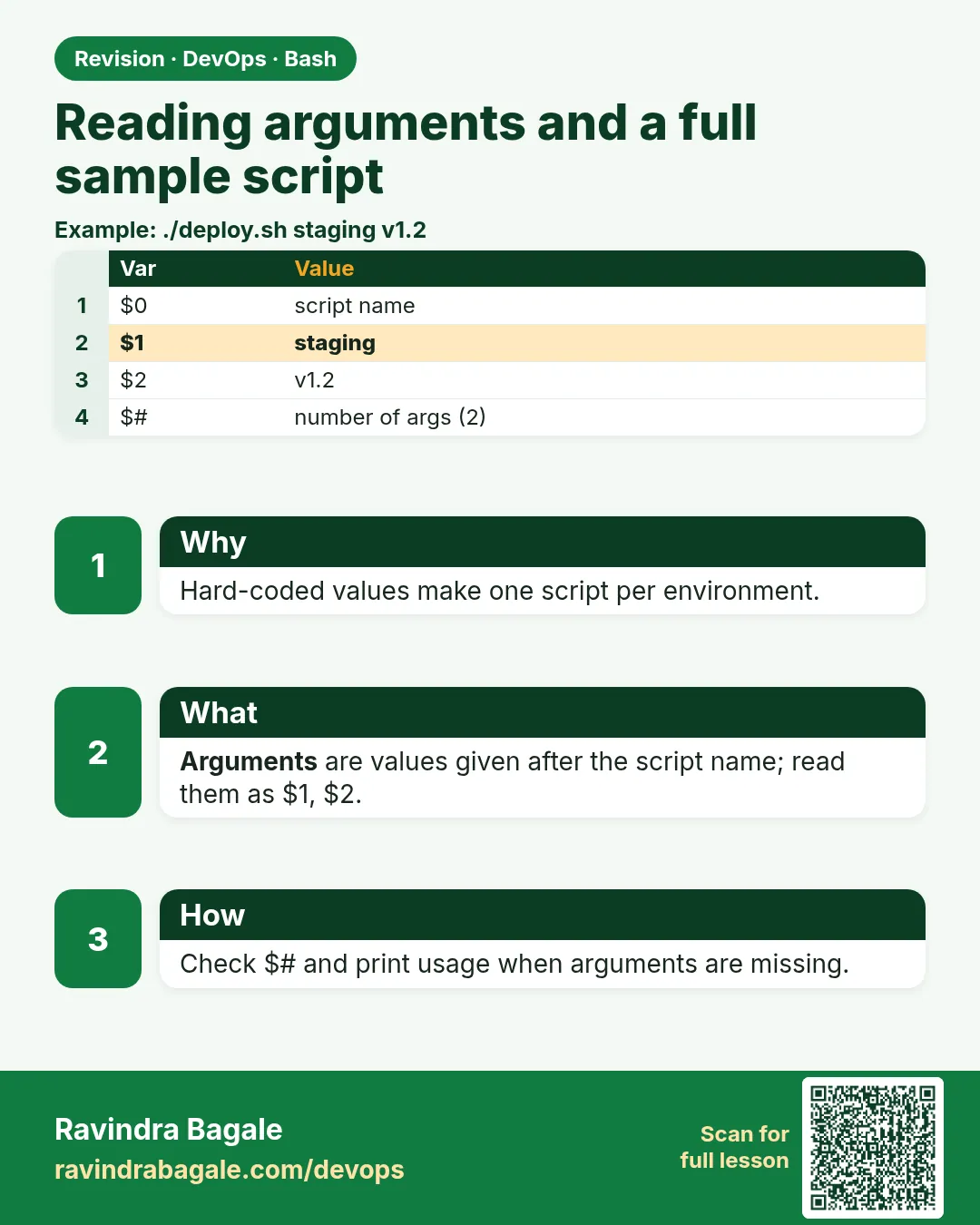
- Argument — A word you type after the script name, like staging in deploy.sh staging.
- $1, $2 ... — The first, second argument.
- $# — How many arguments were given.
- "$@" — All arguments, each kept as one word. Always quote it.
- $0 — The script name as it was called.
- shift — Drops $1 and moves the rest down by one.
- Flag — A named option like --env or -e.
- Usage message — A short help text showing how to call the script.
How: step by step
-
See positional arguments
bash args-demo.sh menu-api "big release" 3What it does: Shows how bash splits them.
Output
script: args-demo.sh count: 3 1: menu-api 2: big release 3: 3 -
Write deploy.sh
nano deploy.shWhat it does: Paste Example 2.
Output
(file saved) -
Ask for help
bash deploy.sh --helpWhat it does: Prints usage and exits 0.
Output
Usage: deploy.sh --app NAME --env staging|prod [--version TAG] [--dry-run] -
Wrong value
bash deploy.sh --app menu-api --env qa; echo "exit=$?"What it does: Rejected with exit 2.
Output
env must be staging or prod exit=2 -
Dry run
bash deploy.sh --app menu-api --env staging --version 1.5.0 --dry-runWhat it does: Shows what would happen without doing it.
Output
[dry-run] docker pull shoplab/menu-api:1.5.0 -
Real run
bash deploy.sh --app menu-api --env staging --version 1.5.0What it does: Pulls and restarts the container.
Output
deployed menu-api 1.5.0 to staging -
Check health
curl -s localhost:3000/healthWhat it does: The new version answers.
Output
{"status":"ok","version":"1.5.0"}
Example 1: See how bash reads arguments
Stack. Bash
Goal. See how bash reads arguments.
args-demo.sh
#!/usr/bin/env bash
echo "script: $(basename "$0")"
echo "count: $#"
i=1
for a in "$@"; do
  echo "$i: $a"
  i=$((i+1))
done
echo "--- after one shift ---"
shift
echo "now \$1 is: ${1:-none}"
What each line does
$(basename "$0")— The script file name without folders.$#— Number of arguments.for a in "$@"— Loop over each argument, keeping spaces inside quotes.shift— Remove the first argument.${1:-none}— First argument, or none if empty.
Green output
$ bash args-demo.sh menu-api "big release" 3
script: args-demo.sh
count: 3
1: menu-api
2: big release
3: 3
--- after one shift ---
now $1 is: big release
Expected result. "big release" stayed one argument because you quoted it and the script used "$@".
Example 2: A real deploy tool with flags, checks, help and dry run
Stack. Bash, Docker
Goal. A real deploy tool with flags, checks, help and dry run.
deploy.sh
#!/usr/bin/env bash
set -euo pipefail
usage() { echo "Usage: $(basename "$0") --app NAME --env staging|prod [--version TAG] [--dry-run]"; }
APP=""; ENV=""; VERSION="latest"; DRY=0
while [ $# -gt 0 ]; do
  case "$1" in
    --app)     APP="${2:-}"; shift 2 ;;
    --env)     ENV="${2:-}"; shift 2 ;;
    --version) VERSION="${2:-}"; shift 2 ;;
    --dry-run) DRY=1; shift ;;
    -h|--help) usage; exit 0 ;;
    *) echo "unknown option: $1"; usage; exit 2 ;;
  esac
done
[ -n "$APP" ] || { echo "--app is required"; usage; exit 2; }
case "$ENV" in staging|prod) ;; *) echo "env must be staging or prod"; exit 2 ;; esac
IMAGE="shoplab/${APP}:${VERSION}"
run() { if [ "$DRY" -eq 1 ]; then echo "[dry-run] $*"; else "$@"; fi; }
if [ "$ENV" = prod ] && [ "$DRY" -eq 0 ]; then
  read -rp "Deploy $IMAGE to PROD? type yes: " ok
  [ "$ok" = yes ] || { echo "cancelled"; exit 1; }
fi
run docker pull "$IMAGE"
run docker rm -f "$APP"
run docker run -d --name "$APP" --restart unless-stopped -p 3000:3000 -e APP_ENV="$ENV" "$IMAGE"
echo "deployed $APP $VERSION to $ENV"
What each line does
usage()— One function prints help. Reused on every error.while [ $# -gt 0 ]; do case "$1" in— Read flags one by one until none are left.APP="${2:-}"; shift 2— Take the value after the flag, then drop both words.*) ... exit 2— Unknown flag: show help and exit with code 2 (bad usage).run()— In dry run, print the command; else run it. "$@" keeps each word safe.read -rp ... type yes— Asks for confirmation before prod.
Green output
$ bash deploy.sh --app menu-api --env staging --version 1.5.0 --dry-run
[dry-run] docker pull shoplab/menu-api:1.5.0
[dry-run] docker rm -f menu-api
[dry-run] docker run -d --name menu-api --restart unless-stopped -p 3000:3000 -e APP_ENV=staging shoplab/menu-api:1.5.0
deployed menu-api 1.5.0 to staging
$ bash deploy.sh --env prod
--app is required
Usage: deploy.sh --app NAME --env staging|prod [--version TAG] [--dry-run]
Expected result. The tool refuses bad input, shows help, and lets you preview with --dry-run. Prod needs a typed yes.
Example 3: Call the same tool from Jenkins with parameters
Stack. Jenkins, Bash
Goal. Call the same tool from Jenkins with parameters.
Jenkinsfile
pipeline {
  agent { label 'linux' }
  parameters {
    choice(name: 'ENV', choices: ['staging', 'prod'])
    string(name: 'VERSION', defaultValue: '1.5.0')
    booleanParam(name: 'DRY_RUN', defaultValue: true)
  }
  stages {
    stage('Deploy') {
      steps {
        sh """
          bash deploy.sh --app menu-api --env ${params.ENV} --version ${params.VERSION} ${params.DRY_RUN ? '--dry-run' : ''}
        """
      }
    }
  }
}
What each line does
parameters { ... }— Jenkins shows a form with ENV, VERSION and DRY_RUN.choice ENV— Only staging or prod can be picked, same as the script check.booleanParam DRY_RUN— Default true, so the first click is always safe.${params.DRY_RUN ? ... }— Adds --dry-run only when ticked.Same script— Humans and Jenkins use one tool, so behaviour is the same.
Green output
[Pipeline] sh
+ bash deploy.sh --app menu-api --env staging --version 1.5.0 --dry-run
[dry-run] docker pull shoplab/menu-api:1.5.0
[dry-run] docker rm -f menu-api
[dry-run] docker run -d --name menu-api ...
deployed menu-api 1.5.0 to staging
Finished: SUCCESS
Expected result. Jenkins passes flags exactly as a person would. One tested script, many callers.
Verify: did it work?
-
Bad flag exit code
bash deploy.sh --colour red; echo "exit=$?"What it does: Must be 2.
Output
unknown option: --colour exit=2 -
Help exit code
bash deploy.sh -h; echo "exit=$?"What it does: Must be 0.
Output
Usage: ...
exit=0
When it is red 1
shift count out of range
Cause. A flag like --app was given with no value at the end.
Fix, step by step
- Use ${2:-} and check the value is not empty after the loop.
When it is red 2
Arguments with spaces split
Cause. Used $@ or $* without quotes.
Fix, step by step
- Always write "$@".
When it is red 3
Script waits forever in Jenkins
Cause. read asks for input and Jenkins has no keyboard.
Fix, step by step
- Skip the prompt in CI with a --yes flag.
- Or only prompt when a terminal exists: [ -t 0 ].
Cleanup
-
Remove the test container
docker rm -f menu-apiWhat it does: Clean the lab.
Output
menu-api -
Keep deploy.sh
ls deploy.shWhat it does: Used again in 5.9 and 5.10.
Output
deploy.sh
Ravindra Bagale's Tip
Give the script --help and --dry-run. First dry run, then the real deploy. Keep that in mind!
Script ला --help आणि --dry-run द्या. आधी dry run, मग खरंच deploy. लक्षात ठेवा!
Script को --help और --dry-run दो. पहले dry run, फिर असली deploy. याद रखो!
Practice tasks
Easy Print arguments
Why: See how bash splits words.
What to do: Run args-demo.sh with quoted and unquoted words.
- Compare counts.
Check: You can explain the difference.
Medium Add flags
Why: Tools need named options.
What to do: Add --env and --help to a script.
- Use while and case.
Check: Help and errors work.
Hard Add dry run
Why: Safe previews prevent outages.
What to do: Add a run() wrapper and --dry-run.
- Test both modes.
Check: Dry run prints, real run acts.
Easy Say arguments and flags in two lines
Why: If you can say it simply, you understand it. Juniors and interviewers both want the short version first.
What to do: Write two short lines about arguments and flags for a fresher who knows only basic Linux commands.
- Write the problem it solves.
- Write the one command or line of script you use for it.
- Read it aloud to a friend.
Check: A fresher understands it without asking a question.
Easy Make a safe lab folder
Why: Scripts can delete or overwrite files. Practice in a folder you can throw away.
What to do: Create a lab folder and work only inside it.
- mkdir -p ~/bash-lab && cd ~/bash-lab
- Run every script in this lesson from here with bash name.sh
- When done, rm -rf ~/bash-lab only after checking the path with pwd.
Check: All lab files live in ~/bash-lab and nothing else changed.
Medium Run it on a second machine
Why: A script that works only on your laptop is not finished. Servers have a different PATH, user and shell.
What to do: Copy the script to an Ubuntu EC2 or a Docker ubuntu container and run it there.
- docker run --rm -it -v "$PWD":/lab -w /lab ubuntu:24.04 bash
- Run the script.
- Note anything that changed.
Check: Same output on both machines, or you fixed the difference.
Medium Break it on purpose
Why: You must know the red message by face. In a real outage there is no time to read slowly.
What to do: Cause one error from the "When it is red" part of this lesson and fix it.
- Follow the error section.
- Copy the exact message into your notes.
- Write the fix in one line.
Check: You fixed it using only the steps, without searching the web.
Medium Check it with ShellCheck
Why: ShellCheck finds quoting bugs and mistakes before they hit a server.
What to do: Run ShellCheck on every script from this lesson.
- sudo apt install -y shellcheck
- shellcheck name.sh
- Fix each warning and run again.
Check: ShellCheck prints nothing.
Hard Explain it like an interview
Why: Interviewers want real stories, not definitions.
What to do: Record a 60 second answer about this lesson.
- Say the problem, the script line, and one error you hit.
Check: Your answer has a real command and a real error message.
Hard Draw the flow top to bottom
Why: A drawing shows the order of checks and what happens on failure.
What to do: Draw this lesson script as boxes from top to bottom.
- Start at the first line, show each if as a split, end at the exit code.
Check: Each box matches a real line in the script.
Homework: try at home
Try at home
At home, take one of your scripts and give it --help, one required flag, one optional flag and --dry-run. Test good and bad calls and note the exit codes.
Recap
- $1, $2, $# and "$@" read arguments.
- Parse flags with while, case and shift.
- Check values and print usage on errors with exit 2.
- Add --dry-run and a confirmation for prod.
- Let Jenkins call the same script with parameters.
FAQ
getopts or manual case?
getopts handles short flags like -e. Manual case is easier for long flags like --env.
Can I mix flags and positional args?
Yes, but keep it simple. Flags are clearer.
Why exit 2 for bad usage?
A common Unix habit; it separates usage errors from runtime errors.
Should prod always ask yes?
For humans, yes. For CI, use an approval step instead.
How do I show defaults in help?
Print them in usage, like --version TAG (default latest).
Interview questions
-
How do you parse command-line options in bash?
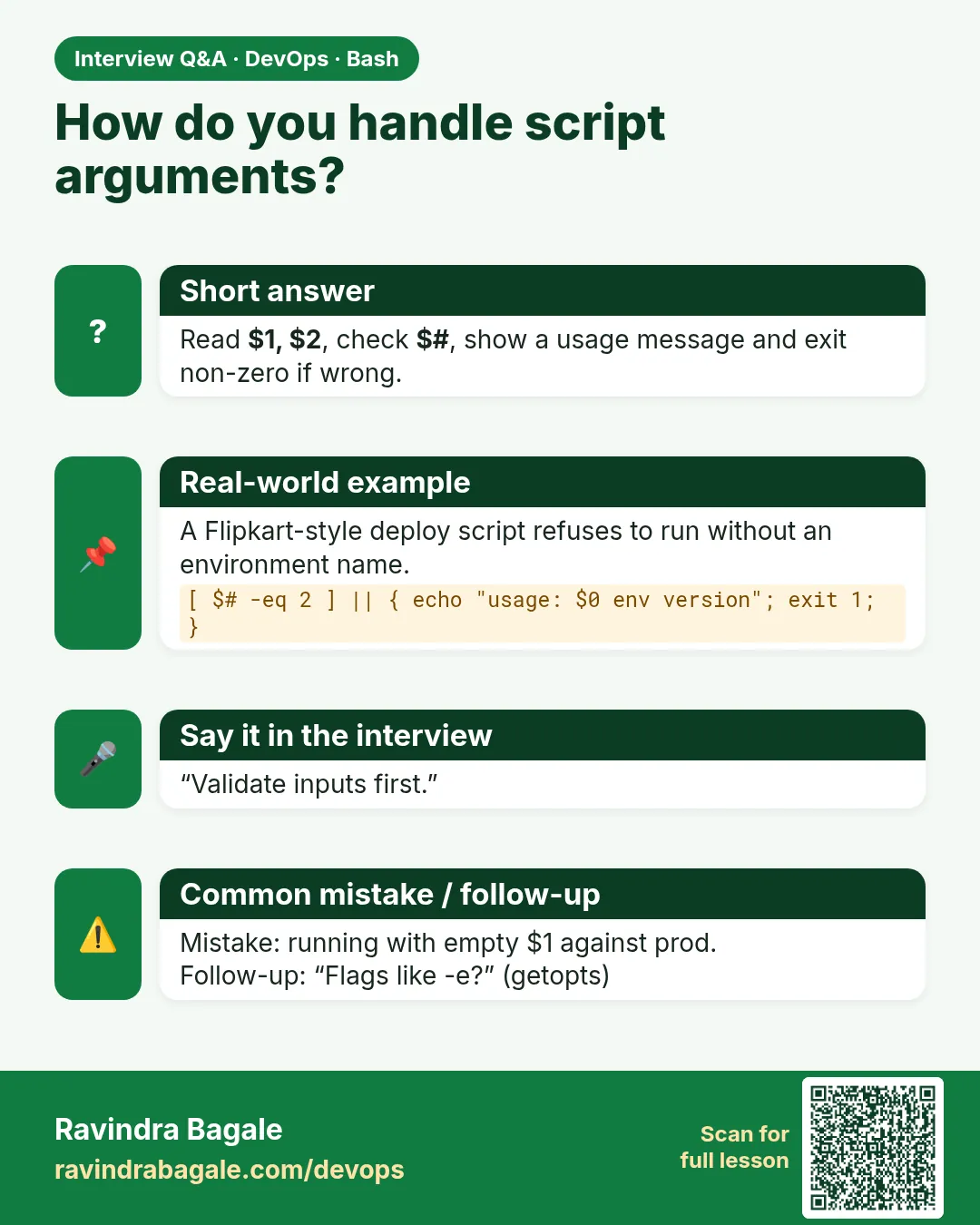
A while loop over $# with case on $1 and shift, or getopts for short options.
-
Difference between $* and "$@"?
"$@" keeps each argument separate; $* joins them into one string.
-
How do you make a script safe to try?
Add a --dry-run mode that prints commands instead of running them.
-
What exit codes do you use?
0 success, 1 runtime failure, 2 usage error, others documented.
-
How do you stop a script hanging in CI?
Avoid prompts, or check for a terminal with [ -t 0 ].
Quick quiz
Q1. What does $# hold?
The number of arguments.
Q2. Why quote "$@"?
To keep each argument as one word.
Q3. What does shift 2 do?
Drops two arguments.
Q4. Which exit code is common for bad usage?
2.
Q5. Why have --dry-run?
To preview actions safely.
Did you understand? Let us try it once more.
 Revision card
 Interview card