Chapter 5: Bash Scripting for Automation
5.6 Cron basics — schedule the script
Why: the problem
Think of BigBasket. Every night at 2 a.m. the database must be backed up. Every 5 minutes the app health must be checked. Old log files must be removed every Sunday. Nobody wants to wake up at 2 a.m. to type a command. Linux has a built-in timer for this called cron. You write one line: when to run, and what to run. Cron does the rest, every day, forever. But cron has a famous trap. A script that works perfectly in your terminal often fails under cron. Cron runs with a tiny PATH, no .bashrc, a different home folder and no screen. So commands like docker or aws are "not found", and nobody sees the error because there is no terminal. In this lesson you will schedule a script, make it fail under cron on purpose, and fix it with full paths, an environment line and a log file. You will also see systemd timers, the modern option.
What we will build
You will write backup-demo.sh that makes a tar of a folder with today date. You will add a cron line to run it every minute for testing, then change it to 2 a.m. daily. You will break it with a missing PATH and read the error from the log. You will add flock so two runs never overlap. Finally you will make a systemd timer that does the same job.
What: every term in plain English
- cron — A Linux service that runs commands at set times.
- crontab — Your personal table of cron jobs. Edit it with crontab -e.
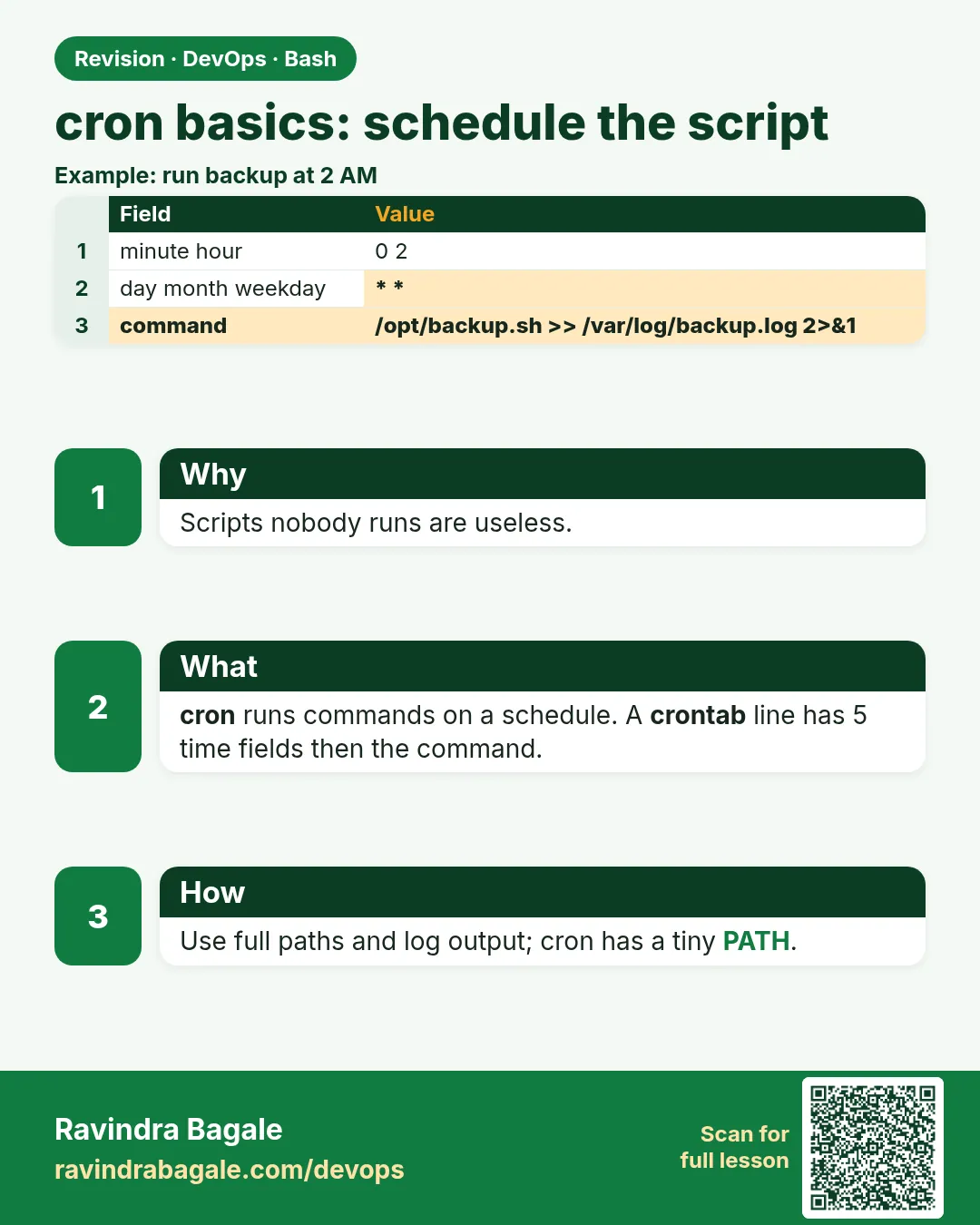
- Cron fields — Five fields: minute, hour, day of month, month, day of week. Then the command.
- */5 — Every 5 units, like every 5 minutes.
- Cron PATH — Cron uses a very short PATH, often only /usr/bin:/bin.
- Log redirect — >> file 2>&1 saves both normal output and errors to a file.
- flock — Takes a lock so a second copy of the script does not start while the first is running.
- systemd timer — A modern scheduler unit. Logs go to journalctl and missed runs can catch up.
How: step by step
-
Write the backup script
nano ~/bash-lab/backup-demo.shWhat it does: Paste Example 1.
Output
(file saved) -
Run it by hand
bash ~/bash-lab/backup-demo.sh && ls ~/backupsWhat it does: Works in your terminal.
Output
site-2026-10-25-1102.tgz -
Open your crontab
crontab -eWhat it does: Pick nano if asked.
Output
(editor opens) -
Add a test line every minute
* * * * * /usr/bin/bash /home/ravi/bash-lab/backup-demo.sh >> /home/ravi/backups/cron.log 2>&1What it does: Full paths everywhere.
Output
crontab: installing new crontab -
Watch the log
tail -f ~/backups/cron.logWhat it does: A new line every minute.
Output
2026-10-25 11:04:01 IST backup ok: site-2026-10-25-1104.tgz -
Change to 2 a.m. daily
crontab -e (change to 0 2 * * *)What it does: Real schedule.
Output
crontab: installing new crontab -
List cron jobs
crontab -lWhat it does: Shows the active lines.
Output
0 2 * * * /usr/bin/bash /home/ravi/bash-lab/backup-demo.sh >> /home/ravi/backups/cron.log 2>&1
Example 1: A backup script ready for cron
Stack. Bash, cron, tar
Goal. A backup script ready for cron.
backup-demo.sh
#!/usr/bin/env bash
set -euo pipefail
export PATH=/usr/local/bin:/usr/bin:/bin
SRC="$HOME/bash-lab"
DEST="$HOME/backups"
KEEP_DAYS=7
mkdir -p "$DEST"
name="site-$(date +%F-%H%M).tgz"
tar -czf "$DEST/$name" -C "$SRC" .
find "$DEST" -name "site-*.tgz" -mtime +"$KEEP_DAYS" -delete
echo "$(date '+%F %T %Z') backup ok: $name ($(du -h "$DEST/$name" | cut -f1))"
What each line does
export PATH=...— Sets a full PATH, because cron gives a tiny one.SRC / DEST / KEEP_DAYS— Settings at the top.tar -czf ... -C "$SRC" .— Make a compressed archive of the folder contents.find ... -mtime +7 -delete— Delete backups older than 7 days, so the disk does not fill.date '+%F %T %Z'— Timestamp with time zone for the log.du -h ... | cut -f1— Size of the new backup, like 12K.
Green output
2026-10-25 11:04:01 IST backup ok: site-2026-10-25-1104.tgz (12K)
2026-10-25 11:05:01 IST backup ok: site-2026-10-25-1105.tgz (12K)
Expected result. The log shows every run with time and size. Old backups are removed automatically.
Example 2: See the cron PATH trap and fix it
Stack. Bash, cron, Docker
Goal. See the cron PATH trap and fix it.
docker-count.sh (bad)
#!/usr/bin/env bash
echo "$(date) containers: $(docker ps -q | wc -l)"
crontab line
* * * * * /usr/bin/bash /home/ravi/bash-lab/docker-count.sh >> /home/ravi/backups/dc.log 2>&1
docker-count.sh (good)
#!/usr/bin/env bash
set -euo pipefail
DOCKER=/usr/bin/docker
echo "$(date '+%F %T') containers: $("$DOCKER" ps -q | wc -l)"
What each line does
docker ps -q— Works in your terminal because your PATH has docker.Under cron— If docker is in /usr/local/bin or snap, cron cannot find it.>> ... 2>&1— Without this, the error is lost and you never know.DOCKER=/usr/bin/docker— Full path. Find it with command -v docker.set -euo pipefail— Fail loudly instead of printing a wrong count.
Green output
# bad version log
Sun Oct 25 11:10:01 IST 2026 containers: 0
/home/ravi/bash-lab/docker-count.sh: line 2: docker: command not found
# good version log
2026-10-25 11:12:01 containers: 3
Expected result. Always use full paths or set PATH in cron scripts, and always log output.
Example 3: Stop overlapping runs with flock, and use a systemd timer
Stack. cron, flock, systemd
Goal. Stop overlapping runs with flock, and use a systemd timer.
crontab line with flock
*/5 * * * * /usr/bin/flock -n /tmp/backup.lock /usr/bin/bash /home/ravi/bash-lab/backup-demo.sh >> /home/ravi/backups/cron.log 2>&1
/etc/systemd/system/site-backup.service
[Unit]
Description=Site backup

[Service]
Type=oneshot
User=ravi
ExecStart=/usr/bin/bash /home/ravi/bash-lab/backup-demo.sh
/etc/systemd/system/site-backup.timer
[Unit]
Description=Run site backup daily at 02:00

[Timer]
OnCalendar=*-*-* 02:00:00
Persistent=true

[Install]
WantedBy=timers.target
What each line does
flock -n /tmp/backup.lock— Take a lock; if another run holds it, exit at once instead of piling up.Type=oneshot— The service runs once and exits.User=ravi— Runs as a normal user, not root.OnCalendar=*-*-* 02:00:00— Every day at 2 a.m.Persistent=true— If the server was off at 2 a.m., run soon after it starts.WantedBy=timers.target— Starts the timer at boot after enable.
Green output
$ sudo systemctl daemon-reload
$ sudo systemctl enable --now site-backup.timer
Created symlink /etc/systemd/system/timers.target.wants/site-backup.timer
$ systemctl list-timers site-backup.timer
NEXT                        LEFT     LAST  PASSED  UNIT
Mon 2026-10-26 02:00:00 IST 14h left -     -       site-backup.timer
$ sudo systemctl start site-backup.service && journalctl -u site-backup -n 1
Oct 25 11:20:03 web1 bash[4412]: 2026-10-25 11:20:03 IST backup ok: site-2026-10-25-1120.tgz (12K)
Expected result. flock keeps cron safe. The timer gives logs in journalctl and catch-up runs.
Verify: did it work?
-
Check cron ran
grep CRON /var/log/syslog | tail -2What it does: Shows cron starting your command.
Output
Oct 25 11:05:01 web1 CRON[3901]: (ravi) CMD (/usr/bin/bash /home/ravi/bash-lab/backup-demo.sh ...) -
Check backups exist
ls -1 ~/backups/*.tgz | wc -lWhat it does: More files after each run.
Output
4
When it is red 1
command not found in cron.log
Cause. Cron PATH is short.
Fix, step by step
- Use full paths, found with command -v.
- Or export PATH at the top of the script.
When it is red 2
Nothing happens and no log
Cause. The line has a typo, the file has no ending newline, or the log folder does not exist.
Fix, step by step
- crontab -l to check.
- Make sure the log folder exists.
- grep CRON /var/log/syslog.
When it is red 3
Job runs at the wrong hour
Cause. Server time zone is UTC, not IST.
Fix, step by step
- Check with timedatectl.
- Write the hour in server time, or set CRON_TZ=Asia/Kolkata at the top of the crontab.
Cleanup
-
Remove the test cron lines
crontab -l | grep -v docker-count.sh | crontab -What it does: Keeps only the real backup line.
Output
(no output) -
Remove test backups
rm -f ~/backups/site-*.tgz ~/backups/dc.logWhat it does: Clean the lab.
Output
(no output)
Ravindra Bagale's Tip
In cron use a full path and keep a log file. Otherwise nobody will see the error. Stay alert!
Cron मध्ये full path वापरा आणि log file ठेवा. नाहितर error कोणालाच दिसणार नाही. ध्यान राखो!
Cron में full path इस्तेमाल करो और log file रखो. नहीं तो error किसी को नहीं दिखेगी. ध्यान रखो!
Practice tasks
Easy Every minute test
Why: See cron work quickly.
What to do: Add a cron line that logs the date every minute.
- Check after 3 minutes.
Check: Three log lines.
Medium PATH trap
Why: Every engineer hits it once.
What to do: Break a script with a command missing from cron PATH.
- Read the log.
- Fix with full path.
Check: Log shows the fix worked.
Hard systemd timer
Why: Modern servers use timers.
What to do: Turn the backup into a timer.
- Check list-timers and journalctl.
Check: Timer shows the next run.
Easy Say cron scheduling in two lines
Why: If you can say it simply, you understand it. Juniors and interviewers both want the short version first.
What to do: Write two short lines about cron scheduling for a fresher who knows only basic Linux commands.
- Write the problem it solves.
- Write the one command or line of script you use for it.
- Read it aloud to a friend.
Check: A fresher understands it without asking a question.
Easy Make a safe lab folder
Why: Scripts can delete or overwrite files. Practice in a folder you can throw away.
What to do: Create a lab folder and work only inside it.
- mkdir -p ~/bash-lab && cd ~/bash-lab
- Run every script in this lesson from here with bash name.sh
- When done, rm -rf ~/bash-lab only after checking the path with pwd.
Check: All lab files live in ~/bash-lab and nothing else changed.
Medium Run it on a second machine
Why: A script that works only on your laptop is not finished. Servers have a different PATH, user and shell.
What to do: Copy the script to an Ubuntu EC2 or a Docker ubuntu container and run it there.
- docker run --rm -it -v "$PWD":/lab -w /lab ubuntu:24.04 bash
- Run the script.
- Note anything that changed.
Check: Same output on both machines, or you fixed the difference.
Medium Break it on purpose
Why: You must know the red message by face. In a real outage there is no time to read slowly.
What to do: Cause one error from the "When it is red" part of this lesson and fix it.
- Follow the error section.
- Copy the exact message into your notes.
- Write the fix in one line.
Check: You fixed it using only the steps, without searching the web.
Medium Check it with ShellCheck
Why: ShellCheck finds quoting bugs and mistakes before they hit a server.
What to do: Run ShellCheck on every script from this lesson.
- sudo apt install -y shellcheck
- shellcheck name.sh
- Fix each warning and run again.
Check: ShellCheck prints nothing.
Hard Explain it like an interview
Why: Interviewers want real stories, not definitions.
What to do: Record a 60 second answer about this lesson.
- Say the problem, the script line, and one error you hit.
Check: Your answer has a real command and a real error message.
Hard Draw the flow top to bottom
Why: A drawing shows the order of checks and what happens on failure.
What to do: Draw this lesson script as boxes from top to bottom.
- Start at the first line, show each if as a split, end at the exit code.
Check: Each box matches a real line in the script.
Homework: try at home
Try at home
At home, schedule a script that saves df -h output to a log every 10 minutes. After an hour, read the log, then remove the cron line.
Recap
- cron runs commands on a schedule with five time fields.
- Always use full paths and log with >> file 2>&1.
- Use flock to stop overlapping runs.
- Check server time zone before scheduling.
- systemd timers add logs and catch-up runs.
FAQ
Where are system cron jobs?
/etc/crontab and /etc/cron.d/. User jobs are in crontab -e.
Can cron send email?
If MAILTO is set and mail is configured. A log file is simpler.
How do I test a cron line?
Run it every minute first, then change the time.
Can I run every 30 seconds?
Not directly. Use a systemd timer or two lines with sleep 30.
What about Kubernetes?
Use a CronJob object. Same five fields.
Interview questions
-
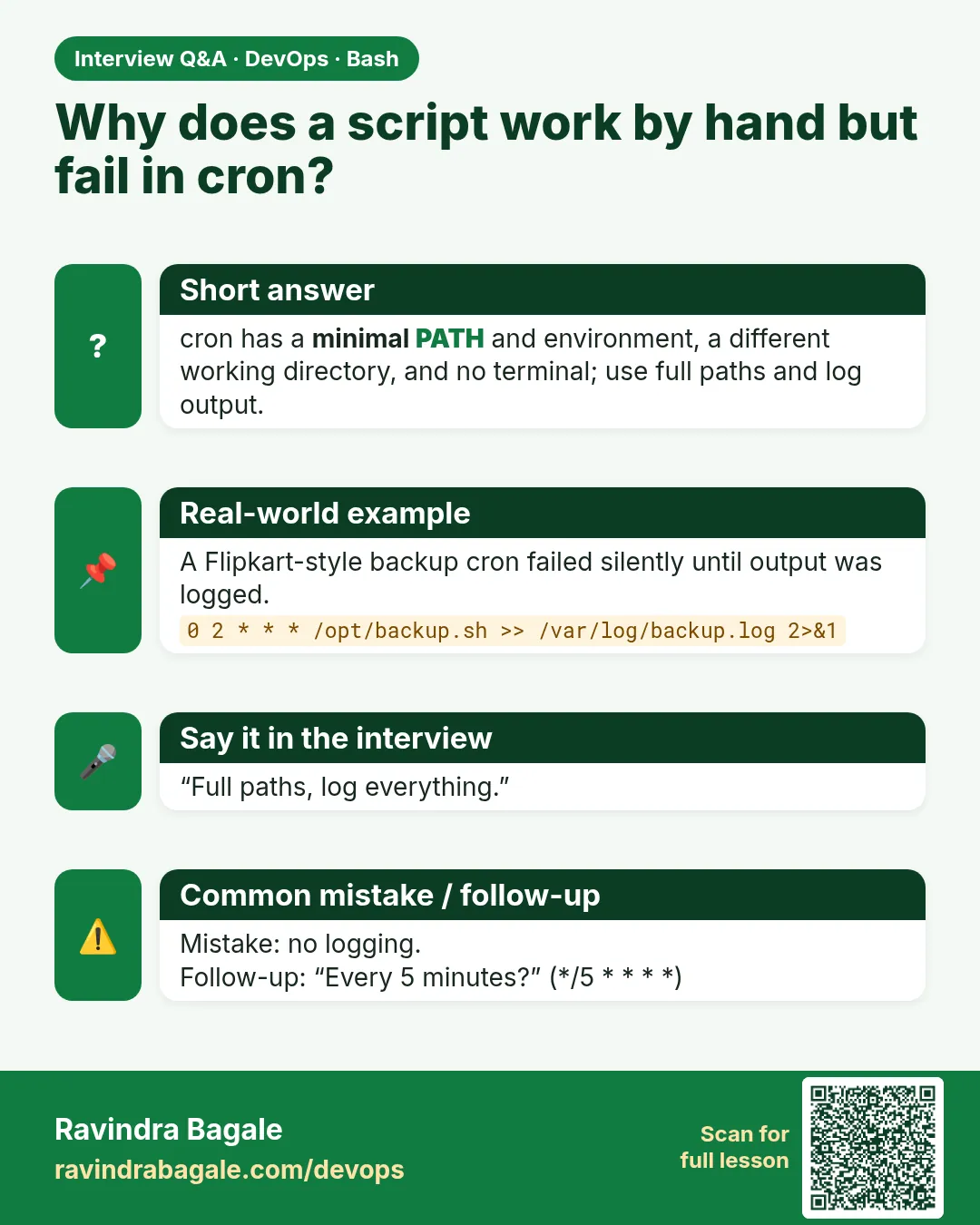
Why does a script work in the terminal but not in cron?
Cron has a minimal environment: short PATH, no profile, different working folder. Use full paths and log output.
-
Explain the cron syntax 0 2 * * 1.
At 02:00 every Monday.
-
How do you prevent overlapping cron runs?
flock -n with a lock file.
-
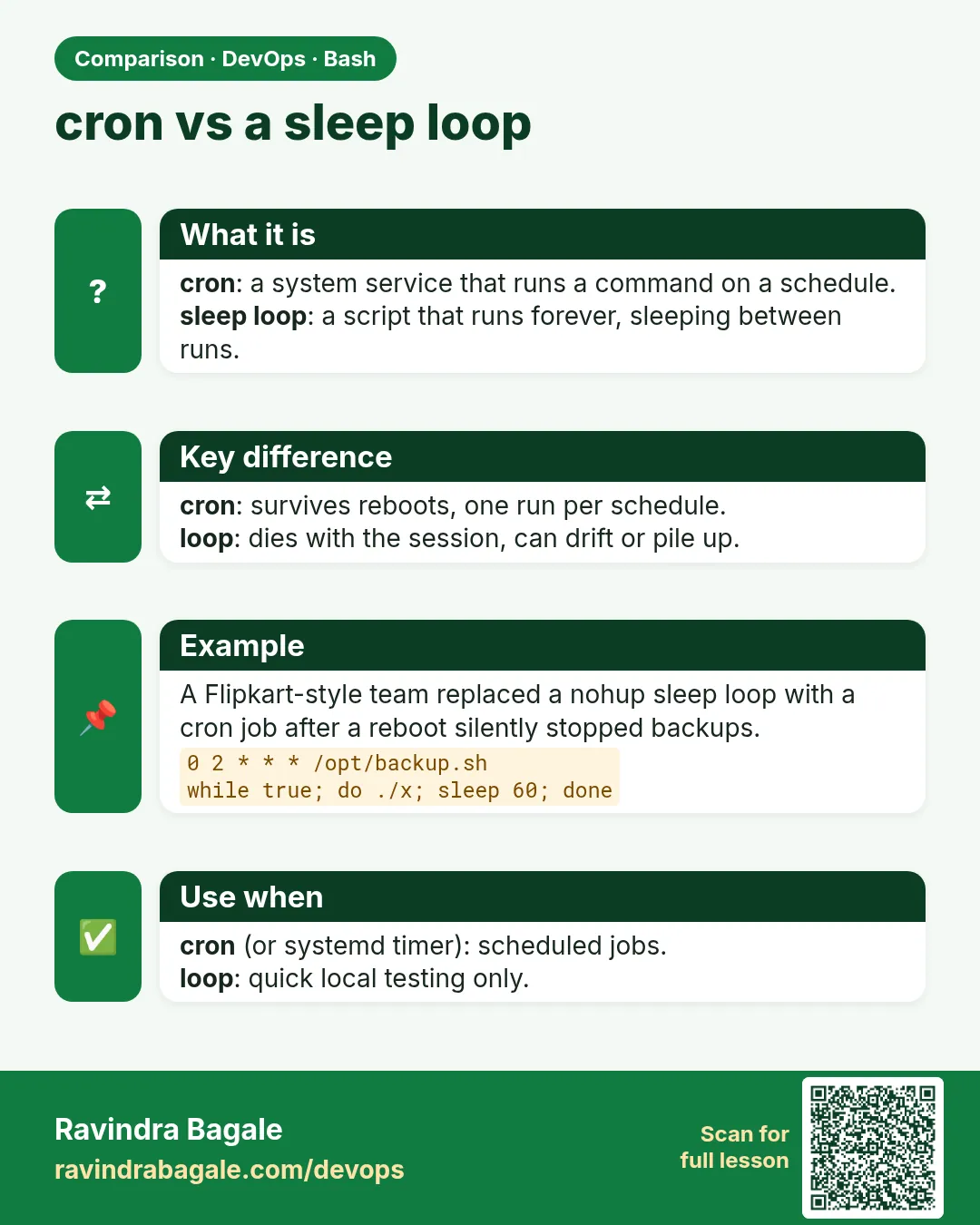
cron vs systemd timer?
Timers log to journald, handle missed runs, and have dependencies; cron is simpler and everywhere.
-
How do you know a cron job failed?
Log output to a file, check exit codes, and alert, for example with a healthcheck ping.
Quick quiz
Q1. How many time fields does cron have?
Five.
Q2. What does */5 in the minute field mean?
Every 5 minutes.
Q3. Why do scripts fail under cron?
Short PATH, no .bashrc, different environment.
Q4. What does flock -n do?
Skips the run if another is still running.
Q5. What does Persistent=true do in a timer?
Runs a missed job after boot.
Did you understand? Let us try it once more.
 Revision card
 Interview card
 Comparison card