1.2 What does “operations” mean? (say it simply)
Why: the problem
When you open Netflix and press play, you never think about servers. But someone does. Somebody makes sure the servers are up, the disk is not full, the new version is installed, logs are kept and alerts fire when things break. That is operations, or ops. In plain words, operations means the server-side work: keeping the app running for users after the code is written. At Infosys, an ops engineer might look after 50 servers for a bank client. At Zomato, the platform team keeps the order service alive during lunch rush. Many freshers think ops is just "restarting servers". It is much more. In this lesson you will do real ops work on your own machine: check if the app is up, read its logs, watch CPU, memory and disk, and turn the app into a proper service that starts by itself after a reboot. After this, the word operations will mean something you have done, not just read.
What we will build
You will take hello-shop from lesson 1.1 and do the daily jobs of an ops engineer on it: check health, read logs, check resources, and run it as a systemd service so Linux restarts it when it crashes. You will crash it on purpose and watch it come back.
What: every term in plain English
- Operations — All the work to keep an app running for users: servers, deploys, logs, alerts, backups.
- Uptime — How long a server or app has been running without stopping.
- Log — A text record of what the app did, line by line, with time.
- CPU, memory, disk — The three resources every server can run out of.
- systemd — The Linux program that starts and watches services, like nginx or our app.
- Service — A program that runs in the background all the time.
- Restart policy — A rule that says what to do when the app stops, for example start it again.
- On-call — The person who answers alerts at night for that week.
How: step by step
-
Check the machine is alive
uptimeWhat it does: Shows how long the machine is up and how busy it is.
Output
18:20:01 up 3 days, 2:11, 1 user, load average: 0.05, 0.03, 0.00 -
Check disk
df -h /What it does: A full disk is the number one cause of night calls.
Output
/dev/root 30G 12G 18G 40% / -
Check memory
free -mWhat it does: If available is near 0, apps get killed.
Output
Mem: 3911 1210 1820 2 880 2450 -
Create the service file
sudo nano /etc/systemd/system/hello-shop.serviceWhat it does: Paste the unit from Example 2.
Output
(file saved) -
Load and start it
sudo systemctl daemon-reload && sudo systemctl enable --now hello-shopWhat it does: enable = start on boot; --now = start now.
Output
Created symlink /etc/systemd/system/multi-user.target.wants/hello-shop.service -
Check status
systemctl status hello-shop --no-pager | head -5What it does: Look for active (running).
Output
● hello-shop.service - hello-shop demo app Active: active (running) since Sun 2026-10-25 18:21:40 IST -
Read its logs
journalctl -u hello-shop -n 5 --no-pagerWhat it does: journalctl shows what systemd saved.
Output
Oct 25 18:21:40 lab python3[5012]: hello-shop v1 listening on :8000
Example 1: Write a one-screen ops check for the server
Stack. Bash, procps, curl
Goal. Write a one-screen ops check for the server.
opscheck.sh
#!/usr/bin/env bash
echo "== up since";   uptime -p
echo "== load";       cut -d" " -f1-3 /proc/loadavg
echo "== disk /";     df -h / | tail -1
echo "== memory";     free -m | awk '/Mem:/ {print "used " $3 " MB of " $2 " MB"}'
echo "== top 3 CPU";  ps -eo pid,comm,%cpu --sort=-%cpu | head -4
echo "== app";        curl -fsS --max-time 3 localhost:8000/health || echo "APP DOWN"
What each line does
uptime -p— Pretty uptime, like up 3 days.cut ... /proc/loadavg— The 1, 5 and 15 minute load numbers.df -h / | tail -1— Only the disk line, without the header.awk '/Mem:/ ...'— Prints memory used in one readable line.ps ... --sort=-%cpu | head -4— The three busiest programs.curl -fsS ... || echo "APP DOWN"— If health fails, print a clear warning.
Green output
== up since
up 3 days, 2 hours, 11 minutes
== load
0.05 0.03 0.00
== disk /
/dev/root        30G   12G   18G  40% /
== memory
used 1210 MB of 3911 MB
== top 3 CPU
    PID COMMAND         %CPU
   5012 python3          0.3
    812 dockerd          0.2
    401 systemd-journal  0.1
== app
ok
Expected result. One command gives the morning picture of a server. Ops people run checks like this many times a day.
Example 2: Run hello-shop as a real Linux service that restarts itself
Stack. systemd, Ubuntu 24.04
Goal. Run hello-shop as a real Linux service that restarts itself.
/etc/systemd/system/hello-shop.service
[Unit]
Description=hello-shop demo app
After=network.target

[Service]
User=ravi
WorkingDirectory=/home/ravi/devops-lab/hello-shop
Environment=APP_VERSION=v1
Environment=PORT=8000
ExecStart=/usr/bin/python3 app.py
Restart=always
RestartSec=2

[Install]
WantedBy=multi-user.target
What each line does
[Unit] Description— A human name shown in status.After=network.target— Start after the network is ready.User=ravi— Run as a normal user, never as root. Change ravi to your user.WorkingDirectory=— The folder where app.py lives.Environment=APP_VERSION=v1— Same as typing APP_VERSION=v1 before the command.Restart=always— If the app dies, start it again.RestartSec=2— Wait 2 seconds before restarting.WantedBy=multi-user.target— Start it on normal boot.
Green output
$ sudo systemctl enable --now hello-shop
Created symlink /etc/systemd/system/multi-user.target.wants/hello-shop.service → /etc/systemd/system/hello-shop.service.
$ curl -s localhost:8000
hello-shop v1: cart is working
Expected result. The app now runs without a terminal open and starts again after a reboot.
Example 3: Crash the app on purpose and watch self-healing
Stack. systemd
Goal. Crash the app on purpose and watch self-healing.
crash-test.sh
#!/usr/bin/env bash
pid=$(systemctl show -p MainPID --value hello-shop)
echo "app PID before: $pid"
sudo kill -9 "$pid"
echo "killed. waiting 3 seconds..."
sleep 3
echo "app PID after: $(systemctl show -p MainPID --value hello-shop)"
curl -s localhost:8000; echo
journalctl -u hello-shop -n 3 --no-pager
What each line does
systemctl show -p MainPID --value— Gets the PID of the running app from systemd.sudo kill -9 "$pid"— Kills it hard, like a real crash.sleep 3— Gives systemd time to restart it.curl -s localhost:8000— Proves the app answers again.journalctl -u hello-shop -n 3— Shows the crash and restart lines.
Green output
app PID before: 5012
killed. waiting 3 seconds...
app PID after: 5090
hello-shop v1: cart is working
Oct 25 18:25:02 lab systemd[1]: hello-shop.service: Main process exited, code=killed, status=9/KILL
Oct 25 18:25:04 lab systemd[1]: hello-shop.service: Scheduled restart job, restart counter is at 1.
Oct 25 18:25:04 lab python3[5090]: hello-shop v1 listening on :8000
Expected result. A new PID means a new process. Users saw only a 2 second gap. Docker and Kubernetes do the same thing at a bigger scale later in this course.
Verify: did it work?
-
Is it enabled for boot?
systemctl is-enabled hello-shopWhat it does: enabled means it starts after reboot.
Output
enabled -
Is it running?
systemctl is-active hello-shopWhat it does: active means running now.
Output
active -
Follow logs live
journalctl -u hello-shop -fWhat it does: Press Ctrl+C to stop following.
Output
Oct 25 18:26:10 lab python3[5090]: 127.0.0.1 - - "GET / HTTP/1.1" 200 -
When it is red 1
hello-shop.service: Failed at step CHDIR spawning /usr/bin/python3: No such file or directory
Cause. WorkingDirectory points to a folder that does not exist.
Fix, step by step
- Run: ls /home/ravi/devops-lab/hello-shop
- Fix the path in the unit file.
- sudo systemctl daemon-reload && sudo systemctl restart hello-shop
When it is red 2
Warning: The unit file changed on disk. Run systemctl daemon-reload
Cause. You edited the unit but systemd still uses the old copy.
Fix, step by step
- sudo systemctl daemon-reload
- sudo systemctl restart hello-shop
When it is red 3
hello-shop.service: Start request repeated too quickly.
Cause. The app crashes at start again and again, so systemd gave up.
Fix, step by step
- journalctl -u hello-shop -n 20 --no-pager to read the real error.
- Fix app.py or the port clash.
- sudo systemctl reset-failed hello-shop && sudo systemctl start hello-shop
Cleanup
-
Stop and disable the service
sudo systemctl disable --now hello-shopWhat it does: Stops it and removes the boot link.
Output
Removed "/etc/systemd/system/multi-user.target.wants/hello-shop.service". -
Remove the unit file
sudo rm /etc/systemd/system/hello-shop.service && sudo systemctl daemon-reloadWhat it does: Leaves the system clean.
Output
(no output)
Ravindra Bagale's Tip
Operations is not only restart. Disk, memory, logs, alerts and backup are all part of it. Build the habit of running one check script every day.
Operations म्हणजे फक्त restart नाही. Disk, memory, logs, alerts, backup सगळं यात येतं. रोज एक check script चालवायची सवय लावा.
Operations सिर्फ restart नहीं है. Disk, memory, logs, alerts, backup सब इसमें आता है. रोज़ एक check script चलाने की आदत डालो.
Practice tasks
Easy Run opscheck.sh
Why: Ops starts with seeing the state.
What to do: Run opscheck.sh and explain each line.
- Write one sentence per section.
Check: You can explain load, disk, memory and health.
Medium Make hello-shop a service
Why: Apps must survive reboots and crashes.
What to do: Install the unit and start it.
- Change User and WorkingDirectory to yours.
Check: systemctl is-active prints active.
Hard Prove self-healing
Why: Trust needs proof.
What to do: Kill the app and show it came back.
- Run crash-test.sh.
Check: The PID changes and curl still works.
Easy Say operations work in two lines
Why: If you can say it simply, you understand it. Interviewers want the short version first.
What to do: Write two short lines about operations work for a fresher who knows only basic Linux.
- Write the problem it solves.
- Write one real command or file that shows it.
- Read it aloud to a friend.
Check: A fresher understands it without asking a question.
Easy Make a safe lab folder
Why: Practice needs a place you can throw away. Then mistakes cost nothing.
What to do: Create a lab folder for this chapter and work only inside it.
- mkdir -p ~/devops-lab && cd ~/devops-lab
- Run every command of this lesson from here.
- Check with pwd before you delete anything.
Check: All lab files live in ~/devops-lab.
Medium Repeat it in a container
Why: Your laptop is not the server. A clean Ubuntu container shows what a fresh server needs.
What to do: Run the main steps of this lesson again inside an Ubuntu container.
- docker run --rm -it -v "$PWD":/lab -w /lab ubuntu:24.04 bash
- apt update and install what is missing.
- Note every missing tool.
Check: Same result inside the container, or a list of what you had to install.
Medium Break it on purpose
Why: You must know the red message by face. In an outage there is no time to read slowly.
What to do: Cause one error from the "When it is red" part of this lesson and fix it.
- Follow the error section.
- Copy the exact message into your notes.
- Write the fix in one line.
Check: You fixed it using only the steps, without searching the web.
Medium Write a one-page runbook
Why: At 2 a.m. nobody remembers the right command. A short page saves the on-call person.
What to do: Write a runbook page for this lesson.
- Title, when to use, exact command, how to check, how to undo.
Check: A teammate can follow it alone.
Hard Explain it like an interview
Why: Interviewers want real stories, not definitions.
What to do: Record a 60 second answer about this lesson.
- Say the problem, the command or file you used, and one error you hit.
Check: Your answer has a real command and a real error message.
Hard Draw the flow top to bottom
Why: A drawing shows who does what and in which order.
What to do: Draw this lesson as boxes from top to bottom.
- Start at the developer laptop, end at the user on the website.
Check: Each box matches a real thing you ran.
Homework: try at home
Try at home
At home, list the services already running on your Linux machine with systemctl list-units --type=service --state=running. Pick three, find what each one does, and read its last 10 log lines with journalctl.
Recap
- Operations is the work of keeping apps alive for users.
- Daily checks: uptime, disk, memory, CPU, health URL.
- systemd runs apps as services and restarts them.
- journalctl shows what happened, with time.
- Self-healing first appears in systemd, then in Docker and Kubernetes.
FAQ
Is ops less important than dev?
No. Users only see an app that ops keeps running. Both matter.
What is SRE?
Site Reliability Engineering, Google's way of doing ops with software engineering and error budgets.
Do containers replace systemd?
Inside servers, Docker and Kubernetes take over many systemd jobs for apps, but the server itself still uses systemd.
Why not run the app as root?
If it is hacked, the attacker gets the whole server. A normal user limits the damage.
What is a good first ops habit?
Check disk, memory and the health URL before and after every change.
Interview questions
-
What does an operations engineer do?
Keeps services available: deploys, monitoring, logs, capacity, backups, incident response.
-
How do you make an app start on boot in Linux?
Write a systemd unit with WantedBy=multi-user.target and run systemctl enable --now.
-
How do you find why a service failed?
systemctl status NAME and journalctl -u NAME -n 50.
-
What is self-healing?
The platform notices a crash and restarts the app without a human, for example systemd Restart=always or Kubernetes.
-
What would you check first when a site is slow?
Load, CPU, memory, disk, then app logs and the health URL.
Quick quiz
Q1. What does operations mean?
Keeping the app running for users after it is written: servers, deploys, logs, alerts, backups.
Q2. Which command shows service logs?
journalctl -u NAME
Q3. What does Restart=always do?
Starts the app again when it stops.
Q4. What does systemctl enable do?
Makes the service start at boot.
Q5. What are the three resources a server runs out of?
CPU, memory and disk.
Did you understand? Let us try it once more.
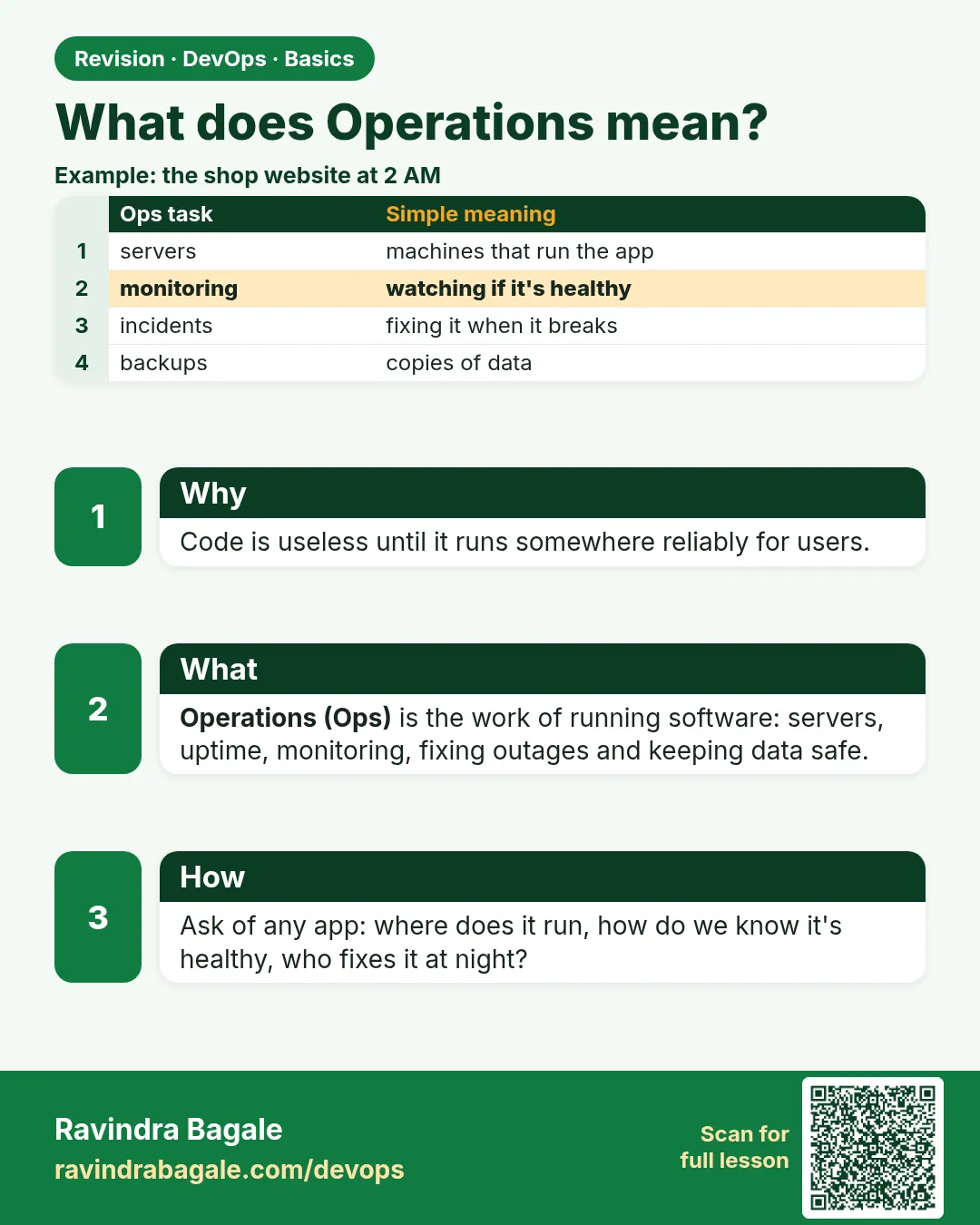 Revision card
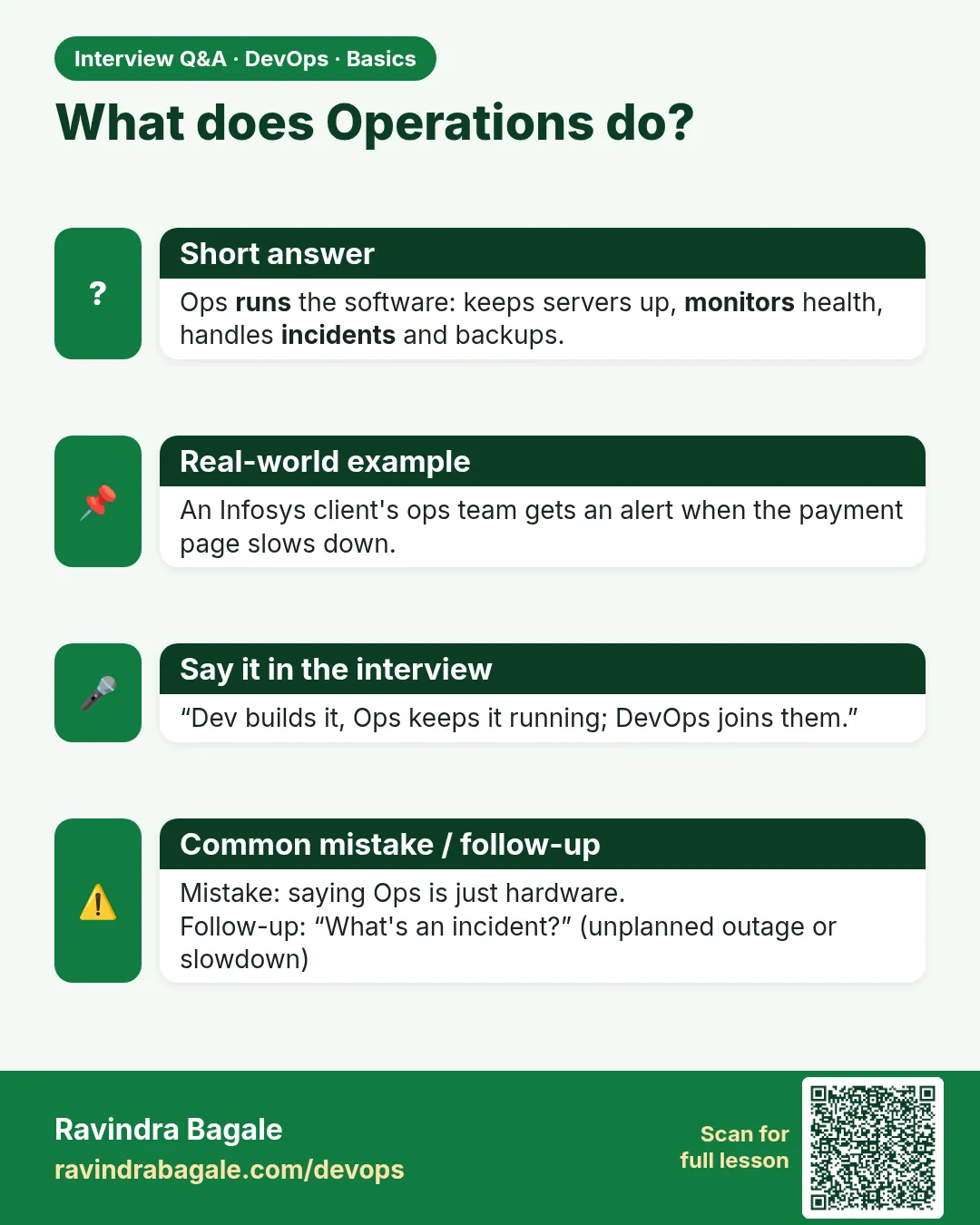 Interview card