8.6 Manual approval for production — when and why
Why: the problem
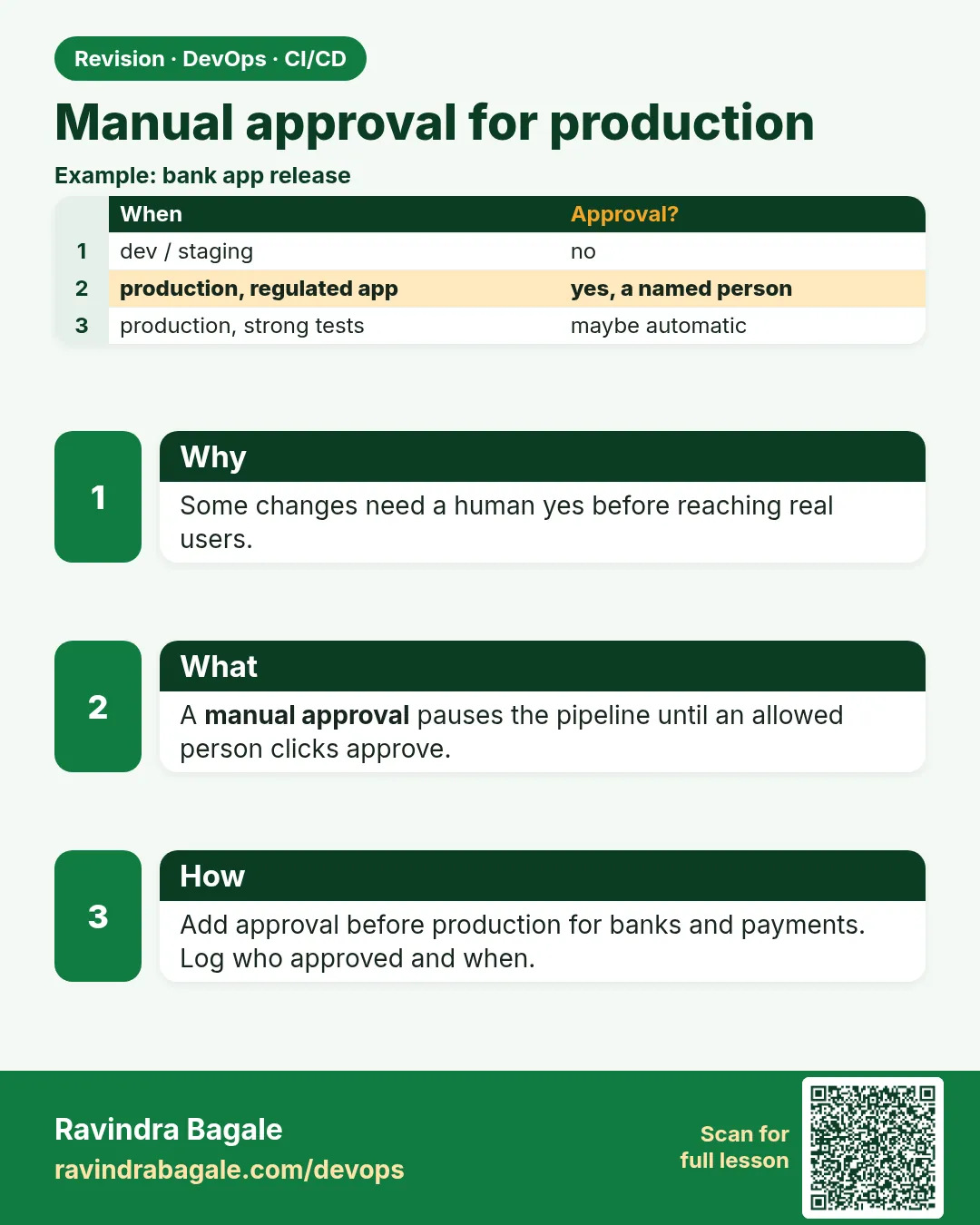
A bank app team at TCS ships to production every Thursday. The bank has a rule: a named person must say yes before any change reaches real customers. This is not because they distrust the pipeline. It is because of law and audit. If something goes wrong, the bank must show who approved it and when. Other teams, like Netflix, ship automatically all day with no human button. Both are right for their world. A manual approval is a pause in the pipeline. The pipeline builds and tests, deploys to staging, then waits. A reviewer looks at staging and clicks Approve. Only then does the deploy to production start. Use it when the risk is high or the law asks for it. Do not use it everywhere, or people will click Approve without looking, which is worse than no button.
What we will build
You will add a manual approval step before the production deploy of the badge API in GitHub Actions (environment reviewers), GitLab CI (when: manual and protected environments) and Jenkins (input step). You will also make the approval leave an audit record: who, when and which version.
What: every term in plain English
- Manual approval — A pause in the pipeline that waits for a named person to click Approve.
- Reviewer or approver — The person allowed to approve. Often a lead or release manager.
- Audit trail — A record of who approved which version and when.
- Protected environment — An environment where only some people can deploy or approve.
- Deployment window — Times when prod deploys are allowed, like weekdays 10 a.m. to 4 p.m.
- Separation of duties — The person who wrote the code is not the one who approves it.
- Timeout for approval — If nobody approves in time, the run ends instead of waiting forever.
How: step by step
-
Make the production environment
Repo Settings > Environments > New environment > productionWhat it does: A place to attach rules.
Output
Environment "production" created -
Add required reviewers
production > Required reviewers > add ravi-leadWhat it does: Now deploy jobs to production must wait for this person.
Output
1 required reviewer -
Block self-approval
Tick "Prevent self-review"What it does: The person who pushed cannot approve their own deploy.
Output
Prevent self-review: on -
Allow only main
Deployment branches > Selected branches > mainWhat it does: Feature branches can never deploy to prod.
Output
main -
Push and watch the wait
git push origin mainWhat it does: The pipeline goes to staging, then shows "Waiting for review".
Output
deploy-prod waiting -
Approve
Open the run > Review deployments > tick production > Approve and deployWhat it does: The deploy job starts. The approval is logged.
Output
Approved by ravi-lead
Example 1: Approval through environment reviewers (GitHub Actions)
Stack. GitHub Actions
Goal. Approval through environment reviewers (GitHub Actions).
.github/workflows/cicd.yml (prod job)
deploy-prod:
  needs: deploy-staging
  runs-on: ubuntu-latest
  environment:
    name: production
    url: https://badge.example.com
  steps:
    - run: echo "Approved by ${{ github.triggering_actor }} for ${{ github.sha }}"
    - run: ./deploy.sh prod ${{ github.sha }}
    - run: curl -fsS https://badge.example.com/health
What each line does
environment: name: production— This one line connects the job to the reviewer rule you set in Settings.No approval code in YAML— The pause comes from the environment rule, not from a step.github.triggering_actor— Prints who started the run, for the log.curl -fsS— Smoke test after deploy.
Green output
deploy-staging  succeeded
deploy-prod     Waiting for review: production needs approval from ravi-lead
... ravi-lead approved ...
deploy-prod     succeeded  {"env":"prod","status":"ok"}
Expected result. The run page and the environment history both show who approved and when.
Example 2: A manual job in GitLab CI with a protected environment
Stack. GitLab CI
Goal. A manual job in GitLab CI with a protected environment.
.gitlab-ci.yml (prod job)
deploy-prod:
  stage: deploy
  needs: [deploy-staging]
  environment:
    name: production
    url: https://badge.example.com
  rules:
    - if: $CI_COMMIT_BRANCH == "main"
      when: manual
  allow_failure: false
  script:
    - echo "deploy $CI_COMMIT_SHORT_SHA by $GITLAB_USER_LOGIN"
    - ./deploy.sh prod "$CI_COMMIT_SHORT_SHA"
What each line does
when: manual— The job shows a play button and waits for a click.allow_failure: false— The pipeline shows as blocked, not passed, until someone runs it.$GITLAB_USER_LOGIN— Who clicked play. Saved in the log.Protected environment— Settings > CI/CD > Protected environments > production > Allowed to deploy: Maintainers.
Green output
deploy-staging  passed
deploy-prod     manual   (play button)
$ echo "deploy a3f2c1d by ravi.lead"
deploy a3f2c1d by ravi.lead
Job succeeded
Expected result. Only maintainers see the play button. The environment page lists every deploy with the user name.
Example 3: The input step in Jenkins, with a timeout
Stack. Jenkins
Goal. The input step in Jenkins, with a timeout.
Jenkinsfile (prod part)
stage('Approve prod') {
    when { branch 'main' }
    steps {
        timeout(time: 2, unit: 'HOURS') {
            input message: "Deploy ${env.GIT_COMMIT.take(7)} to production?",
                  ok: 'Deploy',
                  submitter: 'release-managers',
                  submitterParameter: 'APPROVER'
        }
    }
}
stage('Deploy prod') {
    when { branch 'main' }
    steps {
        sh './deploy.sh prod $GIT_COMMIT'
    }
}
What each line does
input message:— Jenkins pauses and shows a box with Deploy and Abort.submitter: 'release-managers'— Only this group can click Deploy.submitterParameter— Saves the approver name in a variable for the log.timeout(time: 2, unit: HOURS)— If nobody clicks in 2 hours, the build is aborted, not left hanging.agent note— Put input outside a heavy agent block so it does not hold an executor while waiting.
Green output
[Pipeline] { (Approve prod)
[Pipeline] input
Deploy a3f2c1d to production?
Deploy or Abort
Approved by ravi.lead
[Pipeline] { (Deploy prod)
+ ./deploy.sh prod a3f2c1d
Finished: SUCCESS
Expected result. The build log says who approved. That line is your audit record.
Verify: did it work?
-
Check the audit record
Open Environments > production > deployment historyWhat it does: Each row shows version, time and approver.
Output
a3f2c1d 25 Oct 2026 11:40 approved by ravi-lead -
Check self-approval is blocked
Push yourself and try to approveWhat it does: The Approve button must be grey for you.
Output
You cannot approve your own deployment
When it is red 1
Waiting for review... (for days)
Cause. Nobody is set as reviewer, or the reviewer did not get the notice.
Fix, step by step
- Check Settings > Environments > production > Required reviewers.
- Add a team, not one person, so someone is always there.
- Add a timeout so old runs end.
When it is red 2
Rejected by ravi-lead
Cause. The reviewer clicked Reject after looking at staging.
Fix, step by step
- Read the comment the reviewer left.
- Fix the issue, push again.
- The new commit goes through staging and approval again.
When it is red 3
Branch "feature/x" is not allowed to deploy to production due to environment protection rules.
Cause. Someone tried to deploy prod from a feature branch.
Fix, step by step
- Merge to main through a pull request.
- Deploy from main only.
Cleanup
-
Nothing to clean
echo "approvals are kept as audit history"What it does: Do not delete deploy history. Auditors need it.
Output
approvals are kept as audit history
Ravindra Bagale's Tip
Trust the approve button, but do not put it on every change. Otherwise people approve without looking. Keep that in mind!
Approve button वर विश्वास ठेवा, पण प्रत्येक change वर लावू नका. नाहीतर लोक न बघता approve करतात. लक्षात ठेवा!
Approve button पर भरोसा रखो, लेकिन हर change पर मत लगाओ. नहीं तो लोग देखे बिना approve कर देते हैं. याद रखो!
Practice tasks
Easy Find the approval in history
Why: Read an audit record.
What to do: Open the environment history after an approved deploy.
- Note who and when.
Check: You can name the approver.
Medium Reject on purpose
Why: Know the reject path.
What to do: Ask your reviewer to reject a deploy.
- Read the comment.
- Push a fix.
Check: The second run is approved.
Hard Add a deploy window
Why: Stop Friday night deploys.
What to do: Add a check that fails the prod job outside 10:00 to 16:00 IST on weekdays.
- Use date +%u and date +%H in a script.
Check: A run outside the window fails with a clear message.
Easy Say manual approval for production in two lines
Why: If you can say it simply, you understand it. Juniors and interviewers both want the short version first.
What to do: Write two short lines about manual approval for production for a fresher who knows only Linux, Git and Docker basics.
- Write the problem it solves.
- Write the one pipeline line or command you use for it.
- Read it aloud to a friend.
Check: A fresher understands it without asking a question.
Easy Keep a throwaway lab repo
Why: Practice needs a repo you can break. If it gets messy, you delete it and start again.
What to do: Make a small practice repo called badge-api with one Python file, one test and one Dockerfile.
- mkdir badge-api and cd into it
- git init -b main
- Add app.py, test_app.py and Dockerfile from this chapter, then commit.
Check: git log shows one commit and pytest prints 1 passed.
Medium Do it in a second CI tool
Why: CI/CD is the idea. The tool is only the syntax. The same stages must work in GitHub Actions, GitLab CI and Jenkins.
What to do: Write the pipeline from this lesson in a second CI tool.
- If you used GitHub Actions, write .gitlab-ci.yml or a Jenkinsfile now.
- Keep the same stage names and the same commands.
- Only the wrapper syntax should change.
Check: Same green result, same stage names, different tool.
Medium Break it on purpose
Why: You must know the red log by face. In a real outage there is no time to read slowly.
What to do: Cause one error from the "When it is red" part of this lesson and fix it.
- Follow the error section.
- Copy the exact red line from the job log into your notes.
- Write the fix in one line.
Check: You fixed it using only the steps, without searching the web.
Medium Write a one-page runbook
Why: At 2 a.m. nobody remembers pipeline menus. A short page saves the on-call person.
What to do: Write a one-page runbook for this lesson.
- Title, when to use, exact steps or pipeline lines, how to check, how to undo.
Check: A teammate can follow it alone.
Hard Explain it like an interview
Why: Interviewers want real stories, not definitions.
What to do: Record a 60 second answer about this lesson.
- Say the problem, the pipeline lines you wrote, and one error you hit.
Check: Your answer has a real pipeline line and a real error message.
Hard Draw the flow top to bottom
Why: A drawing shows the order of work and which stage waits for which.
What to do: Draw this lesson as boxes from top to bottom.
- Start at git push, go through each stage, end at the green run or the deployed app.
Check: Each box matches a real line in your job log.
Homework: try at home
Try at home
At home, make a production environment with yourself and a friend as reviewers, turn on prevent self-review, and run one deploy that your friend approves.
Recap
- Manual approval is a pause before production.
- Use it when risk or law needs it.
- Reviewers should not be the authors.
- Approvals leave an audit trail.
- Add timeouts and allow only main.
FAQ
Is manual approval against DevOps?
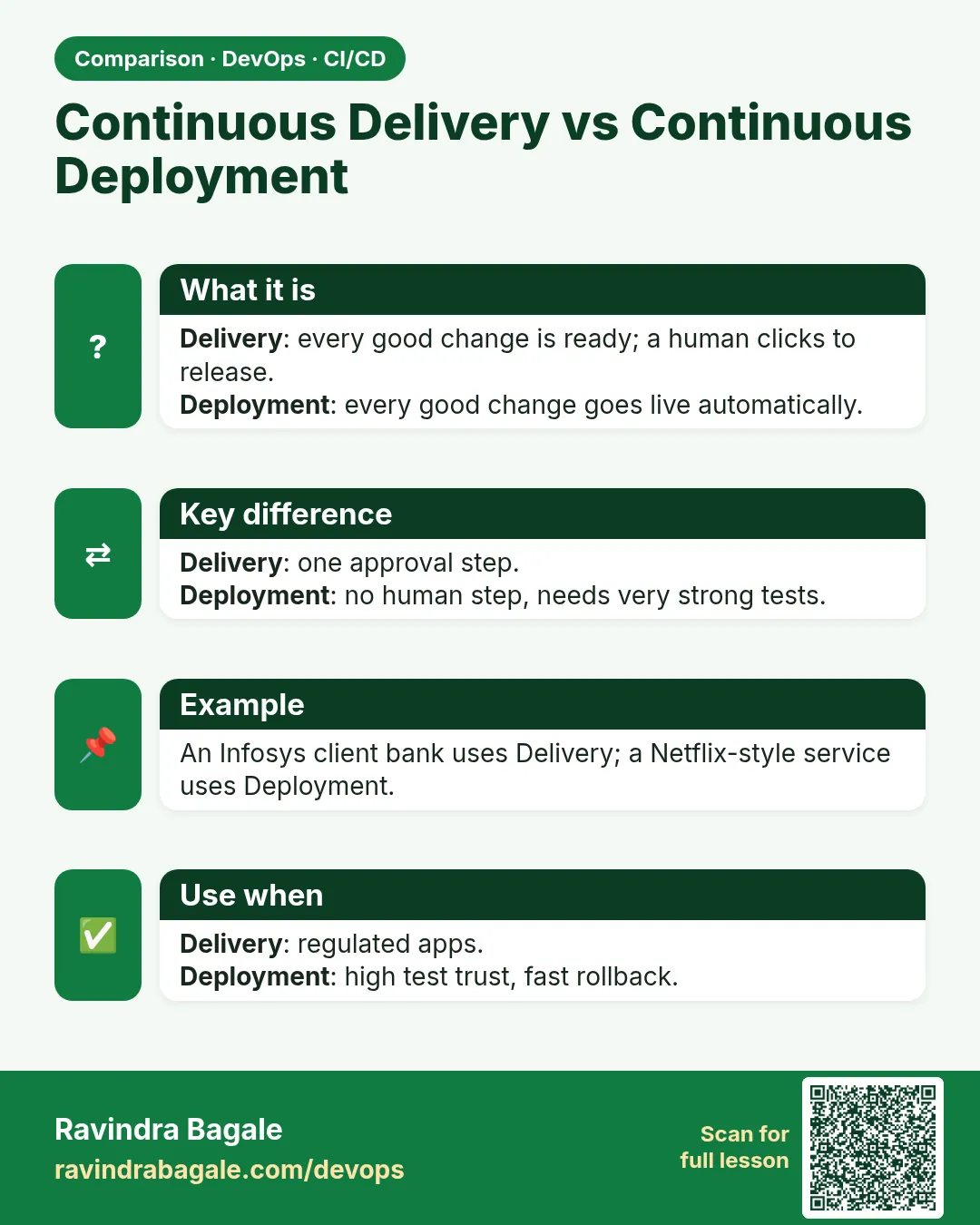
No. Continuous Delivery allows a human button. Continuous Deployment removes it.
Can approval be automatic?
Yes, with checks like error rate after a canary. Many teams move there over time.
Who approves in small teams?
Another developer who did not write the change.
Does approval replace code review?
No. Code review is on the pull request. Approval is on the deploy.
What if the approver is on leave?
Make a team the approver, not one person.
Interview questions
-
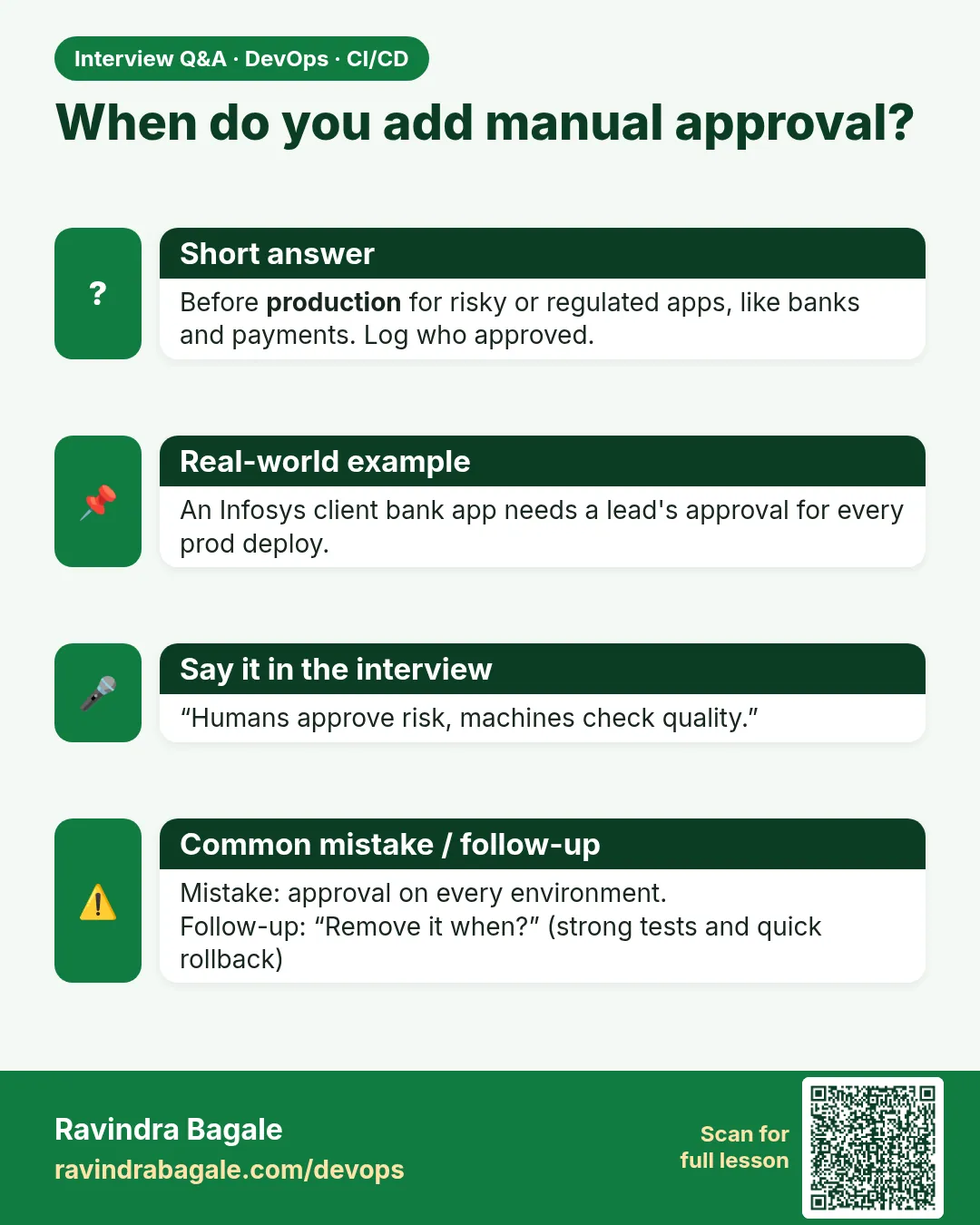
When would you use a manual approval in a pipeline?
For production deploys in regulated or high risk systems, or where audit needs a named approver.
-
How do you set approval in GitHub Actions?
Make a production environment with required reviewers and point the deploy job at it.
-
How does Jenkins do approvals?
With the input step, limited by submitter and wrapped in a timeout.
-
What is separation of duties?
The author of a change cannot approve its deploy to prod.
-
What is the risk of too many approvals?
Approval fatigue: people click yes without looking, and delivery slows down.
Quick quiz
Q1. Why add a manual approval?
For high risk changes or when law and audit ask for it.
Q2. Who should approve?
Someone other than the author, like a lead or release manager.
Q3. What is an audit trail?
A record of who approved which version and when.
Q4. Why add a timeout to approvals?
So runs do not wait forever.
Q5. When is manual approval a bad idea?
When it is on every change and people approve without looking.
Did you understand? Let us try it once more.
 Revision card
 Interview card
 Comparison card