Chapter 4: Linux Ops Refresh for DevOps
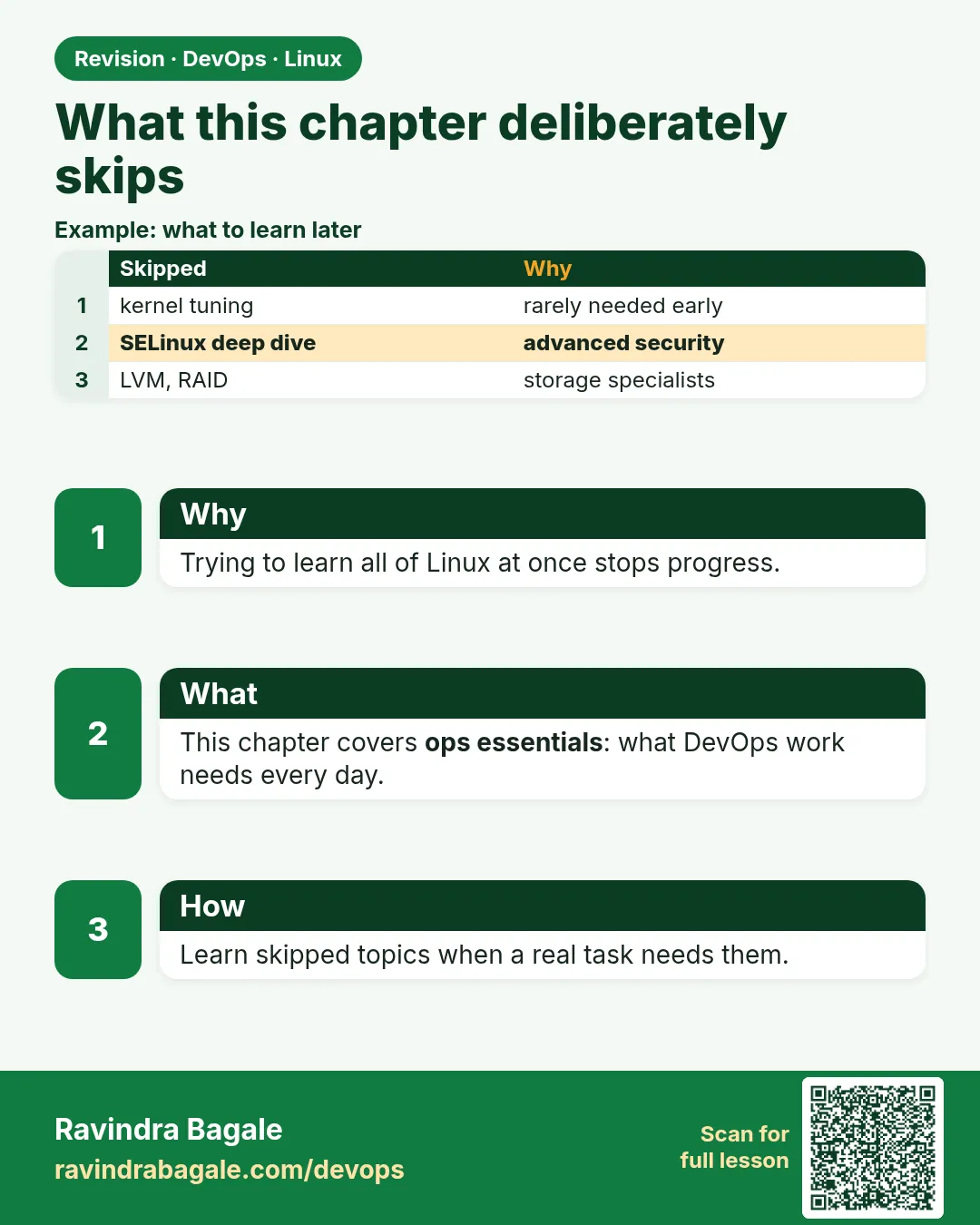
4.9 What this chapter deliberately skips
Why: the problem
Think of a student who wants to learn everything about Linux before touching DevOps tools. Six months later he has read about every file system and kernel setting, but he still cannot deploy one app. Companies like Swiggy and Infosys do not ask juniors to be Linux kernel experts. They ask them to keep apps running: check, read logs, manage services, copy files, and stay safe. That is why this chapter is short and practical. Some topics are skipped here on purpose, because they live in the AWS course: launching EC2, security groups, VPC design, DNS and full web server setup. But "skipped" does not mean "never". In this lesson you will do a final hands-on check that proves you have the ops basics. Then you will see exactly which skills belong to which next chapter, with a small practical taste of each, so you know where to go when you hit them.
What we will build
You will run one final self-check lab on an Ubuntu 24.04 EC2 server: a script called ops-ready.sh that tests every skill from this chapter and prints PASS or FAIL. Then you will do three small tasks that touch the skipped topics: read the EC2 instance facts from the metadata service, check a security group from the AWS CLI, and test DNS with dig. Each one shows you the one command you need today and which AWS chapter teaches it in full.
What: every term in plain English
- Ops basics — The daily skills: check, read logs, manage services, copy files, keep permissions safe.
- EC2 — A virtual server in AWS. Taught fully in the AWS course EC2 chapter.
- Security group — A firewall around an EC2 instance. Controls which ports are open to whom.
- VPC — Your private network in AWS, with subnets and routes.
- DNS — The phone book of the internet. Turns names like api.example.com into IP addresses.
- Instance metadata — A special local address, 169.254.169.254, where an EC2 can read facts about itself.
- IMDSv2 — The safer version of metadata that needs a token first.
- dig — A command to ask DNS servers questions.
How: step by step
-
Log in
ssh web1What it does: Your Ubuntu 24.04 EC2 lab server.
Output
ubuntu@ip-10-0-1-20:~$ -
Install small tools
sudo apt-get install -y -qq dnsutils awscli nginxWhat it does: dig, the AWS CLI and nginx for the self-check.
Output
Setting up dnsutils ... -
Run the self-check
bash ops-ready.shWhat it does: Tests every skill of the chapter.
Output
PASS 8 / 8 -
Read EC2 facts
TOKEN=$(curl -sX PUT http://169.254.169.254/latest/api/token -H "X-aws-ec2-metadata-token-ttl-seconds: 60"); curl -s -H "X-aws-ec2-metadata-token: $TOKEN" http://169.254.169.254/latest/meta-data/instance-typeWhat it does: The server can tell you its own type.
Output
t3.small -
Check the firewall
aws ec2 describe-security-groups --group-ids sg-0a1b2c3d4e5f67890 --query "SecurityGroups[0].IpPermissions[].FromPort"What it does: Which ports are open.
Output
[ 22, 80 ] -
Check DNS
dig +short ravindrabagale.comWhat it does: Name to IP.
Output
15.252.55.24 -
Pick the next chapter
echo "Next: Bash scripting (chapter 5)"What it does: The ops basics are ready. Scripts come next.
Output
Next: Bash scripting (chapter 5)
Example 1: ops-ready
Stack. Bash, Ubuntu 24.04 on EC2
Goal. ops-ready.sh: prove the chapter skills.
ops-ready.sh
#!/usr/bin/env bash
PASS=0; TOTAL=0
t() { TOTAL=$((TOTAL+1)); if eval "$2" >/dev/null 2>&1; then echo "PASS $1"; PASS=$((PASS+1)); else echo "FAIL $1"; fi; }
t "nginx process running"          "pgrep -x nginx"
t "port 80 listening"              "ss -tln | grep -q ':80 '"
t "site answers 200"               "curl -sf http://localhost/"
t "root disk under 90%"            "[ \$(df --output=pcent / | tail -1 | tr -dc 0-9) -lt 90 ]"
t "nginx enabled on boot"          "systemctl is-enabled nginx"
t "journal readable"               "sudo journalctl -u nginx -n 1 --no-pager"
t "ssh folder is private"          "[ \$(stat -c %a ~/.ssh) = 700 ]"
t "clock synced"                   "[ \$(timedatectl show -p NTPSynchronized --value) = yes ]"
echo "PASS $PASS / $TOTAL"
Run it
bash ops-ready.sh
sudo systemctl stop nginx
bash ops-ready.sh | grep -E "FAIL|PASS [0-9]"
sudo systemctl start nginx
What each line does
t() { ... }— A tiny test function: a name and a command. It prints PASS or FAIL.eval "$2"— Runs the test command given as text.curl -sf— -f makes curl fail on HTTP errors, so 500 counts as FAIL.stat -c %a— Prints permissions as a number, like 700.NTPSynchronized— yes when the clock is synced.stop nginx then run— Proves the script really catches a failure.
Green output
PASS nginx process running
PASS port 80 listening
PASS site answers 200
PASS root disk under 90%
PASS nginx enabled on boot
PASS journal readable
PASS ssh folder is private
PASS clock synced
PASS 8 / 8
FAIL nginx process running
FAIL port 80 listening
FAIL site answers 200
PASS 5 / 8
Expected result. 8 of 8 means you have the ops basics. The failing run shows the script tells the truth.
Example 2: A taste of EC2: read facts from instance metadata
Stack. EC2 IMDSv2, curl
Goal. A taste of EC2: read facts from instance metadata.
Ask the server about itself
TOKEN=$(curl -sX PUT http://169.254.169.254/latest/api/token -H "X-aws-ec2-metadata-token-ttl-seconds: 300")
md() { curl -s -H "X-aws-ec2-metadata-token: $TOKEN" "http://169.254.169.254/latest/meta-data/$1"; echo; }
md instance-id
md instance-type
md placement/availability-zone
md local-ipv4
md public-ipv4
md security-groups
What each line does
api/token with PUT— IMDSv2: first get a short-lived token. Safer than the old v1.ttl-seconds: 300— The token is valid for 5 minutes.md()— A tiny function so each question is one short line.instance-id— The unique id, like i-0abc... You need it for AWS CLI and support tickets.placement/availability-zone— Which data centre zone the server is in.security-groups— Names of the firewalls attached.
Green output
i-0abc123def4567890
t3.small
ap-south-1a
10.0.1.20
13.233.10.20
web-sg
Expected result. From inside the server you got its id, type, zone and IPs. Launching and sizing EC2 is taught fully in the AWS course EC2 chapter.
Example 3: A taste of networking: security group and DNS
Stack. AWS CLI v2, dig
Goal. A taste of networking: security group and DNS.
Read the firewall rules
aws ec2 describe-security-groups --group-names web-sg \
  --query "SecurityGroups[0].IpPermissions[].{port:FromPort,from:IpRanges[0].CidrIp}" --output table
Test DNS
dig +short ravindrabagale.com
dig ravindrabagale.com +noall +answer
dig +short does-not-exist-xyz.example.com || true
cat /etc/resolv.conf | grep nameserver
What each line does
describe-security-groups— Reads the firewall rules with the AWS CLI. Needs an IAM role or credentials with read access.--query ... --output table— Picks only port and source range, in a neat table.0.0.0.0/0 on 22— Means SSH is open to the whole internet. Restrict it to your IP or use Session Manager.dig +short— Only the answer IP.+noall +answer— The answer line with the TTL, how long it may be cached.resolv.conf— Which DNS server this machine asks. On EC2 it is the VPC resolver.
Green output
-----------------------------
|DescribeSecurityGroups     |
+----------------+----------+
|      from      |  port    |
+----------------+----------+
|  203.0.113.7/32|  22      |
|  0.0.0.0/0     |  80      |
+----------------+----------+
15.252.55.24
ravindrabagale.com.  300  IN  A  15.252.55.24
nameserver 127.0.0.53
Expected result. SSH is open only to one IP, web to all, and DNS works. VPC, security groups and Route 53 are taught fully in the AWS networking chapters.
Verify: did it work?
-
Final self-check is green
bash ops-ready.sh | tail -1What it does: All skills pass.
Output
PASS 8 / 8 -
Know where to go next
echo "Chapter 5: Bash scripting"What it does: Your next practical chapter.
Output
Chapter 5: Bash scripting
When it is red 1
curl: (7) Failed to connect to 169.254.169.254
Cause. You are not on EC2, or metadata is turned off for this instance.
Fix, step by step
- Run this only on an EC2 instance.
- In the console, check Instance metadata options: enabled, IMDSv2 required.
When it is red 2
An error occurred (UnauthorizedOperation) when calling the DescribeSecurityGroups operation
Cause. The server or your user has no IAM permission to read security groups.
Fix, step by step
- Attach a role with ec2:DescribeSecurityGroups to the instance.
- Or run the command from your laptop with your own AWS profile.
When it is red 3
dig: command not found
Cause. The DNS tools are not installed.
Fix, step by step
- sudo apt-get install -y dnsutils on Ubuntu.
- sudo dnf install -y bind-utils on Amazon Linux.
Cleanup
-
Stop the lab server
aws ec2 stop-instances --instance-ids i-0abc123def4567890What it does: Stops paying for compute while keeping the disk.
Output
"CurrentState": {"Code": 64, "Name": "stopping"}
Ravindra Bagale's Tip
Do not try to learn all of Linux at once. Make ops basics solid. Learn the rest in the AWS course when you need it. Keep that in mind!
सगळं Linux एकदम शिकायला जाऊ नका. Ops basics पक्के करा, बाकी गरज पडेल तेव्हा AWS course मध्ये. लक्षात ठेवा!
पूरा Linux एक साथ मत सीखो. Ops basics पक्के करो, बाकी ज़रूरत पड़ने पर AWS course में. याद रखो!
Practice tasks
Easy Run the self-check
Why: Proof beats feeling ready.
What to do: Run ops-ready.sh until it shows 8 / 8.
- Fix each FAIL with the lesson that covers it.
Check: PASS 8 / 8.
Medium Add two tests
Why: Your job will add more checks over time.
What to do: Add tests for free memory above 200 MB and no failed systemd units.
- free -m and systemctl --failed
Check: PASS 10 / 10.
Hard Lock SSH
Why: Open SSH to the world is a common audit finding.
What to do: Change the security group so port 22 allows only your IP.
- aws ec2 revoke-security-group-ingress and authorize-security-group-ingress.
Check: describe-security-groups shows only your /32 on port 22.
Easy Say the DevOps Linux basics in two lines
Why: If you can say it simply, you understand it. Juniors and interviewers both want the short version first.
What to do: Write two short lines about the DevOps Linux basics for a fresher who knows only basic Linux commands.
- Write the problem it solves.
- Write the one command you use for it.
- Read it aloud to a friend.
Check: A fresher understands it without asking a question.
Easy Make a safe practice server
Why: Ops commands can stop services or fill disks. Practice on a machine you can throw away.
What to do: Start a throwaway Ubuntu machine and do this lesson there.
- docker run -it --rm --name ops-lab ubuntu:24.04 bash
- Or launch a t3.micro Ubuntu 24.04 EC2 with port 22 open only to your IP.
- Delete it when you are done.
Check: All practice happens on the lab machine, not on a real server.
Medium Repeat it on Amazon Linux
Why: Companies use both Ubuntu and Amazon Linux. Package names and log files differ a little.
What to do: Do the main steps of this lesson again on Amazon Linux 2023.
- docker run -it --rm amazonlinux:2023 bash
- Install tools with dnf instead of apt.
- Note every difference in your notes.
Check: You can list two differences between Ubuntu and Amazon Linux for this lesson.
Medium Break it on purpose
Why: You must know the red message by face. In a real outage there is no time to read slowly.
What to do: Cause one error from the "When it is red" part of this lesson and fix it.
- Follow the error section.
- Copy the exact message into your notes.
- Write the fix in one line.
Check: You fixed it using only the steps, without searching the web.
Medium Write a one-page runbook
Why: At 2 a.m. nobody remembers the right command. A short page saves the on-call person.
What to do: Write a runbook page for this lesson.
- Title, when to use, exact command, how to check, how to undo.
Check: A teammate can follow it alone.
Hard Explain it like an interview
Why: Interviewers want real stories, not definitions.
What to do: Record a 60 second answer about this lesson.
- Say the problem, the command you ran, and one error you hit.
Check: Your answer has a real command and a real error message.
Hard Draw the flow top to bottom
Why: A drawing shows the order of checks and what happens on failure.
What to do: Draw this lesson as boxes from top to bottom.
- Start at the user complaint, show each check as a box, end at the fix.
Check: Each box matches a real command you ran.
Homework: try at home
Try at home
At home, run ops-ready.sh on a fresh EC2 server. Fix every FAIL using only this chapter. Then read the instance id and zone from metadata and the open ports from the AWS CLI, and write which AWS course chapter covers each.
Recap
- This chapter covered daily ops: check, logs, services, files, permissions.
- ops-ready.sh proves the skills with PASS or FAIL.
- EC2 facts come from instance metadata with IMDSv2.
- Security groups and DNS have one quick command each here; full depth is in the AWS course.
- Next comes Bash scripting, to automate these checks.
FAQ
Do I need to finish the AWS course first?
No. Do this course and open the AWS chapters when a task needs EC2, VPC or DNS.
Is Session Manager better than SSH?
Often yes for companies: no open port 22 and every session is logged.
Why IMDSv2?
It needs a token, which blocks a common attack that steals instance credentials.
What is TTL in dig output?
How many seconds resolvers may cache the answer.
Can I run ops-ready.sh from cron?
Yes. Chapter 5 shows how, with logging.
Interview questions
-
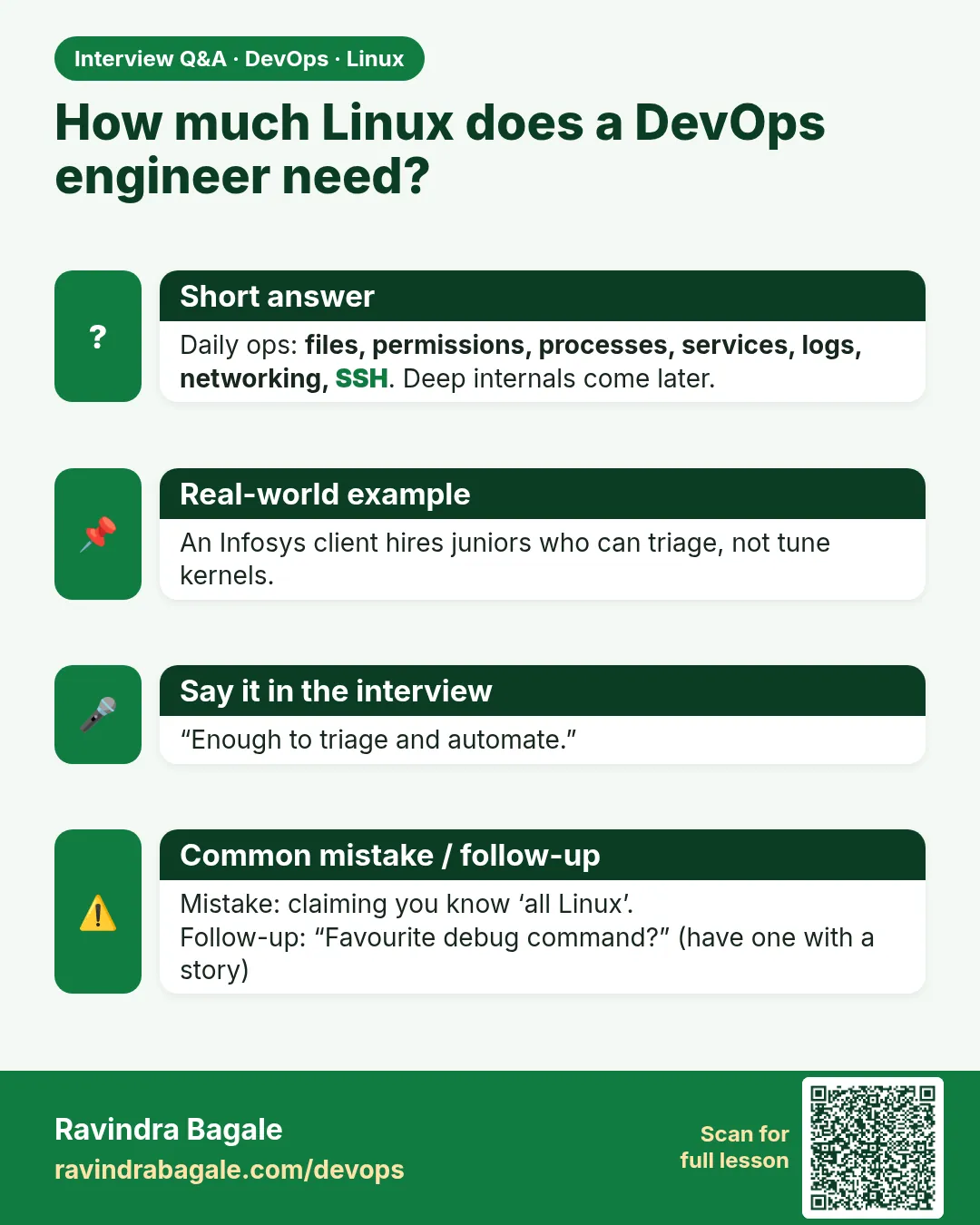
What Linux skills does a DevOps engineer use daily?
Checking processes, ports and disk, reading logs with journalctl and tail, managing services with systemctl, SSH and rsync, and safe permissions.
-
How can an EC2 instance find its own id?
From the metadata service at 169.254.169.254, using an IMDSv2 token.
-
A website works by IP but not by name. What do you check?
DNS: dig the name, check the A record and TTL, and the resolver in resolv.conf.
-
How do you check which ports are open on an EC2 from the AWS side?
aws ec2 describe-security-groups for the attached groups, or the console Security tab.
-
What is the difference between a security group and the OS firewall?
The security group filters traffic before it reaches the instance, at AWS level. The OS firewall like ufw filters inside the server.
Quick quiz
Q1. Why is this chapter short?
DevOps juniors need daily ops skills, and deep Linux and AWS live in the AWS course.
Q2. What is 169.254.169.254?
The EC2 instance metadata address.
Q3. Which command checks DNS?
dig
Q4. What does ops-ready.sh print when all is fine?
PASS 8 / 8
Q5. Where do you learn VPC and security groups in full?
The AWS course networking chapters.
In short
- Triage: process → port (shop counter) → disk → logs.
systemctl/service: start now vs enable on boot.journalctl -f/tail -fwhile youcurl— watch and reproduce together.- SSH private keys never enter Git; scp/rsync from the laptop with clear paths.
- Deep Linux/EC2/VPC stay in the AWS course — this was a refresh only.
Did you understand? Let us try it once more.
 Revision card
 Interview card