Chapter 4: Linux Ops Refresh for DevOps
4.8 Quick extras — uptime, memory, who am I
Why: the problem
Think of a new Infosys engineer on her first on-call week. She logs in to a server she has never seen. Before she can fix anything, she needs to know where she is. Which server is this? Which Linux? How long has it been up? Who else is logged in? How much memory and CPU does it have? Is the time correct? Am I root or a normal user? Senior engineers answer these questions in the first thirty seconds with small commands: hostname, cat /etc/os-release, uptime, who, w, free, nproc, timedatectl, id and last. These are not exciting, but they stop big mistakes. Many outages start with "I thought I was on the test server". In this lesson you will learn these quick commands, see what each prints on Ubuntu and Amazon Linux, and put them into a login banner script so every login shows the facts at once.
What we will build
You will run each quick command on an Ubuntu 24.04 machine and on an Amazon Linux 2023 container and compare the output. You will check the server clock and timezone, because wrong time breaks logs, certificates and AWS API calls. Then you will write whereami.sh, a short script that prints the server name, OS, uptime, users, CPU, memory, disk, IP and your user, and make it run at every login with a file in /etc/profile.d. Finally you will set a clear colored prompt for production servers.
What: every term in plain English
- hostname — The name of the server.
- /etc/os-release — A file that says which Linux and which version.
- uname -r — The Linux kernel version.
- uptime — How long since the last boot, and the load average.
- who and w — Who is logged in now. w also shows what they are doing.
- last — Recent logins and reboots.
- id — Your user name, user number and groups.
- timedatectl — Shows and sets the clock, timezone and time sync.
- NTP — Network Time Protocol. Keeps the clock correct automatically.
- /etc/profile.d — Scripts here run for every user at login.
How: step by step
-
Start Ubuntu lab
docker run -it --rm --name q1 ubuntu:24.04 bashWhat it does: Throwaway Ubuntu.
Output
root@q1:/# -
Which server?
hostname; hostname -IWhat it does: Name and IP addresses.
Output
q1 172.17.0.3 -
Which Linux?
grep -E "^(NAME|VERSION)=" /etc/os-release; uname -rWhat it does: Distro, version and kernel.
Output
NAME="Ubuntu" VERSION="24.04.1 LTS (Noble Numbat)" 6.8.0-1015-aws -
How long up?
uptime -p; uptime -sWhat it does: Pretty uptime and the boot time.
Output
up 3 days, 2 hours, 10 minutes 2026-10-22 08:41:02 -
Who am I?
id; whoamiWhat it does: User, groups and name.
Output
uid=0(root) gid=0(root) groups=0(root) root -
How big is it?
nproc; free -h | head -2; df -h / | tail -1What it does: CPU cores, memory and disk.
Output
2 Mem: 3.8Gi 1.1Gi 2.0Gi overlay 59G 21G 36G 37% / -
Is the time right?
date; date -uWhat it does: Local time and UTC.
Output
Sun Oct 25 05:41:10 UTC 2026
Sun Oct 25 05:41:10 UTC 2026
Example 1: The thirty second look on a real EC2 server
Stack. Ubuntu 24.04 on EC2
Goal. The thirty second look on a real EC2 server.
Run on the server
hostname
grep PRETTY_NAME /etc/os-release
uptime
who
w -h | head -3
last -n 5 | head -5
id
nproc; free -h | head -2
What each line does
PRETTY_NAME— One line with the Linux name and version.uptime— Up time plus load average. A server up 2 minutes may have just crashed.who— Lists logged in users and from which IP.w -h— Like who, plus what command each user runs now. -h hides the header.last -n 5— Last five logins and reboots. "reboot" lines tell you about crashes.id— Confirms if you are root or a normal user with sudo group.
Green output
ip-10-0-1-20
PRETTY_NAME="Ubuntu 24.04.1 LTS"
 11:20:04 up 3 days,  2:39,  2 users,  load average: 0.04, 0.06, 0.01
ubuntu   pts/0        2026-10-25 11:18 (203.0.113.7)
priya    pts/1        2026-10-25 10:55 (198.51.100.4)
ubuntu   pts/0    203.0.113.7      11:18    0.00s  0.03s w -h
priya    pts/1    198.51.100.4     10:55    5:00   0.10s sudo journalctl -fu nginx
ubuntu   pts/0        203.0.113.7      Sun Oct 25 11:18   still logged in
priya    pts/1        198.51.100.4     Sun Oct 25 10:55   still logged in
reboot   system boot  6.8.0-1015-aws   Thu Oct 22 08:41   still running
uid=1000(ubuntu) gid=1000(ubuntu) groups=1000(ubuntu),4(adm),27(sudo)
2
               total        used        free      shared  buff/cache   available
Mem:           3.8Gi       1.1Gi       1.9Gi        12Mi       820Mi       2.4Gi
Expected result. In thirty seconds you know the server, the OS, that Priya is already looking at nginx logs, and that you have sudo. Talk to Priya before you restart anything.
Example 2: Compare Ubuntu and Amazon Linux
Stack. Docker, Ubuntu, Amazon Linux 2023
Goal. Compare Ubuntu and Amazon Linux.
Same commands, two systems
for img in ubuntu:24.04 amazonlinux:2023; do
  echo "== $img"
  docker run --rm "$img" bash -c 'grep PRETTY_NAME /etc/os-release; command -v apt-get dnf yum | head -1; ls /var/log | head -4'
done
What each line does
for img in ...— Runs the same check in two different Linux images.docker run --rm— Starts, runs and deletes each container.command -v apt-get dnf yum— Shows which package manager exists.ls /var/log— Log folders differ: Ubuntu has syslog, Amazon Linux uses the journal more.
Green output
== ubuntu:24.04
PRETTY_NAME="Ubuntu 24.04.1 LTS"
/usr/bin/apt-get
alternatives.log
apt
bootstrap.log
dpkg.log
== amazonlinux:2023
PRETTY_NAME="Amazon Linux 2023.6.20241010"
/usr/bin/dnf
dnf.librepo.log
dnf.log
dnf.rpm.log
hawkey.log
Expected result. You now know: Ubuntu uses apt, Amazon Linux uses dnf. The user name differs too: ubuntu vs ec2-user.
Example 3: Check and fix the clock and timezone
Stack. systemd-timedated, chrony
Goal. Check and fix the clock and timezone.
On a VM with systemd
timedatectl
sudo timedatectl set-timezone Asia/Kolkata
timedatectl | grep -E "Local time|Time zone|synchronized"
date "+%F %T %Z"
date -u "+%F %T %Z"
chronyc tracking 2>/dev/null | head -3 || systemctl status systemd-timesyncd --no-pager | head -3
What each line does
timedatectl— Shows local time, UTC, timezone and whether the clock is synced.set-timezone Asia/Kolkata— Sets IST. Many teams keep servers in UTC instead and convert in tools. Pick one rule.System clock synchronized: yes— NTP is working. If no, logs from different servers will not line up.date -u— Always know the UTC time too. Cloud logs often use UTC.chronyc tracking— On Amazon Linux, chrony syncs time with the Amazon Time Sync Service.
Green output
               Local time: Sun 2026-10-25 05:52:01 UTC
           Universal time: Sun 2026-10-25 05:52:01 UTC
                Time zone: Etc/UTC (UTC, +0000)
System clock synchronized: yes
               Local time: Sun 2026-10-25 11:22:01 IST
                Time zone: Asia/Kolkata (IST, +0530)
System clock synchronized: yes
2026-10-25 11:22:01 IST
2026-10-25 05:52:01 UTC
Reference ID    : A9FEA97B (169.254.169.123)
Stratum         : 4
Ref time (UTC)  : Sun Oct 25 05:51:58 2026
Expected result. The clock is synced and you know both times. A wrong clock breaks HTTPS certificates and AWS signed requests with "Signature expired".
Example 4: A login banner that shows where you are
Stack. Bash, profile.d
Goal. A login banner that shows where you are.
/etc/profile.d/whereami.sh
# Runs at every login. Keep it short and fast.
ENV_NAME="${ENV_NAME:-unknown}"
[ -f /etc/server-env ] && ENV_NAME="$(cat /etc/server-env)"
printf '\n== %s (%s) ==\n' "$(hostname)" "$ENV_NAME"
printf 'OS     : %s\n' "$(. /etc/os-release && echo "$PRETTY_NAME")"
printf 'Up     : %s\n' "$(uptime -p)"
printf 'CPU/Mem: %s cores, %s free\n' "$(nproc)" "$(free -h | awk '/Mem/{print $7}')"
printf 'Disk / : %s used\n' "$(df -h / | awk 'NR==2{print $5}')"
printf 'IP     : %s\n' "$(hostname -I | awk '{print $1}')"
printf 'You    : %s\n\n' "$(id -un)"
if [ "$ENV_NAME" = "production" ]; then
  PS1='\[\e[41;97m\] PROD \[\e[0m\] \u@\h:\w\$ '
fi
Install and test
echo production | sudo tee /etc/server-env
sudo cp whereami.sh /etc/profile.d/whereami.sh
sudo chmod 644 /etc/profile.d/whereami.sh
bash -l -c true
What each line does
/etc/profile.d/— Every .sh here runs for every login shell./etc/server-env— One word file: production, staging or dev. Set once per server.. /etc/os-release— Loads the OS variables like PRETTY_NAME.awk '/Mem/{print $7}'— Column 7 of the Mem line is available memory.PS1— The prompt text. A red PROD tag stops "wrong server" mistakes.bash -l -c true— Starts a login shell to test the banner without logging out.
Green output
production

== ip-10-0-1-20 (production) ==
OS     : Ubuntu 24.04.1 LTS
Up     : up 3 days, 2 hours, 41 minutes
CPU/Mem: 2 cores, 2.4Gi free
Disk / : 31% used
IP     : 10.0.1.20
You    : ubuntu
Expected result. Every login now shows the facts and a red PROD prompt. No more "I thought this was staging".
Verify: did it work?
-
Banner shows at login
ssh web1 true; ssh web1 2>/dev/null | head -3What it does: A new login prints the banner.
Output
== ip-10-0-1-20 (production) == -
Clock is synced
timedatectl show -p NTPSynchronized --valueWhat it does: yes means the clock is kept right.
Output
yes
When it is red 1
System clock synchronized: no
Cause. Time sync is off or blocked.
Fix, step by step
- sudo timedatectl set-ntp true
- On Amazon Linux: sudo systemctl enable --now chronyd
- Allow UDP 123 out, or use 169.254.169.123 on EC2.
When it is red 2
An error occurred (SignatureDoesNotMatch) ... Signature expired
Cause. The server clock is wrong, so AWS rejects signed requests.
Fix, step by step
- Compare date -u with real UTC.
- Turn on NTP as above.
- Retry the aws command.
When it is red 3
Banner breaks scp or rsync: protocol version mismatch
Cause. The profile script prints text in non-interactive shells too.
Fix, step by step
- Wrap the script in: case $- in i) ... ;; esac so it runs only for interactive shells.
- Test again with rsync -n.
Cleanup
-
Remove lab banner if not wanted
sudo rm /etc/profile.d/whereami.sh /etc/server-envWhat it does: Removes the banner and env file.
Output
(no output)
Ravindra Bagale's Tip
When you log into a new server, first ask where am I. hostname, uptime, who. Then start the work. Keep that in mind!
नवीन server वर login केलं की आधी मी कुठे आहे हे बघा. hostname, uptime, who. मग काम. लक्षात ठेवा!
नए server पर login होते ही पहले पूछो मैं कहाँ हूँ. hostname, uptime, who. फिर काम शुरू करो. याद रखो!
Practice tasks
Easy Thirty second look
Why: Speed matters on call.
What to do: Run the eight quick commands on a new machine and time yourself.
- hostname, os-release, uptime, who, w, last, id, free
Check: Under 30 seconds.
Medium Find the last reboot
Why: Unexpected reboots hide crashes.
What to do: Use last -x and journalctl --list-boots.
- Compare times.
Check: You know the last reboot time and reason.
Hard Timezone rule
Why: Teams need one time rule.
What to do: Set one server to UTC and one to IST, and line up the same event in both logs.
- date -u in both.
Check: You can explain why many teams keep servers in UTC.
Easy Say quick server facts in two lines
Why: If you can say it simply, you understand it. Juniors and interviewers both want the short version first.
What to do: Write two short lines about quick server facts for a fresher who knows only basic Linux commands.
- Write the problem it solves.
- Write the one command you use for it.
- Read it aloud to a friend.
Check: A fresher understands it without asking a question.
Easy Make a safe practice server
Why: Ops commands can stop services or fill disks. Practice on a machine you can throw away.
What to do: Start a throwaway Ubuntu machine and do this lesson there.
- docker run -it --rm --name ops-lab ubuntu:24.04 bash
- Or launch a t3.micro Ubuntu 24.04 EC2 with port 22 open only to your IP.
- Delete it when you are done.
Check: All practice happens on the lab machine, not on a real server.
Medium Repeat it on Amazon Linux
Why: Companies use both Ubuntu and Amazon Linux. Package names and log files differ a little.
What to do: Do the main steps of this lesson again on Amazon Linux 2023.
- docker run -it --rm amazonlinux:2023 bash
- Install tools with dnf instead of apt.
- Note every difference in your notes.
Check: You can list two differences between Ubuntu and Amazon Linux for this lesson.
Medium Break it on purpose
Why: You must know the red message by face. In a real outage there is no time to read slowly.
What to do: Cause one error from the "When it is red" part of this lesson and fix it.
- Follow the error section.
- Copy the exact message into your notes.
- Write the fix in one line.
Check: You fixed it using only the steps, without searching the web.
Medium Write a one-page runbook
Why: At 2 a.m. nobody remembers the right command. A short page saves the on-call person.
What to do: Write a runbook page for this lesson.
- Title, when to use, exact command, how to check, how to undo.
Check: A teammate can follow it alone.
Hard Explain it like an interview
Why: Interviewers want real stories, not definitions.
What to do: Record a 60 second answer about this lesson.
- Say the problem, the command you ran, and one error you hit.
Check: Your answer has a real command and a real error message.
Hard Draw the flow top to bottom
Why: A drawing shows the order of checks and what happens on failure.
What to do: Draw this lesson as boxes from top to bottom.
- Start at the user complaint, show each check as a box, end at the fix.
Check: Each box matches a real command you ran.
Homework: try at home
Try at home
At home, install whereami.sh on two lab machines, one marked production and one staging. Log in to both and check that only production shows the red PROD prompt. Then make scp work with the interactive-only fix.
Recap
- Know where you are before you change anything.
- hostname, os-release, uptime, who, w, last and id answer it in 30 seconds.
- Ubuntu uses apt and user ubuntu, Amazon Linux uses dnf and ec2-user.
- Keep the clock synced with NTP.
- A login banner and a red PROD prompt stop wrong server mistakes.
FAQ
Why is uptime useful in an incident?
A very short uptime means the server just rebooted, maybe after a crash.
Should servers be in IST or UTC?
Many teams use UTC on servers and show IST in dashboards. Be consistent.
What is the difference between who and w?
w adds what each user is running and how long they are idle.
Can the banner slow down login?
Only if it runs slow commands. Keep it to fast local commands.
What does hostname -I show?
All IP addresses of the server, without names.
Interview questions
-
You SSH to an unknown server during an incident. What do you check first?
hostname and environment, OS version, uptime and load, who else is logged in, my own user and sudo rights, then resources.
-
How do you find when a server last rebooted?
uptime -s, last -x reboot, or journalctl --list-boots.
-
Why is time sync important?
Log correlation across servers, TLS certificate checks, Kerberos and AWS request signing all need correct time.
-
How do you know if you are on Ubuntu or Amazon Linux?
cat /etc/os-release, or check for apt vs dnf.
-
How do you prevent running commands on production by mistake?
Clear hostnames, a red PROD prompt, separate SSH keys or roles per environment, and approvals for changes.
Quick quiz
Q1. Which file tells you the Linux version?
/etc/os-release
Q2. Which command shows who is logged in and what they run?
w
Q3. Which command shows recent reboots?
last
Q4. Why does clock sync matter?
Logs, certificates and AWS signed requests need correct time.
Q5. Where do login scripts for all users go?
/etc/profile.d/
Did you understand? Let us try it once more.
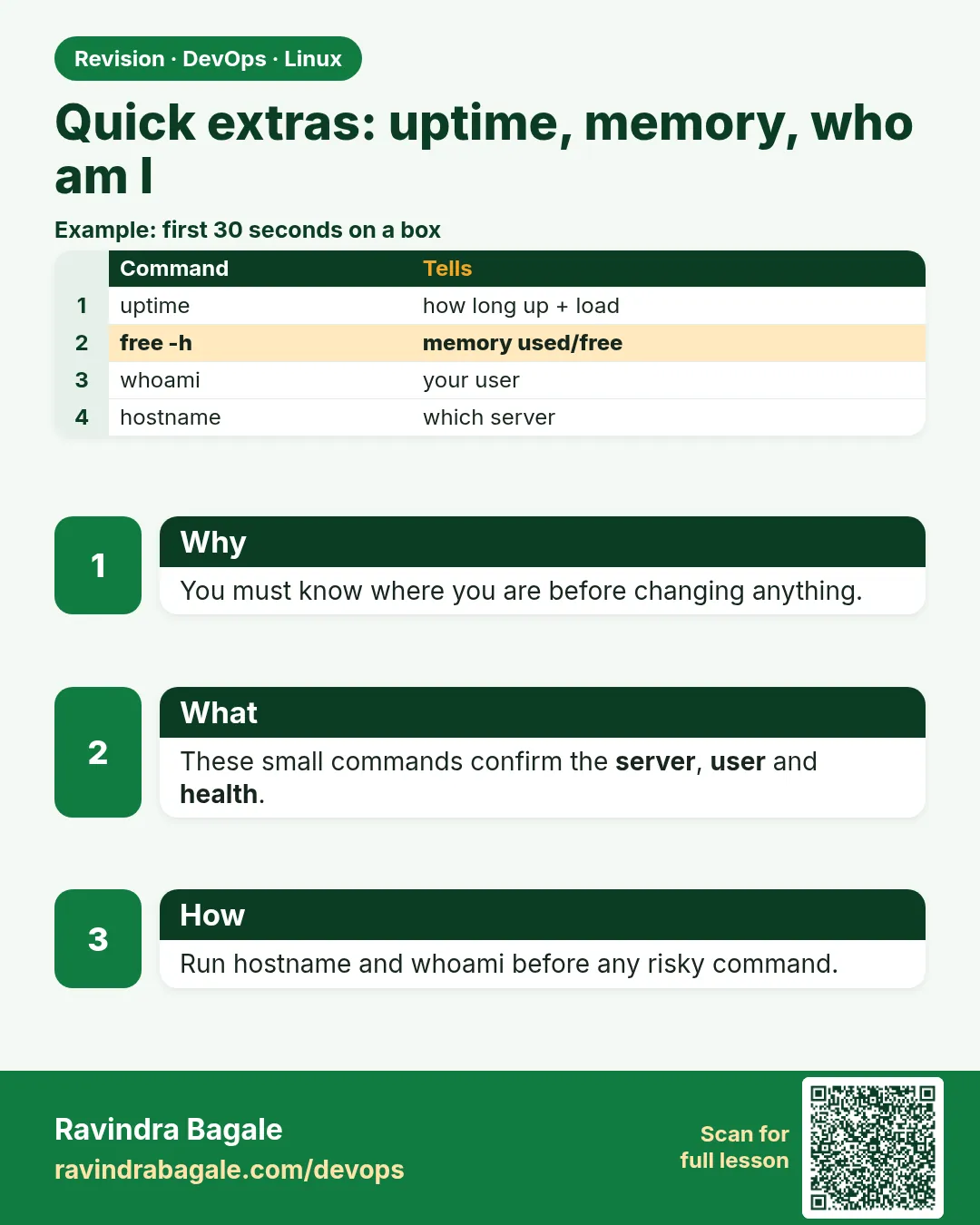 Revision card
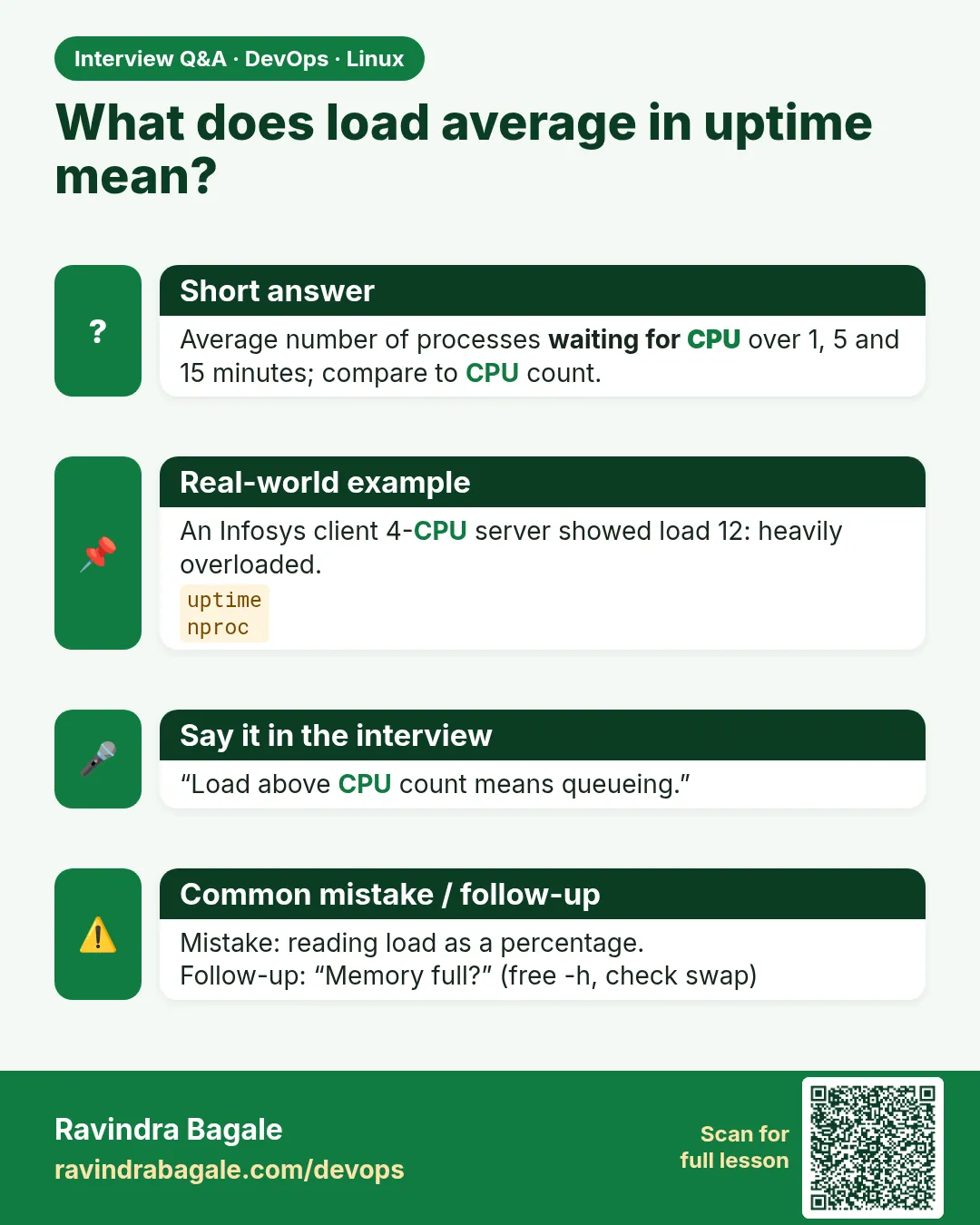 Interview card