Chapter 4: Linux Ops Refresh for DevOps
4.4 systemd — start, enable, status
Why: the problem
Think of Paytm. At 3 a.m. AWS restarts an EC2 server for maintenance. The server comes back in two minutes. But the payment API does not. Somebody had started it by hand with "nohup java -jar app.jar &" months ago. Nobody told Linux to start it on boot. For forty minutes payments fail, until the on-call engineer wakes up. systemd prevents this. systemd is the program that starts first on modern Linux and starts everything else. You describe your app in a small unit file. Then systemd can start it, stop it, restart it when it crashes, and start it again after every reboot. Two words confuse many beginners: start and enable. start means run it now. enable means run it on every boot. You usually want both. In this lesson you will turn a hand-started app into a proper service, prove it survives a crash and a reboot, and read its status like an expert.
What we will build
You will take a small Node.js style app (we use a Python one so no extra install is needed) that someone runs with nohup. You will write a unit file for it, with a working folder, a non-root user, an environment file and automatic restart. You will start and enable it, kill it on purpose to watch systemd bring it back, and reboot the machine to prove it starts alone. At the end you will add a second app and see how After= and Requires= control the order.
What: every term in plain English
- systemd — The first program Linux runs at boot. It starts and watches all services.
- Unit — One thing systemd manages. A service unit ends with .service.
- Unit file — A small text file that tells systemd how to run your app. Lives in /etc/systemd/system/.
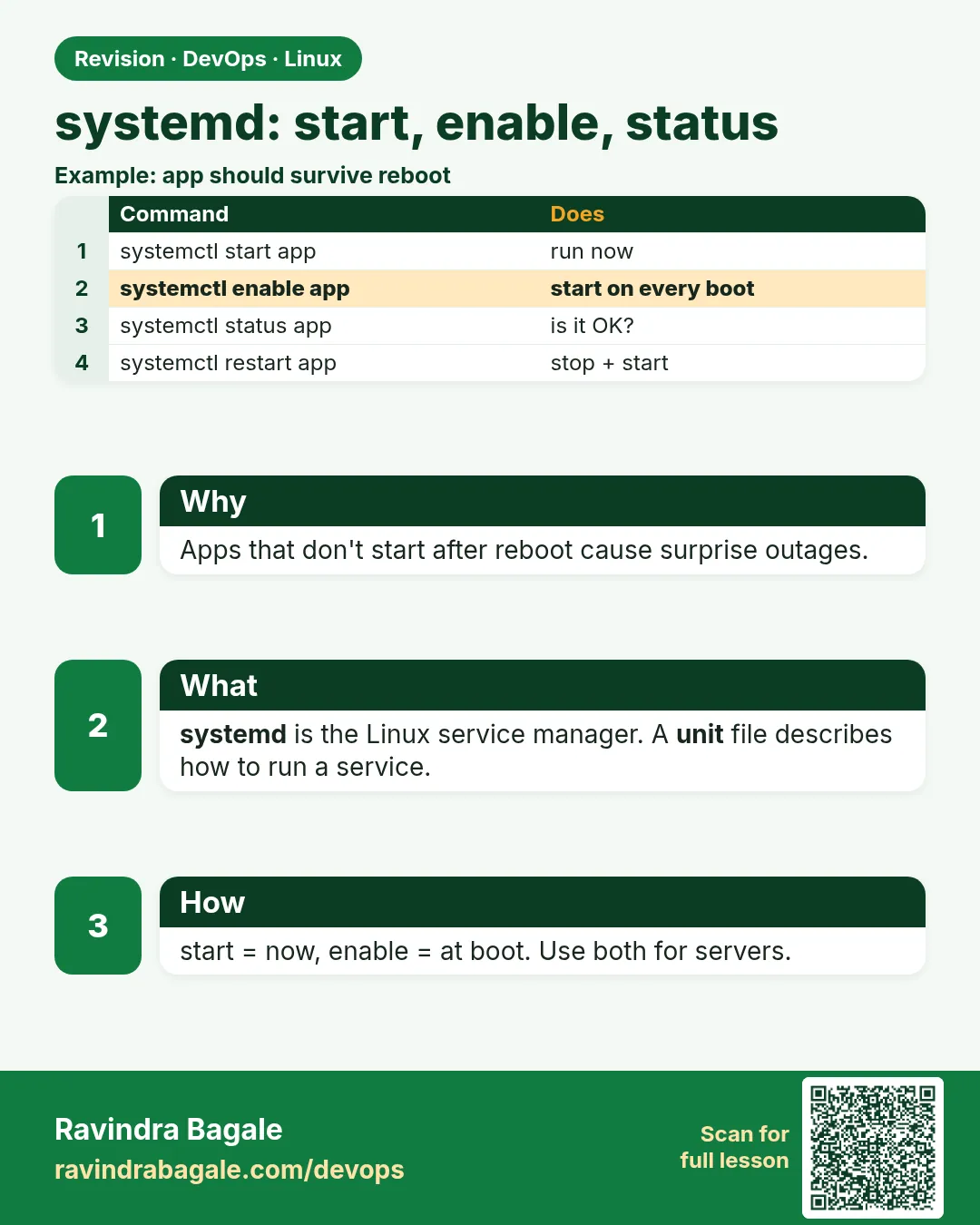
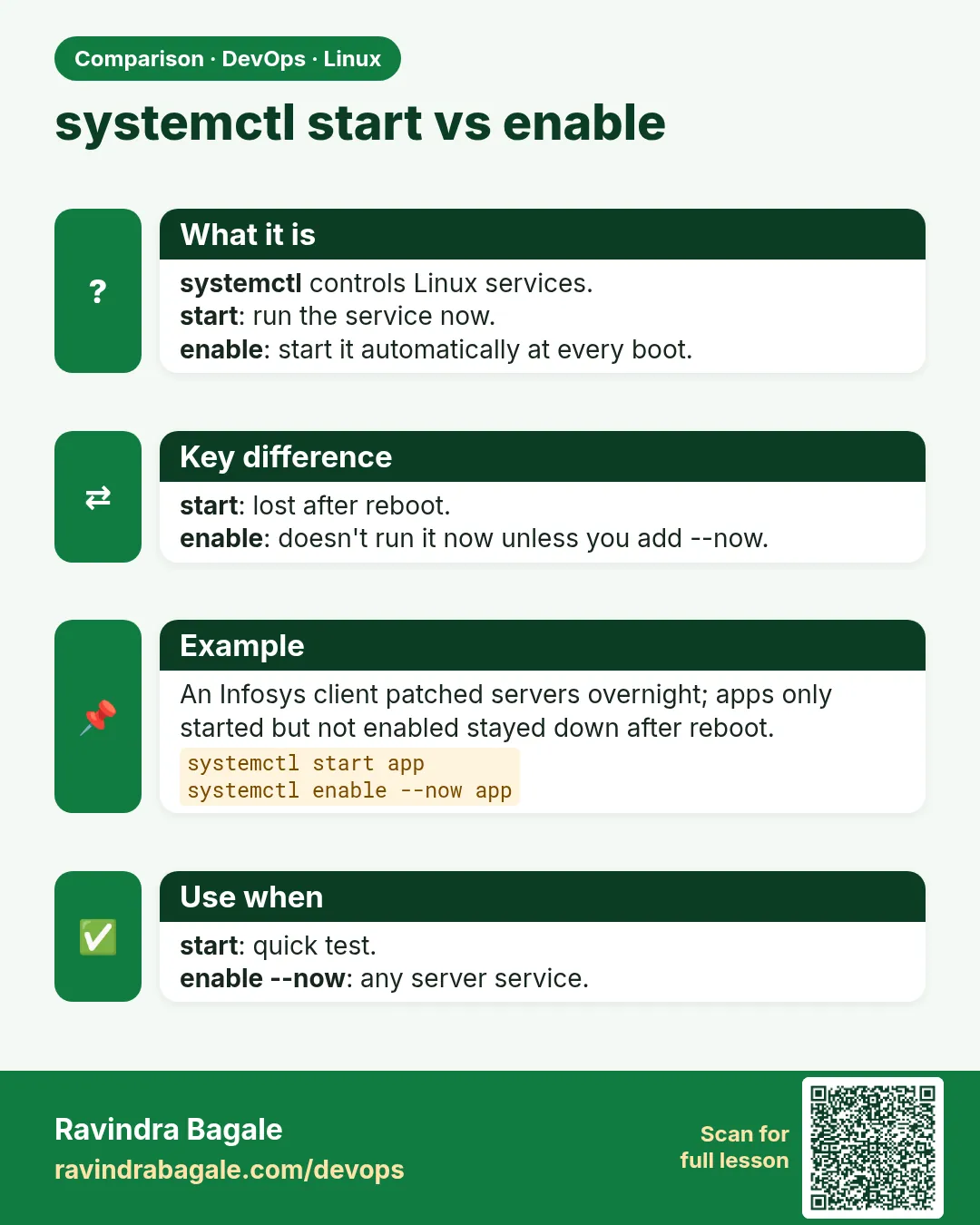
- start — Run the service now.
- enable — Start the service on every boot. It makes a link in a .wants folder.
- enable --now — Enable and start in one command.
- daemon-reload — Tells systemd to read unit files again after you change them.
- Restart= — What to do when the app stops. on-failure restarts it after a crash.
- Active (running) — The green status line that means the service is up.
- service command — The older way: service nginx restart. On modern servers it just calls systemctl.
How: step by step
-
Log in to a VM with systemd
ssh -i ~/.ssh/lab.pem ubuntu@13.233.10.20What it does: systemd needs a full VM such as EC2 Ubuntu 24.04.
Output
ubuntu@ip-10-0-1-20:~$ -
See the hand-started app
pgrep -af app.pyWhat it does: Someone ran it with nohup. It will not come back after reboot.
Output
1544 python3 /opt/pay/app.py -
Stop the hand-started copy
pkill -f /opt/pay/app.pyWhat it does: We will let systemd own it from now.
Output
(no output) -
Write the unit file
sudo nano /etc/systemd/system/pay.serviceWhat it does: Paste the unit from Example 1.
Output
(file saved) -
Reload and start now and on boot
sudo systemctl daemon-reload && sudo systemctl enable --now payWhat it does: Reads the new file, enables and starts.
Output
Created symlink /etc/systemd/system/multi-user.target.wants/pay.service -
Check status
systemctl status pay --no-pagerWhat it does: Green active (running), PID and last log lines.
Output
● pay.service - Pay API Active: active (running) since Sun 2026-10-25 10:45:01 IST -
Check enabled
systemctl is-enabled pay; systemctl is-active payWhat it does: Two quick yes or no answers, good for scripts.
Output
enabled
active
Example 1: Turn a nohup app into a systemd service
Stack. Ubuntu 24.04, systemd 255, Python 3.12
Goal. Turn a nohup app into a systemd service.
/opt/pay/app.py
from http.server import BaseHTTPRequestHandler, HTTPServer
import os
PORT = int(os.environ.get("PORT", "7000"))
class H(BaseHTTPRequestHandler):
    def do_GET(self):
        self.send_response(200); self.end_headers()
        self.wfile.write(b"pay ok\n")
print(f"pay listening on {PORT}", flush=True)
HTTPServer(("0.0.0.0", PORT), H).serve_forever()
/etc/pay/pay.env
PORT=7000
APP_ENV=production
/etc/systemd/system/pay.service
[Unit]
Description=Pay API
After=network-online.target
Wants=network-online.target

[Service]
User=payapp
Group=payapp
WorkingDirectory=/opt/pay
EnvironmentFile=/etc/pay/pay.env
ExecStart=/usr/bin/python3 /opt/pay/app.py
Restart=on-failure
RestartSec=3

[Install]
WantedBy=multi-user.target
Set up and start
sudo useradd --system --shell /usr/sbin/nologin payapp
sudo chown -R payapp:payapp /opt/pay
sudo systemctl daemon-reload
sudo systemctl enable --now pay
curl -s localhost:7000
What each line does
After=network-online.target— Start only after the network is really up.User=payapp— Run as a non-root user made only for this app.WorkingDirectory— The folder the app starts in. Relative paths in the app work from here.EnvironmentFile— Loads PORT and APP_ENV from a file, so config is not inside the unit.ExecStart— The exact command. Always use full paths like /usr/bin/python3.Restart=on-failure— Restart if the app exits with an error or is killed.RestartSec=3— Wait 3 seconds before restarting, so a broken app does not spin.WantedBy=multi-user.target— Tells enable to start it at normal boot.
Green output
Created symlink /etc/systemd/system/multi-user.target.wants/pay.service → /etc/systemd/system/pay.service.
pay ok
Expected result. The app now runs under systemd as payapp, with config from a file.
Example 2: Prove it comes back after a crash and a reboot
Stack. systemd
Goal. Prove it comes back after a crash and a reboot.
Kill it like a crash
systemctl show -p MainPID pay
sudo kill -9 $(systemctl show -p MainPID --value pay)
sleep 4
systemctl status pay --no-pager | head -5
journalctl -u pay -n 4 --no-pager
Reboot test
sudo reboot
# wait one minute, then log in again
systemctl is-active pay
curl -s localhost:7000
What each line does
systemctl show -p MainPID— Prints the PID of the main process of the service.kill -9— Kills the process with no chance to clean up. Like a real crash.sleep 4— Waits longer than RestartSec=3.Main process exited, code=killed— journal line that shows systemd saw the crash.Scheduled restart job— systemd starts it again by itself.sudo reboot— The real test. enable is what makes it come back.
Green output
MainPID=2210
● pay.service - Pay API
     Loaded: loaded (/etc/systemd/system/pay.service; enabled; preset: enabled)
     Active: active (running) since Sun 2026-10-25 10:47:15 IST; 1s ago
   Main PID: 2241 (python3)
Oct 25 10:47:12 ip-10-0-1-20 systemd[1]: pay.service: Main process exited, code=killed, status=9/KILL
Oct 25 10:47:12 ip-10-0-1-20 systemd[1]: pay.service: Failed with result 'signal'.
Oct 25 10:47:15 ip-10-0-1-20 systemd[1]: pay.service: Scheduled restart job, restart counter is at 1.
Oct 25 10:47:15 ip-10-0-1-20 systemd[1]: Started pay.service - Pay API.
active
pay ok
Expected result. New PID after the crash, and active after the reboot. The 3 a.m. outage cannot happen again.
Example 3: Order two services with After and Requires
Stack. systemd
Goal. Order two services with After and Requires.
/etc/systemd/system/pay-worker.service
[Unit]
Description=Pay worker
After=pay.service
Requires=pay.service

[Service]
User=payapp
ExecStart=/bin/bash -c 'while true; do curl -s localhost:7000 >/dev/null && echo "worker tick ok"; sleep 10; done'
Restart=on-failure

[Install]
WantedBy=multi-user.target
Try it
sudo systemctl daemon-reload
sudo systemctl enable --now pay-worker
systemctl list-dependencies pay-worker --no-pager | head -4
sudo systemctl stop pay
systemctl is-active pay-worker
sudo systemctl start pay-worker
systemctl is-active pay pay-worker
What each line does
After=pay.service— Start the worker only after pay has started.Requires=pay.service— If pay is stopped, the worker stops too. If the worker starts, pay starts too.list-dependencies— Shows what a unit needs.stop pay then is-active pay-worker— Proves Requires stopped the worker as well.start pay-worker— Starting the worker pulls pay up first.
Green output
Created symlink /etc/systemd/system/multi-user.target.wants/pay-worker.service
pay-worker.service
● ├─pay.service
● ├─system.slice
inactive
active
active
Expected result. The two services start and stop in the right order. Databases and apps use the same idea.
Example 4: Daily systemctl commands on nginx
Stack. nginx, systemd
Goal. Daily systemctl commands on nginx.
The everyday set
sudo systemctl restart nginx
sudo systemctl reload nginx
systemctl status nginx --no-pager | head -3
systemctl list-units --type=service --state=running --no-pager | head -6
systemctl --failed --no-pager
sudo systemctl disable nginx; systemctl is-enabled nginx
sudo systemctl enable nginx; systemctl is-enabled nginx
service nginx status | head -3
What each line does
restart— Stop then start. Drops open connections for a moment.reload— Re-read config without stopping. Use it for nginx config changes.list-units --state=running— All running services on this server.--failed— Only services that failed. Check this after every reboot.disable— Will not start on boot. It keeps running now.service nginx status— The old style still works. It forwards to systemctl.
Green output
● nginx.service - A high performance web server and a reverse proxy server
     Loaded: loaded (/usr/lib/systemd/system/nginx.service; enabled; preset: enabled)
     Active: active (running) since Sun 2026-10-25 10:50:02 IST; 3s ago
  UNIT                 LOAD   ACTIVE SUB     DESCRIPTION
  cron.service         loaded active running Regular background program processing daemon
  nginx.service        loaded active running A high performance web server
  pay.service          loaded active running Pay API
  0 loaded units listed.
Removed "/etc/systemd/system/multi-user.target.wants/nginx.service".
disabled
Created symlink /etc/systemd/system/multi-user.target.wants/nginx.service
enabled
Expected result. You know the eight commands that cover most daily systemd work.
Verify: did it work?
-
Boot check
systemctl is-enabled pay pay-worker nginx && systemctl --failed --no-pagerWhat it does: All enabled, zero failed units.
Output
enabled enabled enabled 0 loaded units listed. -
App answers
curl -s localhost:7000What it does: The final user-side proof.
Output
pay ok
When it is red 1
Failed to start pay.service: Unit pay.service not found.
Cause. The file name is wrong, it is in the wrong folder, or you forgot daemon-reload.
Fix, step by step
- ls /etc/systemd/system/pay.service
- sudo systemctl daemon-reload
- Start again.
When it is red 2
pay.service: Main process exited, code=exited, status=203/EXEC
Cause. systemd could not run ExecStart. Wrong path or no execute permission.
Fix, step by step
- Run which python3 and use that full path.
- Check the file exists with ls -l.
- daemon-reload and restart.
When it is red 3
pay.service: Start request repeated too quickly.
Cause. The app crashes on every start, so systemd gave up.
Fix, step by step
- journalctl -u pay -n 30 shows the real error from the app.
- Fix the app or config, for example a missing env file.
- sudo systemctl reset-failed pay then start.
When it is red 4
Warning: The unit file changed on disk. Run 'systemctl daemon-reload' to reload units.
Cause. You edited the unit but systemd still uses the old copy.
Fix, step by step
- sudo systemctl daemon-reload
- sudo systemctl restart pay
Cleanup
-
Remove the lab services
sudo systemctl disable --now pay-worker pay && sudo rm /etc/systemd/system/pay*.service && sudo systemctl daemon-reloadWhat it does: Removes both units cleanly.
Output
Removed "/etc/systemd/system/multi-user.target.wants/pay.service".
Ravindra Bagale's Tip
An app started by hand will not come back after reboot. Write a unit file and enable --now. Keep that in mind!
हाताने चालू केलेला app reboot नंतर येत नाही. Unit file लिहा, enable --now करा. लक्षात ठेवा!
हाथ से चलाया app reboot के बाद नहीं आता. Unit file लिखो, enable --now करो. याद रखो!
Practice tasks
Easy start vs enable
Why: This is the most asked beginner question.
What to do: Start nginx without enable, reboot, and see it is down.
- systemctl disable nginx
- reboot
- systemctl is-active nginx
Check: You saw inactive after reboot and can explain why.
Medium Read a broken unit
Why: Typos in units are common.
What to do: Change ExecStart to /usr/bin/python and read the 203/EXEC error.
- daemon-reload, restart, journalctl -u pay.
Check: You fixed it from the journal message alone.
Hard Limit memory
Why: A runaway app can eat the whole server.
What to do: Add MemoryMax=200M to pay.service and check it.
- systemctl show -p MemoryMax pay
Check: systemd shows the limit.
Easy Say systemd services in two lines
Why: If you can say it simply, you understand it. Juniors and interviewers both want the short version first.
What to do: Write two short lines about systemd services for a fresher who knows only basic Linux commands.
- Write the problem it solves.
- Write the one command you use for it.
- Read it aloud to a friend.
Check: A fresher understands it without asking a question.
Easy Make a safe practice server
Why: Ops commands can stop services or fill disks. Practice on a machine you can throw away.
What to do: Start a throwaway Ubuntu machine and do this lesson there.
- docker run -it --rm --name ops-lab ubuntu:24.04 bash
- Or launch a t3.micro Ubuntu 24.04 EC2 with port 22 open only to your IP.
- Delete it when you are done.
Check: All practice happens on the lab machine, not on a real server.
Medium Repeat it on Amazon Linux
Why: Companies use both Ubuntu and Amazon Linux. Package names and log files differ a little.
What to do: Do the main steps of this lesson again on Amazon Linux 2023.
- docker run -it --rm amazonlinux:2023 bash
- Install tools with dnf instead of apt.
- Note every difference in your notes.
Check: You can list two differences between Ubuntu and Amazon Linux for this lesson.
Medium Break it on purpose
Why: You must know the red message by face. In a real outage there is no time to read slowly.
What to do: Cause one error from the "When it is red" part of this lesson and fix it.
- Follow the error section.
- Copy the exact message into your notes.
- Write the fix in one line.
Check: You fixed it using only the steps, without searching the web.
Medium Write a one-page runbook
Why: At 2 a.m. nobody remembers the right command. A short page saves the on-call person.
What to do: Write a runbook page for this lesson.
- Title, when to use, exact command, how to check, how to undo.
Check: A teammate can follow it alone.
Hard Explain it like an interview
Why: Interviewers want real stories, not definitions.
What to do: Record a 60 second answer about this lesson.
- Say the problem, the command you ran, and one error you hit.
Check: Your answer has a real command and a real error message.
Hard Draw the flow top to bottom
Why: A drawing shows the order of checks and what happens on failure.
What to do: Draw this lesson as boxes from top to bottom.
- Start at the user complaint, show each check as a box, end at the fix.
Check: Each box matches a real command you ran.
Homework: try at home
Try at home
At home, take any small app you have, even python3 -m http.server, and make it a systemd service with a non-root user and Restart=on-failure. Kill it with kill -9 and reboot the VM. Write down the journal lines that prove systemd brought it back.
Recap
- systemd starts and watches services.
- A unit file has Unit, Service and Install parts.
- start is now, enable is on boot, enable --now is both.
- Restart=on-failure brings a crashed app back.
- Always daemon-reload after editing, and check systemctl --failed after reboot.
FAQ
Where should my own unit files go?
/etc/systemd/system/. Files from packages live in /usr/lib/systemd/system/.
Can I still use nohup?
Only for a quick test. Real apps must be services.
What about Docker containers?
Docker has its own restart policy, like --restart unless-stopped, and the Docker service itself is a systemd unit.
How do I see the full unit including package overrides?
systemctl cat nginx
How do I change a package unit safely?
sudo systemctl edit nginx makes an override file, so upgrades do not erase your change.
Interview questions
-
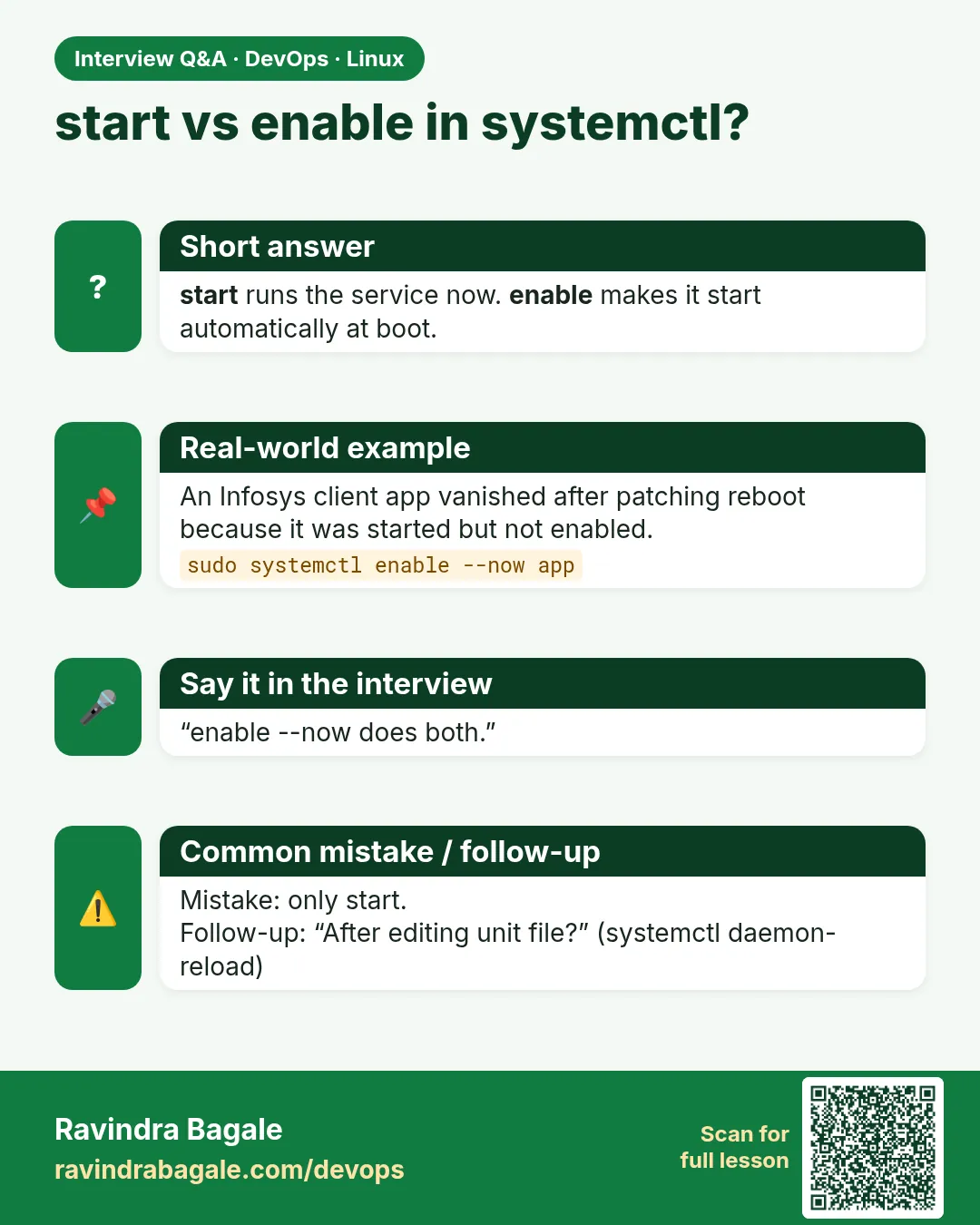
What is the difference between systemctl start and enable?
start runs the service now. enable creates a link so it starts at boot. enable --now does both.
-
How do you make an app restart automatically after a crash?
Set Restart=on-failure and RestartSec in the unit, then daemon-reload and restart.
-
A service will not start. How do you debug it?
systemctl status name, then journalctl -u name -n 50, then check ExecStart path, user, permissions and environment file.
-
What is daemon-reload?
It makes systemd re-read unit files after changes. Without it, the old version is used.
-
reload vs restart?
reload re-reads config without dropping connections, if the app supports it. restart stops and starts the process.
Quick quiz
Q1. What is the difference between start and enable?
start runs it now, enable runs it on every boot.
Q2. What must you run after editing a unit file?
sudo systemctl daemon-reload
Q3. Which line makes systemd restart a crashed app?
Restart=on-failure
Q4. How do you see failed services?
systemctl --failed
Q5. reload or restart for an nginx config change?
reload
Did you understand? Let us try it once more.
 Revision card
 Interview card
 Comparison card