Chapter 4: Linux Ops Refresh for DevOps
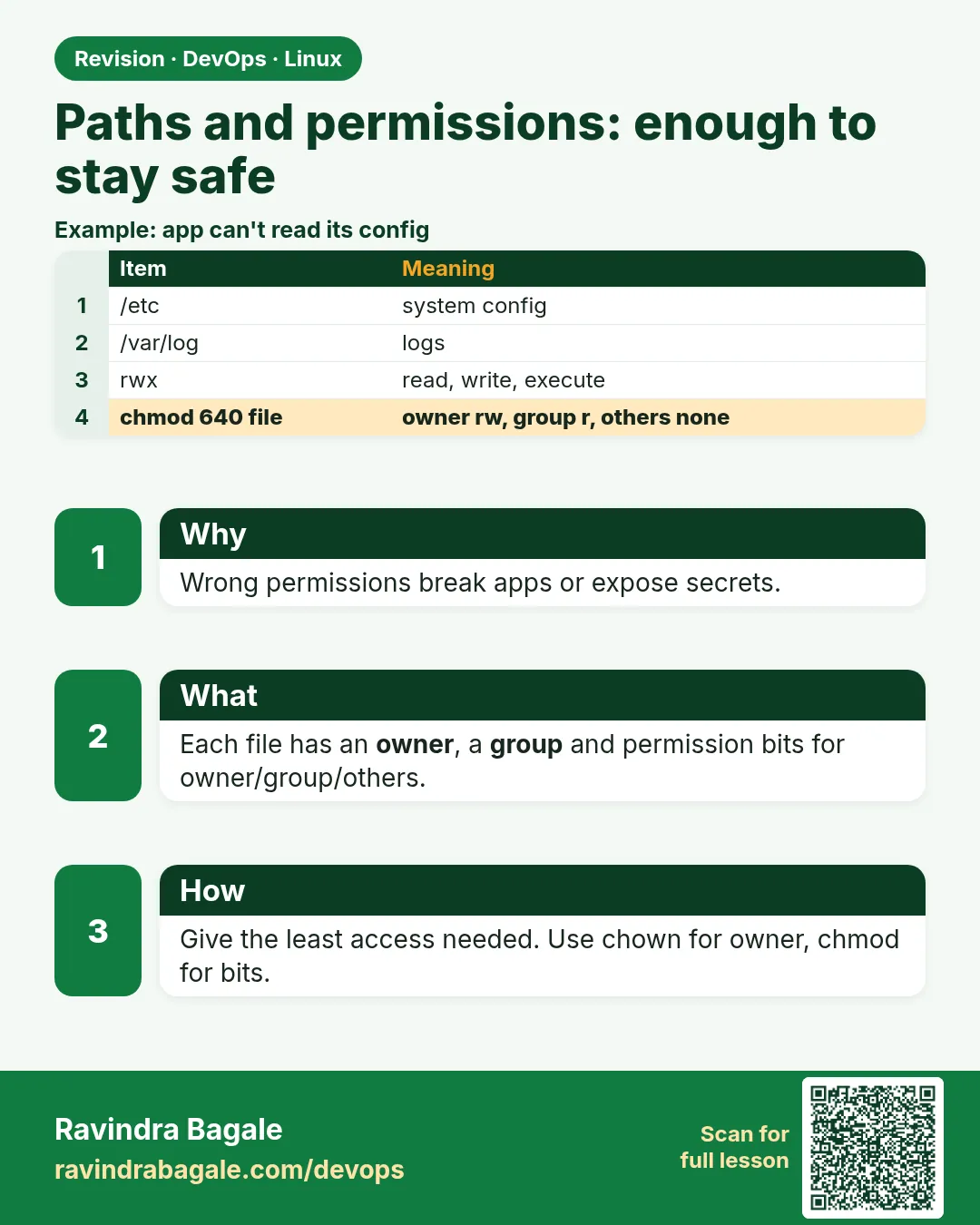
4.2 Paths and permissions — enough to stay safe
Why: the problem
Think of Infosys. A new joiner deploys a Node.js app on a test server. The app cannot read its config file, so he runs a command he found online that gives everyone full rights on the whole folder. The app works. Two weeks later a security scan finds that any user on that server can change the app code and read the database password. The fix took one minute, but the damage could have been huge. File permissions decide who can read, change or run each file. Paths decide where files live. Most "permission denied" errors in DevOps are small: the wrong owner, a missing execute bit, or the app running as a different user. In this lesson you will learn to read ls -l like a pro, fix permission errors the safe way, and keep secret files private. You will never need the dangerous everyone-can-write shortcut again.
What we will build
You will create an app folder at /opt/menu-api with a config file, a start script and a secrets file. You will create a separate system user called menuapp that runs the app. Then you will hit three real errors: permission denied on a script, an app user that cannot read its config, and an SSH key that is "too open". You will fix each one with the smallest change, using chown and chmod with exact numbers, and prove the fix with sudo -u.
What: every term in plain English
- Path — The full address of a file, like /opt/menu-api/config.env. It starts with / from the top of the disk.
- Absolute path — A path that starts with /. It works from any folder.
- Relative path — A path from where you are now, like ./start.sh or ../logs.
- Owner — The user who owns a file. Shown in the third column of ls -l.
- Group — A team of users that share access. Shown in the fourth column of ls -l.
- r w x — Read, write and execute. For a folder, x means you may enter it.
- chmod — Change mode: changes the r w x permissions.
- chown — Change owner: changes the owner and group of a file.
- Number form — r=4, w=2, x=1. Add them per person: 7=rwx, 6=rw, 5=rx, 4=r, 0=nothing. 755 means owner rwx, group rx, others rx.
- sudo -u — Run one command as another user. Perfect for testing what the app user can do.
How: step by step
-
Start a lab machine
docker run -it --rm --name perm-lab ubuntu:24.04 bashWhat it does: A throwaway Ubuntu. Everything here can be deleted.
Output
root@a81c0e2f9d10:/# -
Know where you are
pwd; ls /What it does: Shows the current folder and the top folders of Linux.
Output
/ bin boot dev etc home opt root tmp usr var -
Create the app user
useradd --system --no-create-home --shell /usr/sbin/nologin menuapp && id menuappWhat it does: A user only for running the app. Nobody can log in as it.
Output
uid=999(menuapp) gid=999(menuapp) groups=999(menuapp) -
Create the app folder and files
mkdir -p /opt/menu-api && cd /opt/menu-api && echo "PORT=3000" > config.env && echo "DB_PASS=change-me" > secrets.env && printf "#!/bin/bash\necho starting menu-api\n" > start.shWhat it does: Three files: config, secrets and a start script.
Output
(no output) -
Read the permissions
ls -l /opt/menu-apiWhat it does: Each line shows type, permissions, owner, group, size and name.
Output
-rw-r--r-- 1 root root 10 Oct 25 10:20 config.env -rw-r--r-- 1 root root 18 Oct 25 10:20 secrets.env -rw-r--r-- 1 root root 33 Oct 25 10:20 start.sh -
Give the folder to the app user
chown -R menuapp:menuapp /opt/menu-apiWhat it does: Now the app user owns its files. Root still can do anything.
Output
(no output) -
Set exact permissions
chmod 755 /opt/menu-api && chmod 750 start.sh && chmod 640 config.env && chmod 600 secrets.env && ls -lWhat it does: Script runnable by owner, config readable by group, secrets only by owner.
Output
-rw-r----- 1 menuapp menuapp 10 config.env
-rw------- 1 menuapp menuapp 18 secrets.env
-rwxr-x--- 1 menuapp menuapp 33 start.sh
Example 1: Fix "Permission denied" on a script
Stack. Ubuntu 24.04, Bash
Goal. Fix "Permission denied" on a script.
See the error
cd /tmp
printf '#!/bin/bash\necho hello from deploy\n' > deploy.sh
./deploy.sh
ls -l deploy.sh
Fix with the smallest change
chmod u+x deploy.sh
ls -l deploy.sh
./deploy.sh
What each line does
./deploy.sh— Runs the file in this folder as a program. Needs the x bit.ls -l— The first column -rw-r--r-- has no x, so Linux refuses to run it.chmod u+x— Adds execute only for the owner (u). Group and others do not change.-rwxr--r--— Now the owner has rwx. Others still can only read.
Green output
bash: ./deploy.sh: Permission denied
-rw-r--r-- 1 root root 33 Oct 25 10:22 deploy.sh
-rwxr--r-- 1 root root 33 Oct 25 10:22 deploy.sh
hello from deploy
Expected result. The script runs. You added one bit for one person, not rights for everyone.
Example 2: The app user cannot read its config
Stack. sudo, namei, chown
Goal. The app user cannot read its config.
Make the problem
chown root:root /opt/menu-api/config.env
chmod 600 /opt/menu-api/config.env
sudo -u menuapp cat /opt/menu-api/config.env 2>&1 || true
Find why
ls -l /opt/menu-api/config.env
namei -l /opt/menu-api/config.env
Fix and test
chown menuapp:menuapp /opt/menu-api/config.env
chmod 640 /opt/menu-api/config.env
sudo -u menuapp cat /opt/menu-api/config.env
What each line does
apt-get install -y sudo— Run this first if sudo is missing in the container.sudo -u menuapp cat— Tries to read the file as the app user. This is the real test.namei -l— Shows the permissions of every folder on the path. A locked parent folder also causes denied.chown menuapp:menuapp— Gives the file back to the app user and its group.chmod 640— Owner read and write, group read, others nothing.
Green output
cat: /opt/menu-api/config.env: Permission denied
-rw------- 1 root root 10 Oct 25 10:20 /opt/menu-api/config.env
f: /opt/menu-api/config.env
drwxr-xr-x root    root    /
drwxr-xr-x root    root    opt
drwxr-xr-x menuapp menuapp menu-api
-rw------- root    root    config.env
PORT=3000
Expected result. The app user reads its config. Others on the server still cannot.
Example 3: Fix an SSH key that is too open
Stack. OpenSSH
Goal. Fix an SSH key that is too open.
See the error
mkdir -p ~/.ssh
ssh-keygen -t ed25519 -N "" -f ~/.ssh/lab_key -q
chmod 644 ~/.ssh/lab_key
ssh -i ~/.ssh/lab_key -o BatchMode=yes localhost true 2>&1 | head -3
Fix it
chmod 700 ~/.ssh
chmod 600 ~/.ssh/lab_key
chmod 644 ~/.ssh/lab_key.pub
ls -la ~/.ssh
What each line does
apt-get install -y openssh-client— Installs ssh and ssh-keygen in the lab.ssh-keygen -t ed25519— Makes a modern key pair. -N "" means no passphrase, for the lab only.chmod 644 lab_key— We make the private key readable by all to see the error.UNPROTECTED PRIVATE KEY— ssh refuses keys that others can read. This protects you.chmod 600 lab_key— Only the owner can read the private key. ssh is happy.chmod 700 ~/.ssh— Only the owner may enter the .ssh folder.
Green output
@@@@@@@@@@@@@@@@@@@@@@@@@@@@@@@@@@@@@@@@@@@@@@@@@@@@@@@@@@@
@         WARNING: UNPROTECTED PRIVATE KEY FILE!          @
Permissions 0644 for '/root/.ssh/lab_key' are too open.
drwx------ 2 root root 4096 .
-rw------- 1 root root  411 lab_key
-rw-r--r-- 1 root root   98 lab_key.pub
Expected result. ssh accepts the key now. The same rule applies to your .pem file from AWS: chmod 400 or 600.
Example 4: Use absolute and relative paths safely in scripts
Stack. Bash
Goal. Use absolute and relative paths safely in scripts.
paths.sh
#!/usr/bin/env bash
set -euo pipefail
APP_DIR="/opt/menu-api"
cd "$APP_DIR"
echo "I am in: $(pwd)"
echo "Config: $APP_DIR/config.env"
ls -l ./start.sh
SCRIPT_DIR="$(cd "$(dirname "$0")" && pwd)"
echo "This script lives in: $SCRIPT_DIR"
Run it from another folder
cd /tmp
bash /root/paths.sh
What each line does
APP_DIR="/opt/menu-api"— An absolute path. It works no matter where you run the script from.cd "$APP_DIR"— Moves into the app folder. Quotes protect paths with spaces../start.sh— A relative path from the current folder.dirname "$0"— The folder of the script itself. Useful to find files next to the script.set -euo pipefail— Stops the script on the first error, so a failed cd never deletes files in the wrong place.
Green output
I am in: /opt/menu-api
Config: /opt/menu-api/config.env
-rwxr-x--- 1 menuapp menuapp 33 Oct 25 10:20 ./start.sh
This script lives in: /root
Expected result. The script works from any folder. Cron and Jenkins often run scripts from a different folder, so this habit prevents surprises.
Verify: did it work?
-
Check what the app user can do
sudo -u menuapp test -r /opt/menu-api/config.env && echo can-read; sudo -u menuapp test -r /opt/menu-api/secrets.env && echo can-read-secretsWhat it does: test -r checks read access without printing the file.
Output
can-read can-read-secrets -
Make sure others cannot read secrets
stat -c "%A %U %n" /opt/menu-api/*What it does: Shows permission, owner and name in one neat line.
Output
-rw-r----- menuapp /opt/menu-api/config.env
-rw------- menuapp /opt/menu-api/secrets.env
-rwxr-x--- menuapp /opt/menu-api/start.sh
When it is red 1
bash: ./start.sh: Permission denied
Cause. The file has no execute bit for you, or you are not the owner.
Fix, step by step
- Run ls -l start.sh and read the first column.
- If you are the owner, chmod u+x start.sh.
- If the app user must run it, chown menuapp start.sh then chmod 750.
When it is red 2
cat: /opt/menu-api/config.env: Permission denied (as menuapp)
Cause. The file belongs to root or the app user has no r bit, or a parent folder blocks entry.
Fix, step by step
- ls -l the file and check owner and r bits.
- namei -l the path to check every folder.
- chown menuapp:menuapp and chmod 640.
When it is red 3
chown: invalid user: 'menuapp'
Cause. The user does not exist yet on this server.
Fix, step by step
- Run id menuapp to confirm.
- Create it with useradd --system --shell /usr/sbin/nologin menuapp.
- Run chown again.
Cleanup
-
Leave and delete the lab
exitWhat it does: The container was started with --rm, so it deletes itself.
Output
exit
Ravindra Bagale's Tip
If you see Permission denied, do not open everything. Run ls -l, check the owner, give the smallest bit. Keep that in mind!
Permission denied आला तर सगळं open करू नका. ls -l बघा, owner बघा, कमी bit द्या. लक्षात ठेवा!
Permission denied आए तो सब कुछ open मत करो. ls -l देखो, owner देखो, कम से कम bit दो. याद रखो!
Practice tasks
Easy Read ten files
Why: Reading ls -l fast is a daily skill.
What to do: Run ls -l /etc | head -10 and say each permission in words.
- Say owner, group and others for each line.
Check: You can read any permission string in five seconds.
Medium Lock a folder
Why: Locked parent folders are a hidden cause of errors.
What to do: chmod 700 /opt/menu-api and test the app user again.
- Use namei -l to prove the cause.
Check: You find the folder, not the file, is the problem.
Hard Shared group folder
Why: Teams share deploy folders with a group.
What to do: Create group deployers, add two users, and give the group write on /srv/releases only.
- groupadd, usermod -aG, chgrp, chmod 2775.
Check: Both users can write, others cannot.
Easy Say Linux paths and permissions in two lines
Why: If you can say it simply, you understand it. Juniors and interviewers both want the short version first.
What to do: Write two short lines about Linux paths and permissions for a fresher who knows only basic Linux commands.
- Write the problem it solves.
- Write the one command you use for it.
- Read it aloud to a friend.
Check: A fresher understands it without asking a question.
Easy Make a safe practice server
Why: Ops commands can stop services or fill disks. Practice on a machine you can throw away.
What to do: Start a throwaway Ubuntu machine and do this lesson there.
- docker run -it --rm --name ops-lab ubuntu:24.04 bash
- Or launch a t3.micro Ubuntu 24.04 EC2 with port 22 open only to your IP.
- Delete it when you are done.
Check: All practice happens on the lab machine, not on a real server.
Medium Repeat it on Amazon Linux
Why: Companies use both Ubuntu and Amazon Linux. Package names and log files differ a little.
What to do: Do the main steps of this lesson again on Amazon Linux 2023.
- docker run -it --rm amazonlinux:2023 bash
- Install tools with dnf instead of apt.
- Note every difference in your notes.
Check: You can list two differences between Ubuntu and Amazon Linux for this lesson.
Medium Break it on purpose
Why: You must know the red message by face. In a real outage there is no time to read slowly.
What to do: Cause one error from the "When it is red" part of this lesson and fix it.
- Follow the error section.
- Copy the exact message into your notes.
- Write the fix in one line.
Check: You fixed it using only the steps, without searching the web.
Medium Write a one-page runbook
Why: At 2 a.m. nobody remembers the right command. A short page saves the on-call person.
What to do: Write a runbook page for this lesson.
- Title, when to use, exact command, how to check, how to undo.
Check: A teammate can follow it alone.
Hard Explain it like an interview
Why: Interviewers want real stories, not definitions.
What to do: Record a 60 second answer about this lesson.
- Say the problem, the command you ran, and one error you hit.
Check: Your answer has a real command and a real error message.
Hard Draw the flow top to bottom
Why: A drawing shows the order of checks and what happens on failure.
What to do: Draw this lesson as boxes from top to bottom.
- Start at the user complaint, show each check as a box, end at the fix.
Check: Each box matches a real command you ran.
Homework: try at home
Try at home
At home, set up /opt/menu-api with the menuapp user. Then ask a friend to break one permission. Use only ls -l, namei -l and sudo -u to find and fix it. Write down the exact numbers you set and why.
Recap
- Absolute paths start with / and work from anywhere.
- ls -l shows type, permissions, owner and group.
- Use chown for owner and chmod with exact numbers.
- Test as the real app user with sudo -u.
- Secrets get 600, configs 640, scripts 750, and never give everyone write.
FAQ
Why not just use sudo for everything?
The app runs as its own user, not root. If you test as root, everything works and you miss the real error.
What is the difference between 600 and 400?
400 is read-only even for the owner. Both are safe for keys.
What does the s in 2775 mean?
The setgid bit. New files in that folder get the folder group. Good for team folders.
Should apps run as root?
No. If the app is hacked, the attacker gets the whole server. Use a system user.
Why does my .pem from AWS fail?
It is usually too open after a download. chmod 400 key.pem fixes it.
Interview questions
-
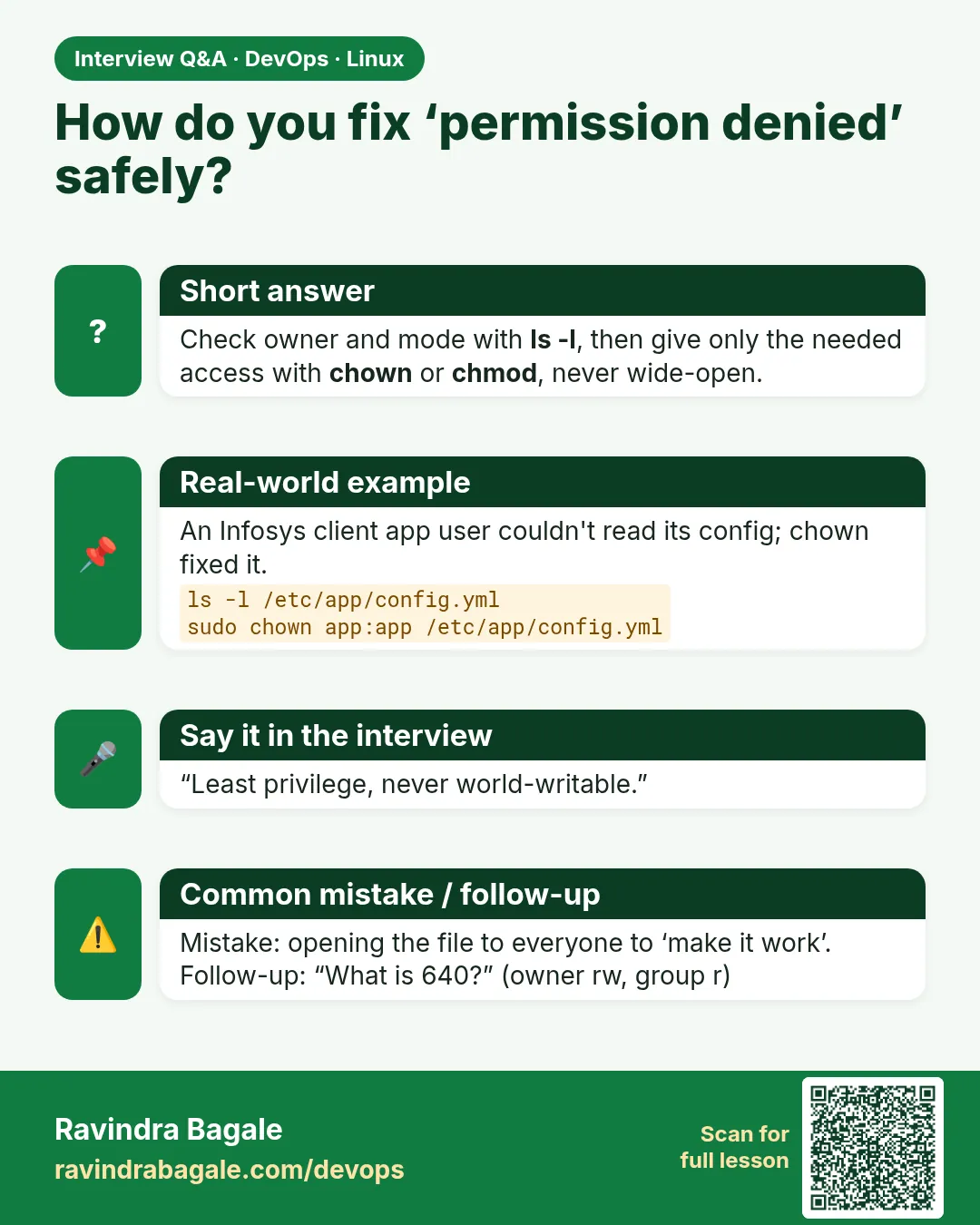
How do you fix permission denied on a script?
Check ls -l, then add only what is needed, like chmod u+x, or change the owner with chown to the user that runs it.
-
Explain 755 and 644.
755 is rwx for owner and rx for group and others, used for folders and scripts. 644 is rw for owner and read for others, used for normal files.
-
Why is giving everyone write access dangerous?
Any user or hacked process can change your code or configs. It hides the real ownership problem instead of fixing it.
-
How do you check permissions on every folder of a path?
namei -l /full/path shows each part of the path with owner and permission.
-
Why should an app run as a non-root user?
Least privilege. A bug or attack in the app can only touch what that user owns.
Quick quiz
Q1. What does 640 mean?
Owner read and write, group read, others nothing.
Q2. Which command changes the owner?
chown
Q3. How do you test what another user can read?
sudo -u user test -r file, or sudo -u user cat file.
Q4. What permission should a private SSH key have?
600 or 400.
Q5. What does x mean on a folder?
You may enter the folder.
Did you understand? Let us try it once more.
 Revision card
 Interview card