Chapter 34
Data Validation: Complete Guide
Build rock-solid Excel forms with Data Validation: dropdown lists, whole numbers and decimals, dates, text length, custom formulas, and dependent Region→City lists. The practice workbook already has working rules — try to break them.
Ravindra Bagale’s Tip
After you set a rule, type a wrong value into one of its cells and press Enter. If Excel stays silent, check four things: the rule covers the right cells, Show error alert is ticked, the Style is Stop, and you typed the value instead of pasting it.
Ravindra Bagale’s Tip – मराठी
नियम सेट केल्यावर त्याच्या एका cell मध्ये मुद्दाम चुकीची value टाइप करा आणि Enter दाबा. एक्सेल गप्प राहिलं तर चार गोष्टी तपासा: नियम योग्य cells वर आहे का, Show error alert ला tick आहे का, Style Stop आहे का, आणि तुम्ही value टाइप केली की paste केली.
Ravindra Bagale’s Tip – हिंदी
नियम सेट करने के बाद उसकी किसी एक cell में जानबूझकर गलत value टाइप करें और Enter दबाएँ। एक्सेल चुप रहे तो चार बातें जाँचें: नियम सही cells पर है या नहीं, Show error alert पर tick है या नहीं, Style Stop है या नहीं, और आपने value टाइप की या paste की।
1. Why data validation matters
Validation is cheaper than cleaning the same column every Monday.
प्रत्येक सोमवारी कॉलम साफ करण्यापेक्षा व्हॅलिडेशन स्वस्त पडते.
हर सोमवार कॉलम साफ़ करने से सस्ता है पहले वैलिडेशन लगाना।
What: Data validation is a rule on a column that controls what a person can type or pick in its cells.
Why: A wrong spelling or the wrong kind of value in a column breaks totals, PivotTables and Power Query merges. A rule at the moment of typing stops the mistake before it spreads.
How:
- Decide which columns must stay clean (Region, Qty, Date, Email).
- Data → Data Validation on the input range.
- Set Allow type, Input Message, and Error Alert.
- Test with a wrong value — Excel should block or warn.
| Before / setup | Rule or formula | Result | Meaning |
|---|---|---|---|
Region free text “Wesst” | List: West/South/North | Dropdown only | No more typos |
2. Dropdown lists (typed or range)
Keep list sources on a Lists sheet so business users can add items without editing the rule.
यादी Lists शीटवर ठेवा — नियम न बदलता आयटम वाढवता येतात.
सूची Lists शीट पर रखें — नियम बदले बिना आइटम बढ़ा सकते हैं।
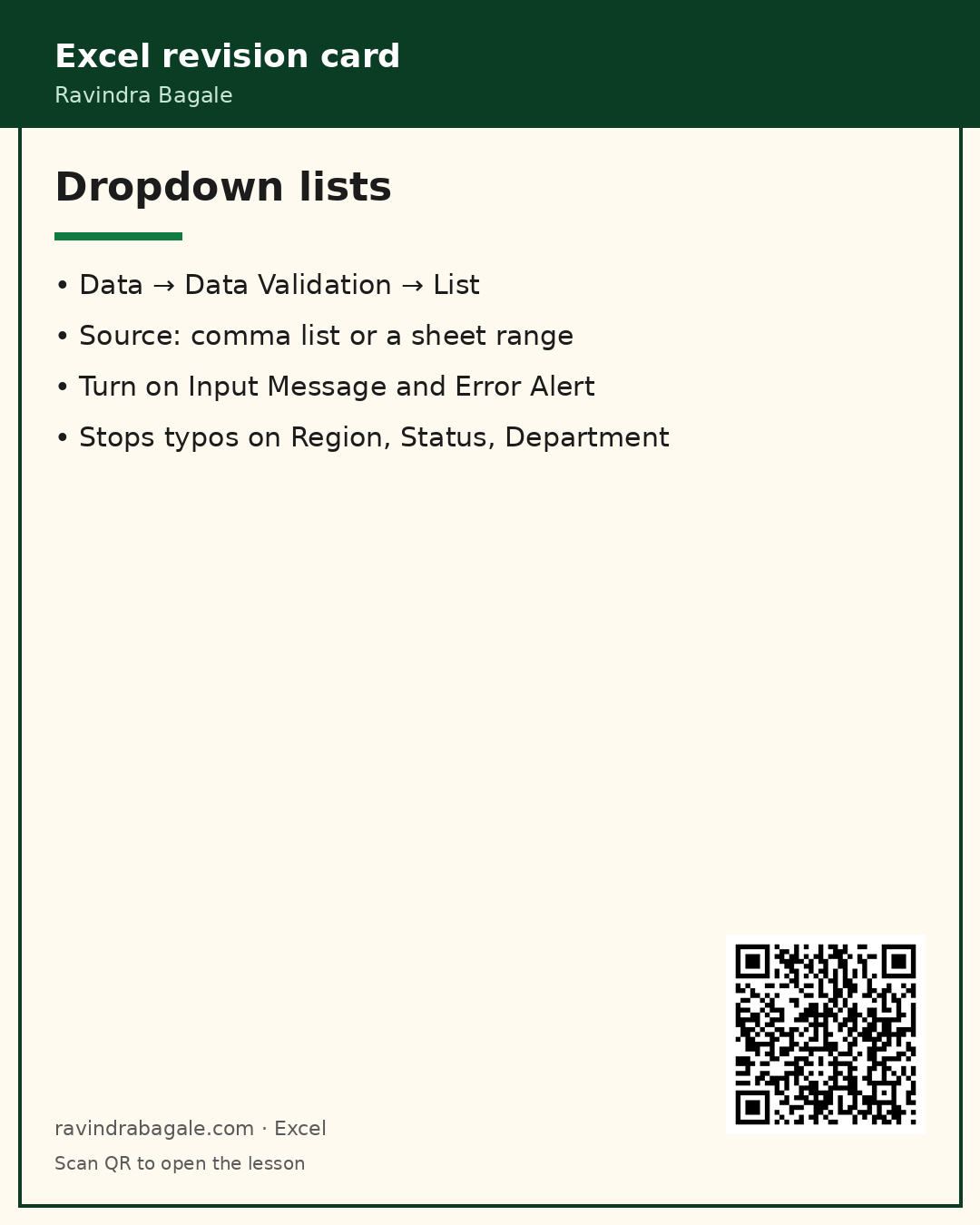
What: A list rule lets a person pick a value only from a fixed set of allowed values shown in a drop-down.
Why: Columns such as Status and Department must use the same words every time, so counts and filters group the rows correctly.
How:
- Select the Status cells (D2:D11).
- Data → Data Validation → Allow: List.
- Source: select Lists!E2:E5 (or type the commas).
- Optional: tick In-cell dropdown. Add Input Message “Pick a status”.
- Error Alert Style: Stop (hard block) or Warning.
| Before / setup | Rule or formula | Result | Meaning |
|---|---|---|---|
Status column | List → Lists!$E$2:$E$5 | Dropdown appears | Controlled vocabulary |
3. Whole numbers and decimals
Match the rule to the real business limit — do not invent 1–9999 if stock max is 500.
नियम खऱ्या व्यवसायाच्या मर्यादेशी जुळवा.
नियम असली व्यावसायिक सीमा से मिलाएँ।
What: A whole number rule or a decimal rule accepts only numbers inside the minimum and maximum you set.
Why: Qty must be a whole count and Price must not be below zero, because a wrong number here gives wrong order values.
How:
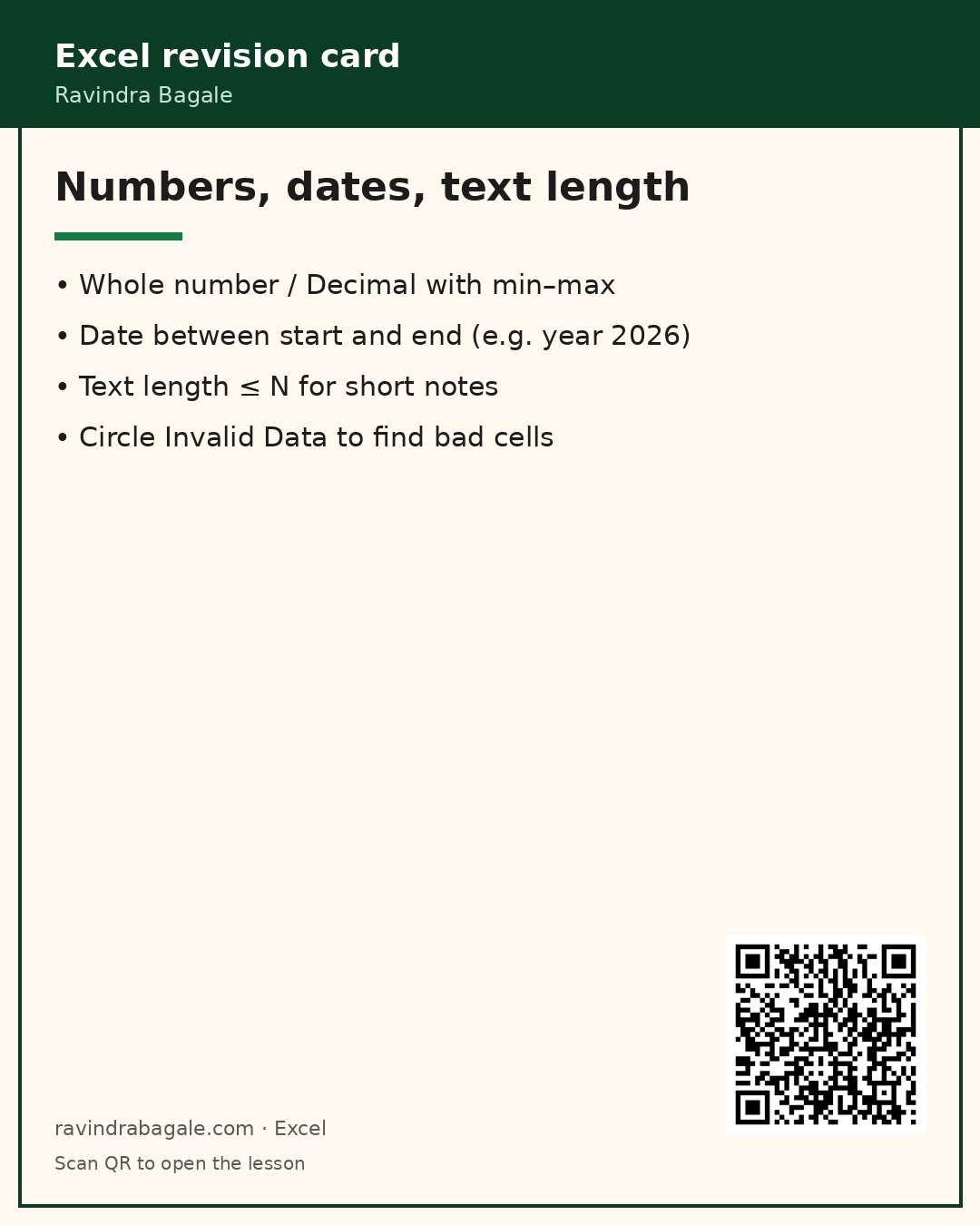
- Select Qty cells → Data Validation → Whole number → between 1 and 500.
- Select Unit price → Decimal → greater than 0.
- Write a clear Error Alert: “Qty must be a whole number from 1 to 500”.
- Try typing 0 or 12.5 — confirm the alert.
| Before / setup | Rule or formula | Result | Meaning |
|---|---|---|---|
Qty = 12.5 | Whole number 1–500 | Excel blocks entry | Integer only |
4. Dates and text length
Date rules stop “02/30/2026” style chaos when people type by hand.
तारीख नियम चुकीच्या हाताने टाइप केलेल्या तारखा थांबवतात.
तारीख नियम गलत टाइपिंग रोकते हैं।
What: A date rule accepts only dates between a start date and an end date. A text length rule limits how many characters a cell can hold.
Why: Order Date must stay inside the period the report covers, and short notes stay readable when the sheet is exported to another system.
How:
- Select Order date → Date → between DATE(2026,1,1) and DATE(2026,12,31) — or pick cells with those dates.
- Select Notes → Text length → less than or equal → 40.
- Test a 2025 date and a 50-character note.
| Before / setup | Rule or formula | Result | Meaning |
|---|---|---|---|
Notes 50 chars | Text length ≤ 40 | Rejected | Keeps CSV columns tidy |
5. Custom formulas (unique, email, phone)
Write the formula as if for the first cell in the range; Excel adjusts rows.
सूत्र पहिल्या सेलसाठी लिहा — एक्सेल ओळी जुळवते.
फ़ॉर्मूला पहली सेल के लिए लिखें — एक्सेल पंक्तियाँ समायोजित करता है।
What: A custom rule uses a formula that must return TRUE before Excel accepts the typed value. Excel reads the formula as written for the active cell of the selected range and adjusts it for every other cell.
Why: Some checks depend on the other values in the column or on the characters inside the text, and a fixed list or a number range cannot express them.
How:
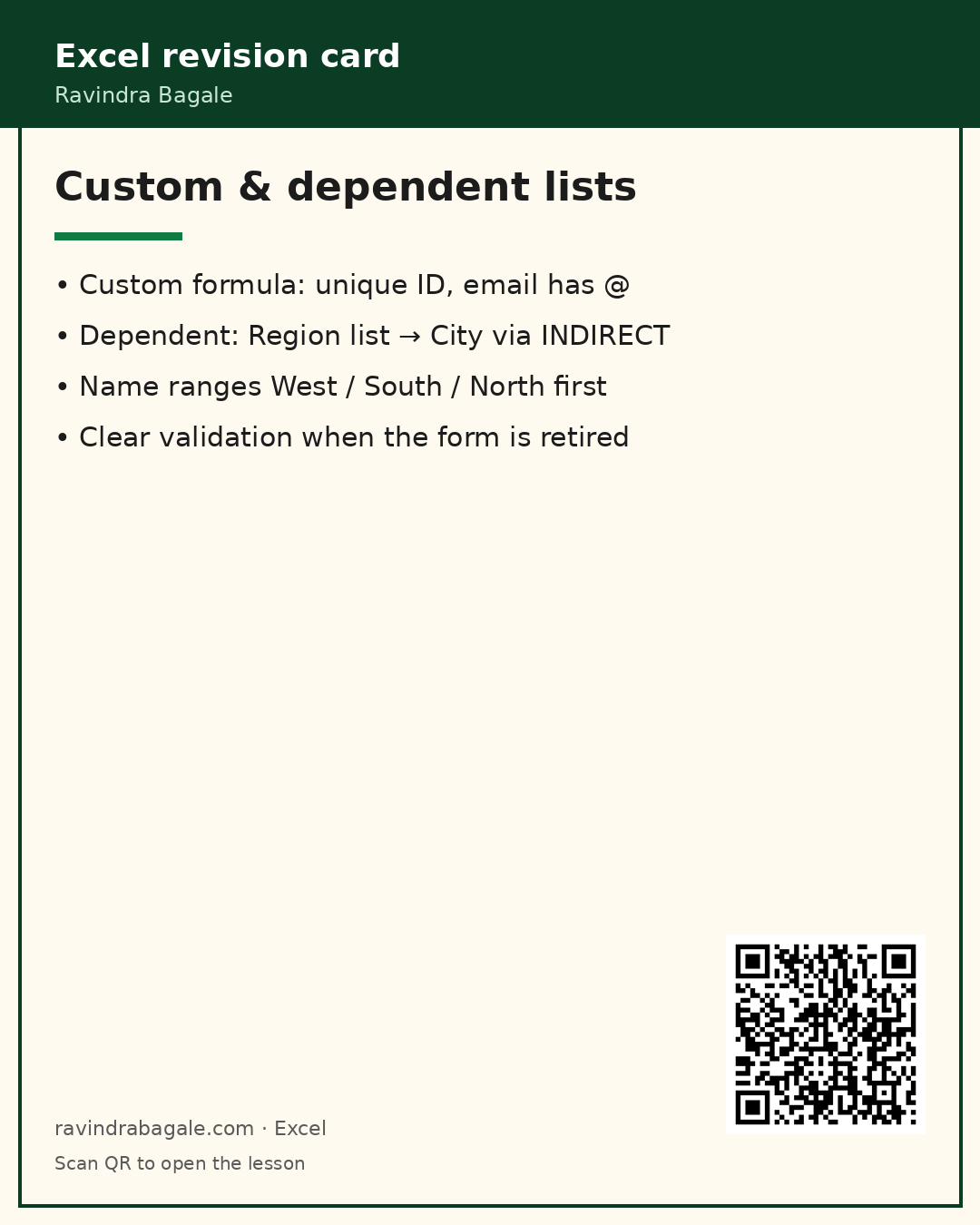
- Select Employee ID A2:A9 → Custom → =COUNTIF($A$2:$A$9,A2)=1
- Select Email → Custom → =ISNUMBER(SEARCH("@",B2)). This is only a simple contains-@ teaching rule: it still accepts an @ on its own and person@@example.com, and no formula can prove that an address really receives mail.
- Format the Phone cells as Text first, so a phone number that starts with 0 keeps its first digit. Then select Phone → Custom → =AND(LEN(D2)=10,SUMPRODUCT(--ISNUMBER(FIND(MID(D2,ROW($1:$10),1),"0123456789")))=10). LEN checks that there are exactly ten characters, and the FIND part checks that every one of them is a digit.
- Error alerts should say what to fix, not only “Invalid”.
| Before / setup | Rule or formula | Result | Meaning |
|---|---|---|---|
Duplicate E-1001 | COUNTIF(...)=1 | Second entry blocked | Unique key |
6. Dependent dropdowns (Region → City)
Each named range must have the same name as an item in the parent list. Spelling and spaces matter, but Excel names ignore capital letters.
प्रत्येक नेमड रेंजचे नाव पॅरेंट लिस्टमधल्या item सारखेच, त्याच spelling ने असले पाहिजे. Capital आणि small अक्षरांचा फरक Excel पाहत नाही.
हर नेम्ड रेंज का नाम पैरेंट लिस्ट के item जैसा ही, उसी spelling में होना चाहिए। Capital और small अक्षरों का फ़र्क Excel नहीं देखता।
What: A dependent drop-down is a list rule whose allowed values change with the value picked in another column.
Why: The City column must offer only the cities of the region picked in the Region column, so nobody can pick a city from the wrong region.
How:
- On Lists sheet, put West cities in B2:B4, South in C2:C4, North in D2:D4.
- Formulas → Name Manager → define names West, South, North pointing at those ranges (each name must be spelled the same as a Region item; Excel names ignore capital letters).
- Region column: List → Lists!$A$2:$A$4.
- City column: List → Source =INDIRECT(A2).
- Change Region from West to South — City dropdown updates.
| Before / setup | Rule or formula | Result | Meaning |
|---|---|---|---|
Region West | INDIRECT(A2) → West cities | Pune/Mumbai/Ahmedabad | Cascading lists |
7. Circle invalid data, copy, and clear
Circling does not fix data — it only shows what still breaks the rule.
सर्कल फक्त दाखवते — डेटा आपोआप दुरुस्त होत नाही.
सर्कल सिर्फ दिखाता है — डेटा अपने आप सही नहीं होता।
What: Circle Invalid Data marks every existing cell that breaks its rule, and Clear Validation Circles removes those marks.
Why: A new rule checks only values typed after it was added, so values typed earlier can still break it.
How:
- On OrderForm, temporarily type a bad Qty (use Warning style if Stop blocks you, or clear the cell rule briefly).
- Data → Data Validation dropdown arrow → Circle Invalid Data.
- Fix the cells, then Clear Validation Circles.
- To remove rules: select range → Data Validation → Clear All.
| Before / setup | Rule or formula | Result | Meaning |
|---|---|---|---|
Legacy bad Qty | Circle Invalid Data | Red ovals appear | Audit before share |
8. Design tips for solid forms
Teach users the Input Message — a good prompt cuts support questions.
इनपुट मेसेज चांगला असेल तर सपोर्ट प्रश्न कमी होतात.
अच्छा इनपुट संदेश सपोर्ट सवाल घटाता है।
What: Good validation design keeps the allowed values on a separate Lists sheet, uses named ranges that cover the whole list, protects the Lists sheet, and notes the rule type in the column header.
Why: A rule stops working when its source range no longer covers the whole list, or when someone overwrites the allowed values.
How:
- Keep one Lists sheet; hide it if needed.
- Use tables or dynamic named ranges when lists grow often.
- Protect sheet but allow selecting unlocked input cells.
- Pair validation with Conditional Formatting blanks for a second safety net.
| Before / setup | Rule or formula | Result | Meaning |
|---|---|---|---|
Growing city list | Table or dynamic name | Dropdown stays current | Less maintenance |
Practice tasks (12)
- On OrderForm row 5, pick Region South and Status Open from the dropdowns.
Hint
Use the in-cell arrows.
- Try Qty = 0 on row 5 — confirm the whole-number alert.
Hint
Rule is between 1 and 500.
- Enter Unit price -10 — confirm decimal > 0 blocks it.
Hint
Error Alert on column F.
- Type a 2025-01-01 order date — confirm year-2026 rule.
Hint
Date between Jan–Dec 2026.
- Type a note longer than 40 characters into a Notes cell and press Enter — confirm that the Stop alert blocks it. Then copy the same long note from another cell and paste it into Notes. Excel accepts the pasted note without any alert, so run Circle Invalid Data to find it.
Hint
The Notes rule checks what you type. Pasting skips the check, so Circle Invalid Data is how you catch pasted mistakes.
- On CustomRules, duplicate E-1001 on a new row — confirm unique rule.
Hint
COUNTIF custom formula.
- Enter an email without @ and confirm that the simple contains-@ rule blocks it. Then enter person@@example.com and notice that the rule accepts it, because it checks only that an @ sign is present.
Hint
SEARCH("@",…) formula.
- Enter phone 12345 — confirm 10-digit rule. Then try +123456789, which has ten characters but not ten digits, and confirm that the rule blocks it too.
Hint
LEN counts the characters, and the FIND part checks that every character is a digit.
- On Dependent, set Region to North and pick Lucknow.
Hint
INDIRECT named range North.
- Change that row’s Region to West — City must be re-picked from West list.
Hint
Old city may no longer be valid.
- Circle Invalid Data on OrderForm after planting one bad value, then clear circles.
Hint
Data Validation menu arrow.
- Add a new city “Surat” under West on Lists and use it in Dependent (extend named range if needed).
Hint
Update name West to include the new cell.
Quick quiz
Q1. Data Validation lives on which ribbon tab?
Q2. A dropdown of fixed words uses Allow type…
Q3. Dependent City lists usually use which function in Source?
Q4. To block duplicate IDs you typically use…
Q5. Circle Invalid Data does what?
Q6. Text length ≤ 40 is best for…
Q7. Named range for region West must…
Q8. Error Alert style Stop means…
End-of-chapter checklist
- I can build List, Whole, Decimal, Date, and Text length validations with clear alerts.
- I can write Custom formulas for unique IDs and a simple contains-@ email check and a phone check.
- I can build dependent dropdowns with named ranges and INDIRECT.
- I can Circle Invalid Data and Clear All validation when needed.
Quick revision cards
Three revision cards for this chapter. Each card explains one idea with its own example.