47.15 Dev Containers, Testcontainers and Docker Desktop extras
Why: the problem
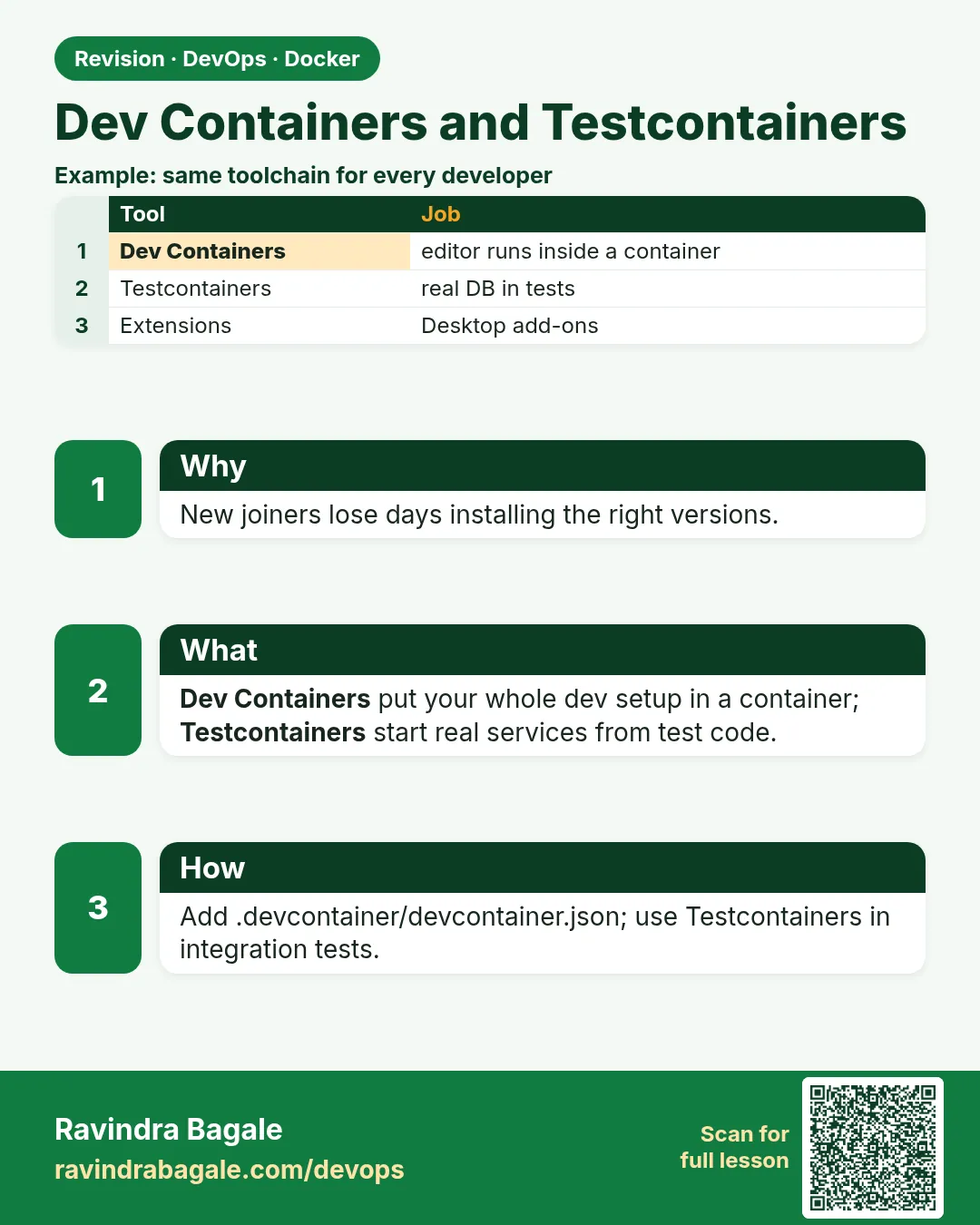
Suppose a new developer joins our team at TCS. Day one goes to installing Node 20, Python 3.12, the AWS CLI, the right Java and Postgres. Day two goes to fixing why tests fail only on her laptop. Docker can remove this pain in three ways. First, Dev Containers: the whole development setup is a container described in .devcontainer/devcontainer.json. VS Code opens the project inside it. Every developer gets the same tools in minutes. Second, Testcontainers: tests start real throwaway databases and queues in Docker, so tests run against real Postgres, not a fake. Third, Docker Desktop extras: docker debug to get a shell in slim images, Docker Scout to check image CVEs, extensions, and Resource Saver. In this lesson we create a dev container for a Node + Postgres project, run a Testcontainers test, and use the Desktop tools a working developer needs.
What: every term in plain English
- Dev Container — A container used as your full development environment, defined by devcontainer.json.
- devcontainer.json — The file in .devcontainer/ that says which image or Compose file, extensions, ports and setup commands to use.
- Features — Ready add-ons for dev containers, like the AWS CLI or Node, added with one line.
- postCreateCommand — A command that runs once after the dev container is made, like npm ci.
- Testcontainers — A library for Java, Node, Python, Go and .NET that starts real containers inside your tests.
- docker debug — A Desktop (Pro/Team/Business) command that opens a shell with tools inside any container, even distroless ones.
- Docker Scout — Scans image layers for known CVEs and suggests base image updates.
- Resource Saver — A Desktop mode that stops the VM when no containers run, to save RAM and battery.
How: step by step
- Add .devcontainer/devcontainer.json. Pick an image or a Compose file.
- Add features and extensions. Tools and VS Code extensions everyone needs.
- Reopen in Container. VS Code builds and connects; the terminal is inside.
- Write a Testcontainers test. Start Postgres in the test and connect to it.
- Run tests. Locally and in CI where Docker exists.
- Use Desktop tools. docker scout, docker debug and extensions when needed.
Example 1: A Dev Container for a Node API with Postgres, using Compose
Goal. A Dev Container for a Node API with Postgres, using Compose.
.devcontainer/devcontainer.json
{
  "name": "orders-dev",
  "dockerComposeFile": "compose.yaml",
  "service": "app",
  "workspaceFolder": "/workspaces/orders",
  "features": {
    "ghcr.io/devcontainers/features/aws-cli:1": {}
  },
  "forwardPorts": [3000, 5432],
  "postCreateCommand": "npm ci",
  "customizations": {
    "vscode": { "extensions": ["dbaeumer.vscode-eslint", "ms-azuretools.vscode-docker"] }
  },
  "remoteUser": "node"
}
.devcontainer/compose.yaml
services:
  app:
    image: mcr.microsoft.com/devcontainers/javascript-node:1-20-bookworm
    volumes:
      - ..:/workspaces/orders:cached
    command: sleep infinity
    environment:
      DATABASE_URL: postgres://dev:devpass@db:5432/orders
  db:
    image: postgres:16
    environment:
      POSTGRES_USER: dev
      POSTGRES_PASSWORD: devpass
      POSTGRES_DB: orders
    volumes:
      - pgdata:/var/lib/postgresql/data
volumes:
  pgdata:
Commands
npm install -g @devcontainers/cli
devcontainer up --workspace-folder .
devcontainer exec --workspace-folder . bash -c 'node -v; aws --version; whoami'
devcontainer exec --workspace-folder . bash -c 'psql "$DATABASE_URL" -c "select 1"'
docker ps --format '{{.Names}}'
What each line does
dockerComposeFile + service— Uses Compose; VS Code connects to the app service.features aws-cli— Adds the AWS CLI with one line.postCreateCommand: npm ci— Installs dependencies once after creation.remoteUser: node— You work as a normal user, not root.command: sleep infinity— Keeps the dev container alive for VS Code.devcontainer up— The CLI does the same as VS Code's Reopen in Container; good for CI too.
Green output
{"outcome":"success","containerId":"8a2f...","remoteUser":"node","remoteWorkspaceFolder":"/workspaces/orders"}
v20.18.0
aws-cli/2.18.10 Python/3.12.6 Linux/6.10.0 exe/x86_64.debian.12
node
 ?column?
----------
        1
orders_devcontainer-app-1
orders_devcontainer-db-1
Expected result. Any new developer clones the repo, clicks Reopen in Container, and has Node 20, AWS CLI and a Postgres database in a few minutes. Same versions for everyone.
Example 2: Testcontainers in Node: a real Postgres inside a test
Goal. Testcontainers in Node: a real Postgres inside a test.
test/db.test.js
const { PostgreSqlContainer } = require('@testcontainers/postgresql');
const { Client } = require('pg');
test('saves an order', async () => {
  const pg = await new PostgreSqlContainer('postgres:16').start();
  const client = new Client({ connectionString: pg.getConnectionUri() });
  await client.connect();
  await client.query('create table orders(id serial, item text)');
  await client.query("insert into orders(item) values ('dosa')");
  const r = await client.query('select count(*) from orders');
  expect(Number(r.rows[0].count)).toBe(1);
  await client.end(); await pg.stop();
}, 60000);
Commands
npm install -D jest pg @testcontainers/postgresql
npx jest test/db.test.js
docker ps -a --filter label=org.testcontainers=true --format '{{.Image}} {{.Status}}'
What each line does
new PostgreSqlContainer('postgres:16').start()— Starts a real Postgres on a random free port.getConnectionUri()— Gives the right host, port, user and password.pg.stop()— Removes the container after the test.60000— Allows time for the first image pull.label=org.testcontainers=true— Testcontainers labels its containers; a Ryuk container cleans leftovers.
Green output
 PASS  test/db.test.js (6.8 s)
  ✓ saves an order (5912 ms)
Tests:       1 passed, 1 total
testcontainers/ryuk:0.11.0 Exited (0) 2 seconds ago
Expected result. The test used real Postgres 16, then removed it. No shared test database, and no fake that behaves differently.
Example 3: Docker Desktop extras every developer should know
Goal. Docker Desktop extras every developer should know.
Commands
docker scout quickview nginx:1.27
docker scout cves --only-severity critical,high nginx:1.27 | head -8
docker scout recommendations nginx:1.27 | sed -n '1,6p'
docker run -d --name slim gcr.io/distroless/static-debian12 sleep 1d 2>/dev/null || docker run -d --name slim nginx:1.27
docker debug slim
docker extension ls
docker desktop status 2>/dev/null || echo "docker desktop CLI needs Desktop 4.37+"
What each line does
scout quickview— A one-line CVE summary for an image.scout cves --only-severity— Lists only critical and high CVEs.scout recommendations— Suggests a newer or smaller base image.docker debug slim— Opens a shell with tools like vim, curl and htop inside the container without changing the image.docker extension ls— Lists installed Desktop extensions such as Disk usage or Logs Explorer.docker desktop status— The Desktop CLI can start, stop and check Desktop from scripts.
Green output
  Target   │  nginx:1.27   │    0C     2H     5M    40L
  Base image │  debian:12-slim │    0C     1H     3M    38L
## Packages and Vulnerabilities
   2H  libexpat 2.5.0-1
Recommended fixes for image nginx:1.27
  Tag 1.27-alpine: 0C 0H 1M 2L
docker-debug: slim  ~ $
NAME                        PROVIDER   VERSION
docker/disk-usage-extension Docker Inc. 0.2.9
Name     Value
Status   running
Expected result. Scout tells us nginx:1.27-alpine removes the high CVEs, and docker debug gives a toolbox shell inside any container. These save hours of guessing.
Every command, step by step (plain docker and Compose)
-
Plain docker: list dev containers
docker ps --filter label=devcontainer.local_folderWhat it does: Containers VS Code made.
orders_devcontainer-app-1 -
Run a dev image by hand
docker run -it --rm -v "$PWD":/work -w /work mcr.microsoft.com/devcontainers/javascript-node:1-20-bookworm node -vWhat it does: The same image without VS Code.
v20.18.0 -
Scan an image
docker scout quickview nginx:1.27What it does: CVE summary.
0C 2H 5M 40L -
Testcontainers leftovers
docker ps -a --filter label=org.testcontainers=trueWhat it does: Check cleanup.
(empty) -
Debug a container
docker debug slimWhat it does: Toolbox shell.
docker-debug: slim ~ $ -
Compose way: dev stack
docker compose -f .devcontainer/compose.yaml up -dWhat it does: Starts app and db without VS Code.
✔ Container orders_devcontainer-db-1 Started -
Compose way: check db
docker compose -f .devcontainer/compose.yaml exec db psql -U dev -d orders -c 'select 1'What it does: Database works.
1 -
Compose way: stop
docker compose -f .devcontainer/compose.yaml downWhat it does: Stops the dev stack, keeps pgdata.
✔ Network orders_devcontainer_default Removed -
Clean up
docker rm -f slimWhat it does: Remove the debug target.
slim
When it is red 1
Error: Could not find a working container runtime strategy
Cause. Testcontainers cannot reach Docker. Docker is not running, or DOCKER_HOST points to the wrong place.
Fix, step by step
- Start Docker Desktop or the engine.
- Check docker ps works in the same shell.
- On rootless or remote, set DOCKER_HOST correctly.
When it is red 2
[2026-10-25T05:30:11.204Z] Error: Command failed: docker compose ... up -d
Error response from daemon: Ports are not available: exposing port TCP 0.0.0.0:5432 -> 0.0.0.0:0: listen tcp 0.0.0.0:5432: bind: address already in use
Cause. A local Postgres already uses 5432, so the dev container cannot publish it.
Fix, step by step
- Stop the local Postgres, or
- Remove the ports mapping and use forwardPorts in devcontainer.json instead.
- Rebuild the container from the VS Code command palette.
Practice tasks
Easy Task 1: Install the CLI
Why: Use dev containers without the GUI.
What to do: Install the devcontainer CLI.
- Use VS Code with the Dev Containers extension and Docker Desktop or Engine.
- Use a small Node or Java project.
- Compare your output with the solution.
Solution
npm install -g @devcontainers/cliMedium Task 2: Write devcontainer.json
Why: Define the setup.
What to do: Create an image-based devcontainer.json for Node 20.
- Use VS Code with the Dev Containers extension and Docker Desktop or Engine.
- Use a small Node or Java project.
- Compare your output with the solution.
Solution
{
  "name": "node-dev",
  "image": "mcr.microsoft.com/devcontainers/javascript-node:1-20-bookworm",
  "postCreateCommand": "npm ci"
}
Medium Task 3: Start it
Why: Prove it builds.
What to do: Start the dev container with the CLI.
- Use VS Code with the Dev Containers extension and Docker Desktop or Engine.
- Use a small Node or Java project.
- Compare your output with the solution.
Solution
devcontainer up --workspace-folder .Easy Task 4: Run inside
Why: Check the tools.
What to do: Print node version inside.
- Use VS Code with the Dev Containers extension and Docker Desktop or Engine.
- Use a small Node or Java project.
- Compare your output with the solution.
Solution
devcontainer exec --workspace-folder . node -vMedium Task 5: Add a feature
Why: Extra tools in one line.
What to do: Add the AWS CLI feature and rebuild.
- Use VS Code with the Dev Containers extension and Docker Desktop or Engine.
- Use a small Node or Java project.
- Compare your output with the solution.
Solution
"features": { "ghcr.io/devcontainers/features/aws-cli:1": {} }
devcontainer up --workspace-folder . --remove-existing-container
Medium Task 6: Add Postgres
Why: Real database in dev.
What to do: Switch to dockerComposeFile with app and db.
- Use VS Code with the Dev Containers extension and Docker Desktop or Engine.
- Use a small Node or Java project.
- Compare your output with the solution.
Solution
"dockerComposeFile": "compose.yaml",
"service": "app"
Hard Task 7: Testcontainers test
Why: Real DB in tests.
What to do: Write a Jest test with PostgreSqlContainer.
- Use VS Code with the Dev Containers extension and Docker Desktop or Engine.
- Use a small Node or Java project.
- Compare your output with the solution.
Solution
const pg = await new PostgreSqlContainer('postgres:16').start();Medium Task 8: Run the test
Why: See it pass.
What to do: Run the test and check cleanup.
- Use VS Code with the Dev Containers extension and Docker Desktop or Engine.
- Use a small Node or Java project.
- Compare your output with the solution.
Solution
npx jest
docker ps -a --filter label=org.testcontainers=true
Easy Task 9: Scout quickview
Why: Know your CVEs.
What to do: Scan nginx:1.27.
- Use VS Code with the Dev Containers extension and Docker Desktop or Engine.
- Use a small Node or Java project.
- Compare your output with the solution.
Solution
docker scout quickview nginx:1.27Medium Task 10: Scout fix
Why: Lower risk.
What to do: Get base image recommendations.
- Use VS Code with the Dev Containers extension and Docker Desktop or Engine.
- Use a small Node or Java project.
- Compare your output with the solution.
Solution
docker scout recommendations nginx:1.27Hard Task 11: Debug slim image
Why: No shell inside.
What to do: Open docker debug on a running container.
- Use VS Code with the Dev Containers extension and Docker Desktop or Engine.
- Use a small Node or Java project.
- Compare your output with the solution.
Solution
docker debug slimHomework: try at home
Add a .devcontainer to one of your projects with Node or Python, one feature and one database service. Open it in VS Code, run the app inside, and then write one Testcontainers test against a real database. Finally run docker scout quickview on your app image and fix one high CVE by changing the base image.
Recap
- Dev Containers give every developer the same tools from devcontainer.json.
- Use features for tools and postCreateCommand for setup.
- Testcontainers starts real databases inside tests and cleans up.
- docker scout finds CVEs and better base images.
- docker debug opens a toolbox shell in any container.
- Desktop extensions and Resource Saver help daily work.
FAQ
Q. Do Dev Containers need VS Code?
No. JetBrains, GitHub Codespaces and the devcontainer CLI also use them.
Q. Will my code be inside the image?
No. It is bind-mounted from your folder.
Q. Is Testcontainers slow?
The first pull is slow; later runs take a few seconds.
Q. Does docker debug need a paid plan?
Yes, Pro, Team or Business.
Q. Is docker scout free?
Yes for a limited number of repos; local scans are free.
Q. Can I use Testcontainers in CI?
Yes, wherever the runner has Docker.
Interview questions
-
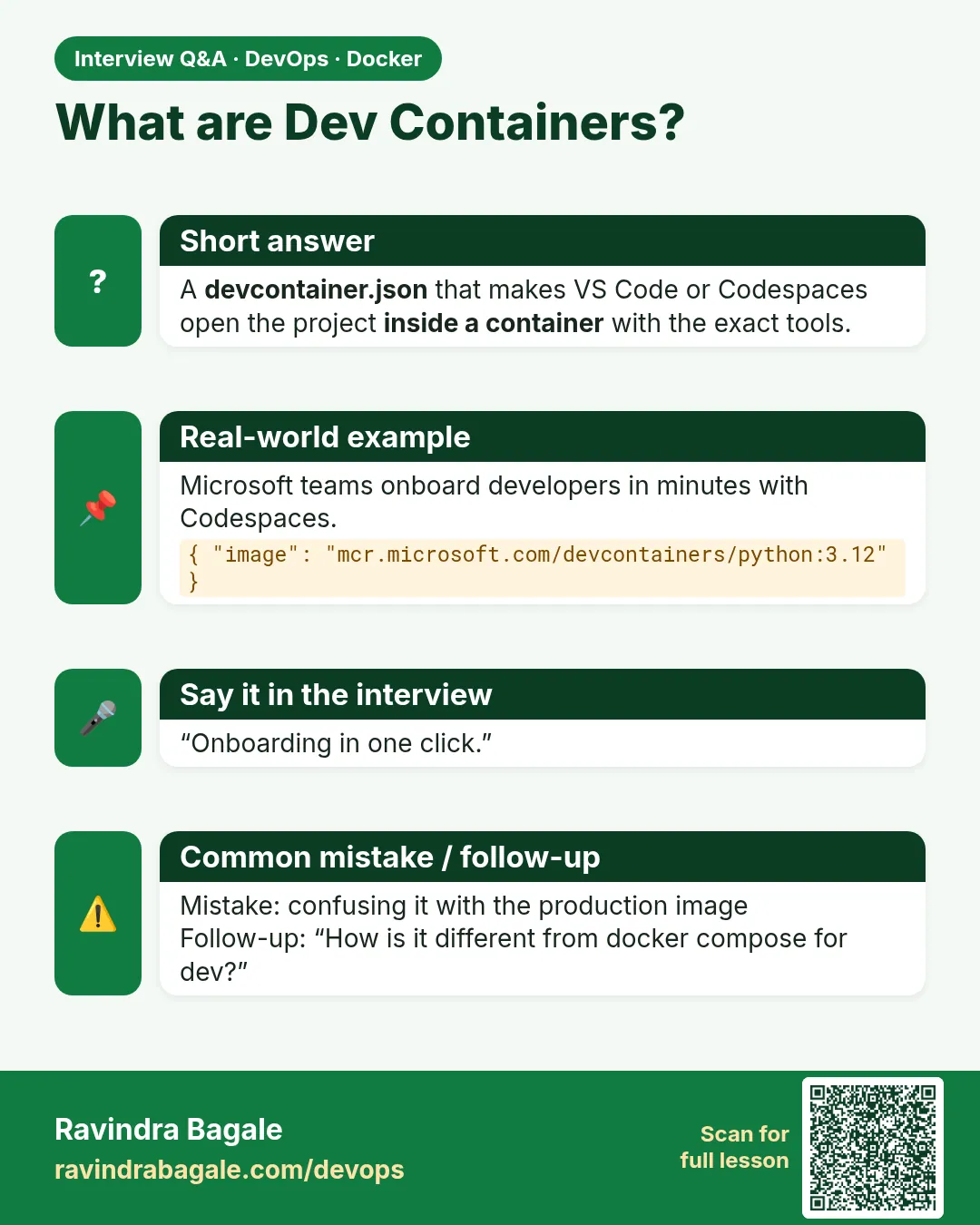
What is a Dev Container?
Model answer: A container defined by devcontainer.json that holds the full development environment, so every developer gets the same tools.
-
How is Testcontainers better than an in-memory fake DB?
Model answer: Tests run against the real engine and version used in production, so they catch real bugs.
-
What is Docker Scout?
Model answer: A tool that analyses image contents and reports CVEs with fixes.
-
How do you debug a distroless container?
Model answer: docker debug, or run a debug sidecar sharing its PID and network namespace.
-
What does postCreateCommand do?
Model answer: Runs a setup command once after the dev container is created.
-
How does Testcontainers clean up?
Model answer: It stops containers in the test and uses the Ryuk container to remove leftovers.
Quick quiz
Q1. Which file defines a dev container?
.devcontainer/devcontainer.json.
Q2. Which setting runs npm ci once after creation?
postCreateCommand.
Q3. What does Testcontainers do?
Starts real throwaway containers from inside tests.
Q4. Which command scans an image for CVEs?
docker scout cves or quickview.
Q5. Which command gives a shell in a distroless container?
docker debug.
Samajla ka?
Lab
- Install Docker on an Ubuntu EC2 and run hello-world.
- Run docker version and name each part.
- Start nginx with --memory 256m and find its host PID and namespaces.
- Run docker system df and docker events in two terminals while you start and stop a container.
- Set up a docker context to a second server over SSH.
Practice task
Install Docker on two machines (one Ubuntu, one Amazon Linux 2023), then use docker context from your laptop to list containers on both without SSHing in.
Ravindra Bagale's Tip
Interview madhe 'docker run kelyavar aatun kaay hota' ha prashna nakki yeto. CLI, dockerd, containerd, runc, kernel ha kram paath kara.
In short
- Containers package the app with its runtime, so it runs the same everywhere.
- Containers share the host kernel; VMs bring their own.
- CLI → dockerd → containerd → runc → kernel.
- Namespaces isolate what a process sees; cgroups limit what it uses.
- Use Docker's official repos; on Windows use WSL 2.
- Docker Desktop needs a paid plan for larger companies; free alternatives exist.
 Revision card
 Interview card