Chapter 23: Jenkins Fundamentals, Install and Architecture
23.7 WAR, Docker, Kubernetes, Nginx, firewall
Why: the problem
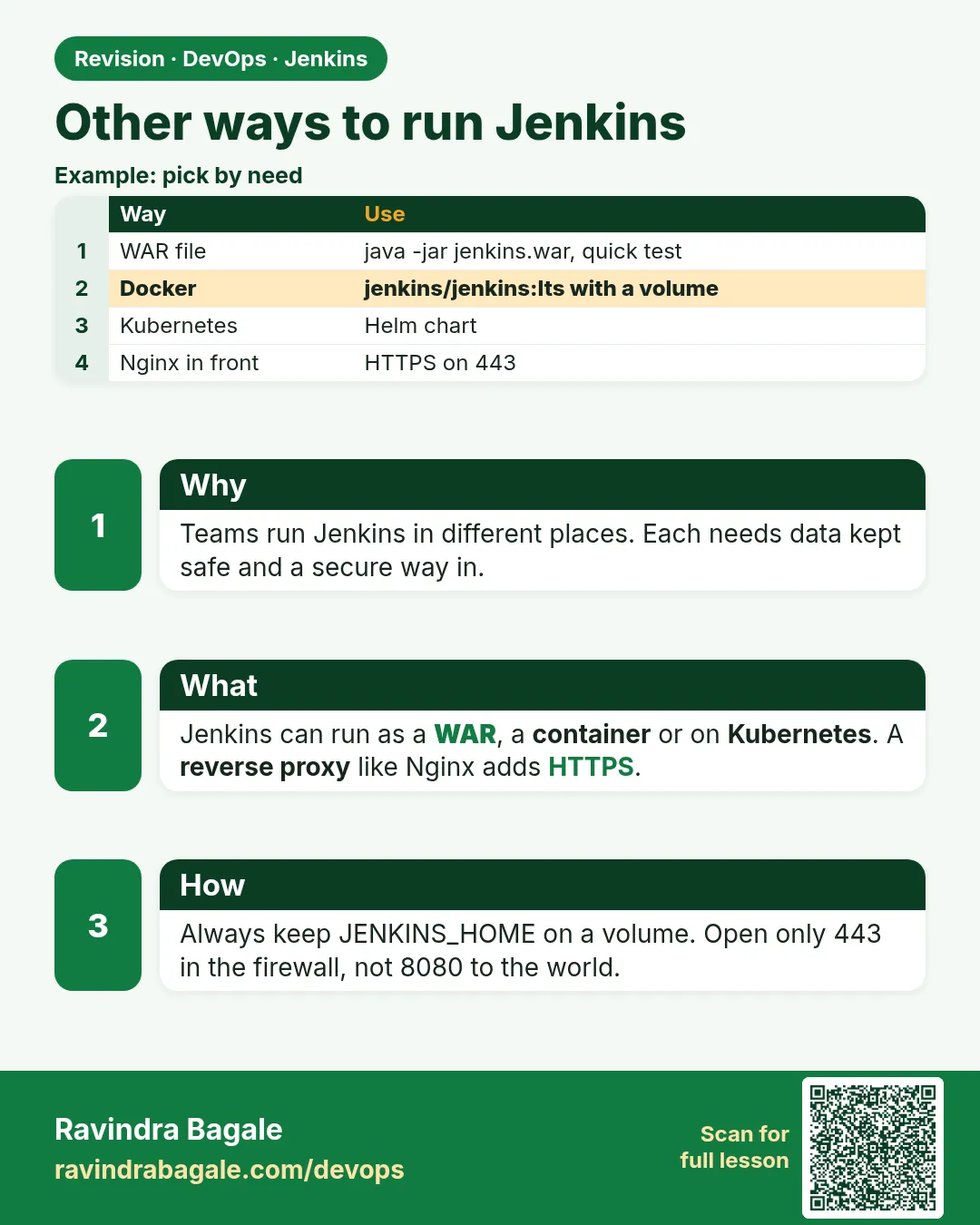
Think of a startup in Bengaluru. Every engineer installs Jenkins a different way. One runs the WAR file on a laptop. One uses Docker. The platform team runs it on Kubernetes. And someone opened port 8080 to the whole internet. All four are real ways to run Jenkins, but each has a place. The WAR file is quick for a demo. Docker with Compose is great for small teams and labs. Kubernetes with Helm gives auto-restart and agents that start on demand. And in every case, Jenkins should sit behind nginx with HTTPS and a firewall, not open on port 8080. In this lesson you will run Jenkins all four ways and finish with a safe setup.
What we will build
You will run jenkins.war with Java. You will write a docker-compose.yml for Jenkins plus nginx. You will install Jenkins on a kind Kubernetes cluster with the official Helm chart. Then you will put nginx with a free Let us Encrypt certificate in front, and close everything except ports 22, 80 and 443 with ufw.
What: every term in plain English
- WAR file — Web Archive. The whole Jenkins in one file you can run with java -jar.
- Docker Compose — A tool that starts several containers from one YAML file.
- Helm — A package manager for Kubernetes. A chart is a ready package.
- kind — Kubernetes in Docker. A small lab cluster on your laptop.
- Reverse proxy — A server (nginx) that takes user requests and passes them to Jenkins.
- TLS certificate — A file that lets the site use HTTPS. Let us Encrypt gives free ones with certbot.
- ufw — Uncomplicated Firewall on Ubuntu. It decides which ports are open.
- Persistent volume — Disk storage in Kubernetes that survives pod restarts.
How: step by step
-
Run the WAR file
curl -fsSLO https://get.jenkins.io/war-stable/latest/jenkins.war && java -jar jenkins.war --httpPort=8080What it does: Jenkins starts in the terminal. Home is ~/.jenkins.
Output
Jenkins is fully up and running -
Start Jenkins and nginx with Compose
docker compose up -dWhat it does: Two containers on one network.
Output
Container jenkins Started Container nginx Started -
Create a kind cluster
kind create cluster --name ciWhat it does: A local Kubernetes cluster.
Output
Set kubectl context to "kind-ci" -
Add the Jenkins Helm repo
helm repo add jenkins https://charts.jenkins.io && helm repo updateWhat it does: Downloads the chart list.
Output
"jenkins" has been added to your repositories -
Install the chart
helm install jenkins jenkins/jenkins -n jenkins --create-namespace -f values.yamlWhat it does: Jenkins runs as a StatefulSet with a volume.
Output
STATUS: deployed -
Get a certificate
sudo certbot --nginx -d jenkins.shop-lab.inWhat it does: certbot proves you own the domain and installs a free certificate.
Output
Successfully deployed certificate -
Close extra ports
sudo ufw allow OpenSSH && sudo ufw allow 80,443/tcp && sudo ufw enableWhat it does: Only SSH and web stay open.
Output
Firewall is active and enabled on system startup
Example 1: Jenkins and nginx with Docker Compose
Stack. Docker Compose, Jenkins LTS, nginx 1.27
Goal. Jenkins and nginx with Docker Compose.
docker-compose.yml
services:
  jenkins:
    image: jenkins/jenkins:lts-jdk17
    container_name: jenkins
    restart: unless-stopped
    environment:
      JAVA_OPTS: "-Xmx2g"
    volumes:
      - jenkins_home:/var/jenkins_home
    expose:
      - "8080"
    ports:
      - "50000:50000"
  nginx:
    image: nginx:1.27-alpine
    container_name: nginx
    restart: unless-stopped
    ports:
      - "80:80"
    volumes:
      - ./nginx.conf:/etc/nginx/conf.d/default.conf:ro
    depends_on:
      - jenkins
volumes:
  jenkins_home:
nginx.conf
server {
  listen 80;
  server_name _;
  client_max_body_size 100m;
  location / {
    proxy_pass http://jenkins:8080;
    proxy_set_header Host $host;
    proxy_set_header X-Real-IP $remote_addr;
    proxy_set_header X-Forwarded-For $proxy_add_x_forwarded_for;
    proxy_set_header X-Forwarded-Proto $scheme;
    proxy_http_version 1.1;
    proxy_set_header Upgrade $http_upgrade;
    proxy_set_header Connection "upgrade";
  }
}
What each line does
expose: "8080"— Port 8080 is open only inside the Compose network, not on the host.ports: "50000:50000"— For inbound agents. Remove it if you use WebSocket agents.proxy_pass http://jenkins:8080— nginx reaches Jenkins by its service name.client_max_body_size 100m— Allows big plugin uploads and artifacts.Upgrade / Connection headers— Needed for WebSocket agents and live console logs.restart: unless-stopped— Containers come back after a reboot.
Green output
$ docker compose up -d
[+] Running 3/3
 Volume "lab_jenkins_home"  Created
 Container jenkins          Started
 Container nginx            Started
$ curl -s -o /dev/null -w "%{http_code}\n" http://localhost/login
200
Expected result. Jenkins opens on http://localhost (port 80) through nginx. Port 8080 is not on the host at all.
Example 2: Jenkins on Kubernetes with the official Helm chart
Stack. kind, Helm 3, Jenkins Helm chart
Goal. Jenkins on Kubernetes with the official Helm chart.
values.yaml
controller:
  admin:
    existingSecret: jenkins-admin
    userKey: user
    passwordKey: password
  resources:
    requests: { cpu: "500m", memory: "1Gi" }
    limits:   { cpu: "2",    memory: "3Gi" }
  installPlugins:
    - kubernetes
    - workflow-aggregator
    - git
    - configuration-as-code
  serviceType: ClusterIP
persistence:
  enabled: true
  size: 20Gi
agent:
  enabled: true
  resources:
    requests: { cpu: "500m", memory: "512Mi" }
install.sh
kubectl create namespace jenkins
kubectl -n jenkins create secret generic jenkins-admin --from-literal=user=ravi --from-literal=password="$(openssl rand -base64 18)"
helm install jenkins jenkins/jenkins -n jenkins -f values.yaml
kubectl -n jenkins rollout status statefulset/jenkins --timeout=300s
kubectl -n jenkins port-forward svc/jenkins 8080:8080
What each line does
existingSecret: jenkins-admin— The admin password comes from a Kubernetes Secret, not from the values file.resources— CPU and memory the pod asks for and may not go over.installPlugins— Plugins installed at start. kubernetes makes agents as pods.serviceType: ClusterIP— Not open outside. Use an Ingress with TLS for real access.persistence size 20Gi— JENKINS_HOME on a persistent volume, so it survives pod restarts.openssl rand -base64 18— Makes a random password. Nothing real is written in files.port-forward— Opens the service on your laptop for testing.
Green output
statefulset rolling update complete 1 pods at revision 1...
Forwarding from 127.0.0.1:8080 -> 8080
$ kubectl -n jenkins get pods
NAME        READY   STATUS    RESTARTS   AGE
jenkins-0   2/2     Running   0          3m
Expected result. Jenkins runs as pod jenkins-0. When a pipeline uses agent { kubernetes { } }, a new agent pod starts and is deleted after the build.
Example 3: Secure a single VM: nginx with HTTPS plus ufw
Stack. Ubuntu 22.04, nginx, certbot, ufw
Goal. Secure a single VM: nginx with HTTPS plus ufw.
jenkins-site.conf
server {
  listen 80;
  server_name jenkins.shop-lab.in;
  location / {
    proxy_pass http://127.0.0.1:8080;
    proxy_set_header Host $host;
    proxy_set_header X-Forwarded-For $proxy_add_x_forwarded_for;
    proxy_set_header X-Forwarded-Proto $scheme;
  }
}
secure.sh
sudo apt-get install -y nginx certbot python3-certbot-nginx
sudo cp jenkins-site.conf /etc/nginx/sites-available/jenkins
sudo ln -sf /etc/nginx/sites-available/jenkins /etc/nginx/sites-enabled/jenkins
sudo nginx -t && sudo systemctl reload nginx
sudo certbot --nginx -d jenkins.shop-lab.in --redirect -m ops@shop-lab.in --agree-tos -n
sudo ufw allow OpenSSH
sudo ufw allow 80,443/tcp
sudo ufw deny 8080/tcp
sudo ufw --force enable
sudo ufw status numbered
What each line does
proxy_pass http://127.0.0.1:8080— nginx talks to Jenkins on the same server.nginx -t— Tests the config before reload. Never reload a broken config.certbot --nginx --redirect— Gets the certificate, edits nginx for 443, and redirects http to https.ufw allow OpenSSH— Always allow SSH first, or you lock yourself out.ufw deny 8080/tcp— Blocks direct access to Jenkins.Jenkins URL setting— Then set Manage Jenkins > System > Jenkins URL to https://jenkins.shop-lab.in/.
Green output
nginx: configuration file /etc/nginx/nginx.conf test is successful
Successfully deployed certificate for jenkins.shop-lab.in
Status: active
     To                         Action      From
[ 1] OpenSSH                    ALLOW IN    Anywhere
[ 2] 80,443/tcp                 ALLOW IN    Anywhere
[ 3] 8080/tcp                   DENY IN     Anywhere
Expected result. https://jenkins.shop-lab.in shows a lock icon. http://SERVER_IP:8080 times out. Also keep the EC2 security group to 22, 80 and 443 only.
Verify: did it work?
-
HTTPS works
curl -sI https://jenkins.shop-lab.in/login | head -1What it does: The login page answers on HTTPS.
Output
HTTP/1.1 200 OK -
Port 8080 is closed from outside
nc -zv -w 3 SERVER_IP 8080What it does: Run from your laptop. It must fail.
Output
nc: connect to SERVER_IP port 8080 (tcp) timed out -
Reverse proxy check
Manage Jenkins > System Log or the admin monitorWhat it does: No warning about a broken reverse proxy setup.
Output
(no "It appears that your reverse proxy set up is broken" message)
When it is red 1
It appears that your reverse proxy set up is broken.
Cause. The Jenkins URL or X-Forwarded-Proto header does not match how users reach Jenkins.
Fix, step by step
- Set Jenkins URL to the https address.
- Add proxy_set_header X-Forwarded-Proto $scheme and Host $host.
- Reload nginx.
When it is red 2
502 Bad Gateway
Cause. nginx cannot reach Jenkins: Jenkins is down or on a different port.
Fix, step by step
- curl http://127.0.0.1:8080/login on the server.
- Check systemctl status jenkins or docker ps.
- Fix the proxy_pass port.
When it is red 3
pod/jenkins-0 Pending: 0/1 nodes are available: pod has unbound immediate PersistentVolumeClaims
Cause. The cluster has no storage class for the volume.
Fix, step by step
- kubectl get storageclass.
- Set persistence.storageClass in values.yaml.
- On kind the default standard class works.
Cleanup
-
Remove the Compose lab
docker compose downWhat it does: Stops containers; the volume stays. Add -v to delete it.
Output
Container nginx Removed Container jenkins Removed -
Remove the kind cluster
kind delete cluster --name ciWhat it does: Deletes the whole lab cluster.
Output
Deleted nodes: ["ci-control-plane"]
Ravindra Bagale's Tip
Do not leave 8080 open to the internet. Put nginx and HTTPS in front, and allow OpenSSH in ufw first. Stay alert!
8080 internet ला उघडं ठेऊ नका. nginx आणि HTTPS पुढे ठेवा, ufw मध्ये आधी OpenSSH allow करा. ध्यान राखो!
8080 internet पर खुला मत छोड़ो. आगे nginx और HTTPS रखो, ufw में पहले OpenSSH allow करो. ध्यान रखो!
Practice tasks
Easy Run the WAR
Why: Fast labs need fast starts.
What to do: Run jenkins.war on port 9090.
- java -jar jenkins.war --httpPort=9090
Check: Unlock page on 9090.
Medium Add HTTPS to Compose
Why: Plain HTTP leaks passwords.
What to do: Add a self-signed certificate to the nginx container.
- openssl req -x509 ...
- listen 443 ssl.
Check: https://localhost works with a warning.
Hard Ingress on Kubernetes
Why: Real clusters use Ingress.
What to do: Expose the Helm Jenkins with ingress-nginx and cert-manager.
- controller.ingress.enabled: true.
- Add a host and TLS secret.
Check: https://jenkins.lab.local opens Jenkins.
Easy Say ways to run Jenkins in two lines
Why: If you can say it simply, you understand it. Juniors and interviewers want the short version first.
What to do: Write two short lines about ways to run Jenkins for a fresher who knows only Linux basics.
- Write what problem it solves.
- Write the one command or menu you use for it.
- Read it aloud to a friend.
Check: A fresher understands it without asking a question.
Easy Start a fresh lab Jenkins
Why: Practice needs a throwaway Jenkins. If you break it, you delete it and start again.
What to do: Run Jenkins LTS in Docker with a named volume.
- docker volume create jenkins_home
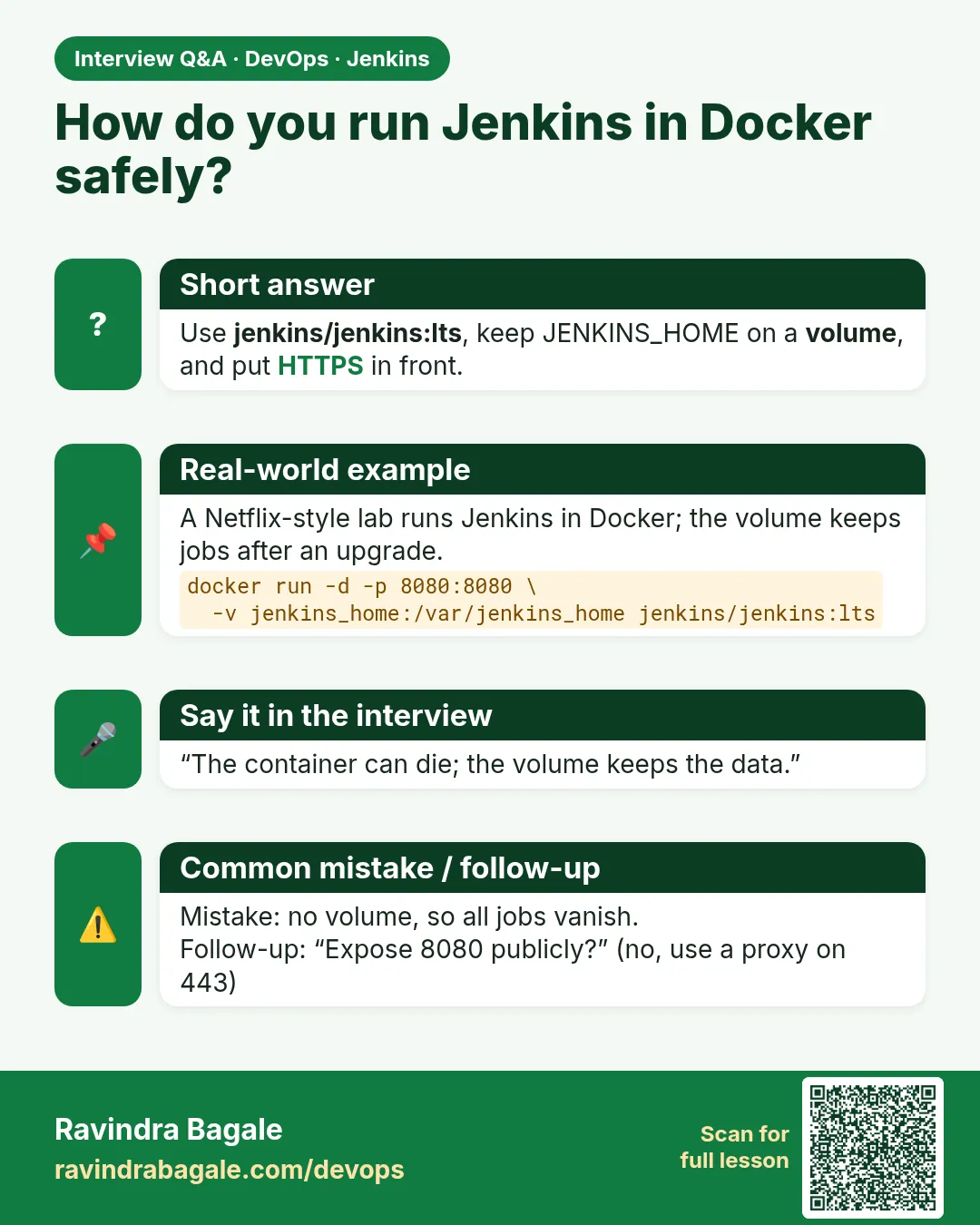
- docker run -d --name jenkins -p 8080:8080 -v jenkins_home:/var/jenkins_home jenkins/jenkins:lts-jdk17
- docker exec jenkins cat /var/jenkins_home/secrets/initialAdminPassword
Check: The Jenkins unlock page opens on localhost:8080.
Medium Break it on purpose
Why: You must know the red message by face. During an outage there is no time to read slowly.
What to do: Cause one error from the "When it is red" part of this lesson and fix it.
- Follow the error section.
- Copy the exact message into your notes.
- Write the fix in one line.
Check: You fixed it using only the steps, without searching the web.
Medium Write a one-page runbook
Why: At 2 a.m. nobody remembers where a file lives. A short page saves the on-call person.
What to do: Write a runbook page for this lesson.
- Title, when to use, exact command, how to check, how to undo.
Check: A teammate can follow it alone.
Medium Repeat it on a cloud VM
Why: A laptop is not a server. Real Jenkins runs on EC2 or a company VM.
What to do: Do the main steps of this lesson again on a small Ubuntu 22.04 EC2 instance.
- Launch t3.small with 20 GB disk.
- Open port 22 only to your IP.
- Repeat the steps and compare the output.
Check: Same green output on the VM as on your laptop.
Hard Explain it like an interview
Why: Interviewers want real stories, not definitions.
What to do: Record a 60 second answer about this lesson.
- Say the problem, the command you ran, and one error you hit.
Check: Your answer has a real command and a real error message.
Hard Draw the flow top to bottom
Why: A drawing shows who talks to whom and in what order.
What to do: Draw this lesson as boxes from top to bottom.
- Start at the developer push, go through the controller and agent, end at the result.
Check: Each box matches a real thing you saw on screen.
Homework: try at home
Try at home
At home, run Jenkins with Docker Compose behind nginx. Then add a second nginx server block for a fake domain in /etc/hosts and check that Jenkins builds links with your domain name, not localhost:8080.
Recap
- WAR: quick demo. Docker Compose: small teams. Helm on Kubernetes: big teams with pod agents.
- Always keep JENKINS_HOME on a volume.
- Put nginx with HTTPS in front and keep 8080 private.
- Allow only 22, 80, 443 with ufw and security groups.
- Set the Jenkins URL to the public https address.
FAQ
Which install is best for production?
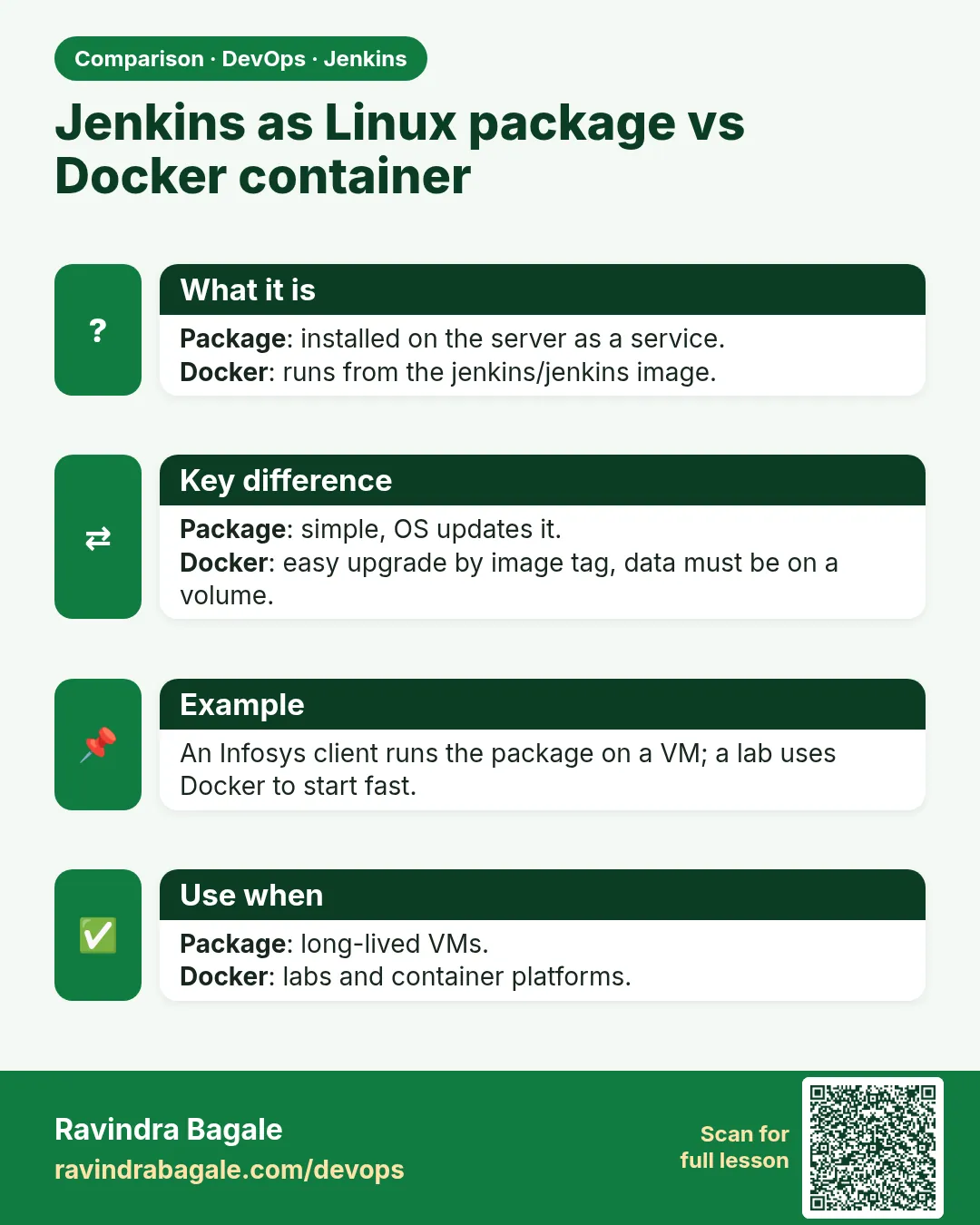
Package or Docker on a VM for most teams; Helm on Kubernetes if you already run Kubernetes well.
Can I skip nginx and use Jenkins HTTPS directly?
Possible, but nginx is easier for certificates and renewals.
Does certbot renew automatically?
Yes, a timer renews certificates before 90 days end.
Why a StatefulSet in Kubernetes?
Jenkins has one controller with its own disk; StatefulSet keeps the pod name and volume stable.
Can I run two controllers for high availability?
Open source Jenkins does not support active-active controllers. Use backups and fast restore.
Interview questions
-
What ways can you install Jenkins?
OS package, WAR file, Docker image, Docker Compose, Helm chart on Kubernetes, and cloud marketplace images.
-
How do you secure Jenkins on a VM?
HTTPS via nginx and Let us Encrypt, firewall to 22/80/443, Jenkins bound to localhost, login and roles, regular updates.
-
How does Jenkins on Kubernetes run builds?
The Kubernetes plugin creates an agent pod for each build and deletes it after.
-
What is a reverse proxy and why use it?
A server in front of Jenkins that handles TLS, domain names and headers, and hides port 8080.
-
How do you keep Jenkins data safe on Kubernetes?
Persistent volume for JENKINS_HOME, backups or snapshots, and config as code.
Quick quiz
Q1. Which way is fastest for a demo?
java -jar jenkins.war.
Q2. Why use expose instead of ports for Jenkins in Compose?
So 8080 is reachable only from nginx, not from outside.
Q3. What does the Helm chart create?
A StatefulSet, Service, volume and config for Jenkins.
Q4. Which ufw rule must come first?
Allow OpenSSH.
Q5. Which header tells Jenkins the user used HTTPS?
X-Forwarded-Proto.
Did you understand? Let us try it once more.
 Revision card
 Interview card
 Comparison card